Branding Management
12 min
Feature Overview
Self-Service Branding Management allows SHI One Account Admins to directly customize their storefront’s branding, including updating the logo, welcome message, and storefront display name.
Who it’s for: SHI One Customer Admins managing storefront branding and appearance.
Key outcomes: Immediate storefront branding updates, increased admin control, consistent brand experience.
Key Terms Explained
- Storefront Logo: The image representing your organization on your SHI One storefront (formerly Org Unit).
- Welcome Message: A customizable message/banner displayed on the storefront’s home page.
- Storefront Name: The display name for your storefront, visible in SHI One account dropdowns and headers.
- Account Admin: User with permission to manage account-level settings, including branding.
Functionality Overview
- Change Logo: Upload, crop, and manage your company’s logo.
- Custom Welcome Message: Edit and preview a personalized message or banner for the storefront home page.
- Update Storefront Name: Change the display name visible throughout SHI One.
- Preview Branding: Instantly preview changes before saving.
- Role-based Access: Only Customer Admins can make these changes.
Notes/Constraints
- Logo files must be a maximum of 1080x1080px, square aspect ratio.
- Changes require saving to go live.
- Feature only visible to Account Admins.
Getting Started
Prerequisites
- Accounts/roles required: SHI One of Admin or Global Admin
- Configuration required: None
- Data required: Logo image file (if uploading), welcome message text.
Accessing the Feature
- Navigate to SHI One > Settings via Left Nav > Storefronts > [Select Storefront] > Settings tab.
- Also accessible via Organization drop down in top right > Storefronts > [Select Storefront] > Settings tab.
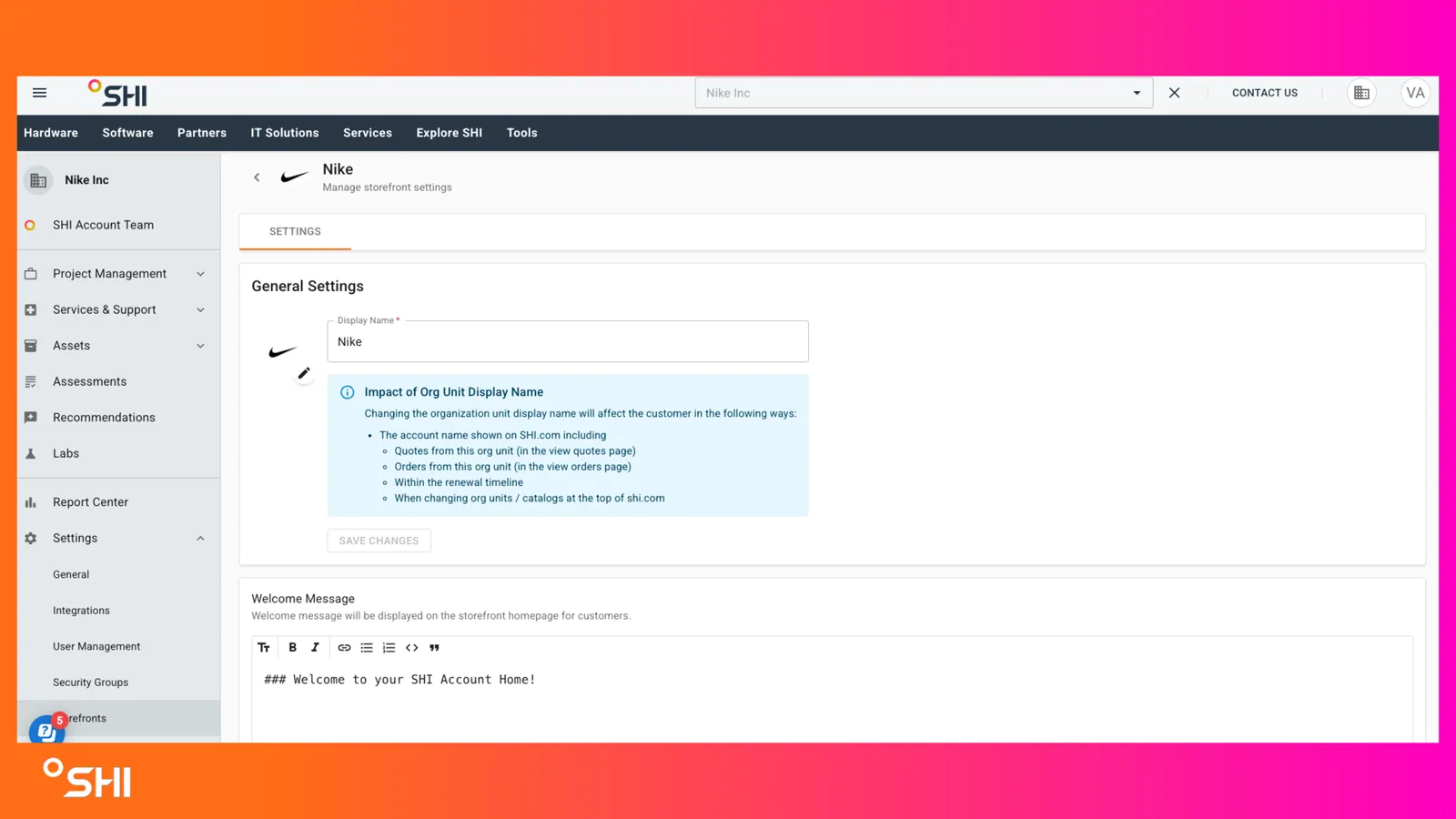
Using Self-Service Branding Management (Step-by-Step Guides)
1. Changing the Storefront Logo
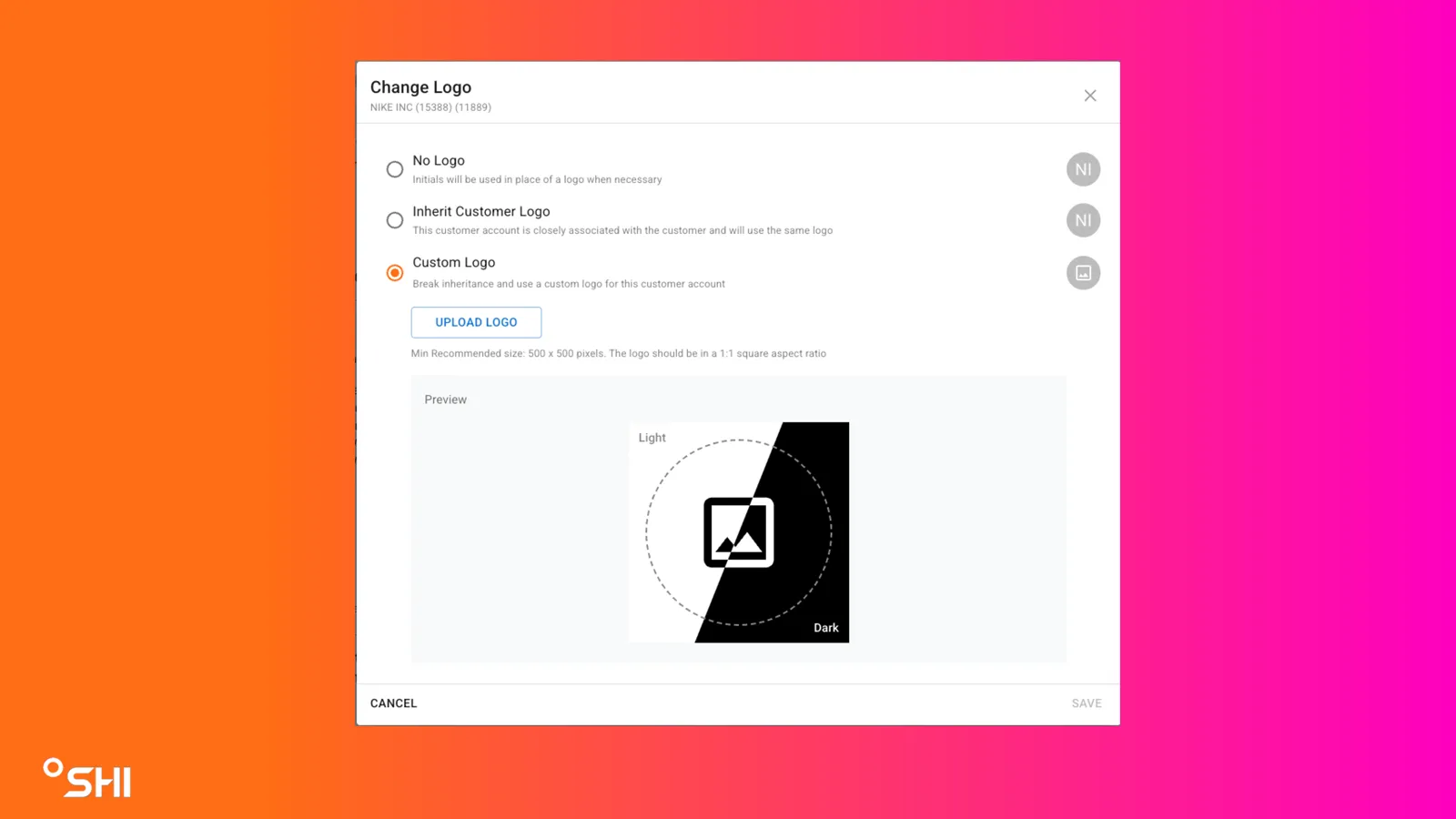
- In General Settings, click the logo or pencil icon to change the logo.
- In the Change Logo dialog, select one of:
- No Logo: Use initials as logo.
- Inherit Logo: Use parent/customer’s logo (shows preview in light/dark mode).
- Upload Logo: Upload a custom image with auto transformation for background and width.
- If uploading, click Upload Logo, select your image, review/crop as needed.
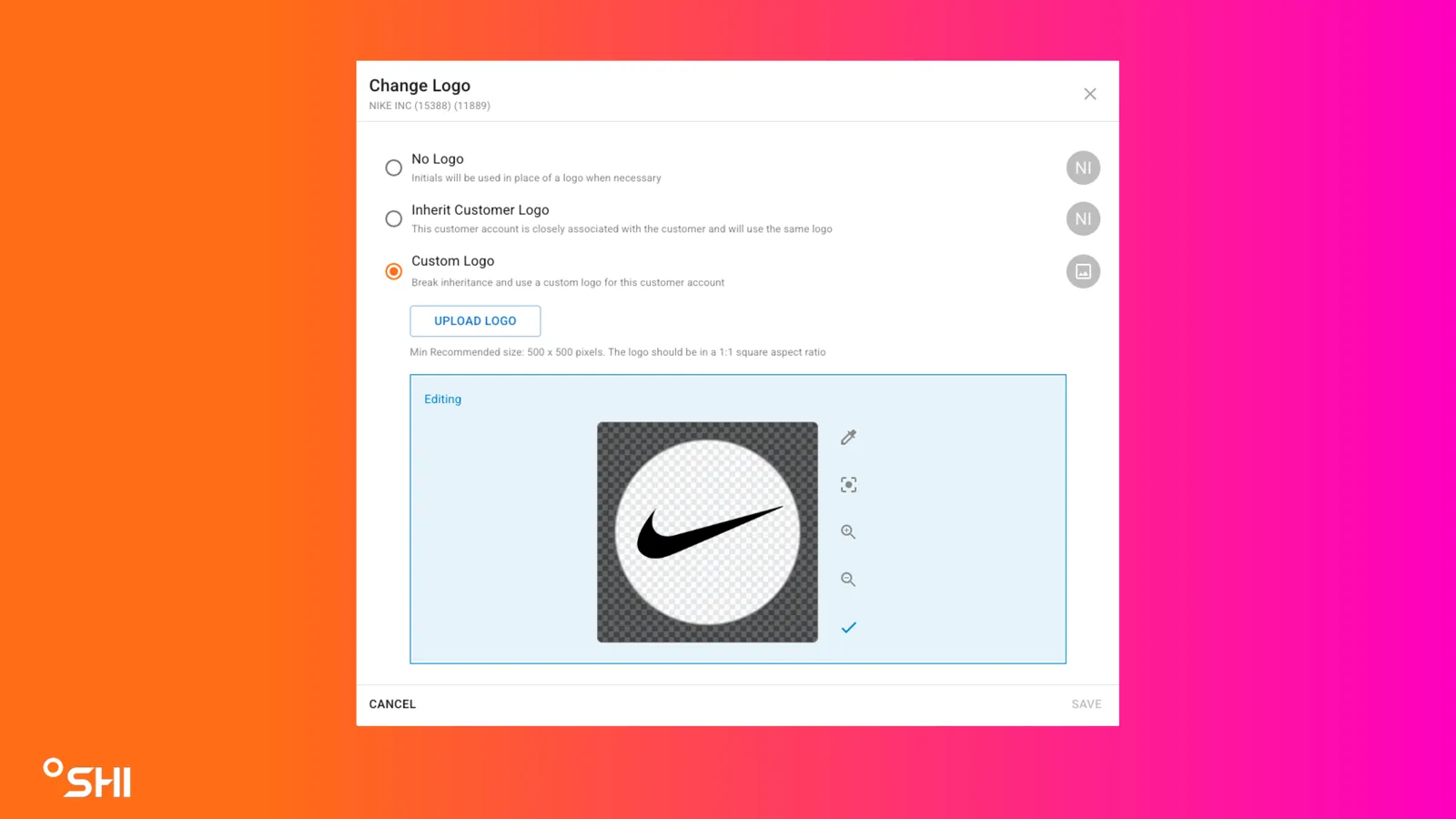
- Select the blue check mark to stop editing.
- Preview your logo in light and dark mode.
- Click Save to confirm changes.
- Result: The updated logo displays on the storefront.
2. Changing the Storefront Display Name
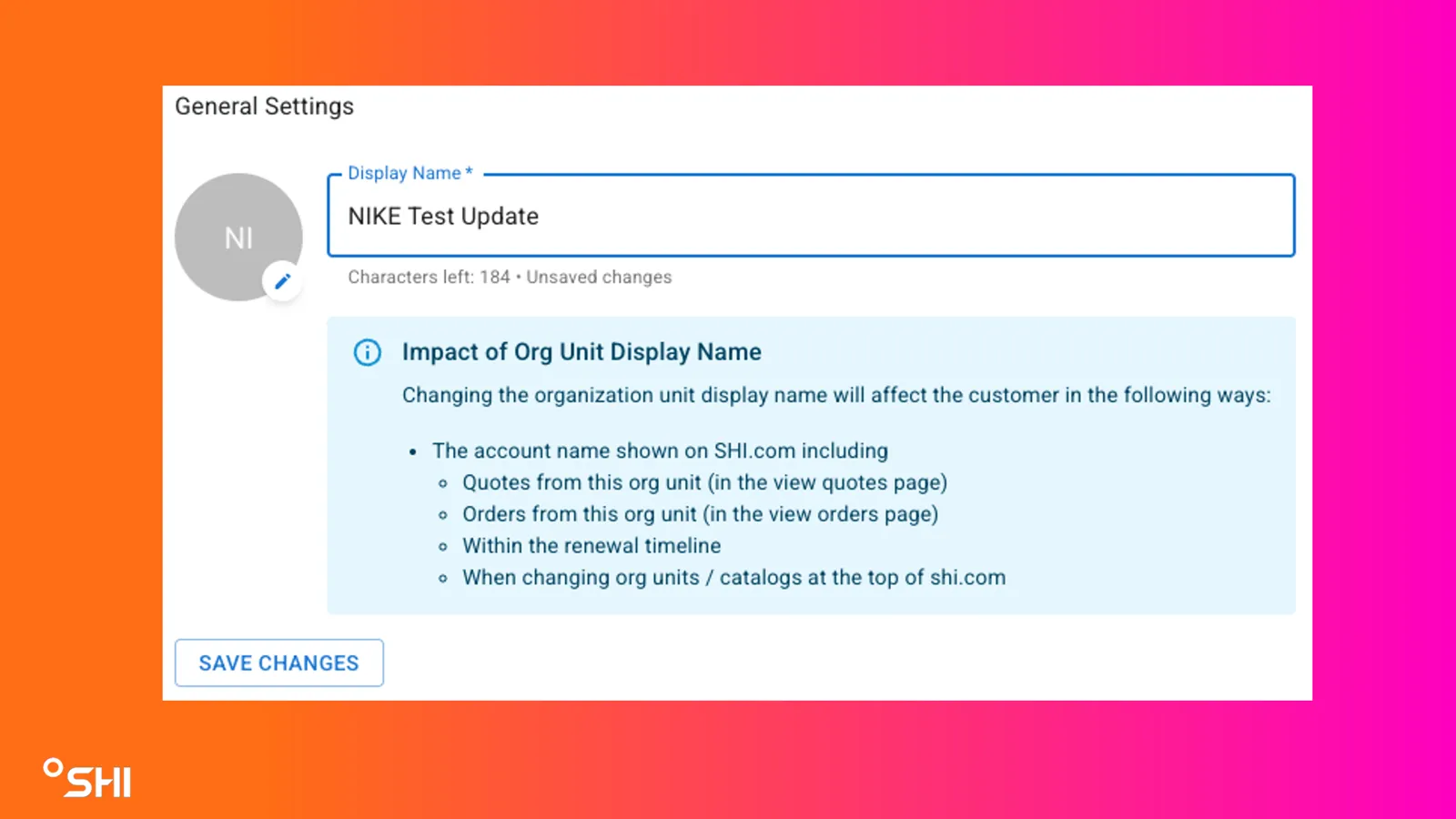
- In the Display Name field, enter the new name.
- Review the warning about the impact of changing the display name.
- Click Save Changes to apply.
- Result: The storefront name updates in all navigation and account dropdowns.
- Be aware, this display name will be updated in many places across SHI One including on the account dropdown, the homepage, as well as on quotes and orders.
3. Editing the Welcome Message
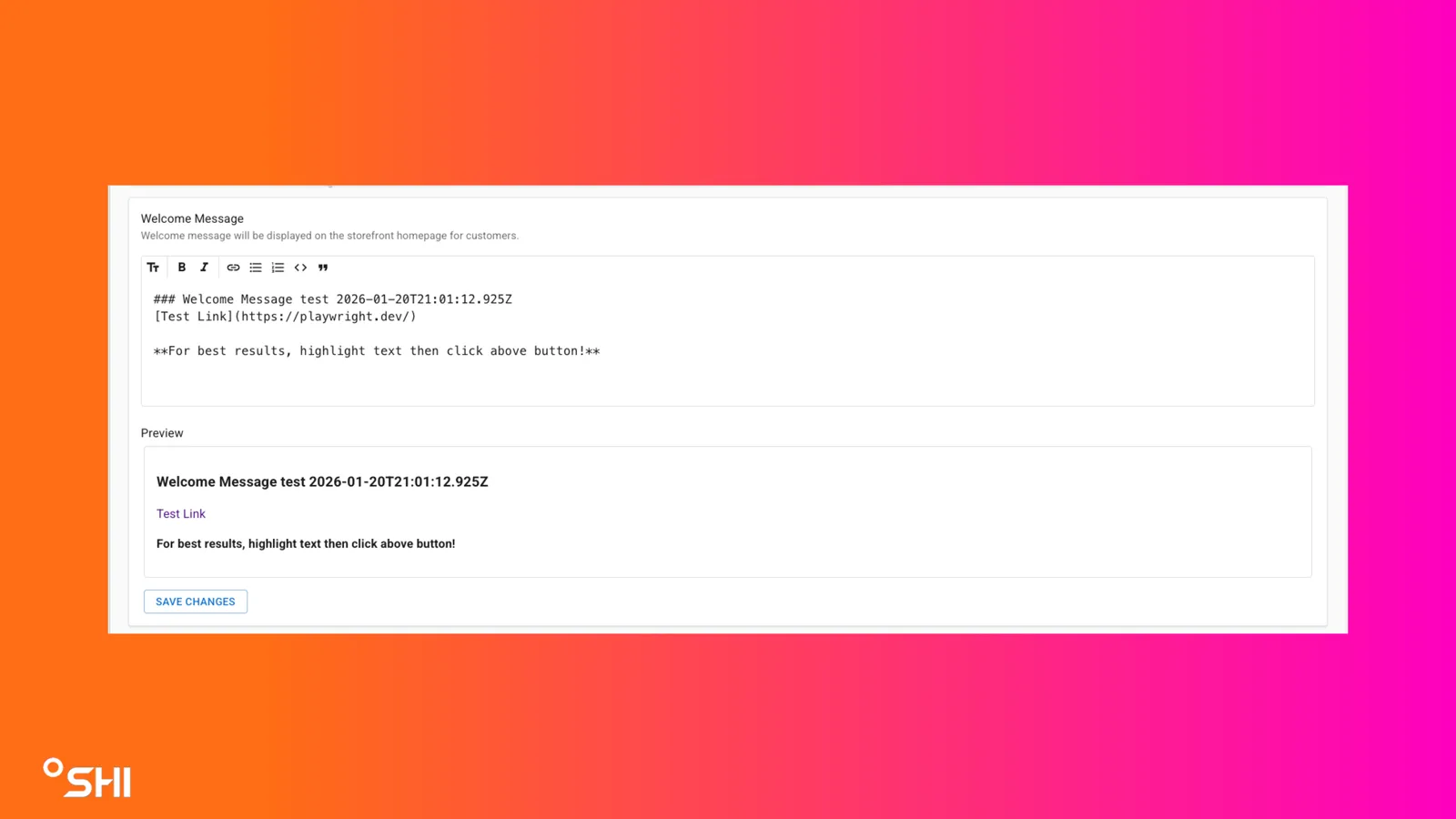
- In the Welcome Message section, enter your text using the formatting toolbar.
- This is in markdown format, you may reference this for help: Markdown Cheat Sheet.
- For best results, type your text and highlight, then select the functions like bold, italics, and header types
- Click Preview to see how it looks.
- Click Save Changes to publish.
- You can view the preview of this message directly below the text box, updating live.
- Result: New message appears on the storefront home page for all users.
Use Cases & Scenarios
- Account Admins update logo after a rebrand.
- Account Admins update a logo for a child subaccount.
- Admins add seasonal or event-based welcome messages.
- Admins change the storefront name after organizational changes.
Best Practices
- Use a high-resolution, square logo. Keep messages concise. Preview all changes before saving.
Troubleshooting and FAQs
Common Issues
- Logo upload fails: Ensure the image is under 1080x1080px and a supported format (PNG, JPG).
- Changes not visible: Confirm you clicked Save Changes and refresh the page.
- No permission to edit: Check your account role or contact your organization’s primary admin.
FAQs
- Can I revert to the parent logo?
- Yes, select “Inherit Logo” and save.
- Who sees the welcome message?
- All users on your storefront home page.