Discovered Assets
Feature Overview
This guide introduces you to Discovered Assets in SHI One - an all-in-one place to track and manage any Assets that SHI One has "discovered" through various API connections (such as with Cisco, AWS or Azure), or through manual creation by users.
How to use the feature
- Log in to SHI One
Go to one.shi.com and log in using your organization’s standard authentication method.
- Navigate to Discovered Assets
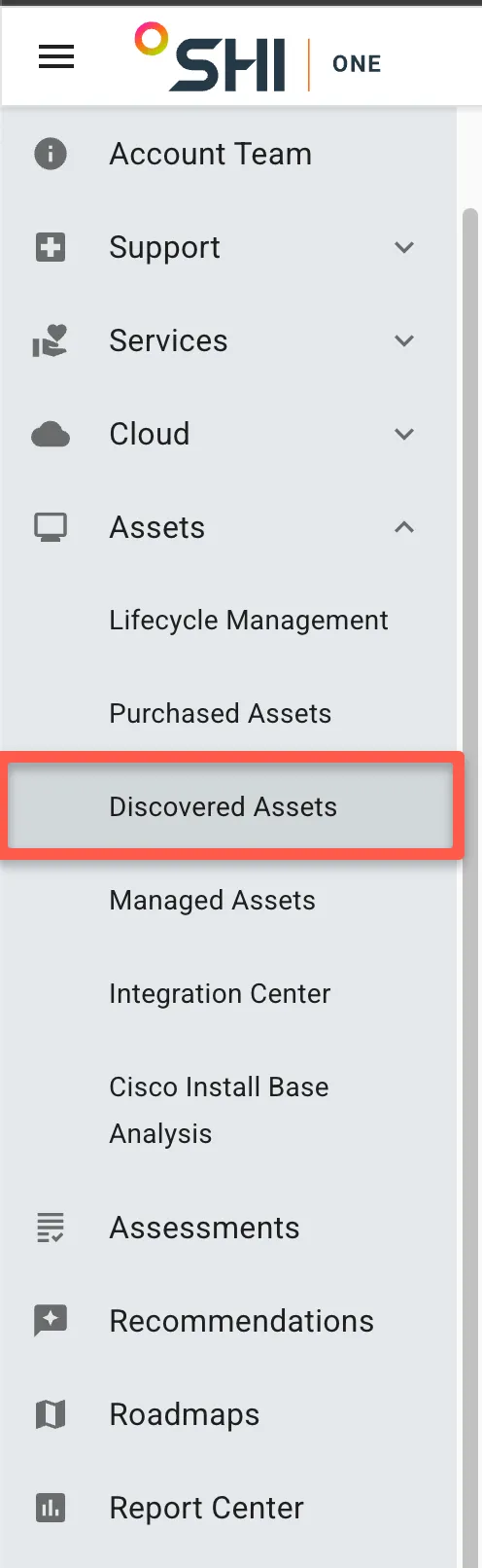
From the left-hand side, click Assets -> Discovered Assets
Access & Requirements
- Admins or Users with "View Asset Inventory" permissions
Use Cases & Scenarios
- Primary Use Cases:
- Track assets which were not procured through SHI
- Best Practices:
- Work with your SHI team to get connected to APIs (eg. Cisco, AWS, Azure, etc.)
- When uploading assets to SHI One via the Template, provide as much detail as possible
Troubleshooting and FAQs (optional)
- Common Issues:
- When uploading assets to SHI One, it may take up to an hour for the new inventory to populate.
- FAQs:
-
By Asset
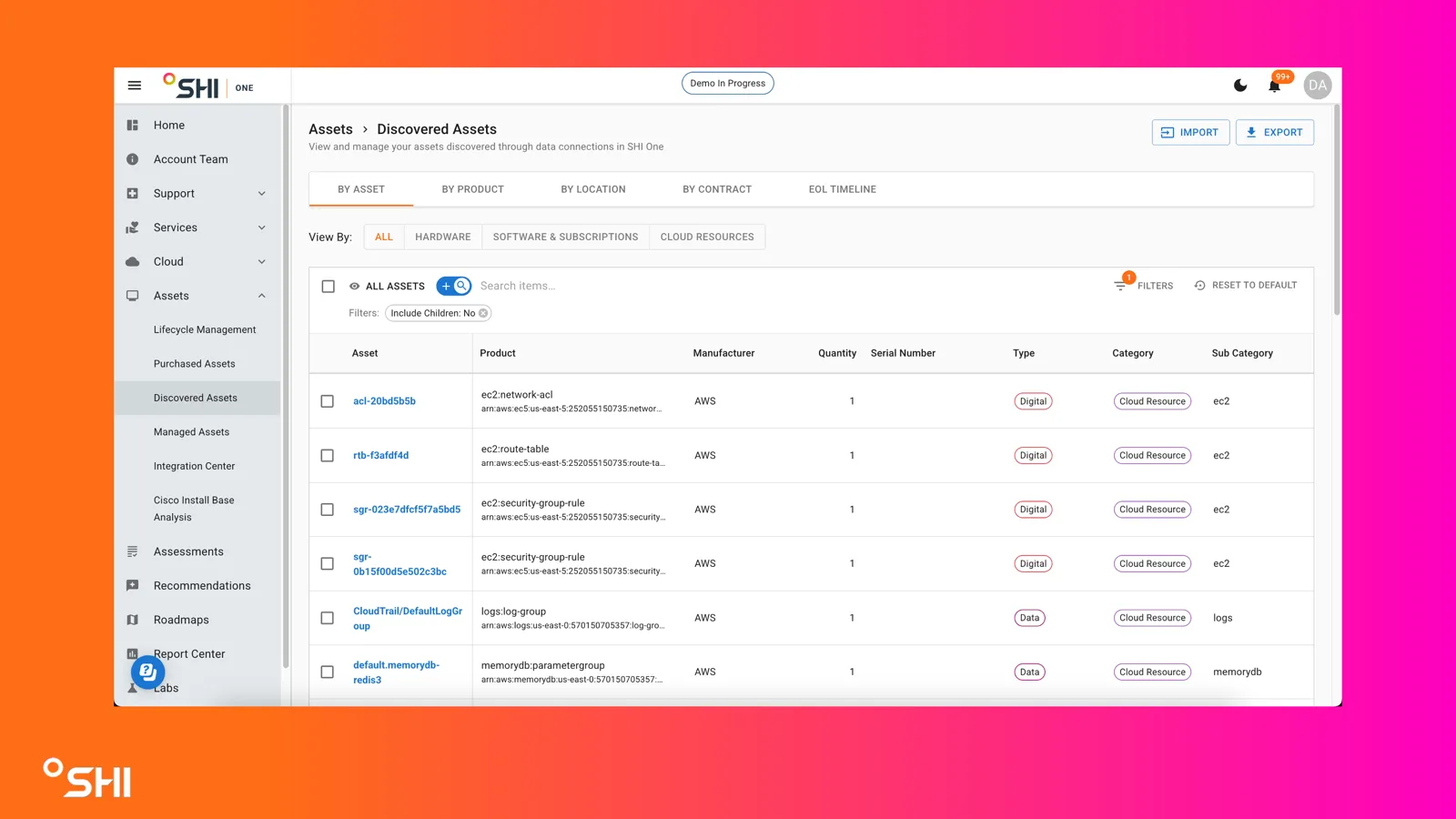
View all of your Discovered Assets at a per-asset level. Each asset will have a unique ID, a product, manufacturer, etc.
By default, you will be viewing all assets. You can click on the "Hardware," "Software & Subscriptions," or "Cloud Resources" buttons to view only a certain type of Discovered Assets. You can also search for specific assets, manufacturers, or other details. Filters can also be applied to the list of assets to further refine the assets being displayed.
By Product
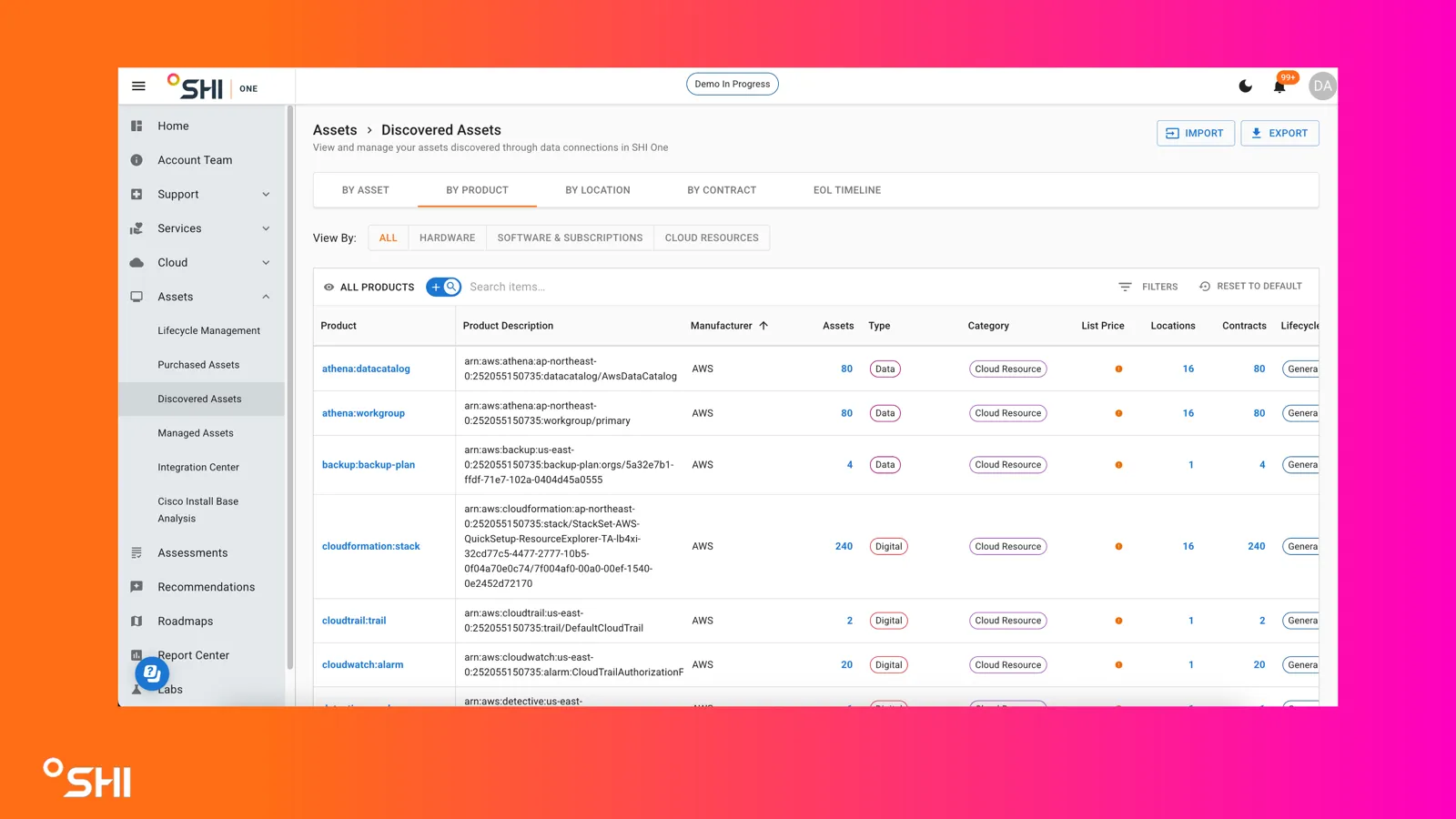
View all of your Discovered Assets, organized by specific products.
This will allow you to view which products are in your environment, how many you have, and how many locations that inventory is spread across.
By Location
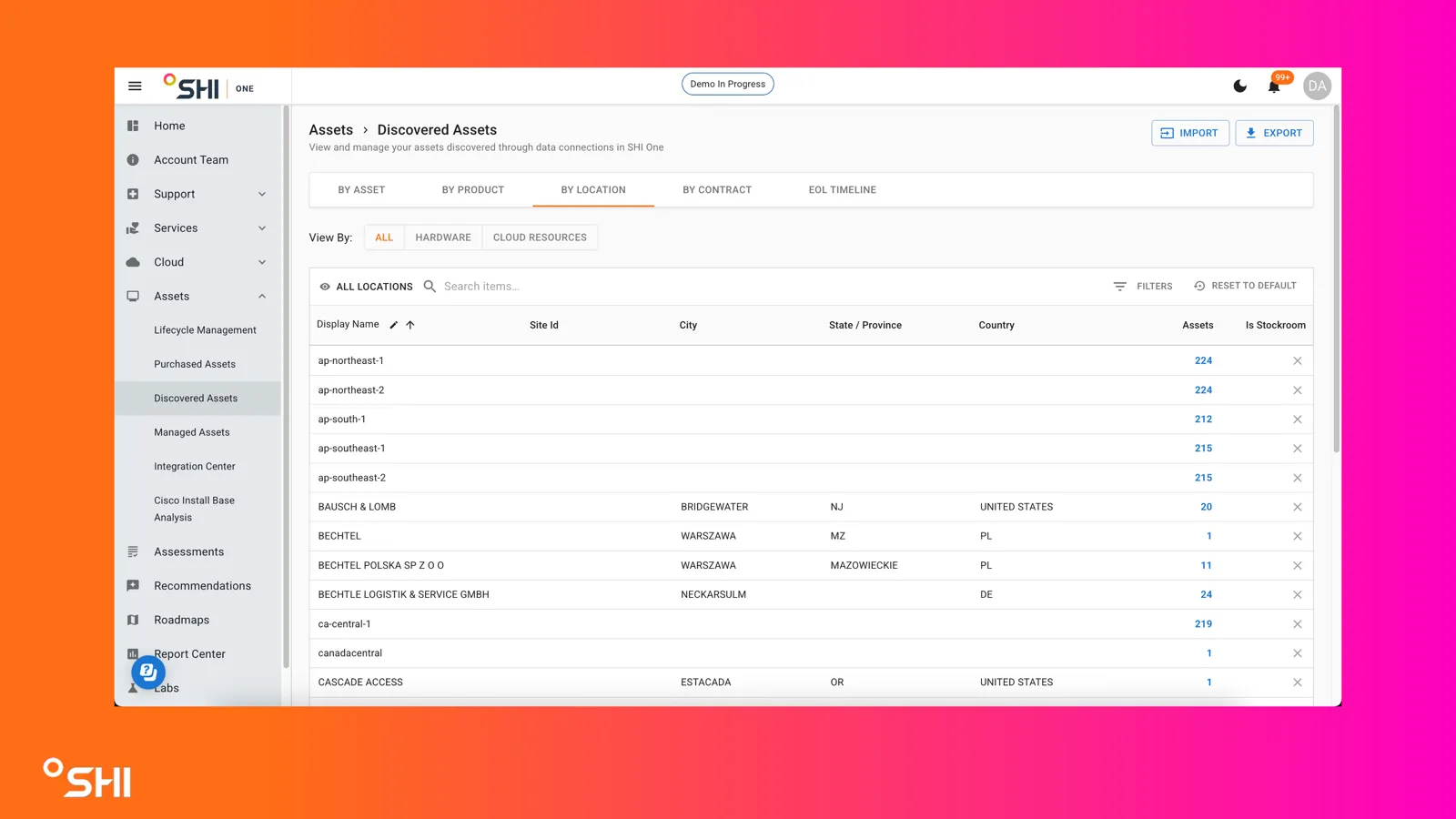
View the list of locations where one or more Discovered Assets are located. You will see the Site ID, location details (such as City, State / Province, Country), and how many assets are at that location. Clicking on the number of assets will show which assets are present at that location.
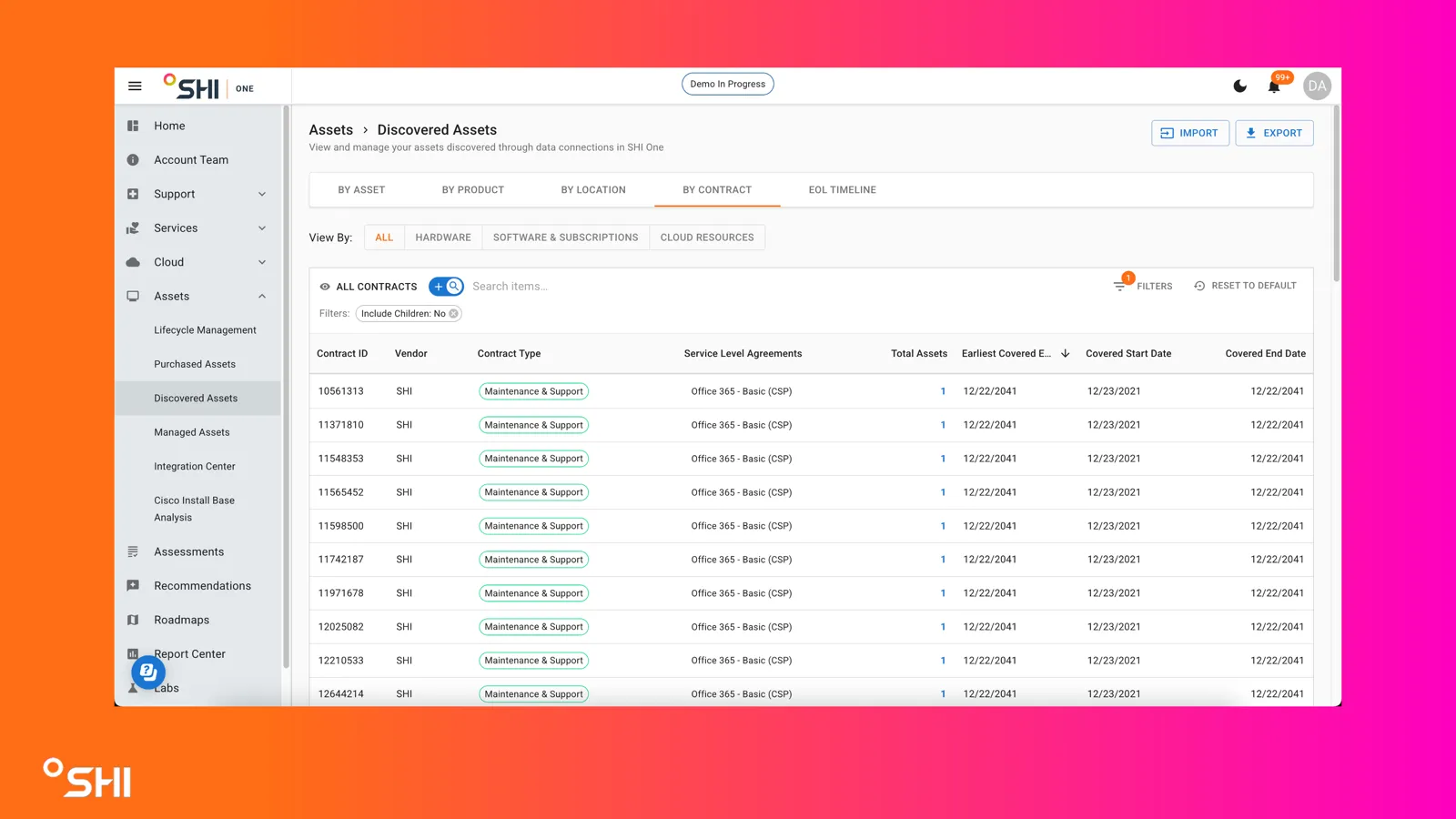
By Contract
View the list of contracts that have Discovered Assets associated. You can view the type of contract (eg. Maintenance & Support), SLA, total number of covered assets on that contract, and coverage start & end dates. Clicking on the number of assets will show the individual assets covered by the contract.
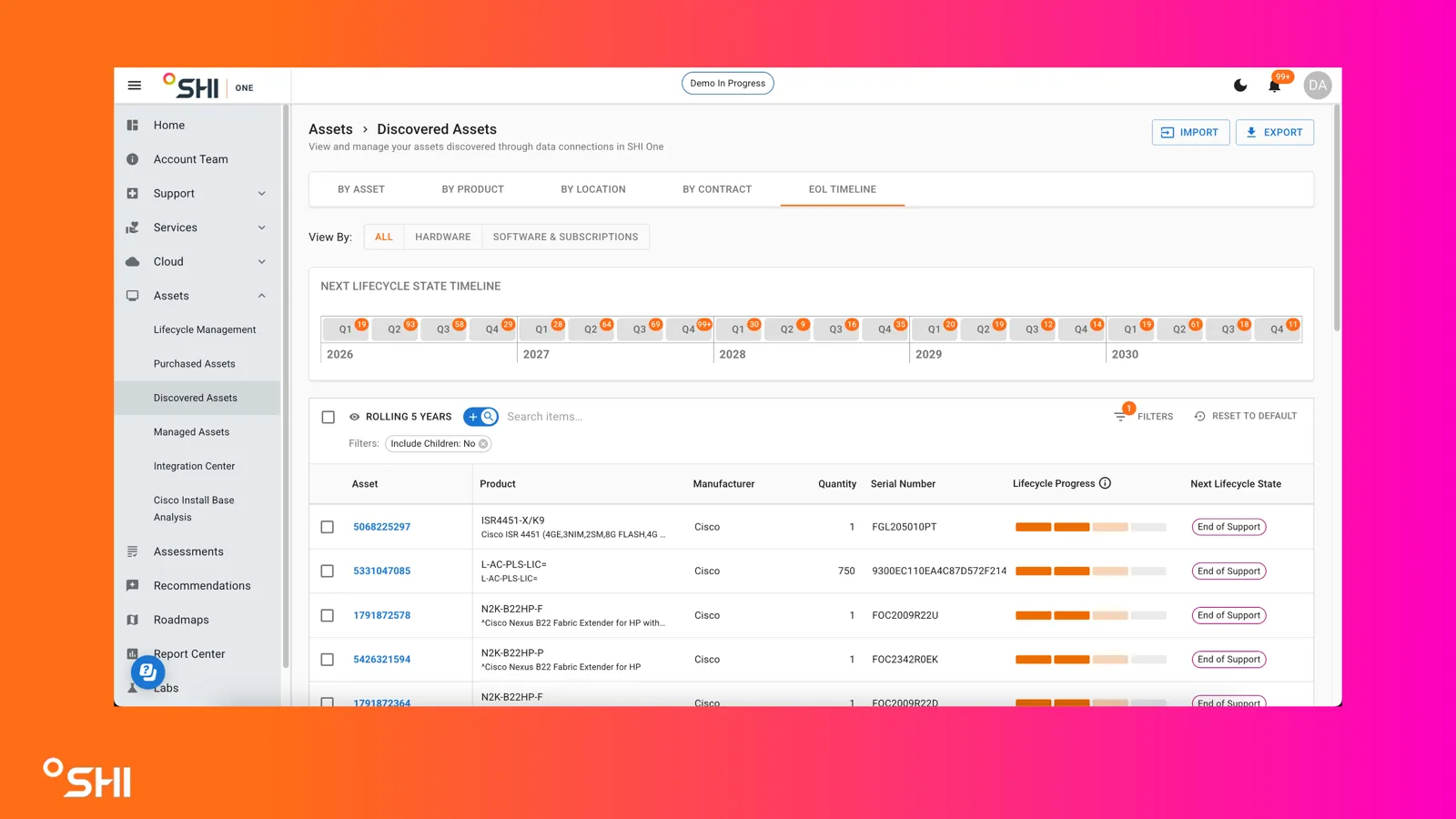
EOL Timeline
The EOL Timeline page shows a rolling 5-year timeline of any upcoming lifecycle events for the Discovered Assets within SHI One.
The timeline shown at the top will split out by years and quarters, with a count showing how many assets have an event in each given quarter. You can click on the year or the quarter in order to filter the table below to only the assets with an event in that time period. Assets will be listed on the table below on an individual asset basis. Each asset also has a progress tracker showing its current lifecycle state.
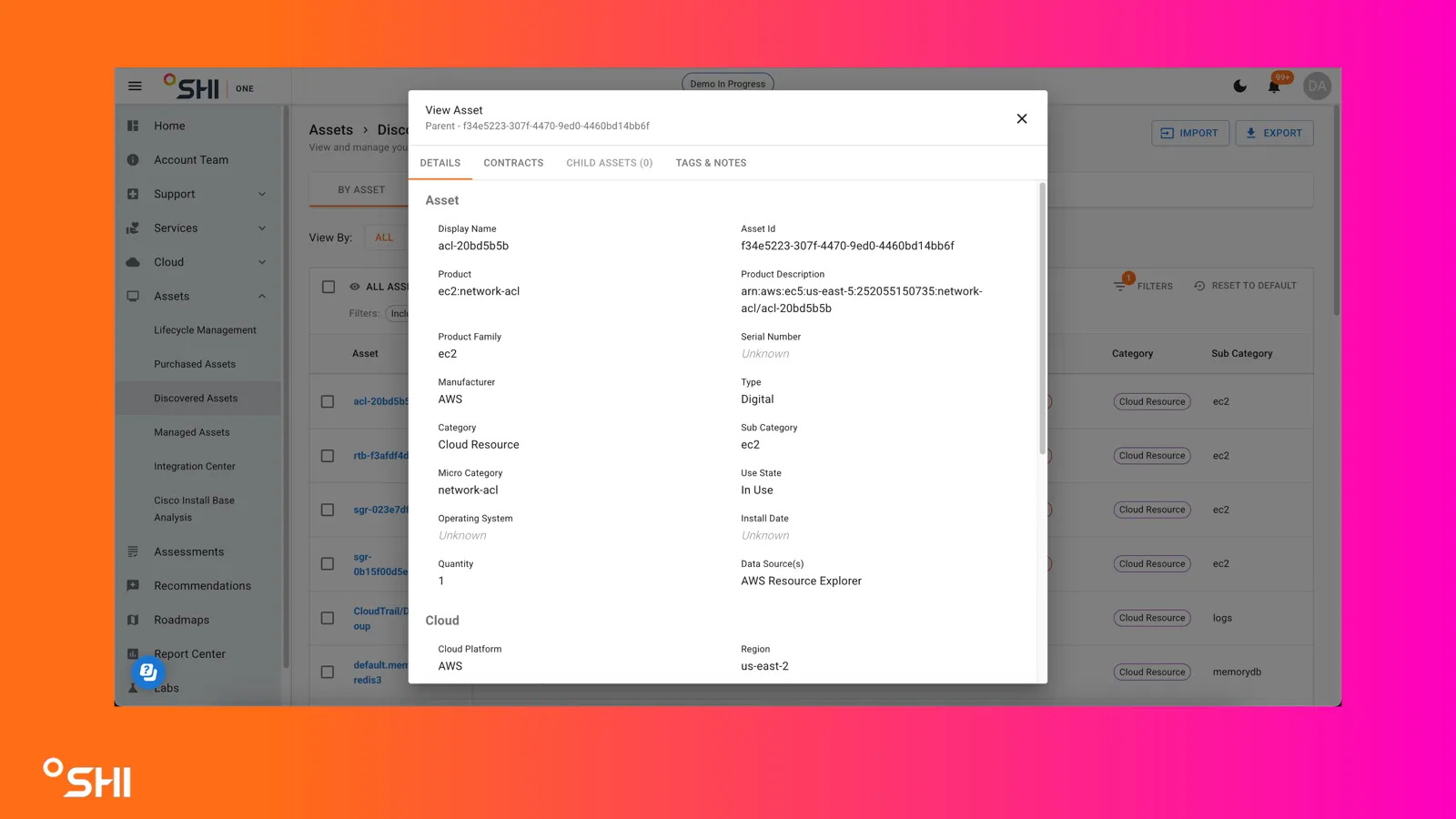
Asset Detail view
Clicking on any of the specific assets will bring up the Asset Detail view. This will display all of the information SHI One knows about this specific asset.
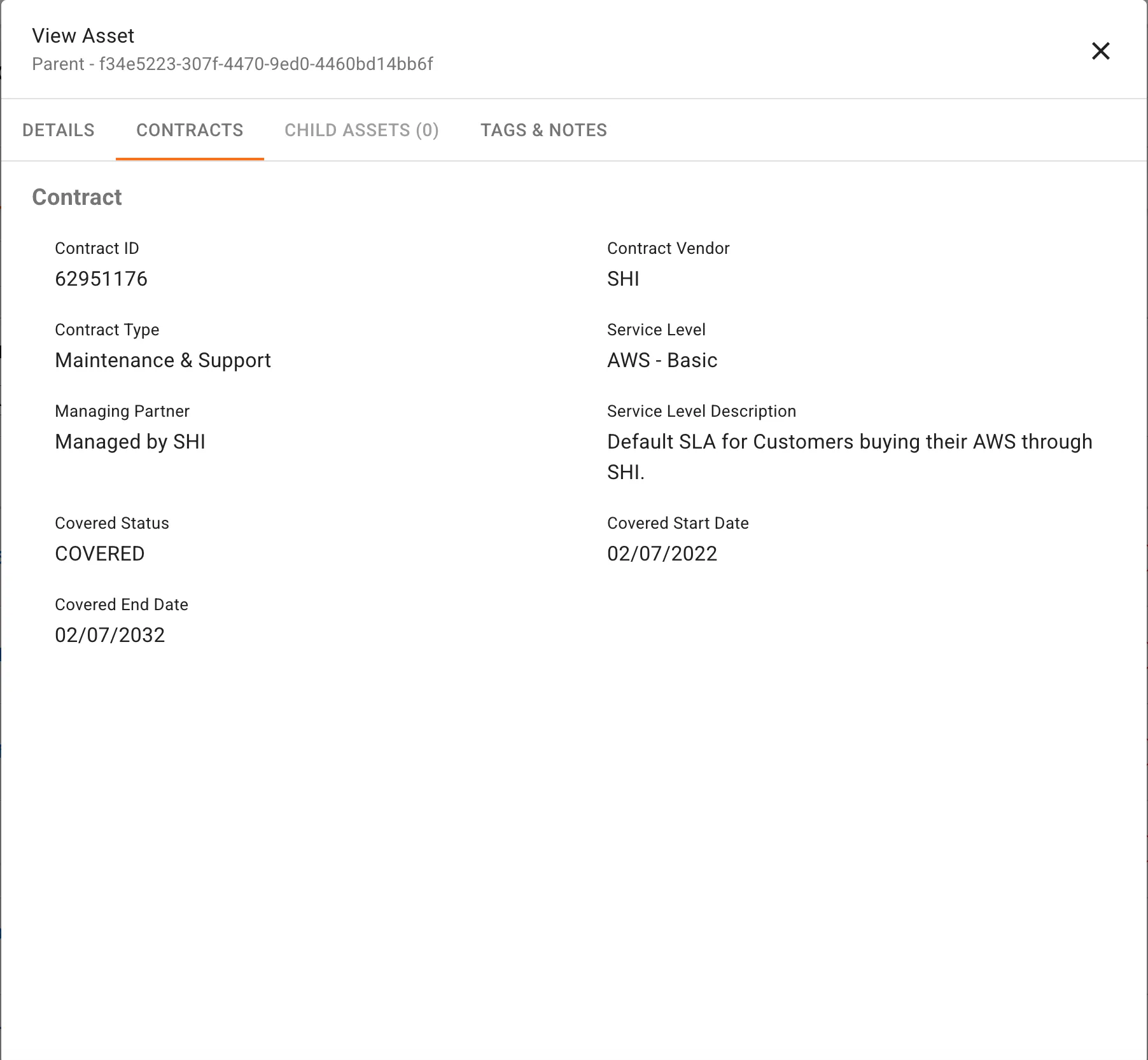
Contracts tab
The Contracts view will show any known Contract that the asset is linked to (such as a support contract).
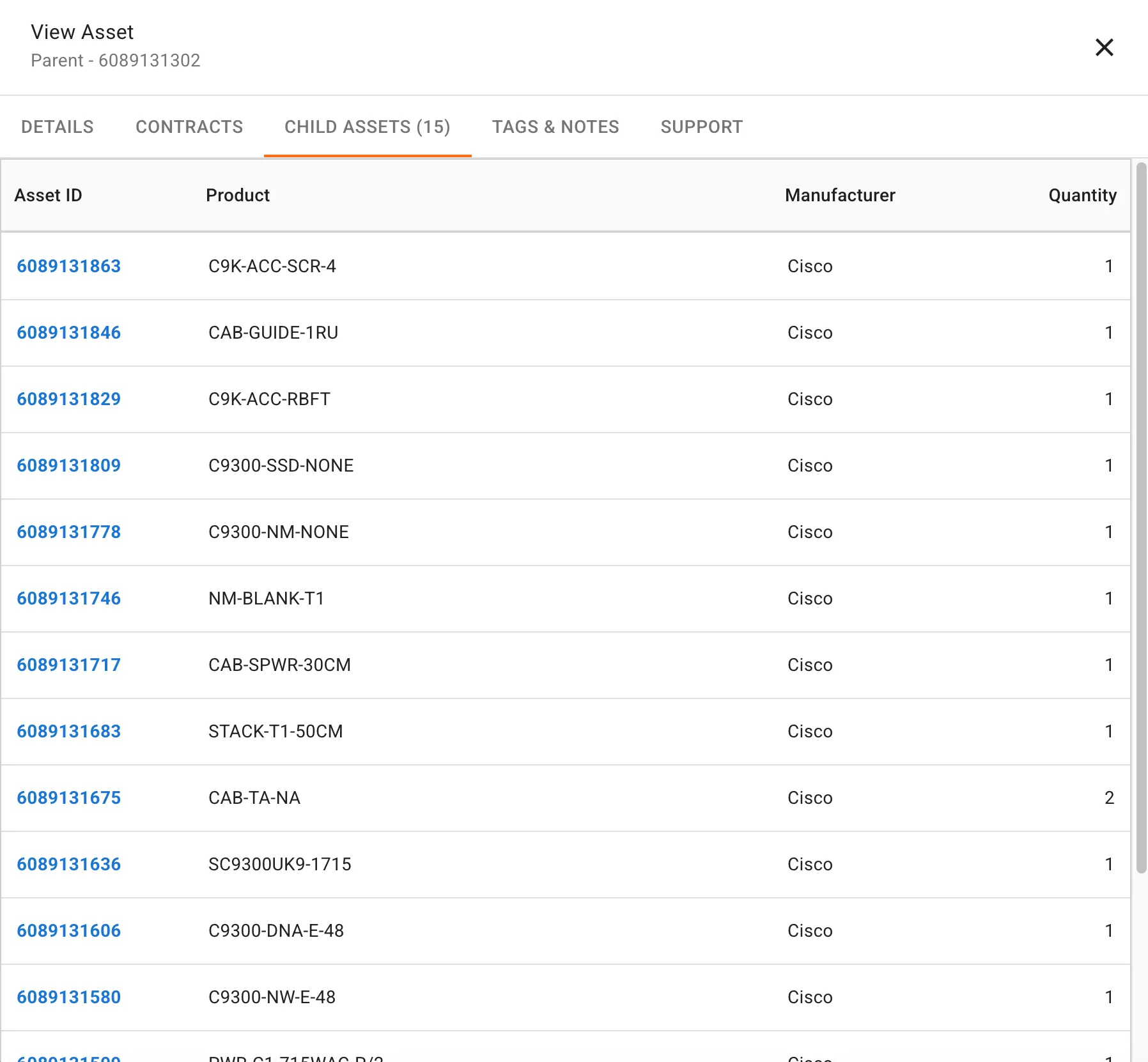
Child Assets tab
If an asset has any Child Assets, they will be shown in this tab. You can click on the Asset ID of any Child Asset in order to view the details on that individual asset.
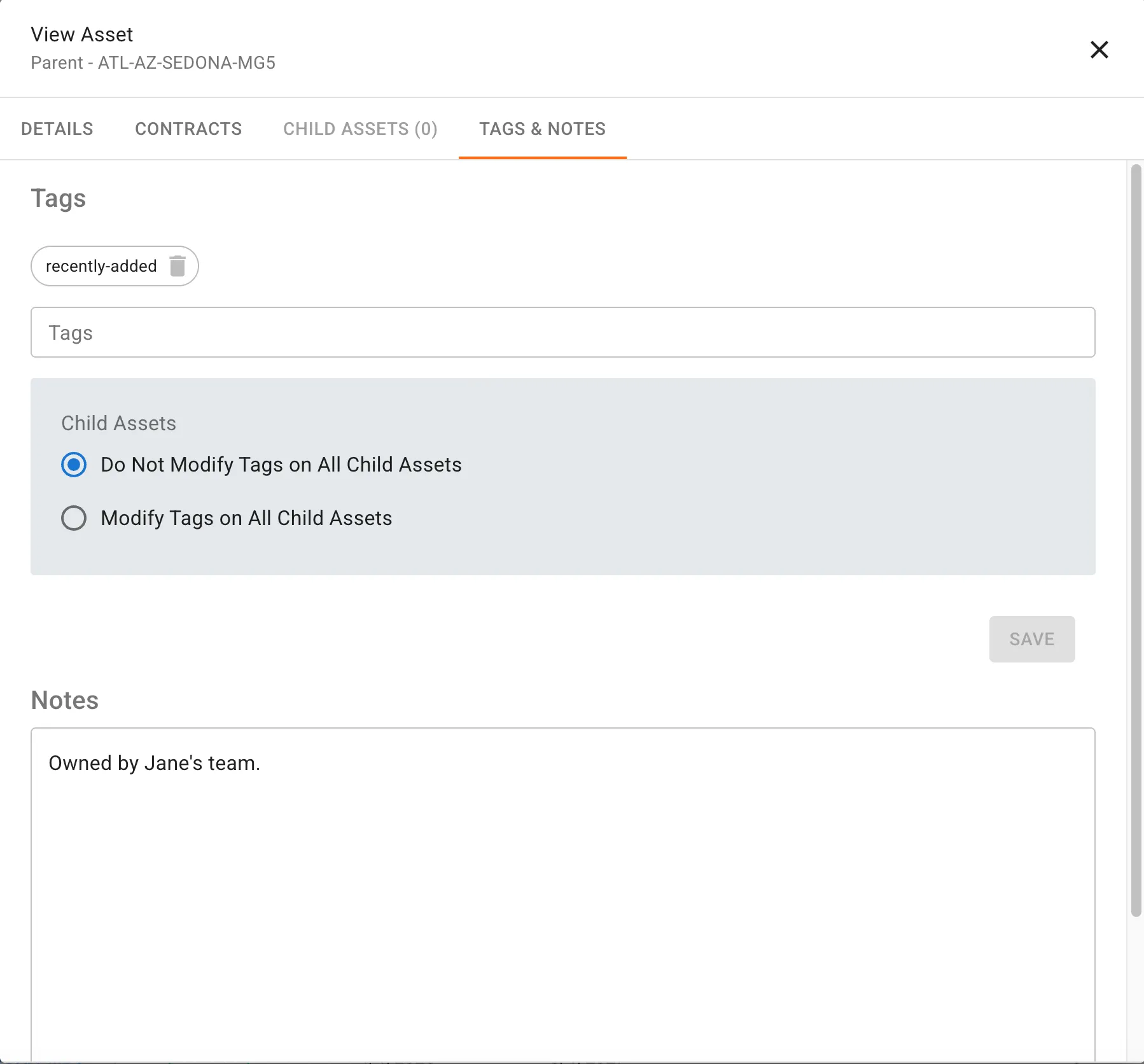
Tags & Notes tab
In order to help organize and manage Discovered Assets, you can add tags and notes to any asset in Discovered Assets. There are no restrictions on the Tags, you may add as many as you like. Clicking into the Tags field will show a list of any existing tags. Notes will be visible to any other SHI One users within your organization, making it easy to communicate important information to other members of your team.
Note that Tags may also be used to filter the list of Discovered Assets.
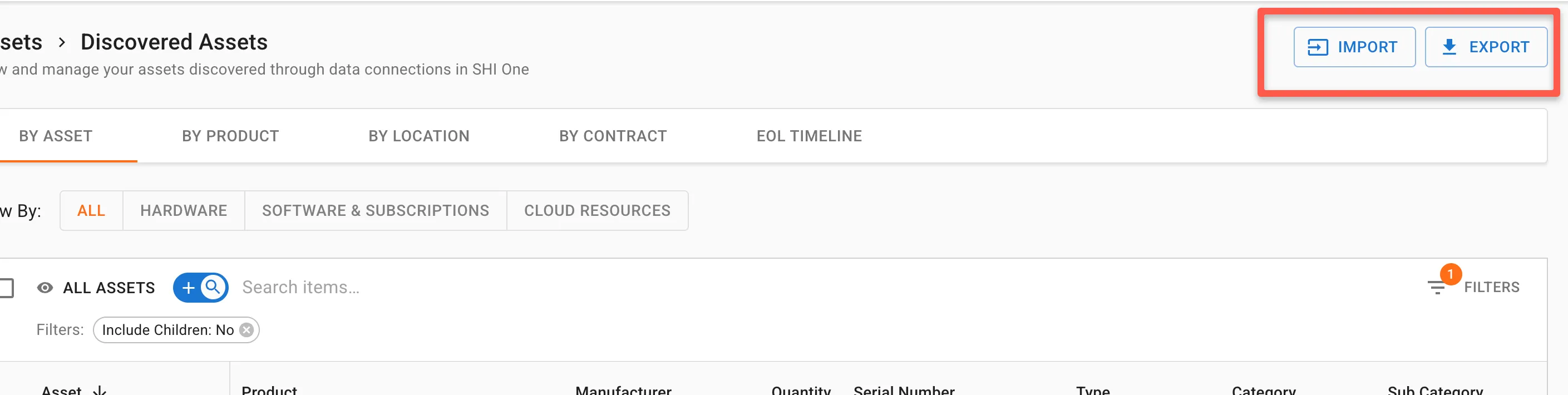
Import and Export
You can add new assets to SHI One, or export the list of assets that are known to the platform.
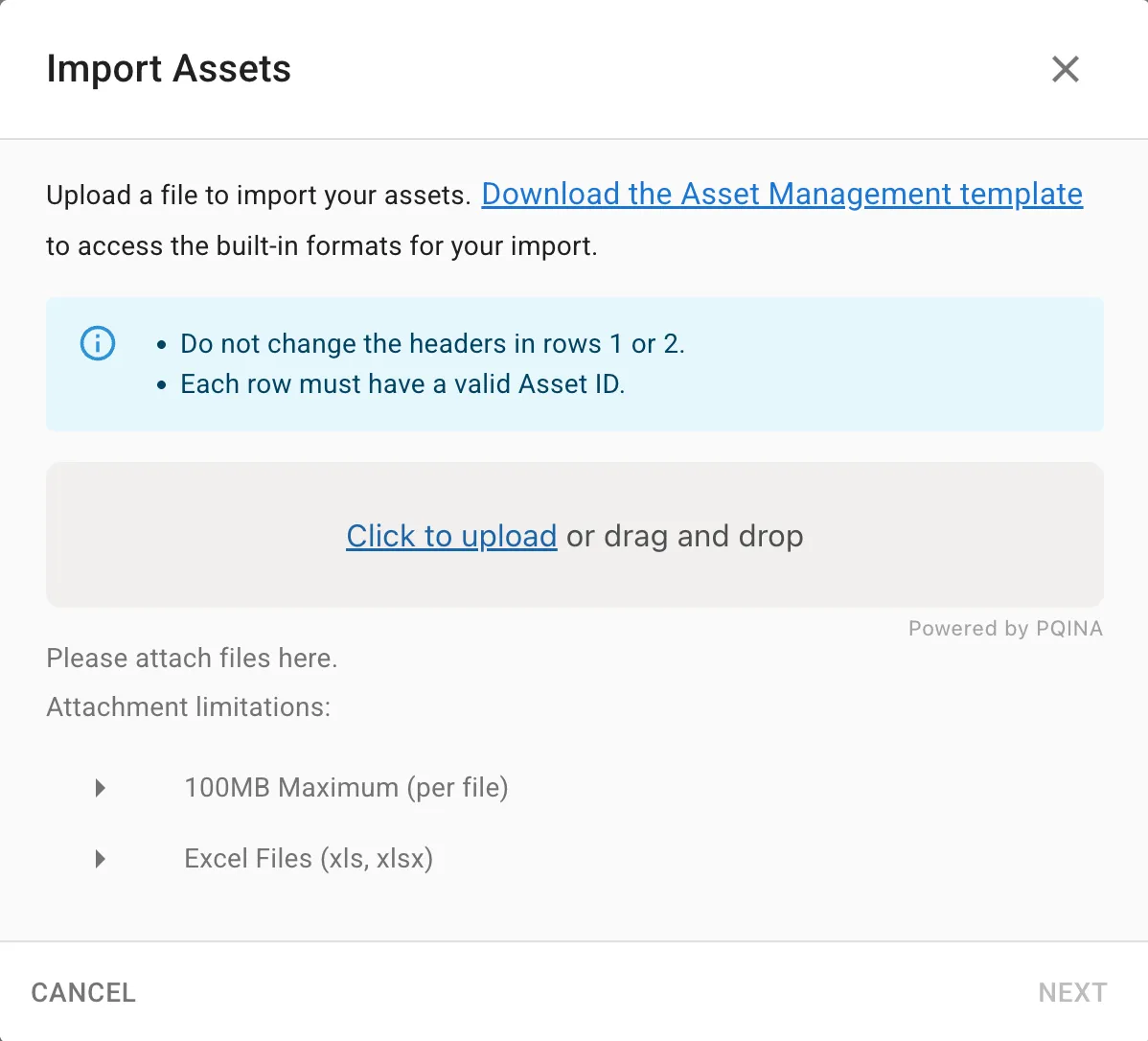
Import
Clicking on the Import button will allow you to bulk import assets to SHI One.
There is an Asset Management template which should be used when bulk importing. Clicking on the "Download the Asset Management template" link will download that template.
Export
Clicking on the "Export" button will download the inventory of Discovered Assets from SHI One to a Excel file. Note that this will respect any filters that you have set, so won't need to sort through them again once you've exported them.