Exporting Report Data
8 min
Feature Overview
Exporting report data allows users to download request information for offline analysis, customer presentations, and business reviews.
Functionality Overview
Users can:
- Export request data.
- Export filtered results.
- Use exported information outside the reporting application.
Getting Started
Accessing the Feature
- Open the SHI One Service Report.
- Navigate to the desired report view.
Using Exporting Report Data (Step-by-Step Guides)
1. Exporting Request Data
- Apply any required filters.
- Select Export to Excel.
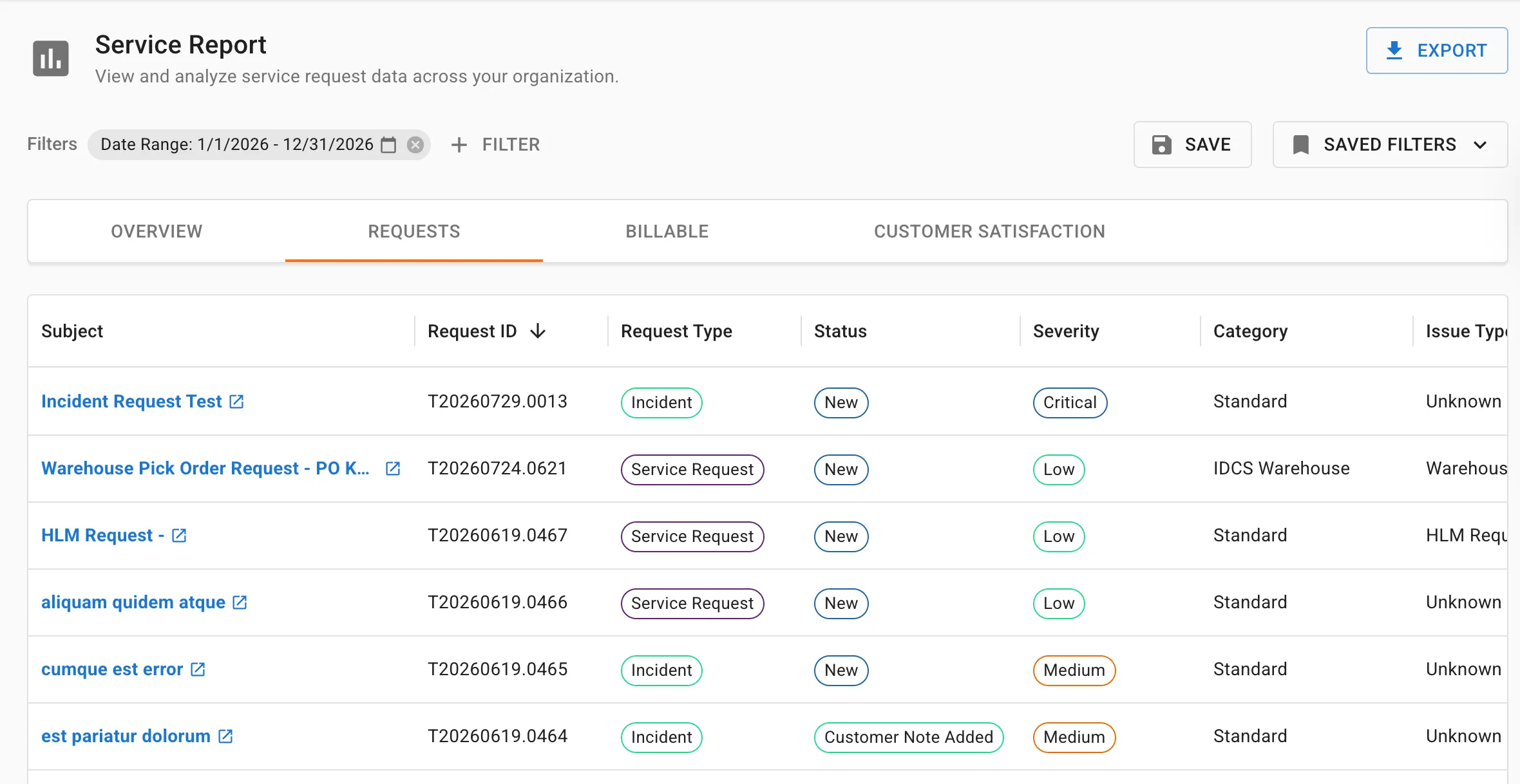
- Save the downloaded file.
- Result: An Excel file containing filtered request data is generated.
2. Preparing Data for Business Reviews
- Apply customer-specific filters.
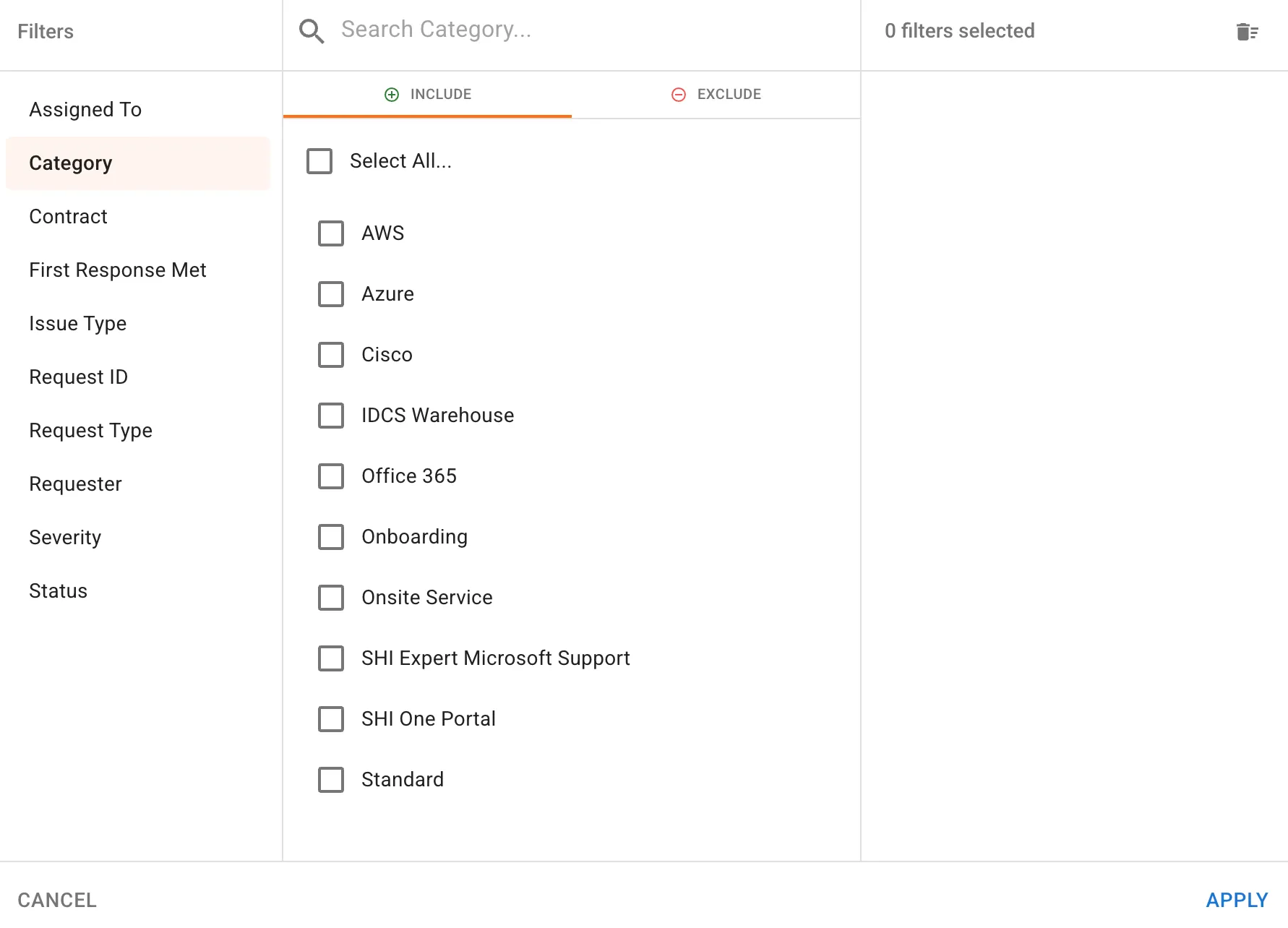
- Export the data.
- Review results in Excel.
- Result: Data is available for QBRs and customer meetings.
Use Cases & Scenarios
Primary Use Cases
- Quarterly Business Reviews
- Customer reporting
- Trend analysis
- Offline investigation
Best Practices
- Filter before exporting.
- Verify date ranges before downloading data.
- Use exports to supplement report visualizations.
Troubleshooting and FAQs
FAQs
Q: Does the export include active filters? A: Yes. Exported data reflects the currently selected filters.
Q: Can I export data from any tab? A: Export functionality is designed to support reporting and request-level analysis. Verify export availability in your selected report view.
Key Terms Explained
- Export: Downloading report data to an Excel file.
- Filtered Dataset: Data limited by selected report filters.