First Time User
First Time Login for Users
Use Chrome, Edge, or Firefox as your browser. Internet Explorer is not supported.
- Navigate to https://one.shi.com and you will see the following login options
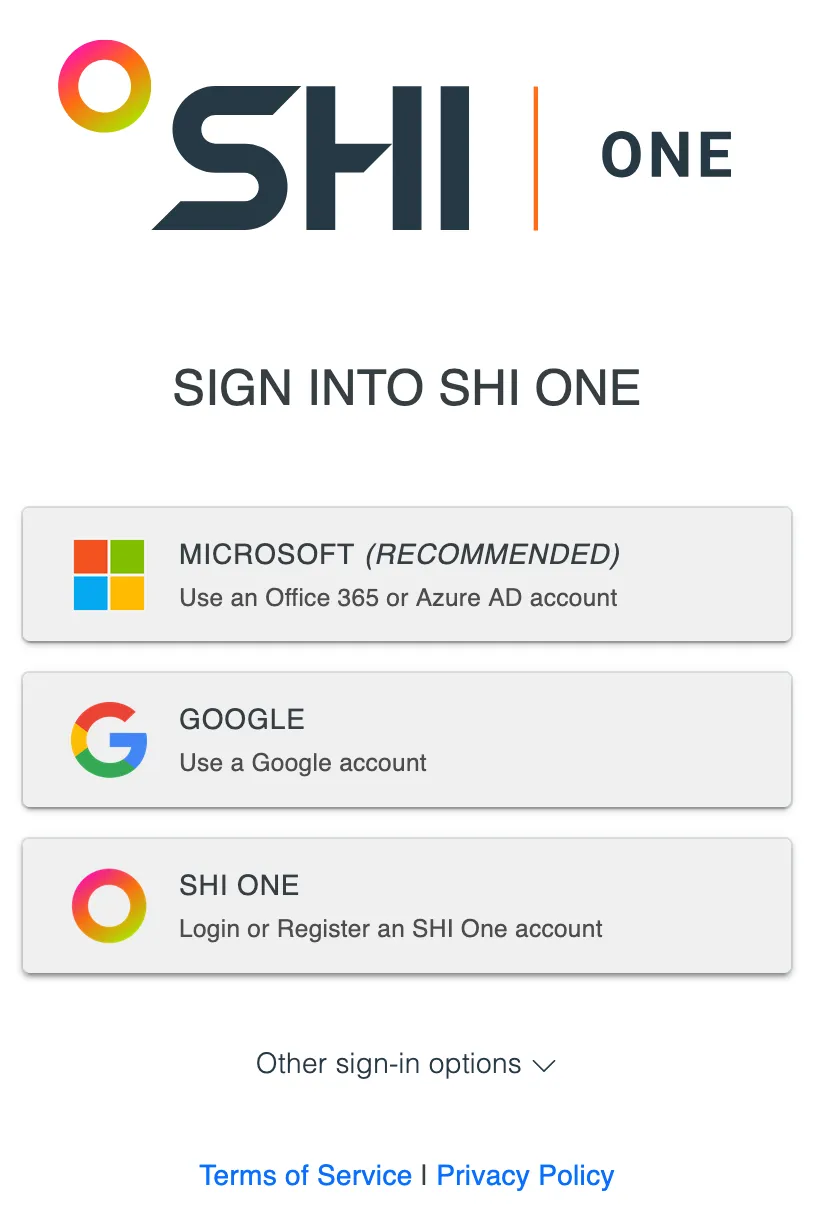
- Click the login option used by your organization
- If you don't know which option to use, first try the Microsoft login option, then the Google login option
- If the Microsoft and Google login options haven't yet been activated by your organization's admin, click the SHI ONE login option.
- At the bottom of the menu, click Don't have a login? Register an account
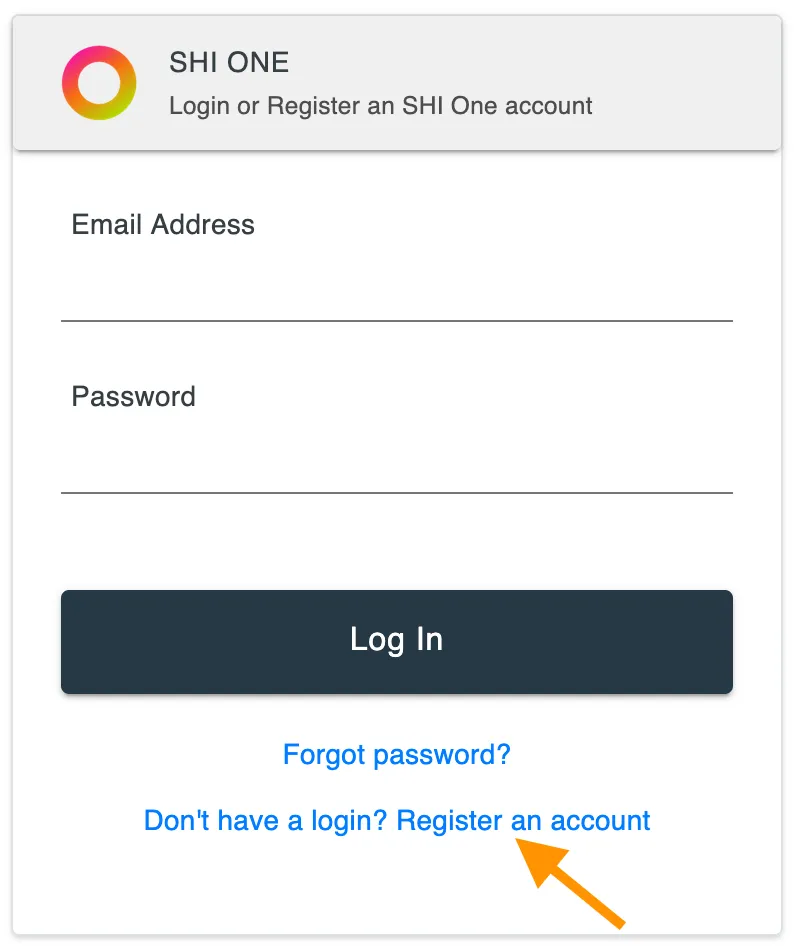
- Type in your email address and desired password
- Click Register
- If you see 'Error: The user already exists', you should click 'Already have a login? Log in to your account' then click 'Forgot Password?'
- Check your email inbox for a verification email
- Follow the instructions in the verification email to finish registering your login
- Sign in to SHI One using the SHI ONE login option
'Approval Required', 'Needs Permission', or 'Requires Admin Approval'
If you try to sign in using the Microsoft login option and see a message similar to the following:
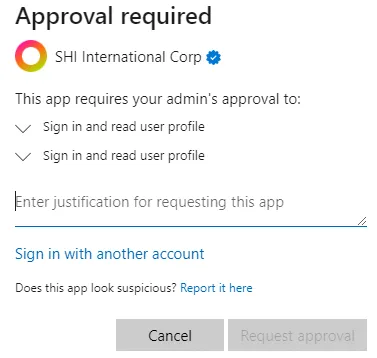
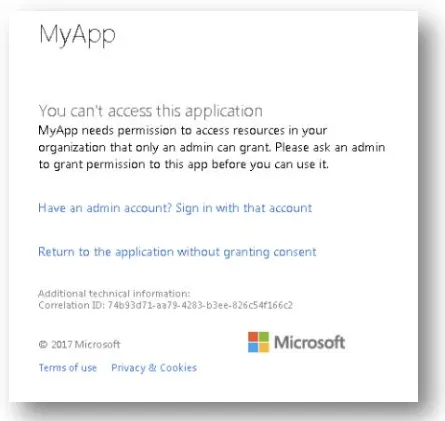
This means your organization has not yet granted SHI One the necessary SSO permissions. Send this URL to an O365/Azure admin in your organization (usually someone on your IT team) to authorize the application on your behalf:
Once permission is granted, you will sign in using the Microsoft SSO login option.
While you wait for permission to be granted, you can sign in to SHI One using the SHI ONE login option. Click the SHI ONE login option, click 'Don't have a login? Register an account', complete the registration process, then sign in to SHI One using the SHI ONE login option. Once SSO permission is granted, you will use the Microsoft SSO login option.
'Your account is pending approval from your Company administrator'
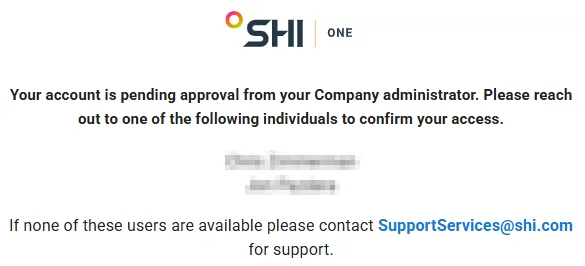
This means your organization's SHI One Admin has not yet approved your SHI One profile. Your organization's SHI One Admin can approve your profile within SHI One by following these steps:
- Navigate to Settings -> User Management
- Click the Awaiting Approval tab
- To the right of each email address, click the Role drop-down and choose either User or Admin
- Click the Save button in the upper right
Once your organization's SHI One Admin has approved your profile, you will be able to sign in to SHI One.
'Your administrator has configured the application SHI One Portal to block users unless they are specifically granted access to the application'
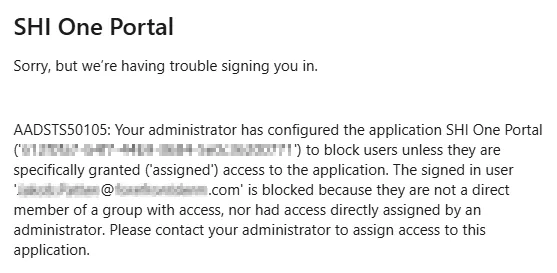
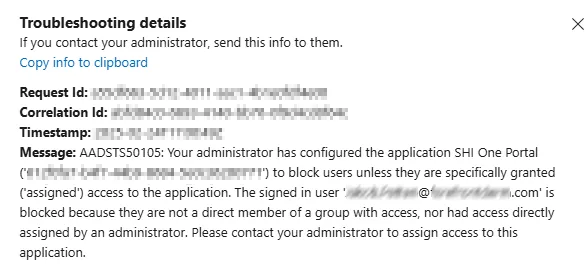
This means your organization's Microsoft/Azure admin needs to assign access within Microsoft/Azure for you to access SHI One.
Send this URL to your organization's Microsoft/Azure admin (usually someone on your IT team) so that they can add you to the necessary group by following the steps here: https://learn.microsoft.com/en-us/azure/devops/organizations/security/add-remove-manage-user-group-security-group?view=azure-devops&tabs=current-page#add-users-or-groups-to-a-security-group
If you are in the necessary group and still see the same login message, access is being affected by conflicting permission inheritance from another group. Your Microsoft/Azure admin must reconcile your access permissions utilizing the information here: https://learn.microsoft.com/en-us/azure/devops/organizations/security/about-permissions?view=azure-devops&tabs=preview-page#permission-inheritance
Once your access is assigned correctly in Microsoft/Azure, you will be able to sign in SHI One using the Microsoft SSO login option.