Getting Started
7 min
Introduction & Purpose
The Recommendations Hub consolidates the actionable insights and recommendations from across the SHI One platform, from Cloud Recommendations to specific actions based on an Assessment.
The Recommendations Hub is also closely integrated with Getting StartedRoadmaps, allowing users to leverage the insights from across SHI One to quickly plan their Initiatives.
Recommendations Hub is available to both SHI customers and their SHI Account Teams.
Key Terms Explained
Understanding these terms is crucial for using the Recommendations Hub effectively:
- Recommendation: An action that is suggested to the user, based on data from another feature of SHI One (eg. Cloud information).
- Roadmap: A structured way to plan and visualize your IT journey, helping to organize strategic initiatives and track their progress over time.
Functionality Overview
The Recommendations Hub enables you to:
- See a centralized list of actionable insights and suggestions from across the SHI One platform.
- Search and filter for specific types of Recommendations.
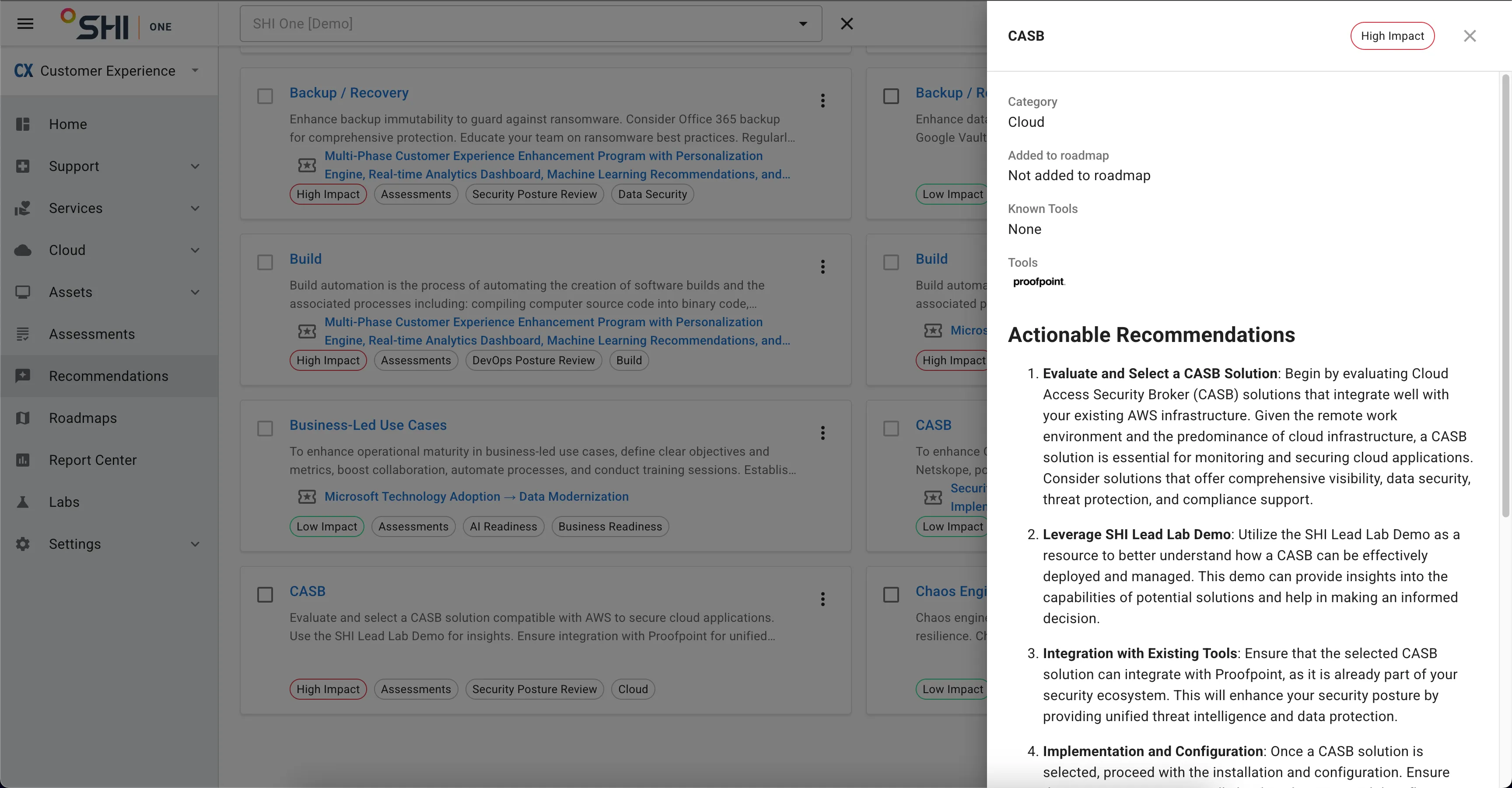
- View details about each specific Recommendation.
- Quickly add Recommendations to a Roadmap in SHI One.
- See at a glance whether a particular Recommendation is already being addressed (whether it has been added to a Roadmap).
Using Recommendations Hub (Step-by-Step Guide)
1. Accessing Recommendations Hub
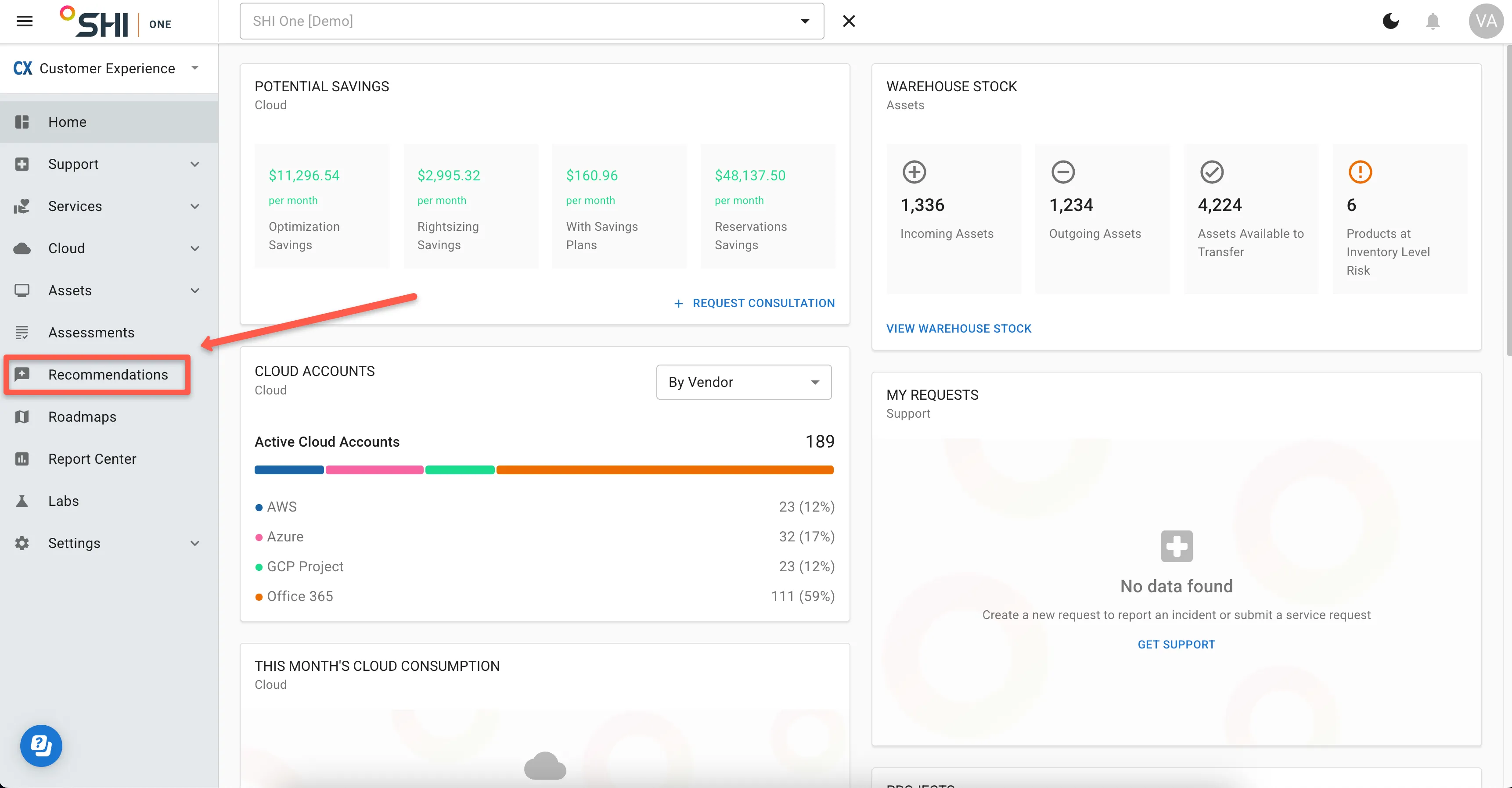
- Navigate to the Recommendations section using the left-hand navigation bar.
2. Reviewing Recommendations
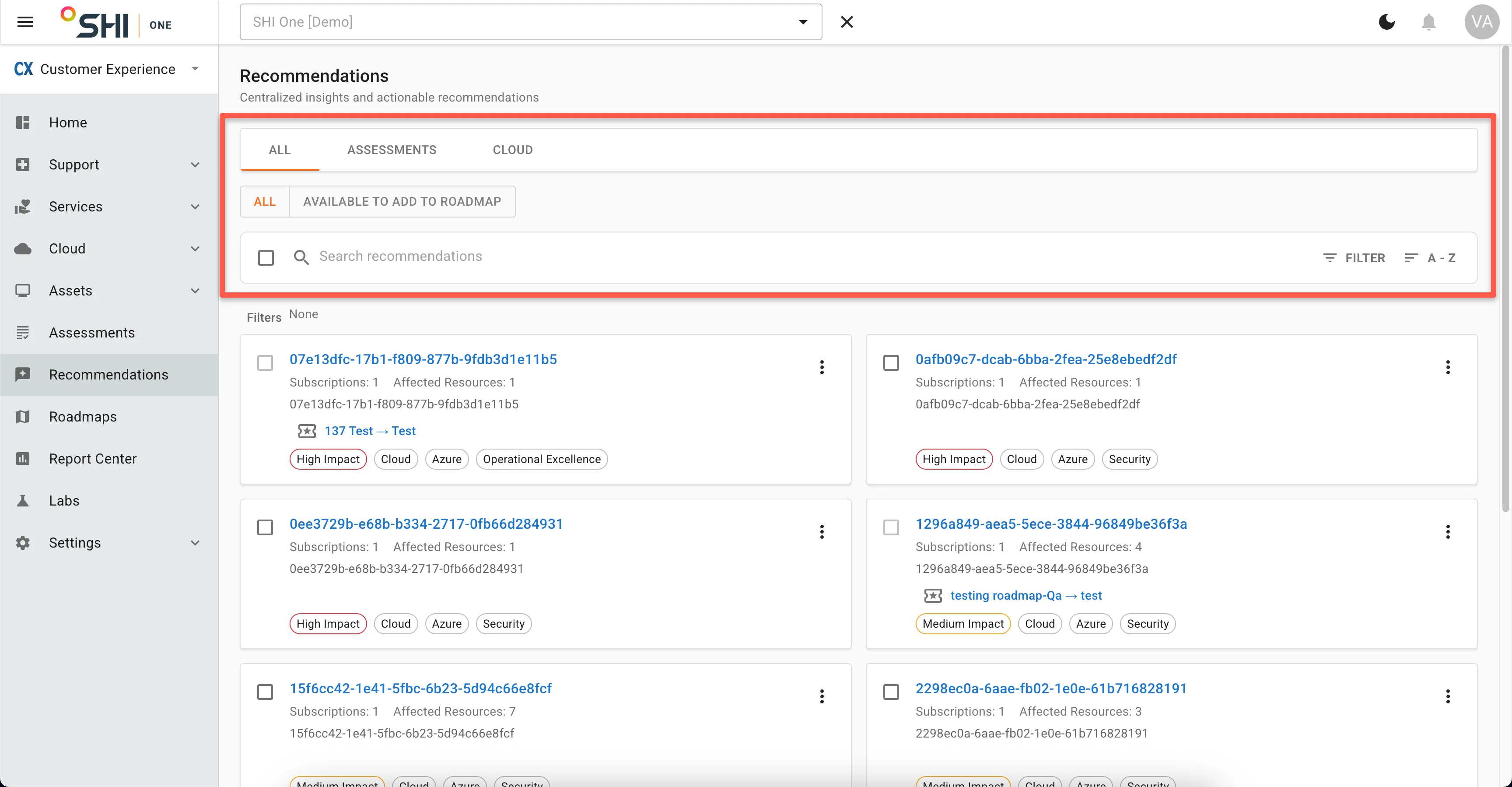
- By default, you will be viewing all Recommendations. You can click on the tabs to view Recommendations by their source (eg. Assessments, Cloud).
- You can also filter the list to only those Recommendations that have not yet been added to a Roadmap. Note that to avoid confusion and duplication of efforts, each Recommendation can only be added to a single Roadmap.
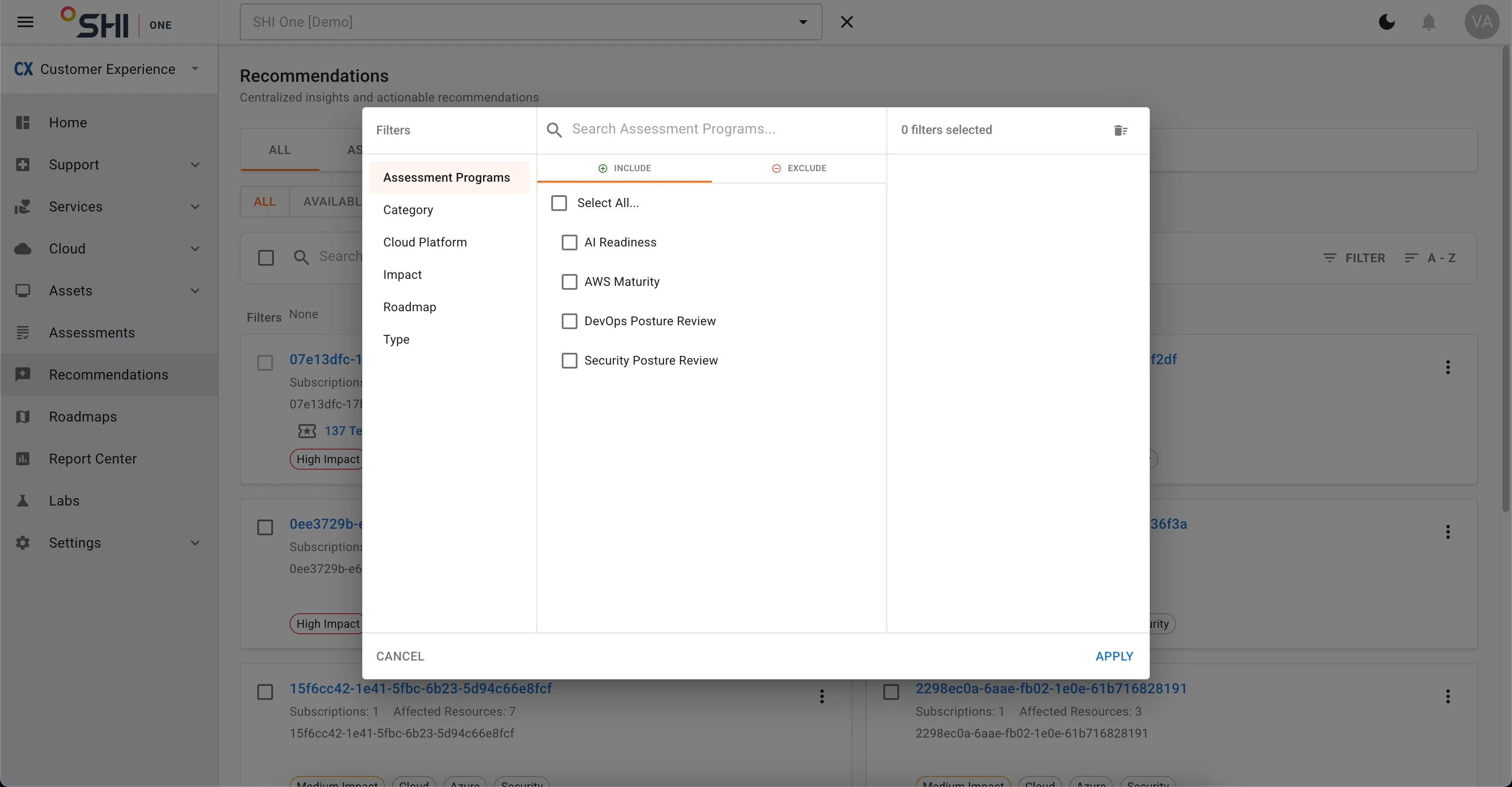
- You can also search for specific Recommendations, or filter for Recommendations in a variety of ways.
3. Viewing Recommendation Details
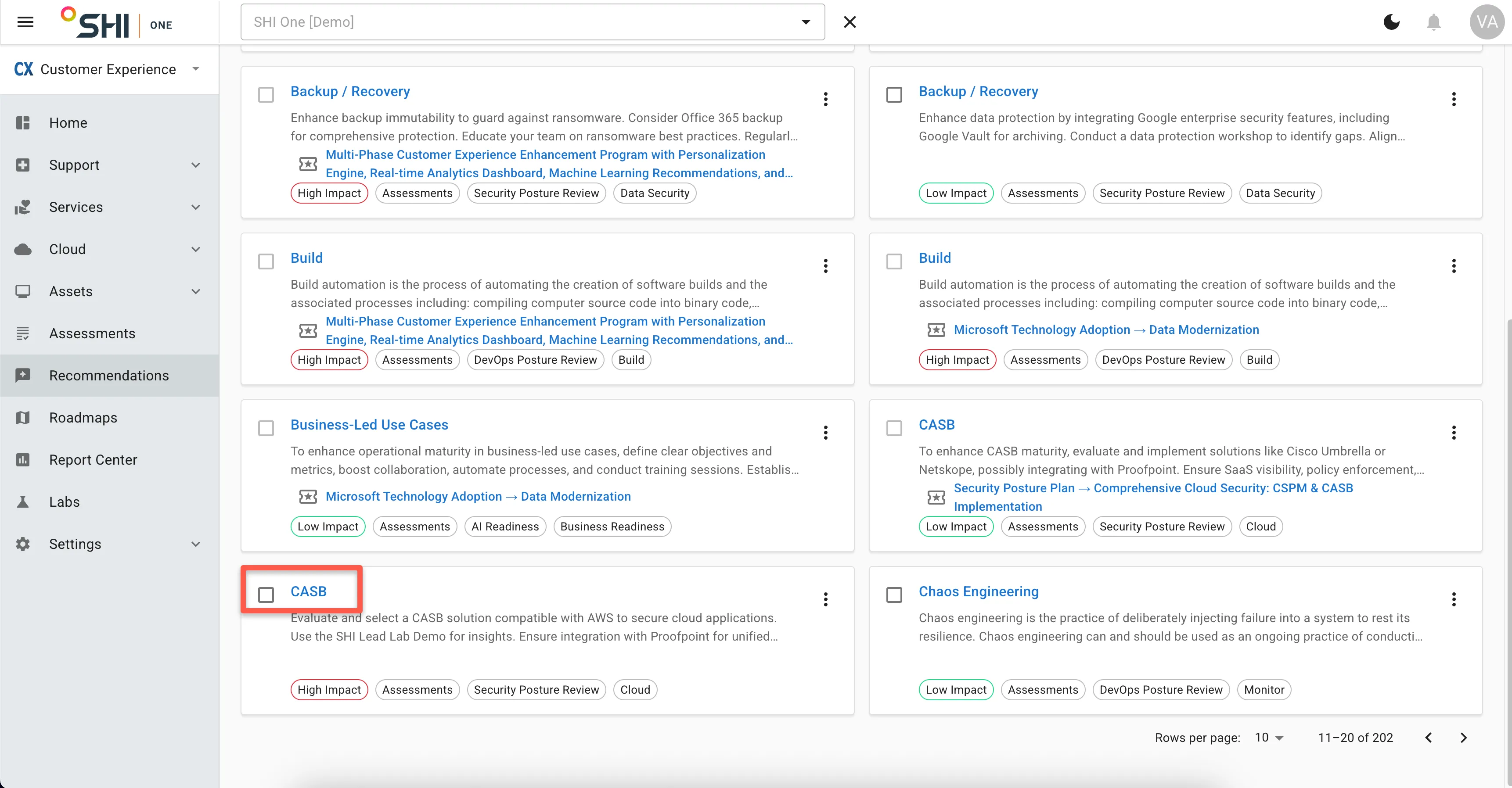
- Click on the title of a Recommendation.
- A drawer will open, showing the details of the Recommendation.
4. Adding Recommendations to a Roadmap
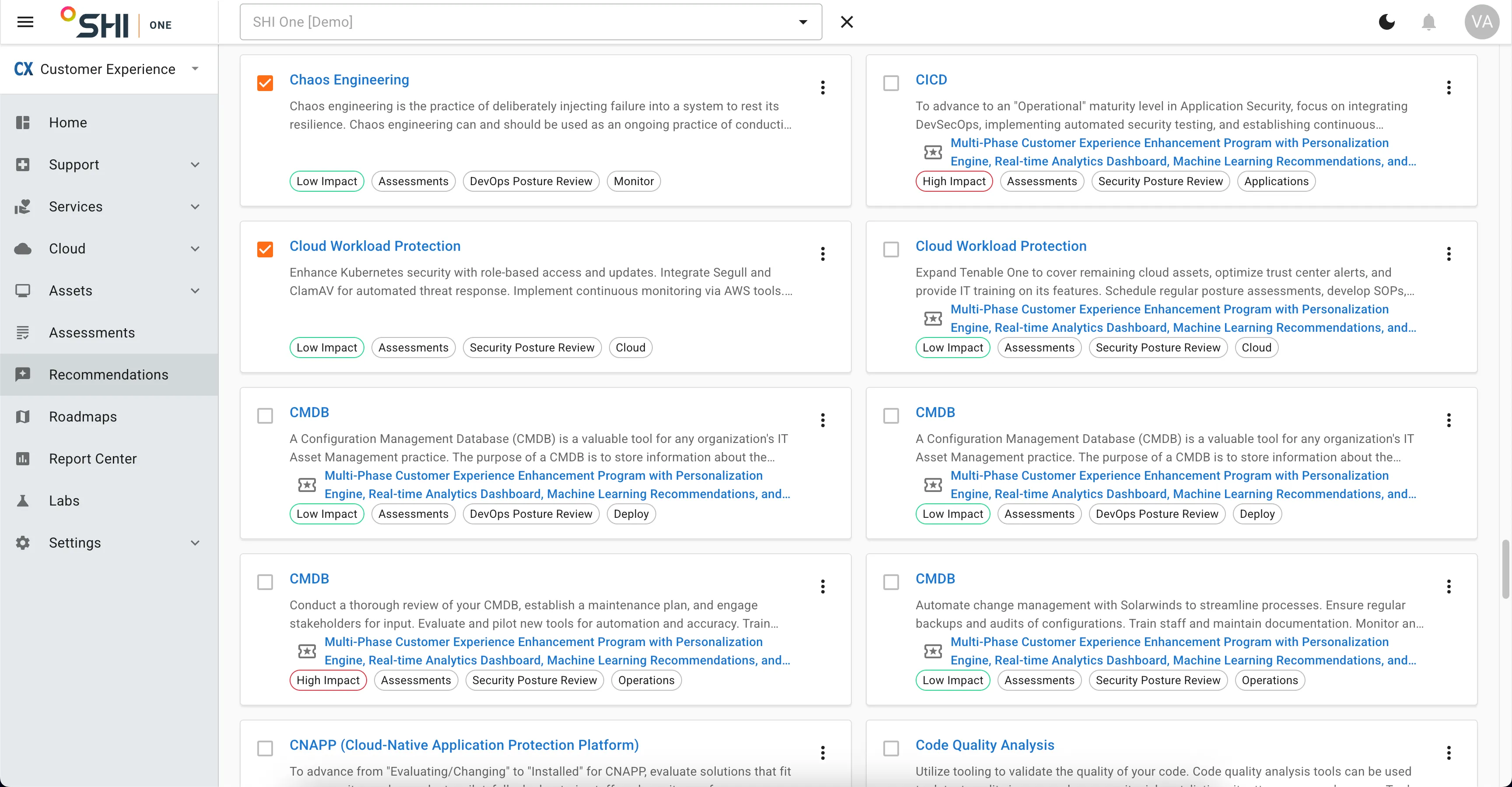
- Click the checkmark next to one or more Recommendations.
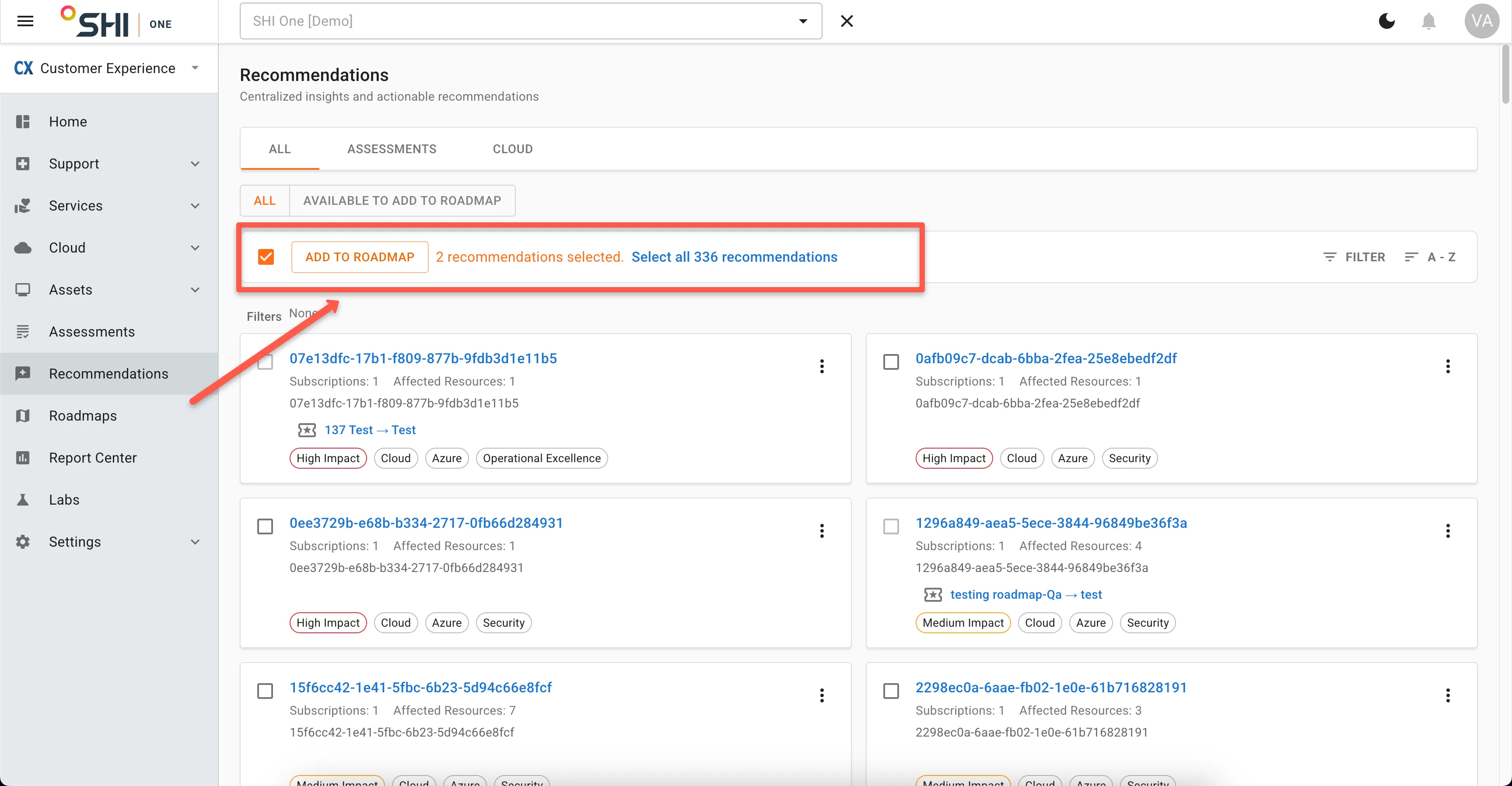
- Click the "Add to Roadmap" button.
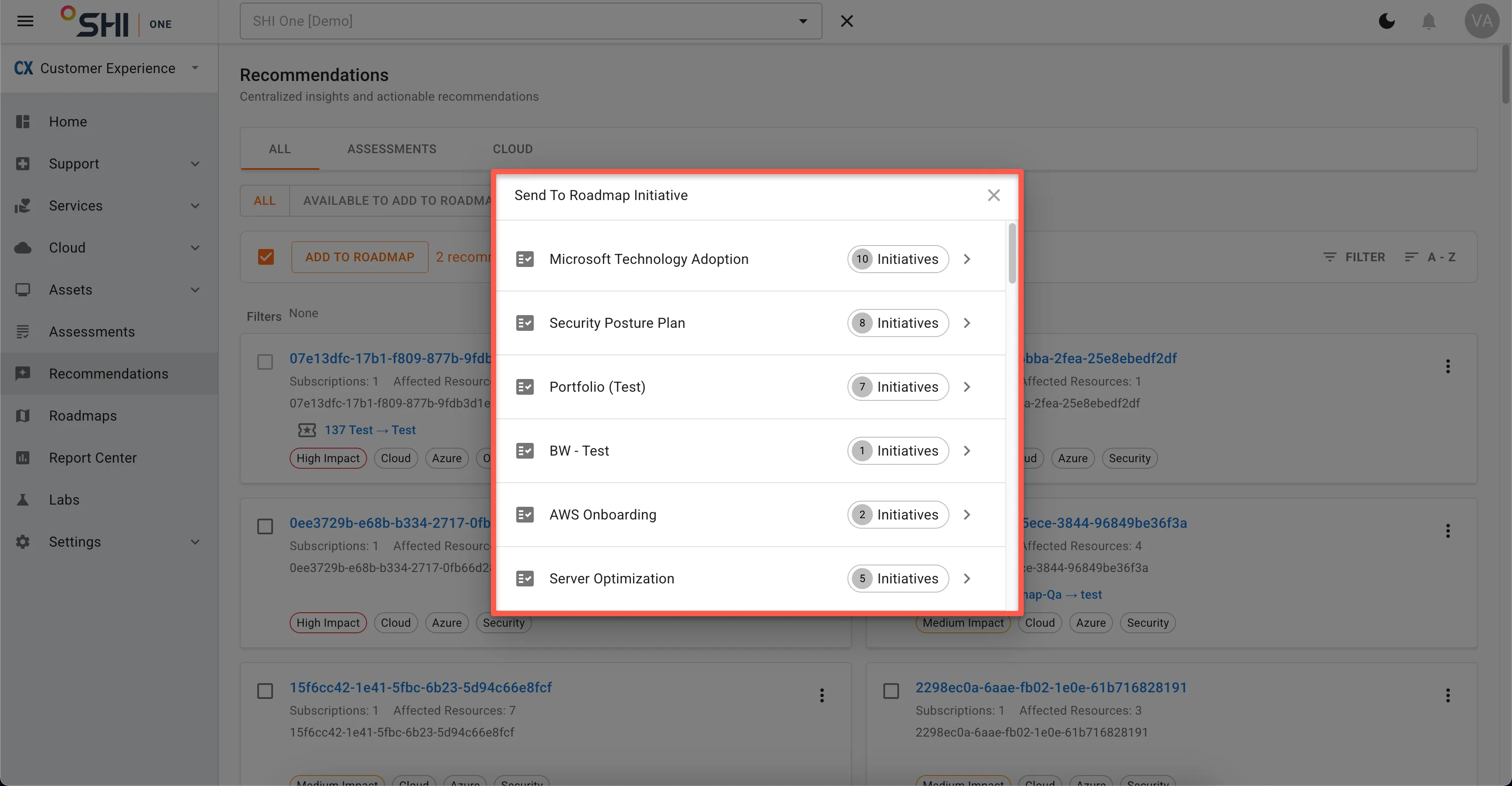
- Select the Roadmap Initiative you want to add the Recommendation(s) to.