Hardware Lifecycle Management (HLM)
Feature Overview
This guide introduces you to Hardware Lifecycle Management (HLM) in SHI One - a streamlined way to follow the full journey of devices moving through SHI’s Asset Recovery services, delivered by the SHI Integration Center. In this context, HLM refers specifically to the return, processing, and final disposition of your company-owned hardware as it passes through SHI’s secure recovery workflow.
With HLM Tracking, you can monitor each step of your asset’s recovery lifecycle, including:
- Shipment of outbound return kits (if applicable)
- Arrival of devices at an SHI Integration Center
- Triage and assessment
- Quarantine (if applicable)
- Data erasure
- Final disposition
This consolidated view provides transparency into the full asset recovery process, reducing manual follow‑ups and helping organizations stay informed and in control of their hardware lifecycle activities.
Step‑by‑Step Workflow
1. Sign in to SHI One
Go to one.shi.com and log in using your organization’s standard authentication method.
2. Open the Service Requests module (Recommended Path)
This is the recommended way to submit and track recovery requests, as it links the entire process (recovery request, kit shipment, and asset lifecycle timeline) into one view.
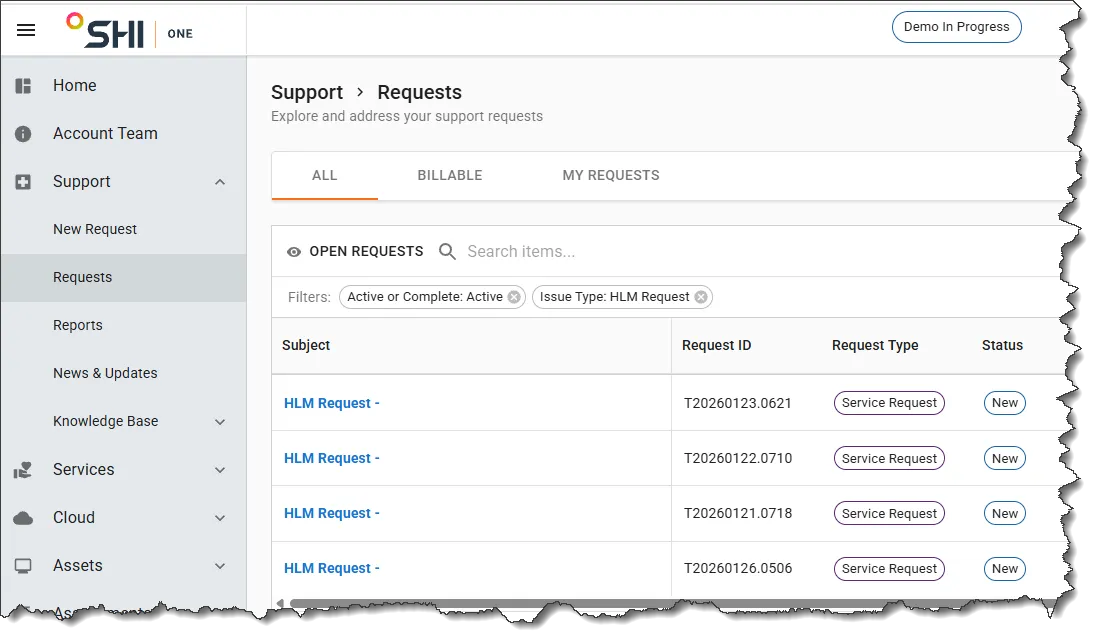
From the left-hand navigation menu, select:
Support → Requests
3. Open your Recovery Request
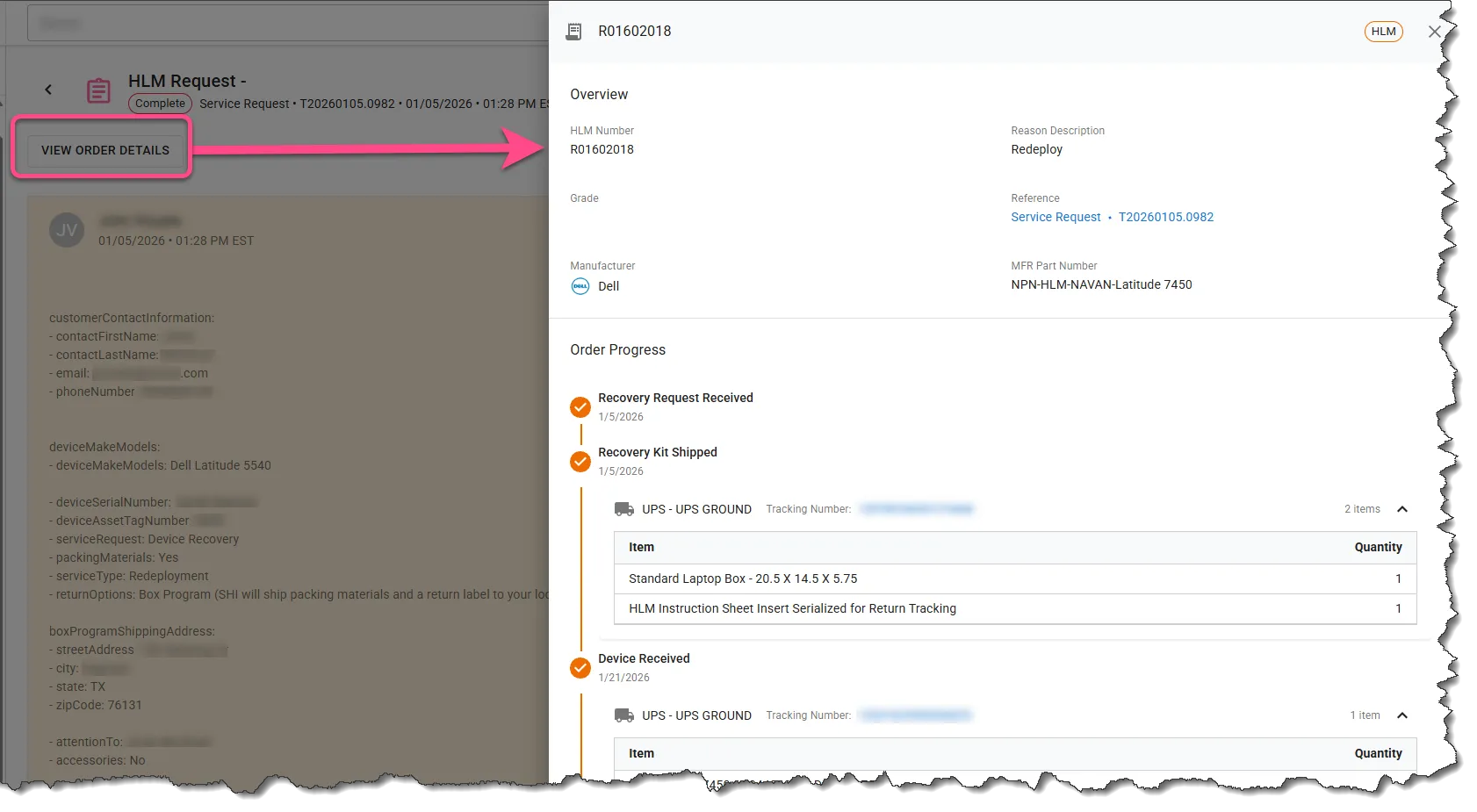
Find your active recovery request and select View Order Details. This opens the recovery order tied to your service request, along with:
- Outbound box-kit shipment tracking
- Device processing status
- Lifecycle events
- Final disposition information
Alternative Access (for Requests Submitted by Email/Other)
If you did not submit your request through SHI One, you can still see full lifecycle visibility.
Navigate to:
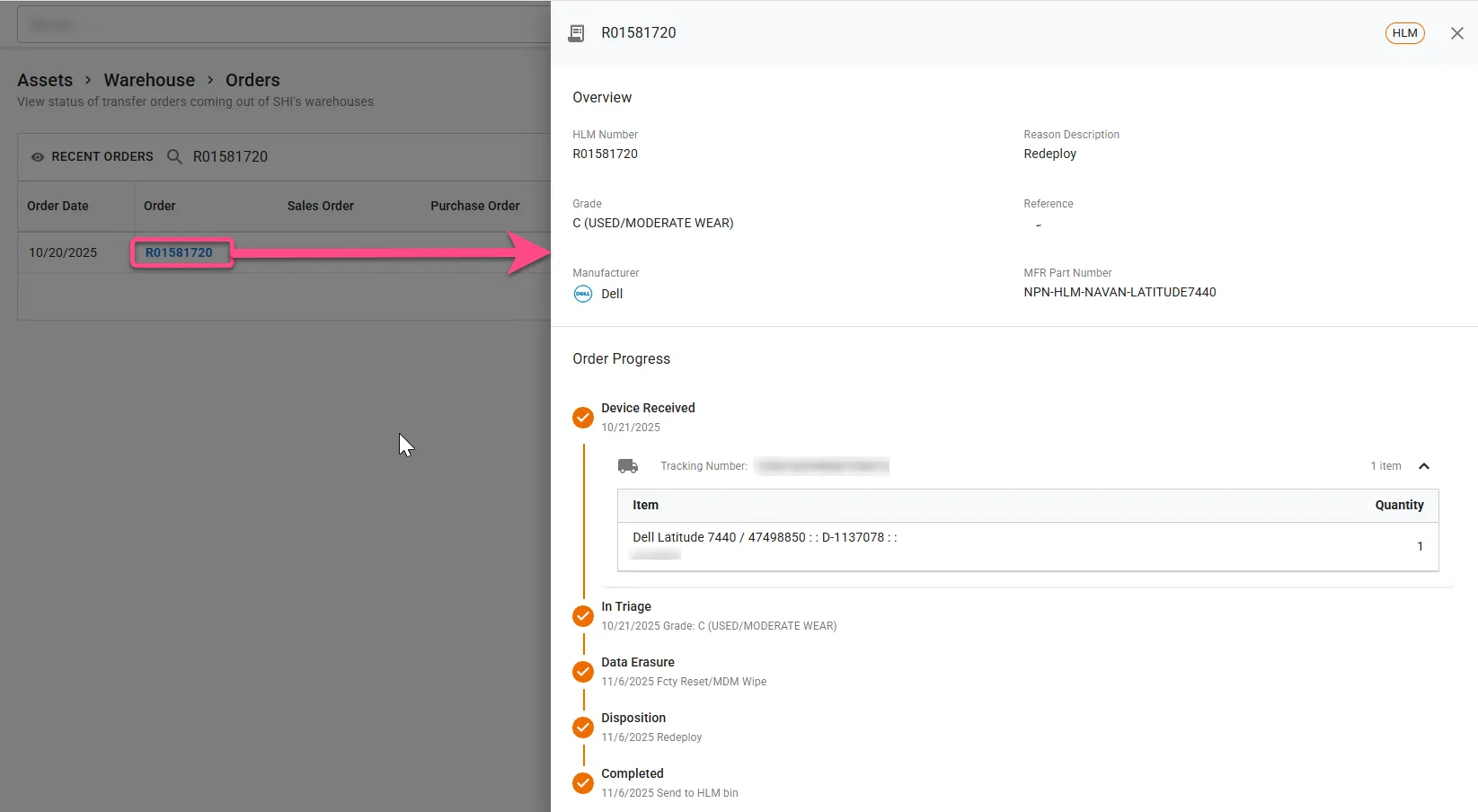
Assets → Warehouse → Orders
Use the Search field and/or Filtering capabilities to locate your HLM return order (Filters --> Type --> HLM).
Selecting the order will open the same lifecycle detail drawer. In these cases, tracking begins at “Device Received.”
4. Review the Hardware Lifecycle Timeline
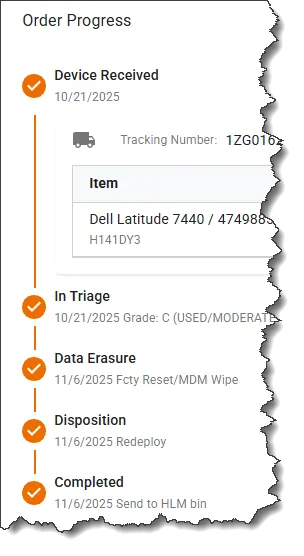
Once viewing the order details, you’ll see a clean, linear timeline showing each major HLM processing milestone. These may include:
- Kit Shipped (SHI One requests only)
- Device Received
- Triage
- Quarantine (when applicable)
- Data Erasure
- Disposition
- Completed
Each stage activates as SHI processes your device.
5. View Stage Details
- Dates and timestamps
- Processing notes
- Data erasure results
- Grading and disposition outcomes
- Shipment tracking (inbound/outbound)
- Order-level metadata
This provides transparency into exactly what actions were taken and when.
Access & Requirements
Access Path
In SHI One: Support → Requests → Request Details → View Order Details
or
Assets → Warehouse → Orders → Click Order Number to Open Detail Drawer
Prerequisites
To ensure you have FULL HLM visibility in SHI One from Request to Completion:
- Your organization must be fully onboarded to SHI One
- Your organization must have an active HLM agreement
- The recovery request must be submitted through SHI One
- The associated return kit and device must be processed through SHI facilities
If you don’t see lifecycle information, contact your SHI Account Team to verify configuration.
Use Cases & Scenarios
Request Submitted in SHI One
- Full linkage from start to finish
- See outbound box kit shipping details
- Track every status update in one unified view
- Best experience for visibility and auditability
Request Submitted Outside SHI One (email/other)
- Still provides full transparency beginning at the Device Received stage
- Users can manually search for return orders in Warehouse → Orders
- Useful for legacy workflows or organizations transitioning to SHI One usage
Common HLM Scenarios
- Monitoring returned equipment for redeployment
- Tracking final disposition for inventory and asset decommissioning purposes
- Reducing manual follow-up emails and status requests
Best Practices
- Submit recovery requests through SHI One whenever possible. This enables full linkage between your request, kit shipment, and processing lifecycle.
- If you submit requests outside SHI One, use Assets → Warehouse → Orders to check the status beginning at “Device Received.”
- Use filters (such as order number, order type, or dates) to quickly find return orders.
- Share SHI One access internally so all relevant personnel can track device returns.
- Check lifecycle stages regularly for real-time updates and audit documentation.
Need Help?
If you have questions or need help understanding your hardware's lifecycle stages, please reach out to your SHI Account Team or Support Representative.