User Management
Adding a New User in SHI One
This article explains how to add and edit a user and explains the different roles that
Please note that if you are using an Identity Service to use Single Sign-On (eg. Entra or Google SSO), you can also manage access to SHI One directly through that interface.
Only Admins can add, edit, and remove users.
To add a new user:
- In the left sidebar, navigate to Settings > User Management
- Click on the + ADD USER button in the top right corner.
- Fill in the required user information.
- If applicable, select the desired account.
- Select the appropriate role for the user. For more information about role permissions, see the Roles Roles section below.
- Click Save.
- (Optional) Assign the user to all the necessary Security Groups. For more information, see Security GroupsSecurity Groups.
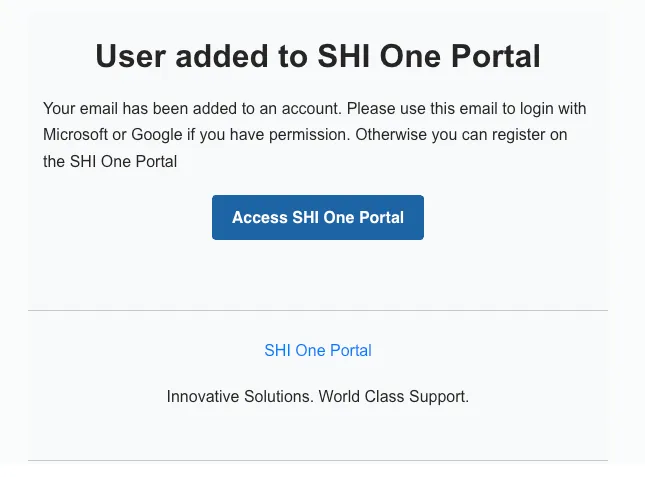
The new user will receive a welcome email with a link to SHI One. Refer to the section First Time Login for UsersFirst Time Login for Users for login steps.
Editing a User
To edit a user:
- In the left sidebar, navigate to Settings > User Management
- Select the user group of the user you would like to edit.
- Active Users: Users who have set up their profiles and can access SHI One.
- Awaiting Approval: Users who have not yet been approved by an Admin. An Admin must manually approve these users in order for them to access SHI One.
- Pending Profiles: Users who have been approved but who have not yet signed in to set up their profile.
- Inactive Users: Users who cannot access SHI One.
- Click on the pencil icon to the right of the user.
- Make your desired edits. You can edit the Status, First Name, Last Name, Phone Number, or Role. For more information about editing a user's Security Group assignments, see Security GroupsSecurity Groups.
- Click Save.
Note: A user's email address cannot be changed within SHI One as it is tied to multiple elements in the portal such as Devices and Support Requests. To change a user's email address, submit a Support Request and include the user's current email address and the new email address.
Roles
There are four Roles within SHI One:
- User
- Security Group Manager
- Admin
- Guest User
Admins can edit a user's Status, Role, First Name, Last Name, and Security Group assignments as needed by navigating to Settings -> User Management, clicking the orange pencil icon to the right of a user, making the desired changes, and clicking Save.
Users
Users are able to:
- View data for only the contracts, permissions, and accounts associated with their assigned Security Group(s)
- Submit Support Requests for only the contracts, permissions, and accounts associated with their assigned Security Group(s)
- View only their own Support Requests
- View information for only their own Devices
- Access this SHI One Knowledge Base
Security Group Managers
Security Group Managers are able to:
- Add existing Users to their assigned Security Group(s)
- Granting Manager permissions within their assigned Security Group(s)
- Remove existing Users from their assigned Security Group(s)
- Be notified of configuration issues that may need to be escalated for their assigned Security Group(s)
- Access this SHI One Knowledge Base
Admins can designate Security Group Managers for each Security Group.
Admins
Admins have all User and Security Group Manager permissions, plus are also able to:
- Support Center
- View and update all Support Requests
- View information regarding all Devices
- View information/usage/consumption on all contracts and services
- Be notified of configuration issues that may need to be escalated
- Settings
- Generate a Microsoft SSO organization-wide consent link (if applicable)
- Update white label options for the SHI One portal (e.g. logo, etc.)
- Add new Users to their account
- Edit existing Users on their account
- Change a User's status to Inactive, which removes that User's access to SHI One
- Change User Roles and assign Admins
- Create and enable Security Groups
- Add, edit, and remove all Users across all Security Groups
Guest Users
Guest Users are temporary users that only have access to view specific features in SHI One. They can only be created by an SHI employee on that account's team. A guest user is able to:
- View different types of Assessments that they are explicitly granted access to.
- View all Labs on the account.