View Orders Page
Using Orders (Step-by-Step Guide)
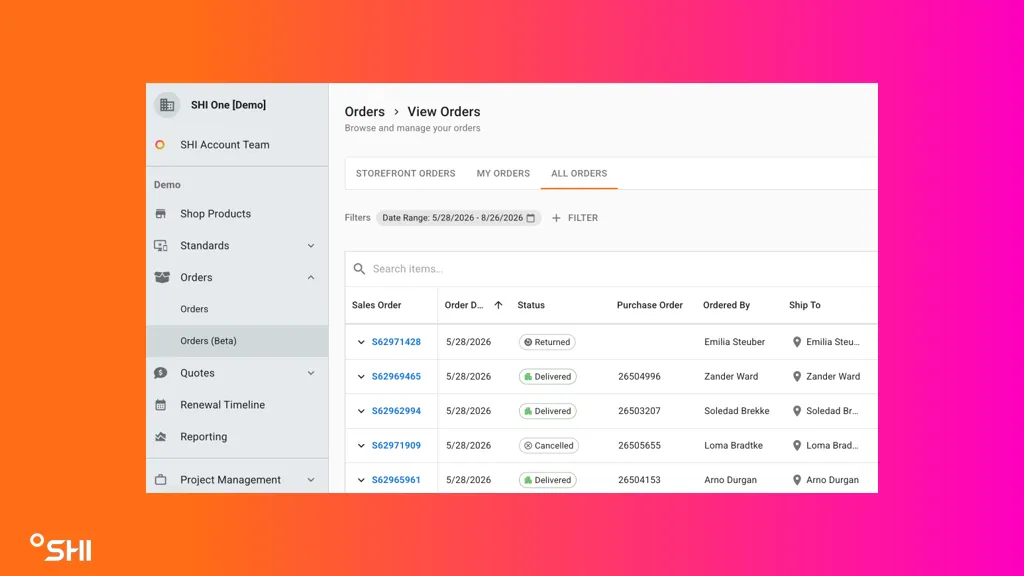
1. Access Orders (Beta)
- In the left navigation, expand Orders.
- Select Orders (Beta).
You will only see this page if you have the appropriate access. This may include:
- Storefront Manager access for eligible storefront web orders
- An associated SHI.com org unit with order data
2. Choose the Order Scope You Want to View
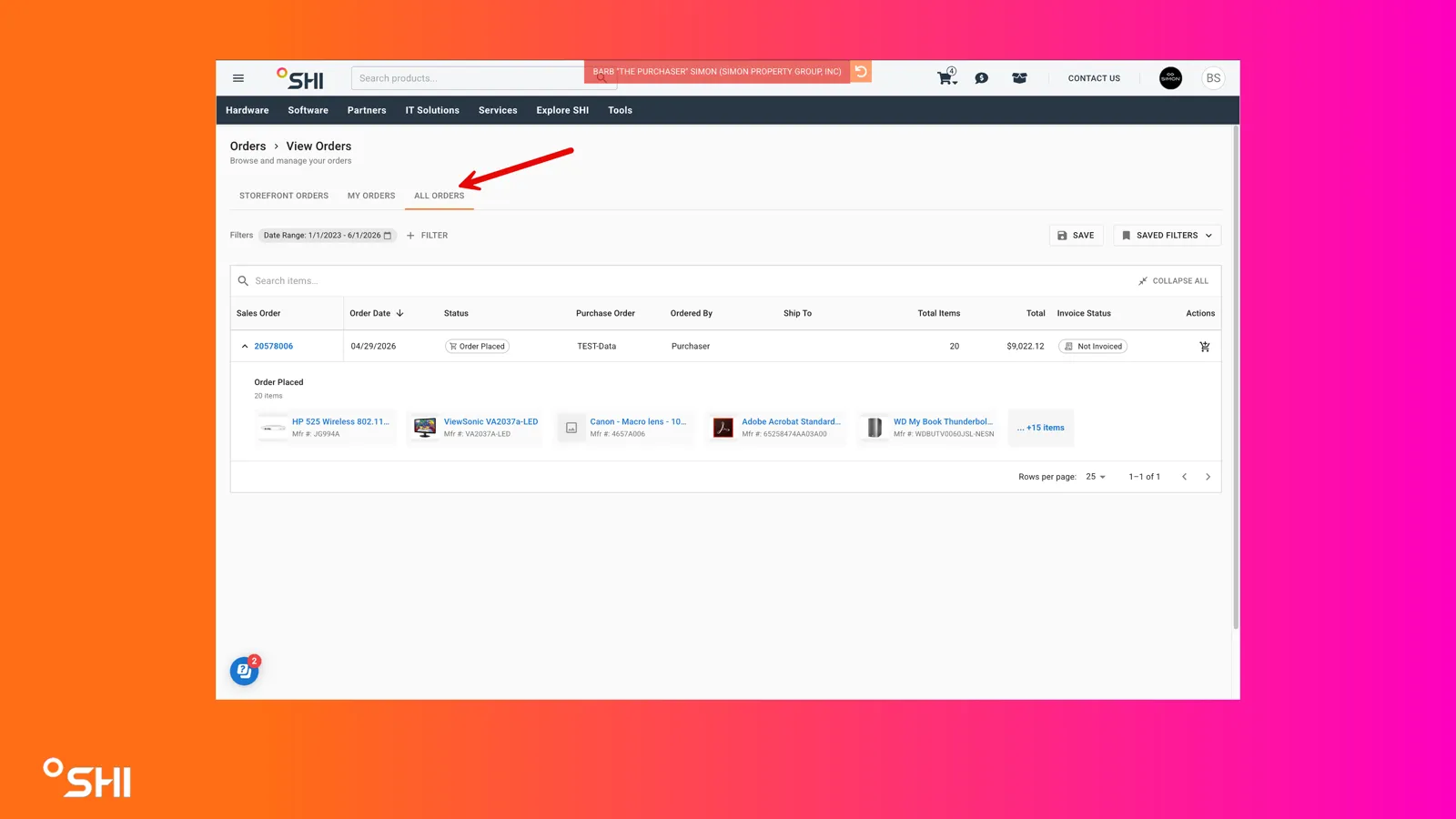
Depending on your permissions, you may be able to switch between different order views:
- My Orders
- All Orders
- Storefront Orders
Your available views depend on your permission level:
- Storefront Manager access shows web orders tied to that storefront
3. Review the Orders List
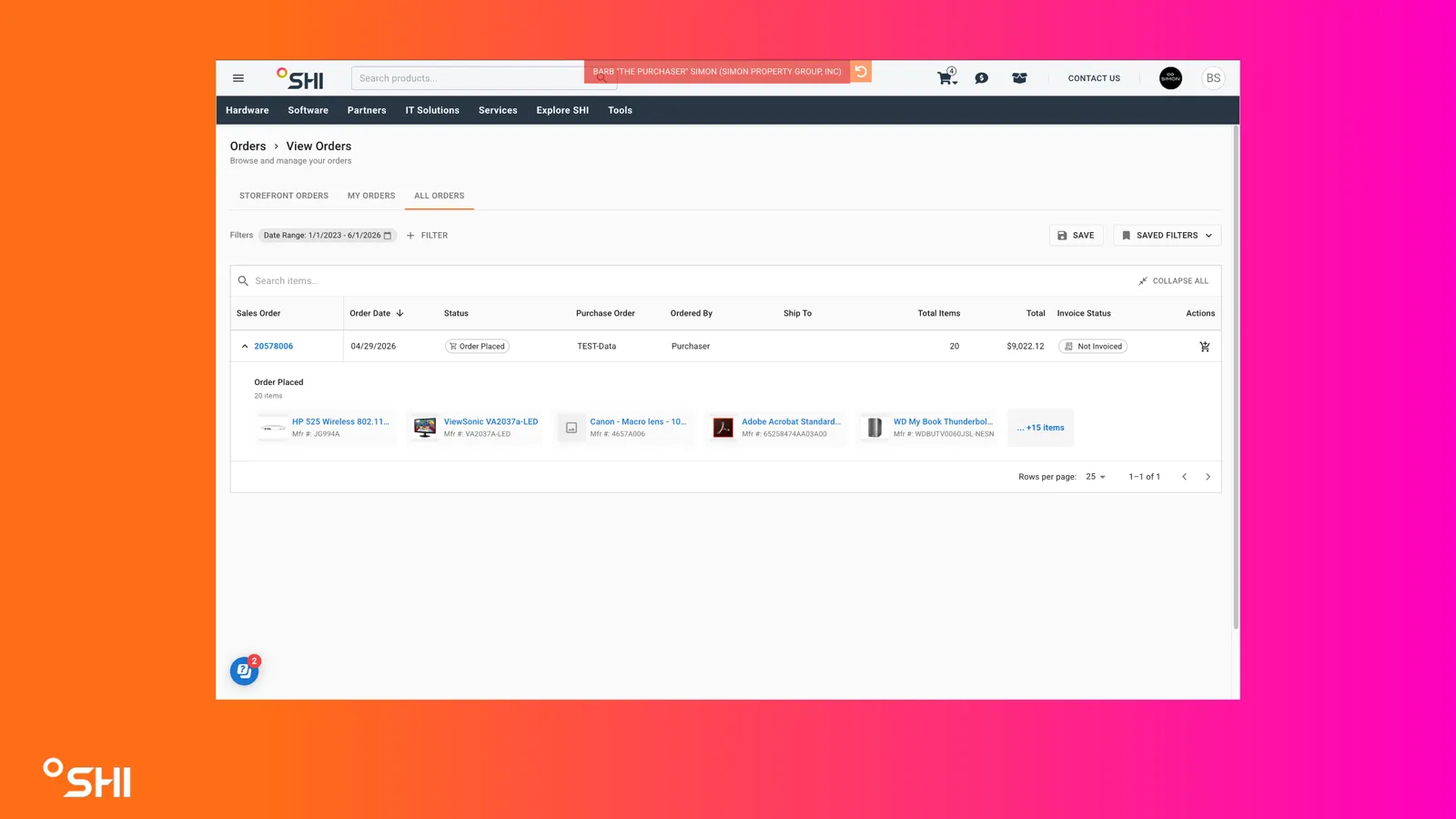
On the Orders page, you can review a list of orders with key order details.
The list includes:
- SO#
- Order Date
- Status
- Cust PO#
- Ordered By
- Ship To
- Total Items
- Total Cost
SO# Link Behavior
- Select the SO# to open the legacy SHI.com Order Details page for that order
Default Sorting
- Orders are sorted by Order Date descending by default
4. Understand Order Statuses
The Orders page shows statuses that align to legacy SHI.com order statuses.
You may see the following statuses:
- Order Placed: This appears after checkout is completed in the eCommerce portal.
- Processing: This appears when the order is confirmed in SHI's ERP system. If items have not shipped yet, they remain grouped under Processing.
- Partially Shipped: This appears when tracking information is available for some, but not all, items on the order.
- Shipped: This appears when all items have tracking information.
- Delivered: This appears when all items show a delivered status.
Invoiced
You may also see whether the order has been invoiced in the "Invoice Status" column:
- Invoiced = Order has been invoiced
- Not Invoiced = Order has not been invoiced
This follows the same rules as legacy SHI.com, with exceptions for some third-party distribution orders where tracking may not populate.
5. Sort and Filter Orders
You can sort and filter the Orders page to find the information you need more quickly.
Sort Orders
You can sort by:
- Cust PO#
- SO#
- Order Date
- Status
- Total
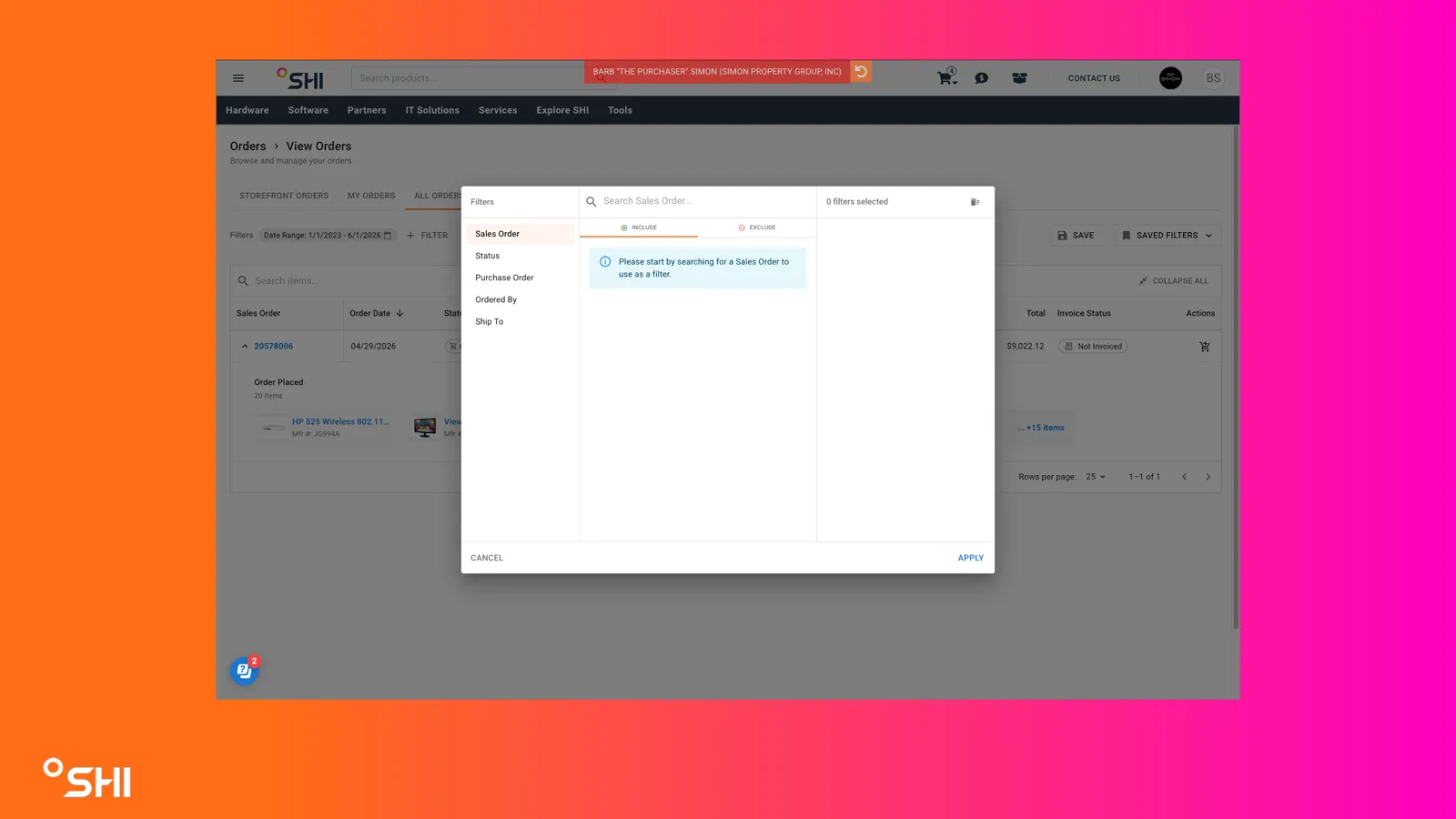
Filter Orders
You can filter by:
- Order Date range
- Storefront / Org Unit
- Cust PO#
- Ship To
- Ordered By
- Status
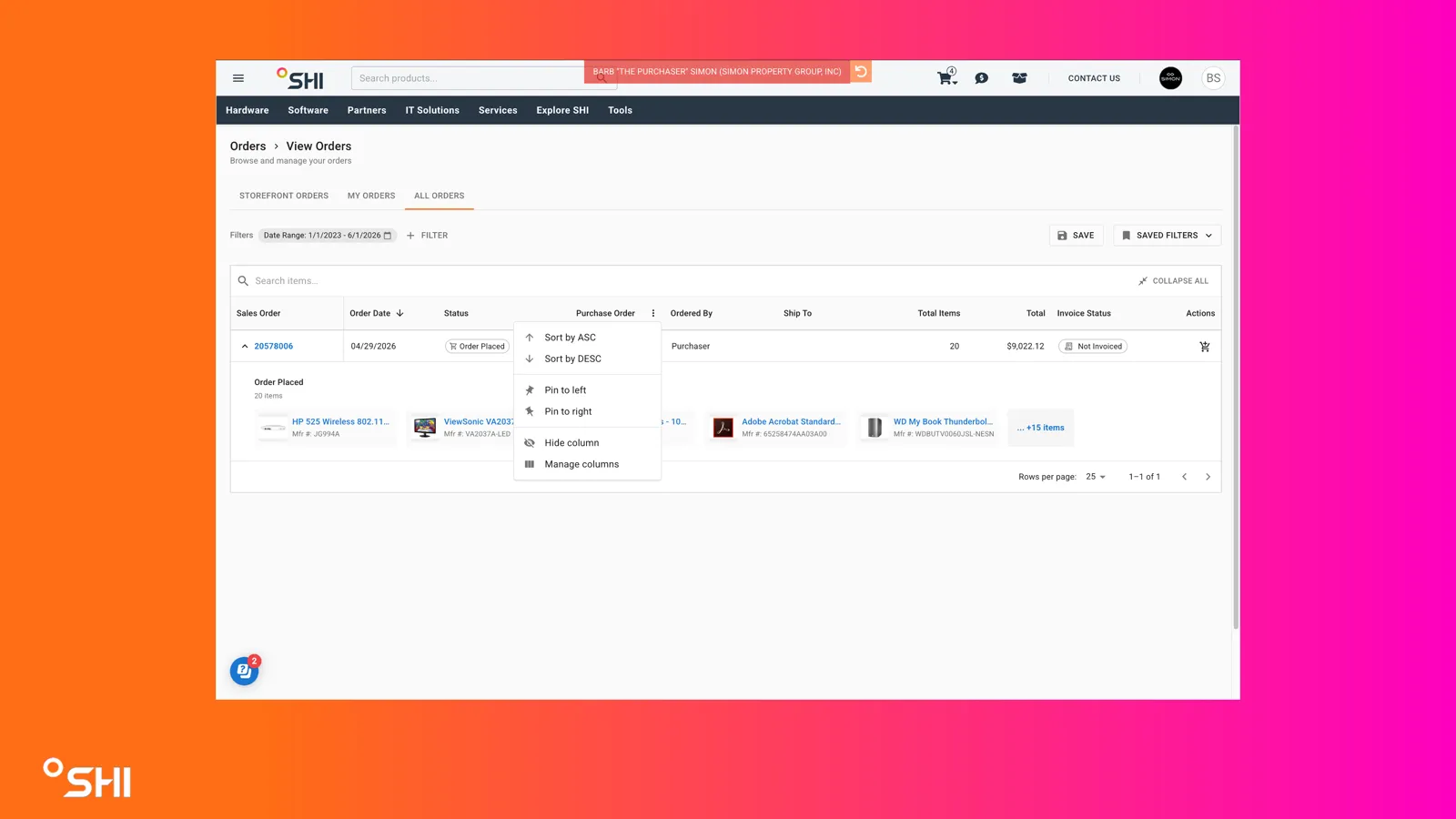
6. Customize the Table Layout
You can personalize the way the Orders table appears.
Available options include:
- Show or hide columns
- Reorder columns
- Reset the table to the default layout
This makes it easier to focus on the information that matters most to you.
7. Expand an Order to View Shipments and Items
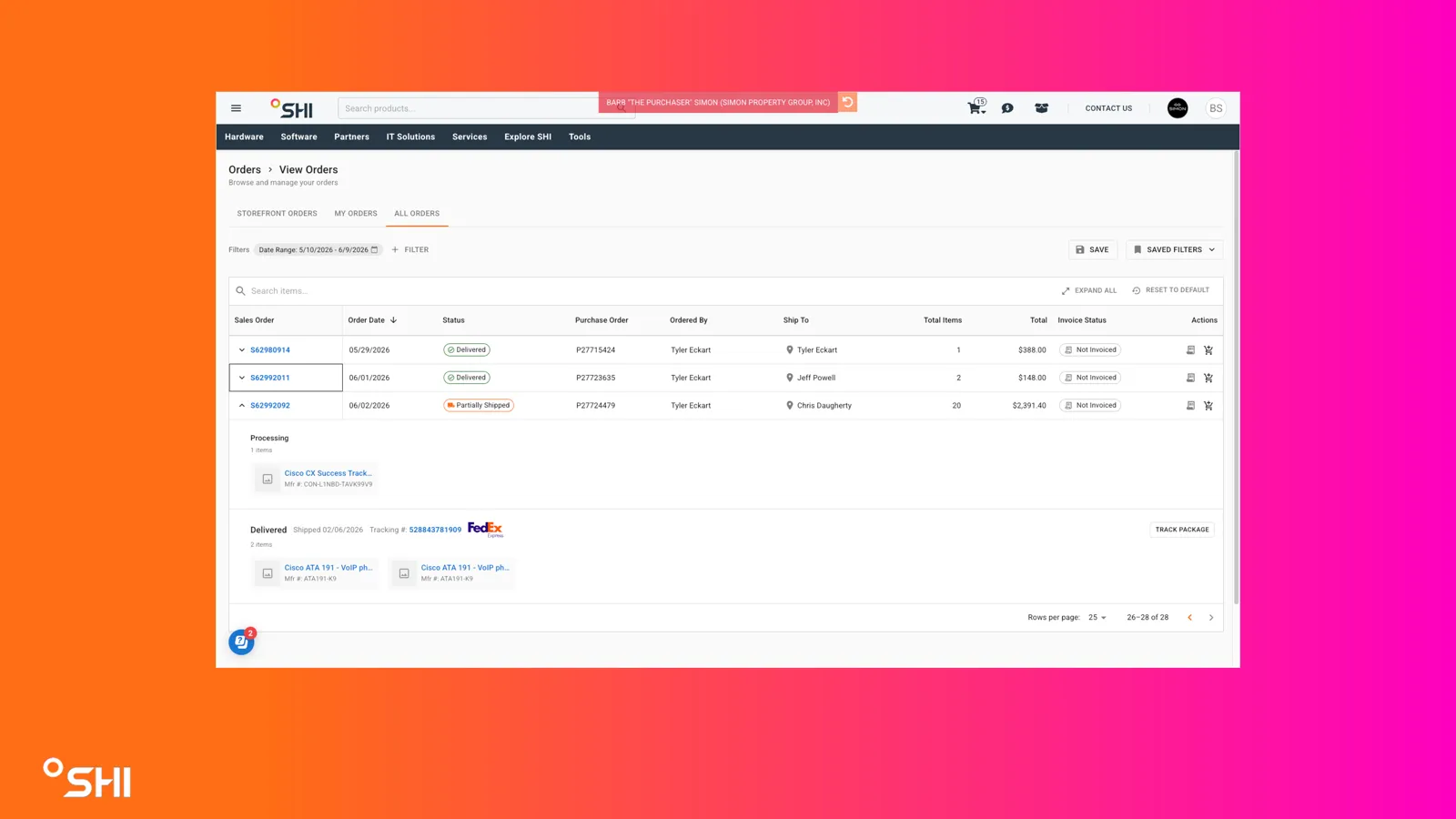
You can expand each order to review shipment and item details.
The page also includes table controls that let you:
- Expand All
- Collapse All
When you expand an order, items are grouped by fulfillment status, including:
- Processing
- Shipped
- Delivered
A maximum of 4 shipments display per order. If an order has more than 4 shipments, you will see a Show all Shipments link that takes you to the order details page.
8. Review Item Details
When you expand an order, you can review item details based on item type.
Hardware Items
Hardware items include:
- Item name
- MPN
- Quantity
- Tracking
- Carrier icon
Depending on shipment status, you may also see:
- Shipping date
- Shipped date
- Estimated delivery date and time
- Delivered date and time
- Tracking number
Hardware sections show up to 6 items, with +x for additional items.
Software Items
Software items include:
- Item name
- MPN
- Quantity
Software item sections use the header:
- EMAIL DELIVERY
Software sections show up to 6 items, with +x for additional items.
Services Items
Services items include:
- Item name
- MPN
- Quantity
Services item sections use the header:
- SERVICES
Services sections show up to 6 items, with +x for additional items.
Fees
Fees item sections use the header:
- FEES
Fees sections show up to 6 items, with +x for additional items.
9. Use Shipment Actions
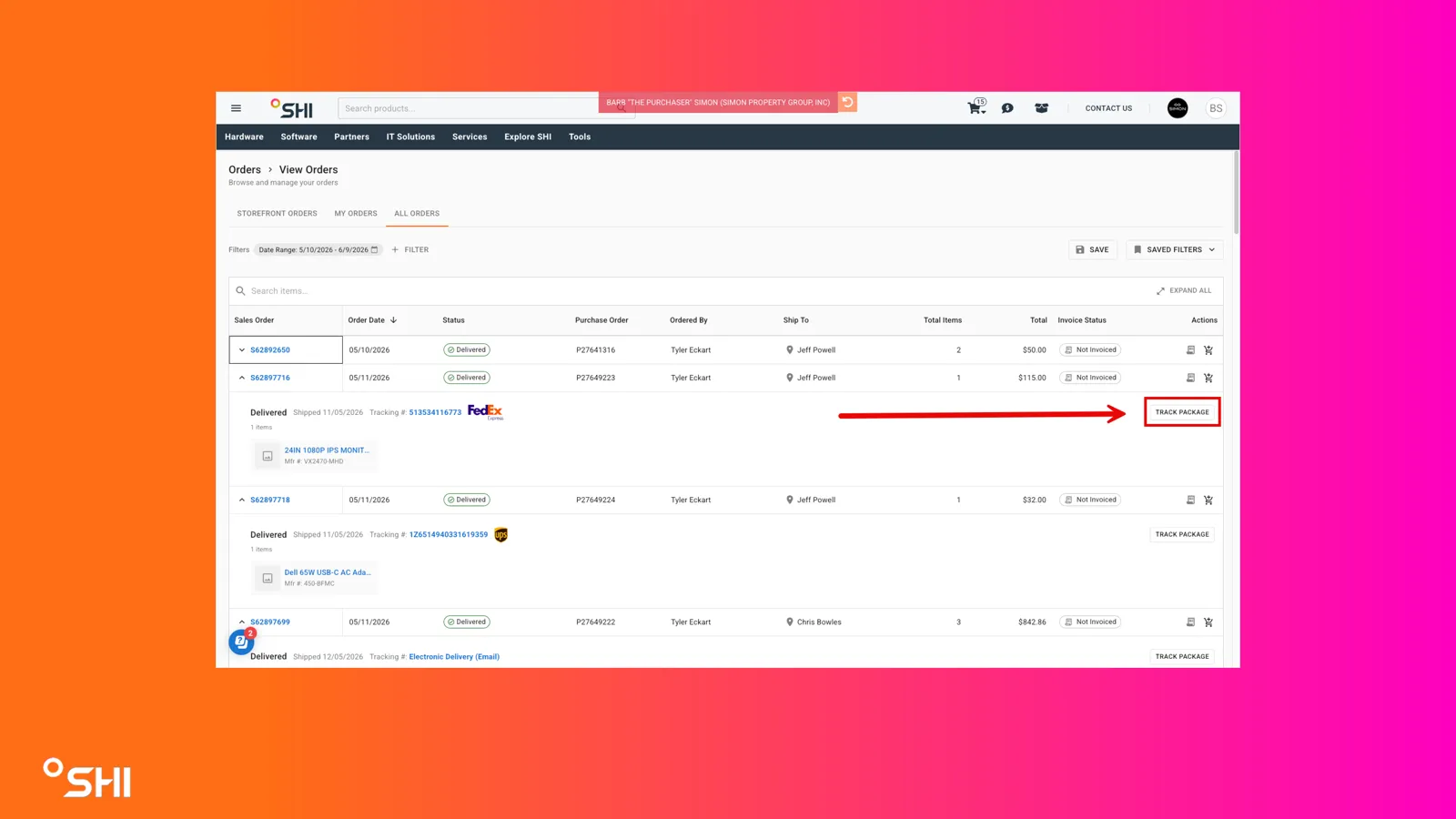
For shipped items, you may see shipment-related actions.
Track Package
- Select Track Package to open the carrier tracking site in a new browser tab
10. Open the Item Drawer
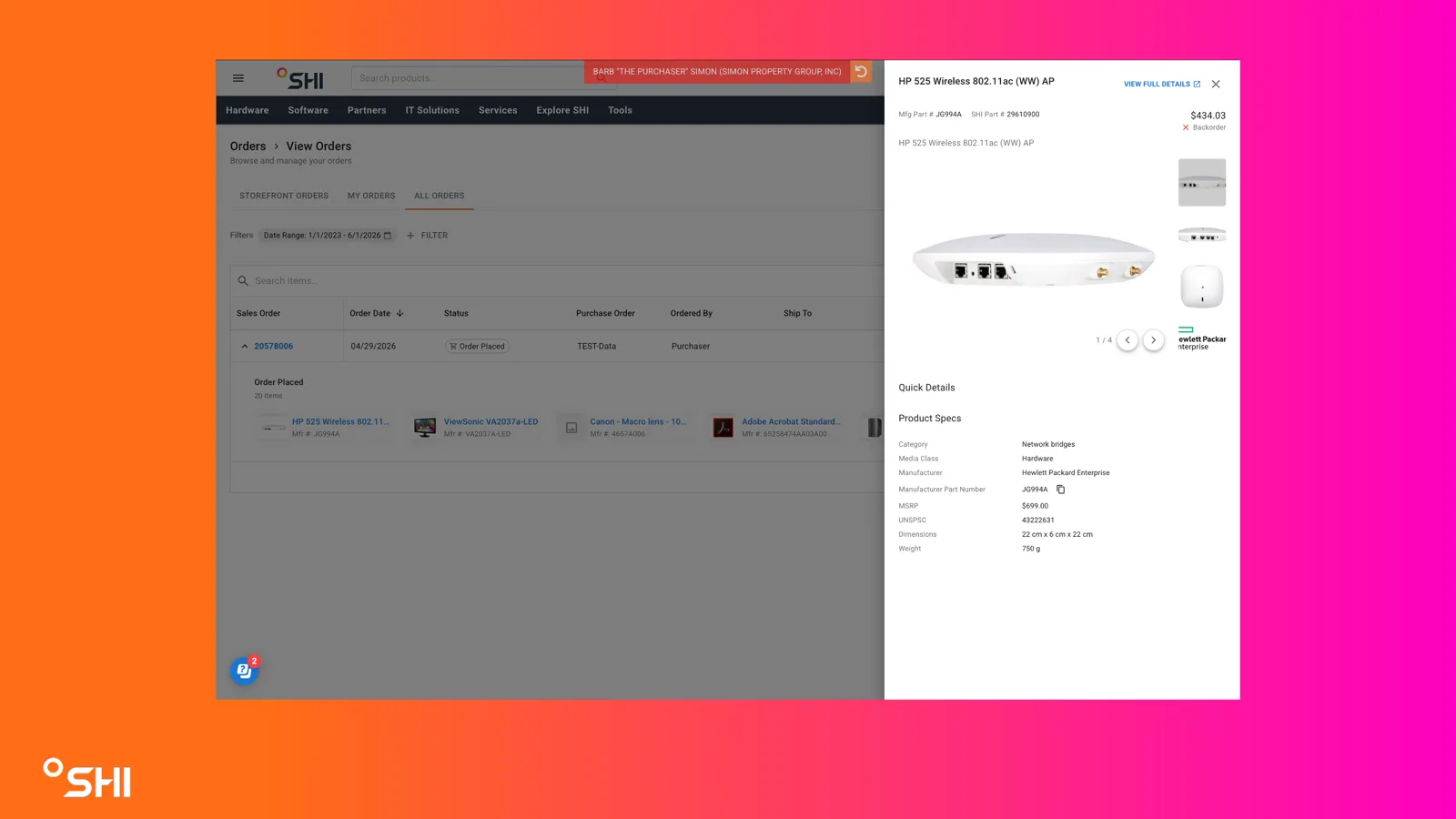
Select an item to open its slide-out drawer.
From the drawer, you can:
- Review additional item details
- Navigate to the SHI.com product detail page
11. Take Action on an Order
Each order includes actions that help you manage follow-up tasks.
Return / RMA
- Select Return / RMA to go to the SHI.com RMA page for that order
- Existing SHI.com eligibility rules still apply
Buy Again
- Select Buy Again to add the order’s items to your cart
- If your cart already contains items, the new items are added to the existing cart
- A success message appears after the items are added
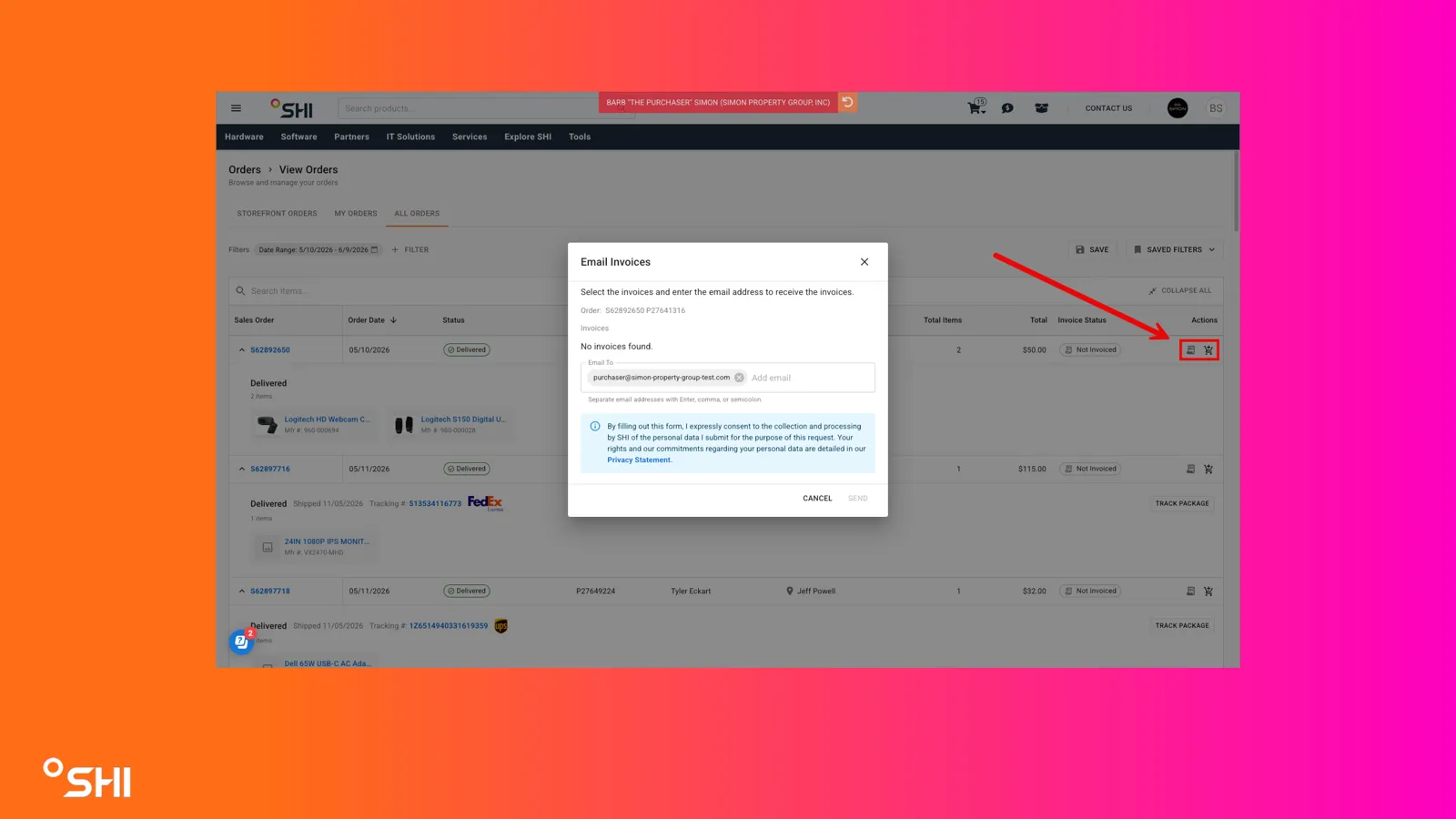
View Invoice
- Select View Invoice to open the invoice dialog
- From there, you can:
- Select invoice(s)
- Enter recipient email addresses
- Send invoices by email
Additional Notes
- Each page shows 25 orders