Requests
9 min
Feature Overview
The Requests tab provides detailed visibility into individual service requests and supports filtering, investigation, and operational analysis.
Functionality Overview
Users can:
- Search and filter requests.
- Review request attributes.
- Open request details.
- Investigate SLA or operational trends.
Getting Started
Accessing the Feature
- Open SHI One Service Report.
- Select Requests.
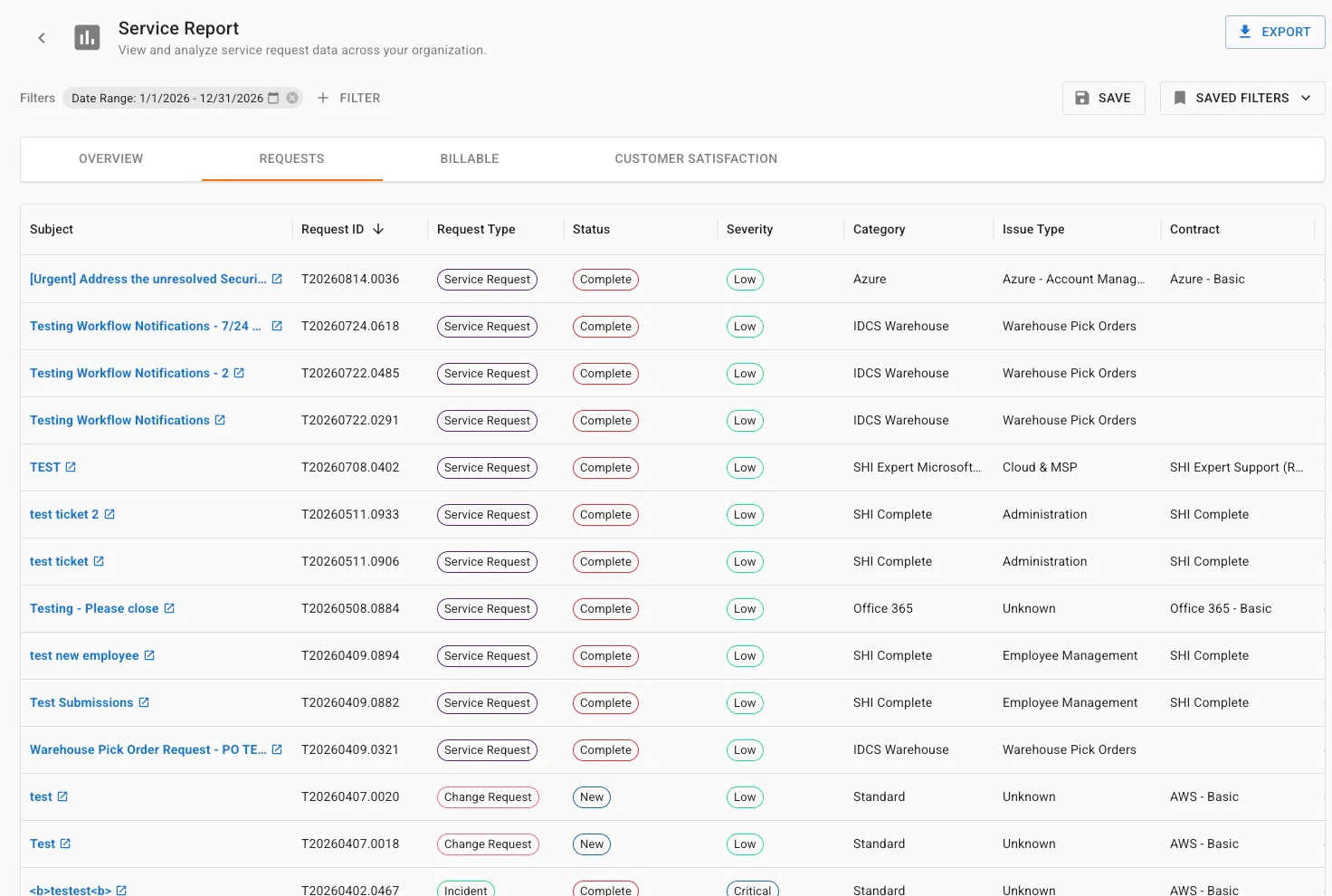
Using Requests Tab (Step-by-Step Guides)
1. Filtering Requests
- Open the filter panel.
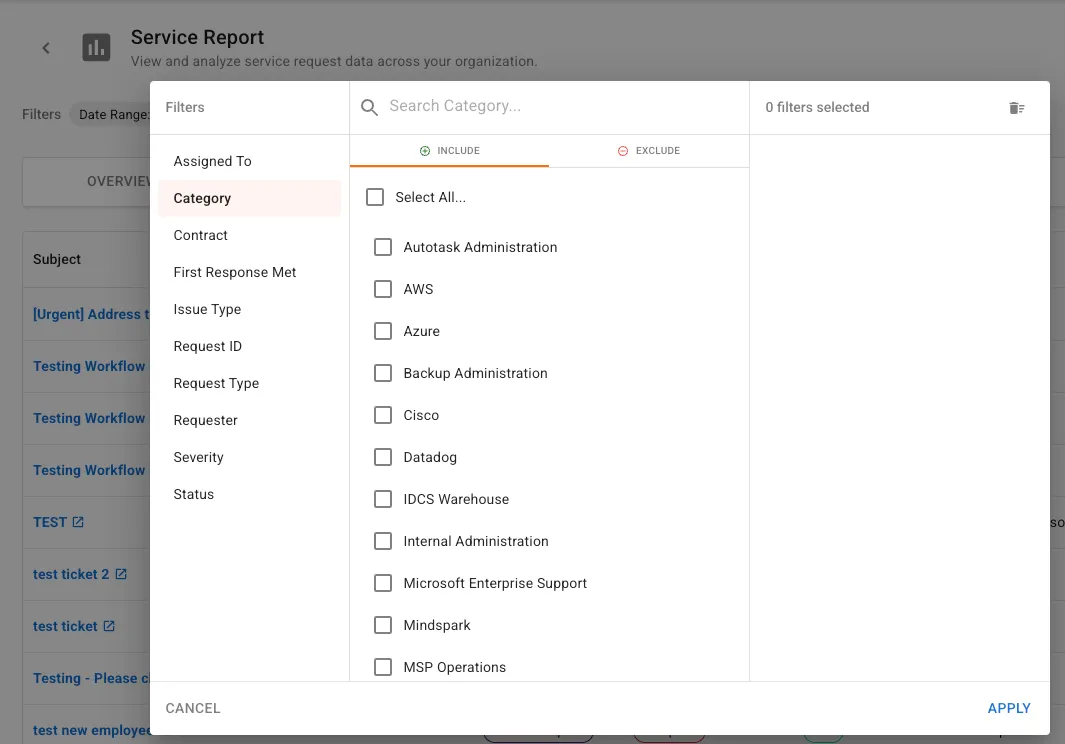
- Apply filters.
- Review filtered request results.
- Result: Request data updates using applied criteria.
2. Reviewing Request Information
- Review the request table.
- Analyze available columns:
- Request ID
- Request Type
- Status
- Severity
- Category
- Contract
- External Case Number
- Hours Consumed
- Use sorting and filtering options.
- Result: Requests can be evaluated efficiently.
3. Opening Request Details
- Select a Request ID.
- Review the request record.
- Result: Full ticket details are available for investigation.
Use Cases & Scenarios
Primary Use Cases
- Ticket investigations
- SLA reviews
- Customer escalations
- Trend analysis
Best Practices
- Combine filters to isolate specific request populations.
- Start with broad filters before narrowing results.
Troubleshooting and FAQs
FAQs
Q: Can I review vendor-related requests? A: Yes. Filter or drill down from the Resolution Source widget in the Overview tab.
Key Terms Explained
- Request ID: Unique identifier for a request.
- Severity: Business impact level assigned to a request.
- Category: Classification of the service issue or request.
- External Case Number: Vendor case number associated with the request.
Hierarchy or relationships (if applicable): Requests Tab > Request Record > Ticket Details
Related Resources
- OverviewOverview Tab
- Exporting Report DataExporting Report Data