Shopper View of Standards
17 min
Shopper View of Customer Standards
Feature Overview
The Shopper View of Customer Standards provides a modern, tile-based experience for browsing, managing, and purchasing standard products. It helps shoppers quickly navigate standards folders, review product details, check stock availability, and add products to their cart.
Functionality Overview
Users can:
- Browse standards using a tile-based interface.
- Navigate through folders and products.
- Add individual products or entire folders to the cart.
- View product details, specifications, and images.
- Check stock availability and stock ownership details.
- Configure products that require customization before purchase.
- Manage standards content if they have the appropriate permissions.
Notes or constraints:
- The Manage Standards button is only visible to users with management permissions.
- Products requiring configuration cannot be added directly from the standard and must be configured first.
- The number of visible tiles dynamically adjusts based on browser window size.
Getting Started
Accessing the Feature
- Navigate to Customer Standards from the shopping experience.
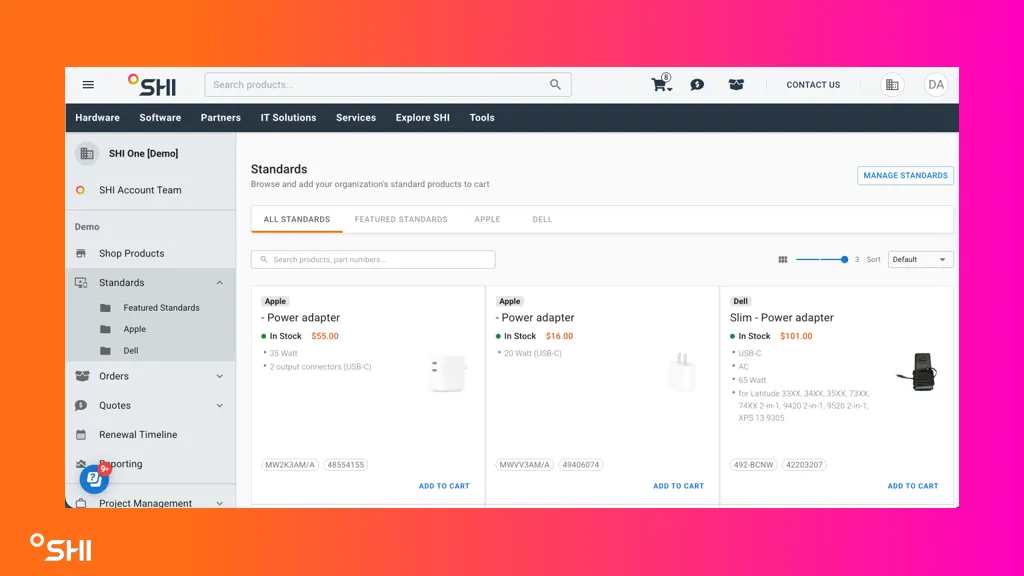
- Ensure you have the required role and permissions to access standards management features if applicable.
Prerequisites
- Accounts/roles required: Shopper or Standards Manager
- Configuration required: None
- Data required: Access to at least one Customer Standard
Using Shopper View of Customer Standards (Step-by-Step Guides)
1. Browsing Customer Standards
- Open a Customer Standard.
- Review the available folders displayed as tiles.
- Select a folder to view its products.
- Result: Products within the selected folder are displayed in a tile-based layout.
2. Viewing Product Details
- Select a product tile.
- Review the product details shown on the tile, including:
- Manufacturer
- Part Number
- Stock Status
- Product Name
- Open the Product Information Drawer.
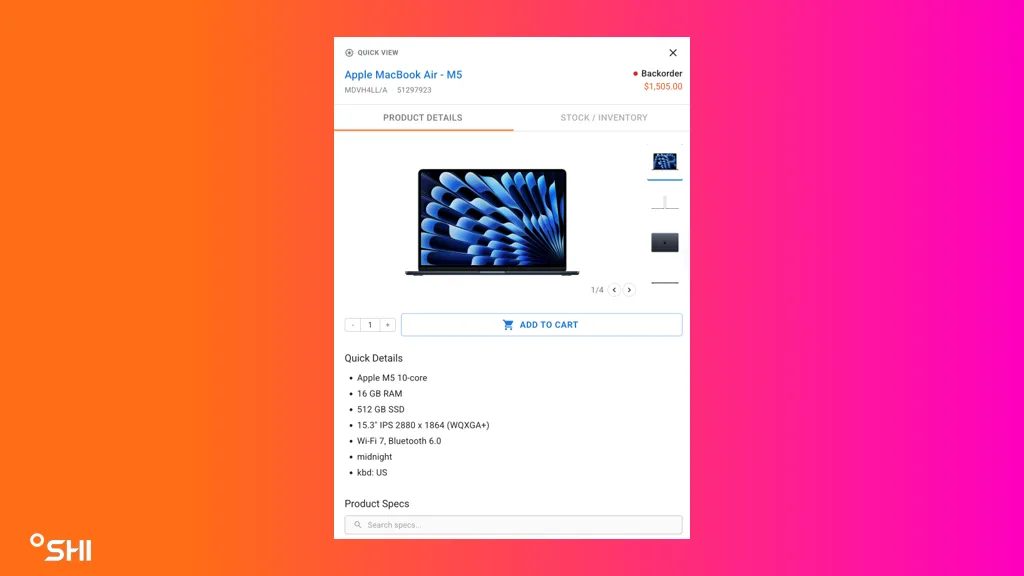
- Review additional information:
- Product images
- Extended specifications
- Product details
- Availability information
- Result: Detailed product information is available without leaving the standards page.
3. Adding Products to Cart
- Open the desired product.
- Adjust the quantity as needed.
- Click Add to Cart.
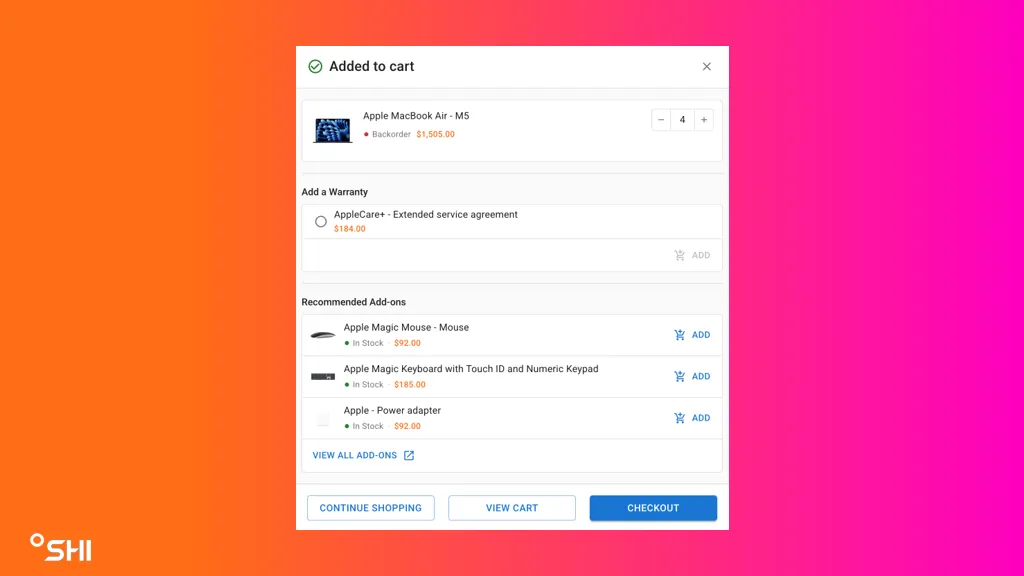
- Result: The selected product is added to the shopping cart.
4. Adding an Entire Folder to Cart
- Navigate to the folder containing the products you want to purchase.
- Click the option to add the entire folder to the cart.
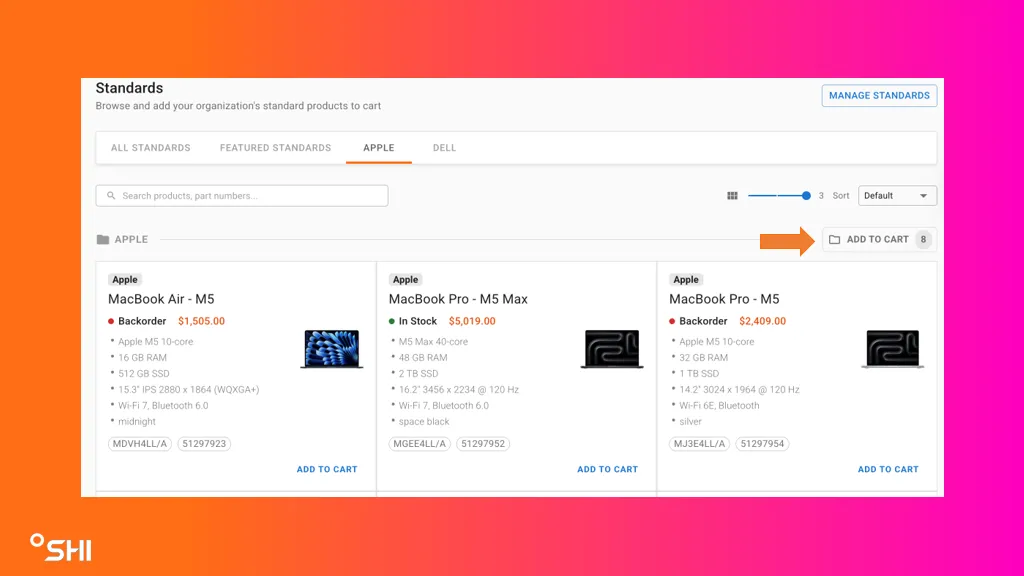
- Review the cart contents.
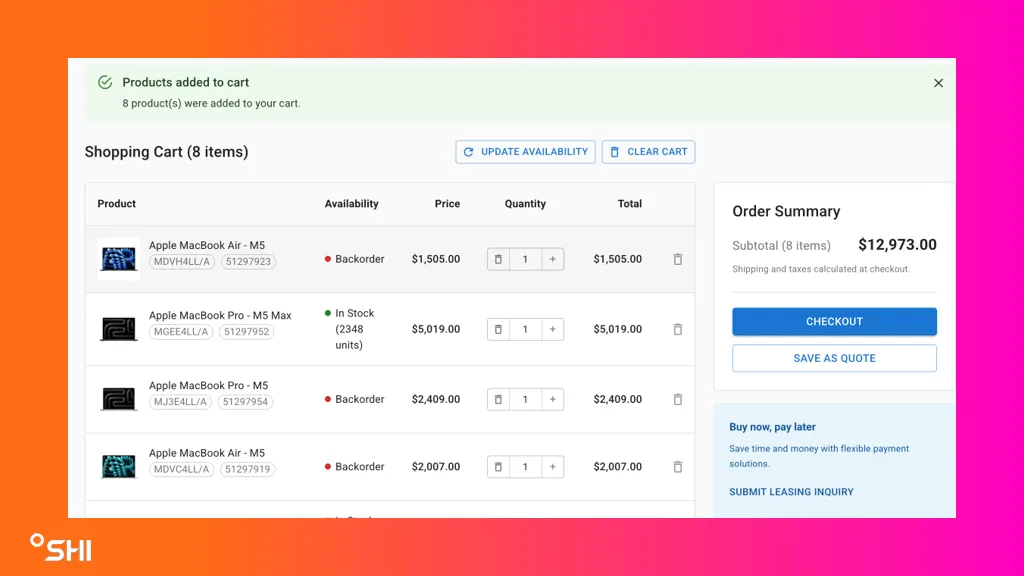
- Result: All eligible products within the folder are added to the cart.
5. Viewing Stock Status
- Locate the desired product tile.
- Review the stock category displayed for the product:
- SHI Stock
- Owned Stock
- Reserved Stock
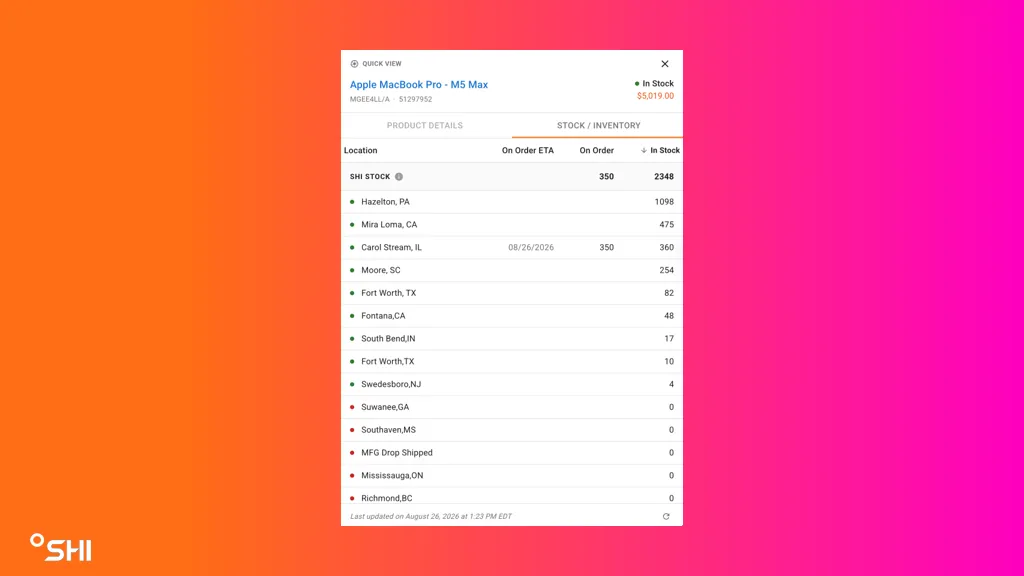
- Result: You can understand product availability and inventory ownership before purchasing.
7. Managing Customer Standards
- If you have the appropriate permissions, click Manage Standards.
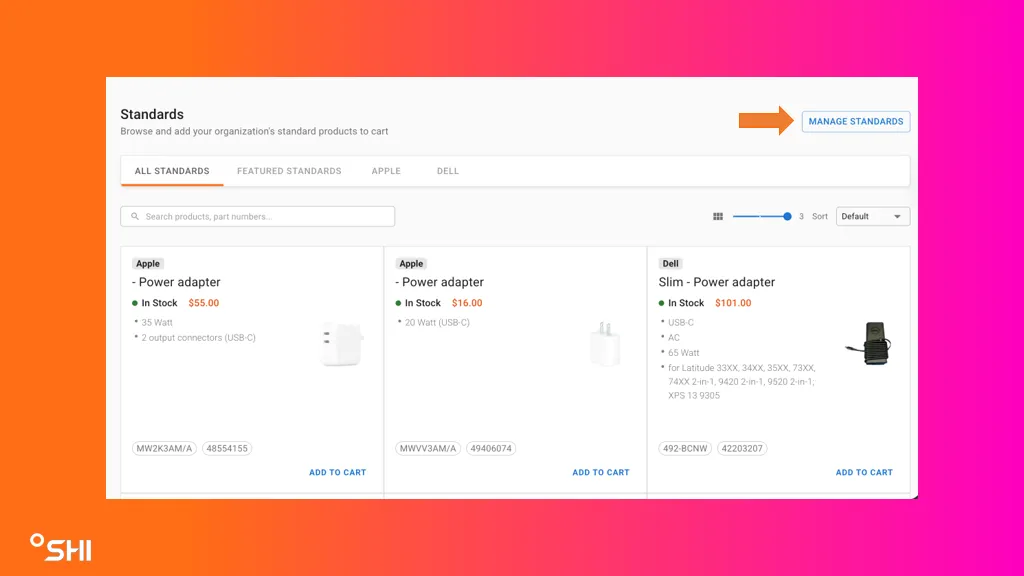
- Add, edit, or organize standards content as needed.
- Save your changes.
- Result: The customer standard is updated successfully.
Note: The Manage Standards button is only visible to users with standards management permissions.
Use Cases & Scenarios
Primary Use Cases
- Quickly locate approved products within customer standards.
- Purchase multiple products by adding an entire folder to the cart.
- Verify stock availability before placing an order.
- Review detailed product specifications and images.
- Manage standards content as a standards administrator.
Best Practices
- Use folders to efficiently navigate large standards collections.
- Review stock status before submitting orders.
- Use the product information drawer to verify specifications.
- Configure products before attempting to purchase them.
- Resize your browser window as needed to optimize tile visibility.
Troubleshooting and FAQs
Common Issues
Manage Standards button is not visible
- Verify that you have standards management permissions.
- Contact your administrator if access is required.
Unable to purchase a product
- Check whether the product requires configuration.
- Use the Configure button to complete required selections.
Stock information appears unavailable
- Refresh the page and reopen the product.
- Contact support if inventory information remains unavailable.
Cannot find a product specification
- Open the Product Information Drawer.
- Use the specification search functionality to locate details.
FAQs
What do the stock categories mean?
- SHI Stock: Inventory available through SHI.
- Owned Stock: Inventory already owned by the customer.
- Reserved Stock: Inventory allocated specifically for the customer.
Can I add multiple products at once?
- Yes. Entire folders can be added to the cart when supported.
Why do some products show a Configure button instead of Add to Cart?
- These products require additional configuration before purchase.
Does the page work on different screen sizes?
- Yes. The layout dynamically adjusts the number of visible tiles based on available screen space.
Glossary of Terms
- Customer Standards: A collection of approved products organized for customer purchasing.
- Folder: A container used to group related products within a standard.
- Tile: A visual card representing either a folder or a product.
- Product Information Drawer: A side panel displaying detailed product information.
- SHI Stock: Inventory currently available through SHI.
- Owned Stock: Inventory already owned by the customer.
- Reserved Stock: Inventory allocated to the customer but not currently available for general use.
- Manage Standards: Administrative functionality used to maintain standards content.
- Configuration Product: A product that requires additional configuration before purchase.
Hierarchy or relationships (if applicable): Customer Standard > Folder > Product
Related Resources
- Standards ManagementStandards