Standards Management
Feature Overview
Standards Management lets your authorized administrators independently manage standards folders and the products within them for your organization's storefront, directly in SHI One. This removes the need for manual SHI WebAdmin intervention, streamlines change cycles, and gives you immediate, transparent control over your standards for faster business outcomes.
Audience: Company administrators and storefront managers who curate standards for a storefront.
Key outcomes: Faster and more visible management of product standards, reduced dependency on SHI support, and consistent, up-to-date standards for all your org admins.
Access and Permissions
Standards Management is available to users who hold one of the following:
• Tenant role: Admin, Procurement Admin, or Global Admin.
• Storefront role: Manager.
Members and shoppers do not have access to this page. If you cannot see the Standards tab, confirm your role with your organization's Global Admin or your SHI representative.
Key Terms Explained
• Standards Folder: A container for organizing groups of products according to company standards (for example, "Hardware" or "Software").
• Product: An individual catalog item (for example, a laptop or printer) included in a standards folder.
• Custom Ordinal Order: The persistent, user-defined order of folders and products as arranged by admins.
• Overflow Menu (3-dots Menu): A menu providing additional actions such as move, delete, or replace for folders and products.
• Storefront: The managed environment where standards folders and products are configured and displayed.
Hierarchy: Storefront > Standards Folder > Product
Functionality Overview
• Manage Standards Folders: Create, rename, move (including between categories), reorder (drag-and-drop), and delete folders.
• Manage Products in Folders: Add, remove, move between folders, reorder (drag-and-drop), and replace products.
• Display Product Context: View images, descriptions, and availability for each product.
• Custom Sorting: Folders and products are sorted by type and custom order. Menu-driven reordering updates the persistent order.
• Immediate Save: All changes are instantly committed and reflected in the UI.
• Visibility Controls: Folders without products are hidden from end users. Out-of-catalog or unknown products have admin-only visibility.
Notes and constraints
• Access requires an Admin, Procurement Admin, or Global Admin tenant role, or the Storefront Manager role.
• No column header sorting. Sort actions update the custom order and require confirmation if overwriting.
• Image batching and caching follow the current system behavior; there is no lazy loading.
• Import and export are not enabled in this release.
Getting Started
Accessing the Feature
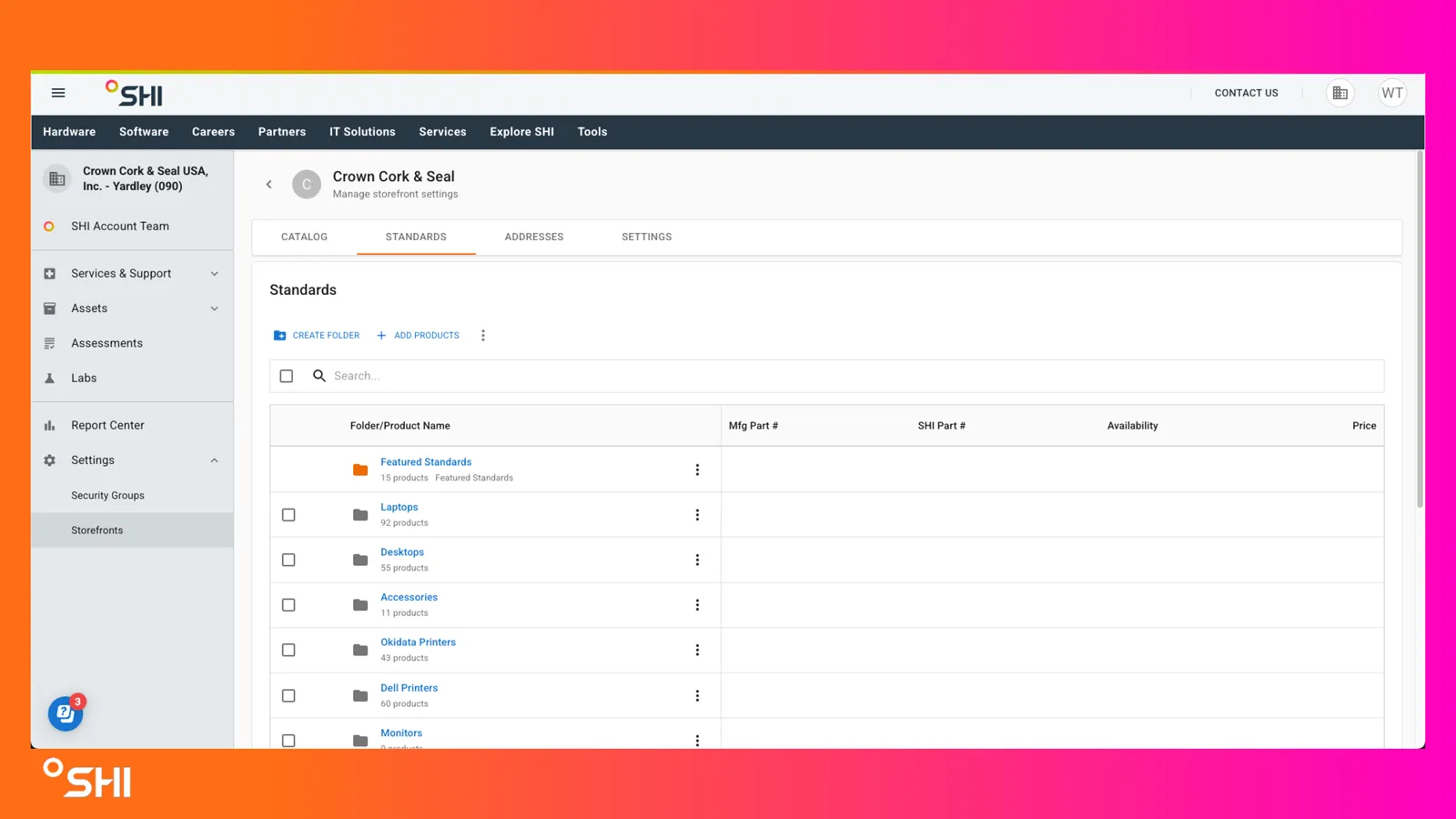
- Navigate to My Accounts > Storefronts > [Choose Storefront] > Standards tab.
- Ensure you have the required role: Admin, Procurement Admin, or Global Admin tenant role, or the Storefront Manager role.
Prerequisites
• Roles required: Admin, Procurement Admin, or Global Admin tenant role, or Storefront Manager.
• Data required: A storefront with standards folders and products.
Using Standards Management (Step-by-Step Guides)
1. Creating a New Standards Folder
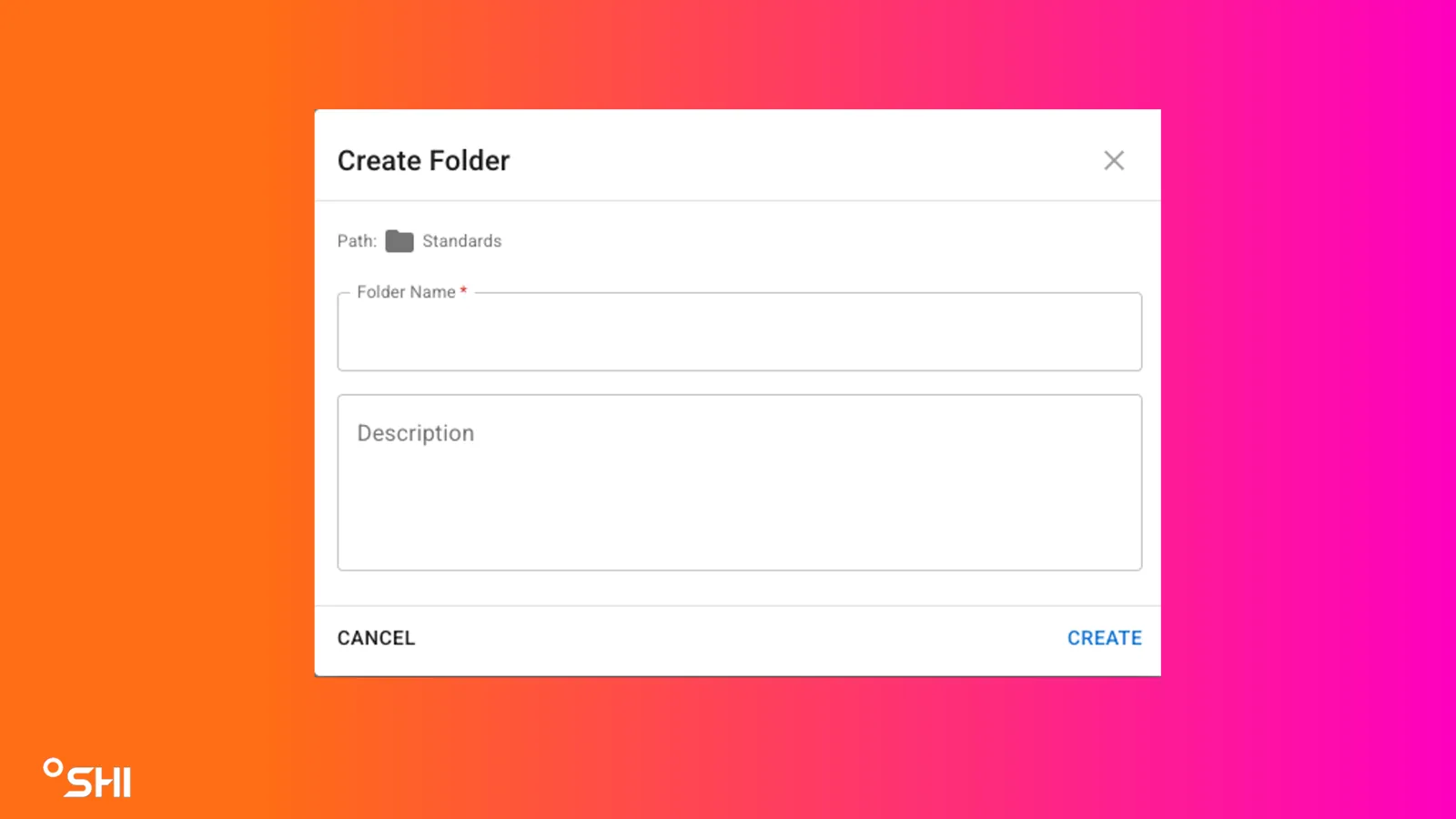
- Click CREATE FOLDER at the top right of the Standards page.
- Enter the Folder Name and optional Description in the modal.
- Click CREATE.
- Result: The new folder appears in the standards list, ordered per custom ordinal.
2. Adding Products to a Folder
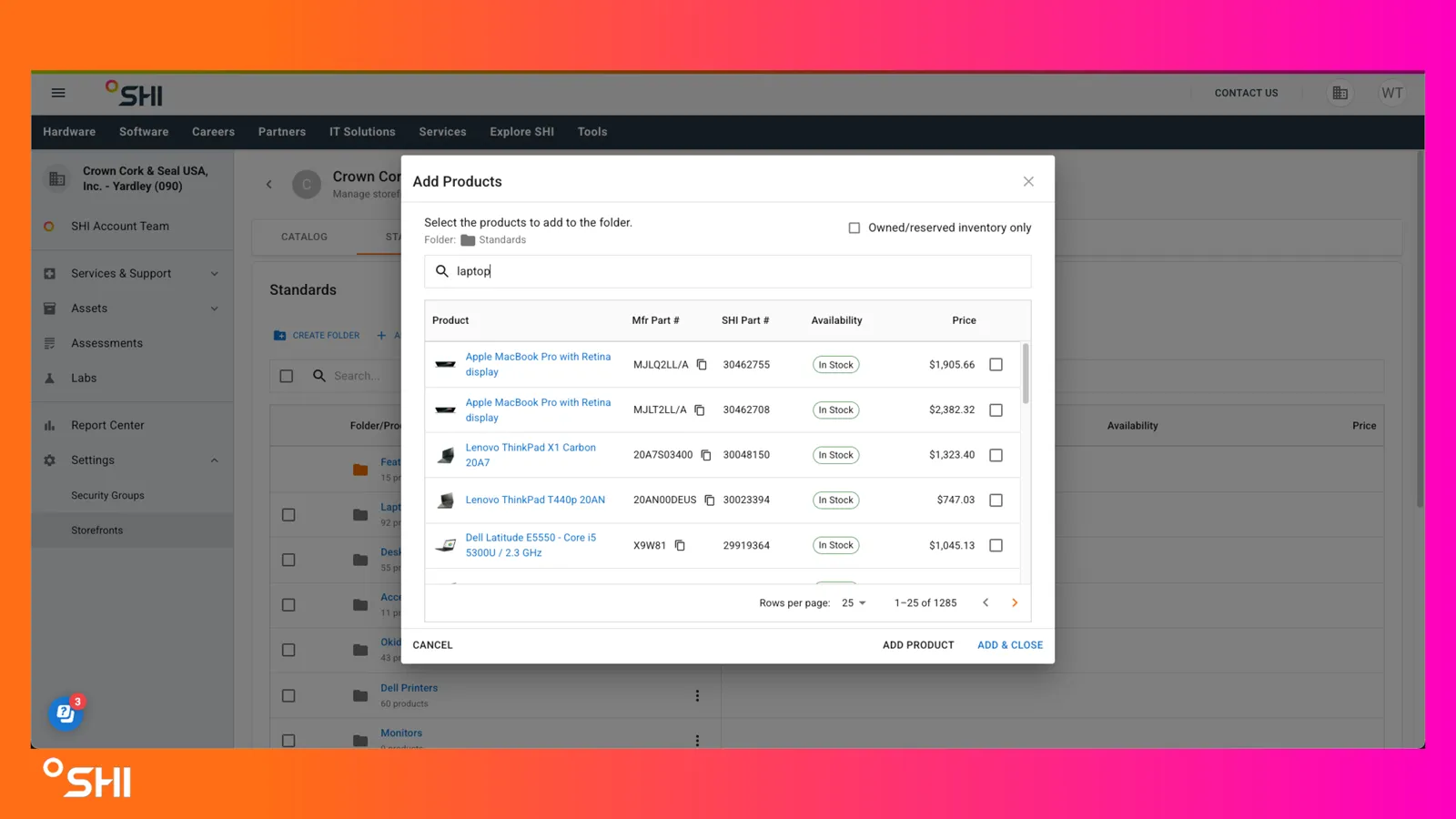
- Click the + ADD PRODUCTS button in the top left, or use the overflow (3-dots) menu next to the folder.
- In the modal, search and select one or more products from the catalog.
- In the top right, you may also select the "Owned/reserved Inventory Only" checkbox to limit your search to products within your integration center.
- Click ADD to commit your changes.
- Result: Selected products appear in the folder, with images, descriptions, and availability shown.
3. Moving Products or Folders
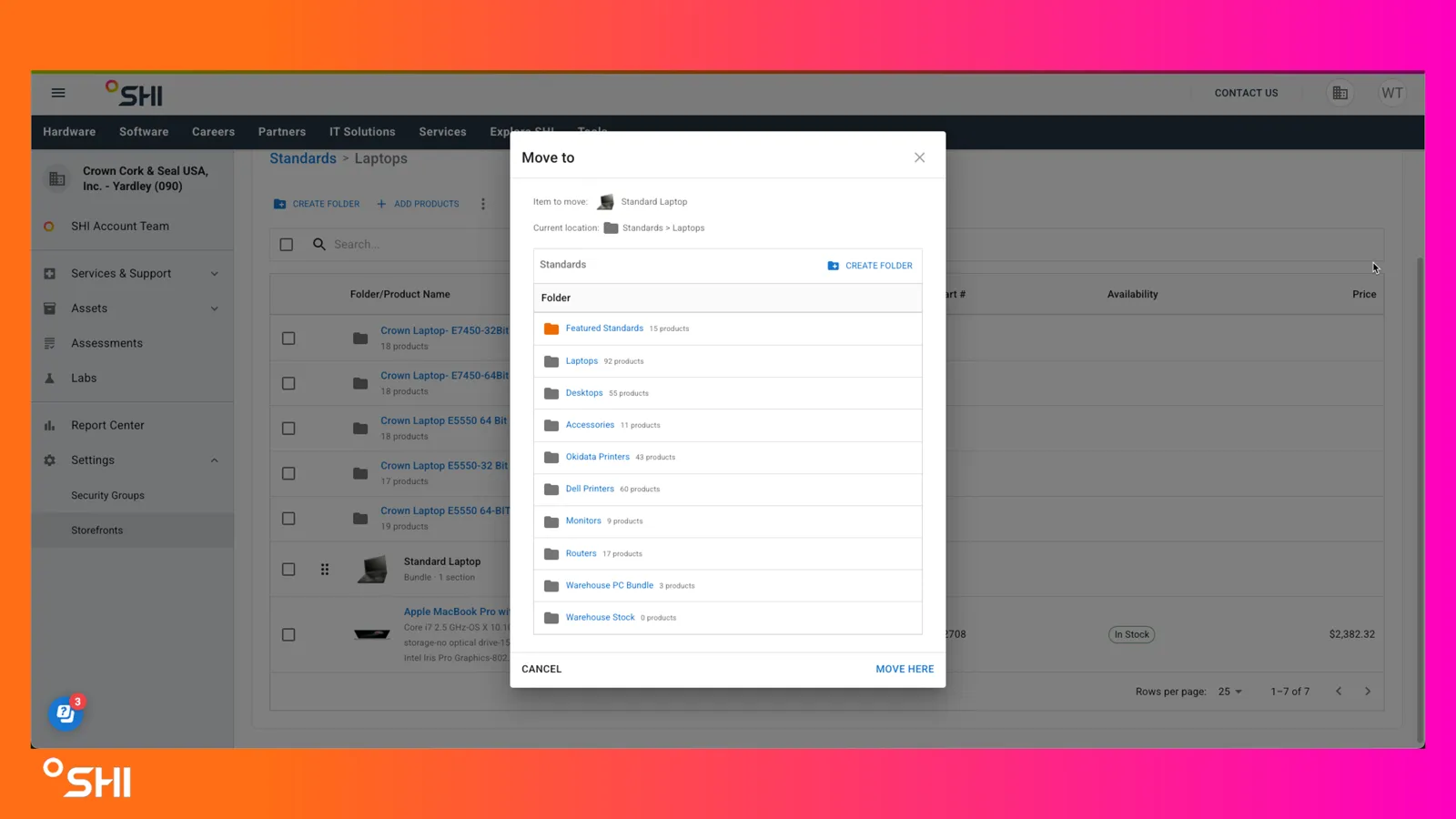
- From the overflow (3-dots) menu on a product or folder, select Move.
- In the "Move to" modal, choose the target folder or create a new one as needed.
- Click MOVE HERE to confirm.
- Result: The item is relocated instantly and the order is updated.
4. Reordering Folders and Products (Drag-and-Drop)
- Click and drag a folder or product to the desired position in the list.
- Release to drop. The order updates immediately and persists across sessions.
- For menu-driven sorting (for example, A-Z), select the sort option and confirm if prompted.
- Note: this rewrites your current sorting.
- Result: Custom ordinal order is saved and reflected for all your org admins.
5. Replacing a Product
- Click the overflow (3-dots) menu on the product and select Replace.
- In the catalog search, choose the replacement product.
- Confirm the replacement. The new product appears in the same position.
- Result: The UI updates immediately with a success or error message.
6. Deleting a Folder or Product
- Click the overflow (3-dots) menu on the folder or product and select Delete.
- Alternatively, multi-select folders or products and use the "Action" button at the top.
- Confirm in the "Are you sure?" modal, which lists the chosen folders or products.
- Result: The item and all its contents are permanently removed. The UI updates instantly.
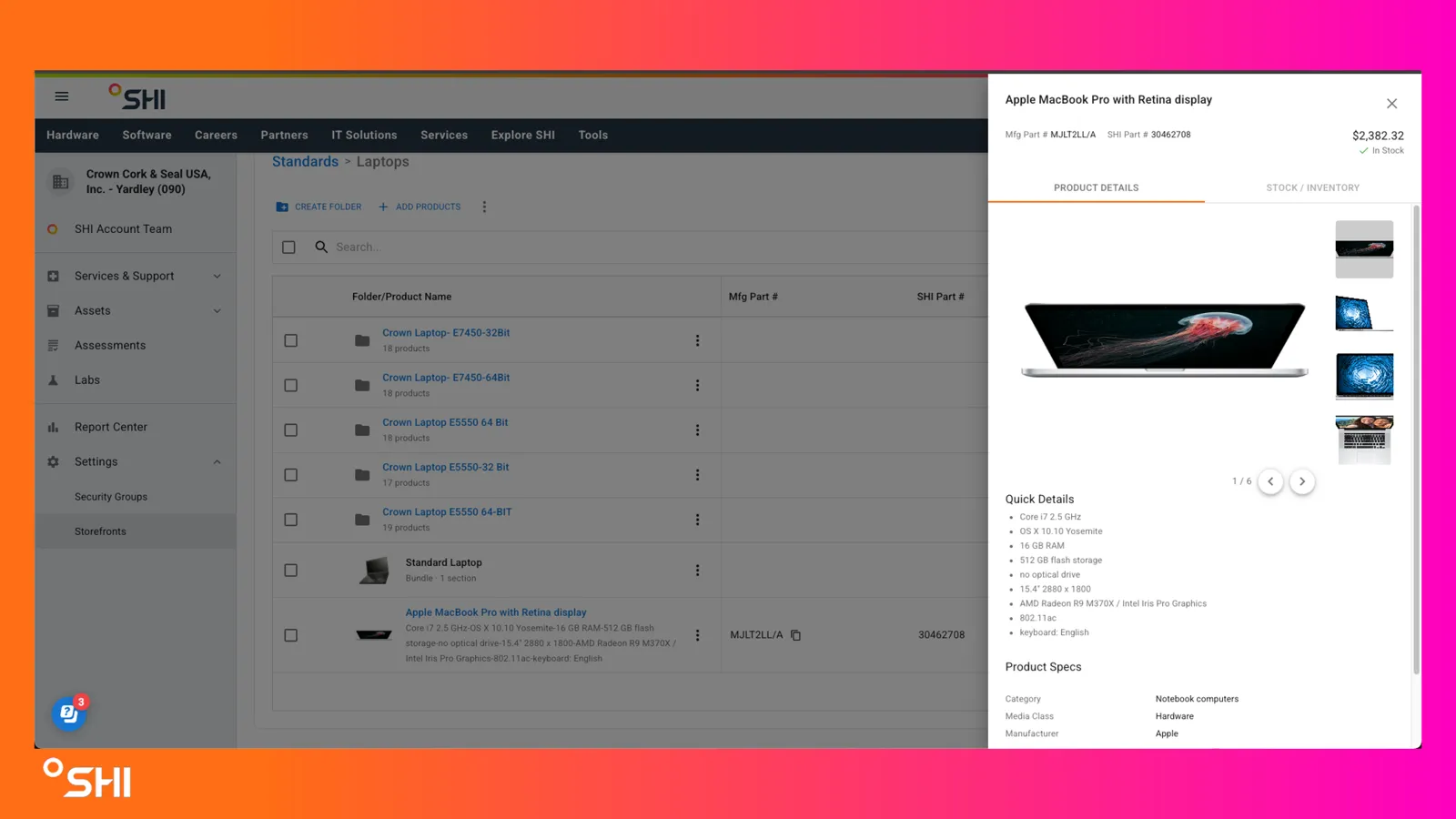
7. Viewing the Product Details Drawer
- Each product row displays a product image, description, and availability (for example, In Stock or Back Order).
- Click the product name, or select "View product details" from the overflow (3-dots) menu, to view more details including title, description, photos, price, availability, and product specs.
- A Stock / Inventory tab is available where applicable. You can view owned and reserved stock of the item along with distributor stock at different warehouses.
- Click the background, the "X" in the top right, or press Escape to leave the product details drawer.
8. Showing Warehouse Inventory as a Folder
- Next to "Create Folder" and "Add Products" in the management table, click the overflow button and select "Show Warehouse Inventory."
- This syncs with your account's integration center and creates a new folder in standards that shows the products you currently have stock of. It updates every 6 hours once turned on.
- Note: This can take a few hours to reflect. Please allow time for it to take effect.
Use Cases & Scenarios
Primary Use Cases
• Quickly update product standards for a department or region.
• Remove outdated products and add newly approved options.
• Reorder products for prioritized display in the storefront.
• Self-serve folder and product management without SHI support delays.
Best Practices
• Use descriptive folder names for clarity.
• Confirm sort actions to avoid accidental reordering.
• Regularly review product availability and replace out-of-stock items.
Troubleshooting and FAQs
Common Issues
• Cannot see the Standards tab: Confirm you have an Admin, Procurement Admin, or Global Admin tenant role, or the Storefront Manager role. Members and shoppers cannot access this page.
• Changes not saving: Check for network issues. All changes should commit instantly.
• Missing folders or products: Visibility rules may hide empty folders or out-of-catalog products for non-admins.
FAQs
• Can I undo a delete? No. Deletions are permanent. Review the confirmation modal carefully before proceeding.
• Why can't I search across all standards folders? Cross-folder search is not available in this release. Use catalog search when adding or replacing products.