Subscriptions
Overview
This feature allows you to view and manage your cloud licenses and subscriptions from one dashboard. The Subscriptions table enables a view into cloud spend and allows users to control their cloud spend and allocation in a granular way.
It also helps to control the ways organizations are billed for their AWS and Microsoft cloud spend.
Contents
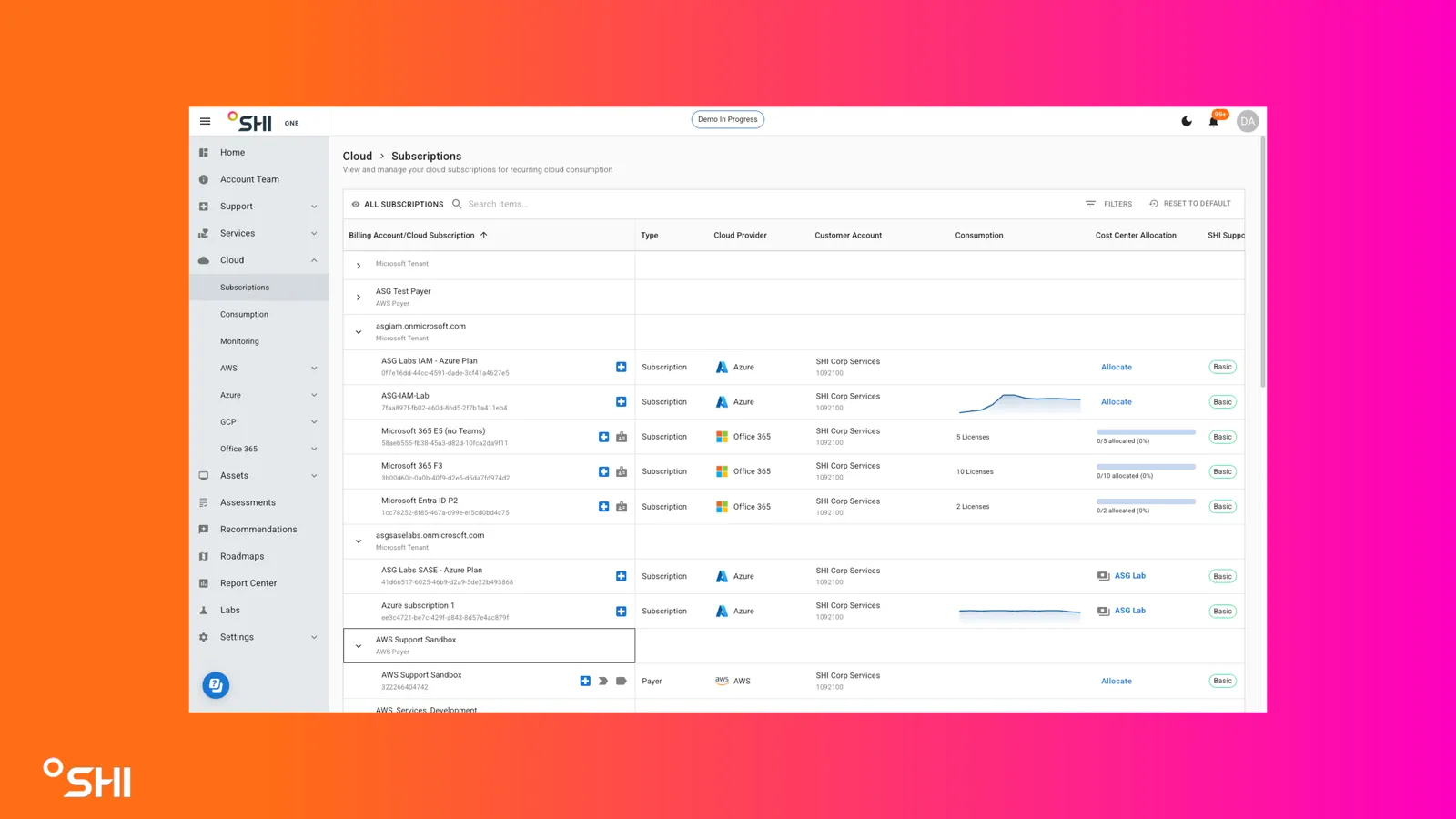
Columns
- Billing Accounts/Cloud Subscriptions: Shows the Billing Account and Cloud Subscription ID for a given cloud subscription.
- Type: Denotes type of account per cloud subscription:
- Subscription: Software licenses.
- Linked: Subaccounts to payer accounts. Allows costs to be divided underneath Payer accounts. Equivalent to a tenant in the Microsoft ecosystem.
- Payer: Account through which your AWS cloud costs are billed. GCP uses the same nomenclature. Equivalent to a subscription in the Microsoft ecosystem.
- Project: Exclusive to GCP. Subaccounts to payer accounts for GCP accounts.
- Cloud Provider: Shows the cloud provider for a given cloud subscription.
- Customer Account: Displays which Customer Account purchased/procured a given cloud subscription.
- When assigning cloud subscriptions to Cost Centers, the Customer Account on both the cloud subscription and the Cost Center must match.
- Consumption: For a given cloud account, shows how much cost the account has accrued over the previous month and the total over the previous 12 months. Displays this information in a line chart.
- Cost Center Allocation: Displays and allows assignment of a cloud subscription/cloud licenses to a Cost Center.
- Cloud Subscriptions:
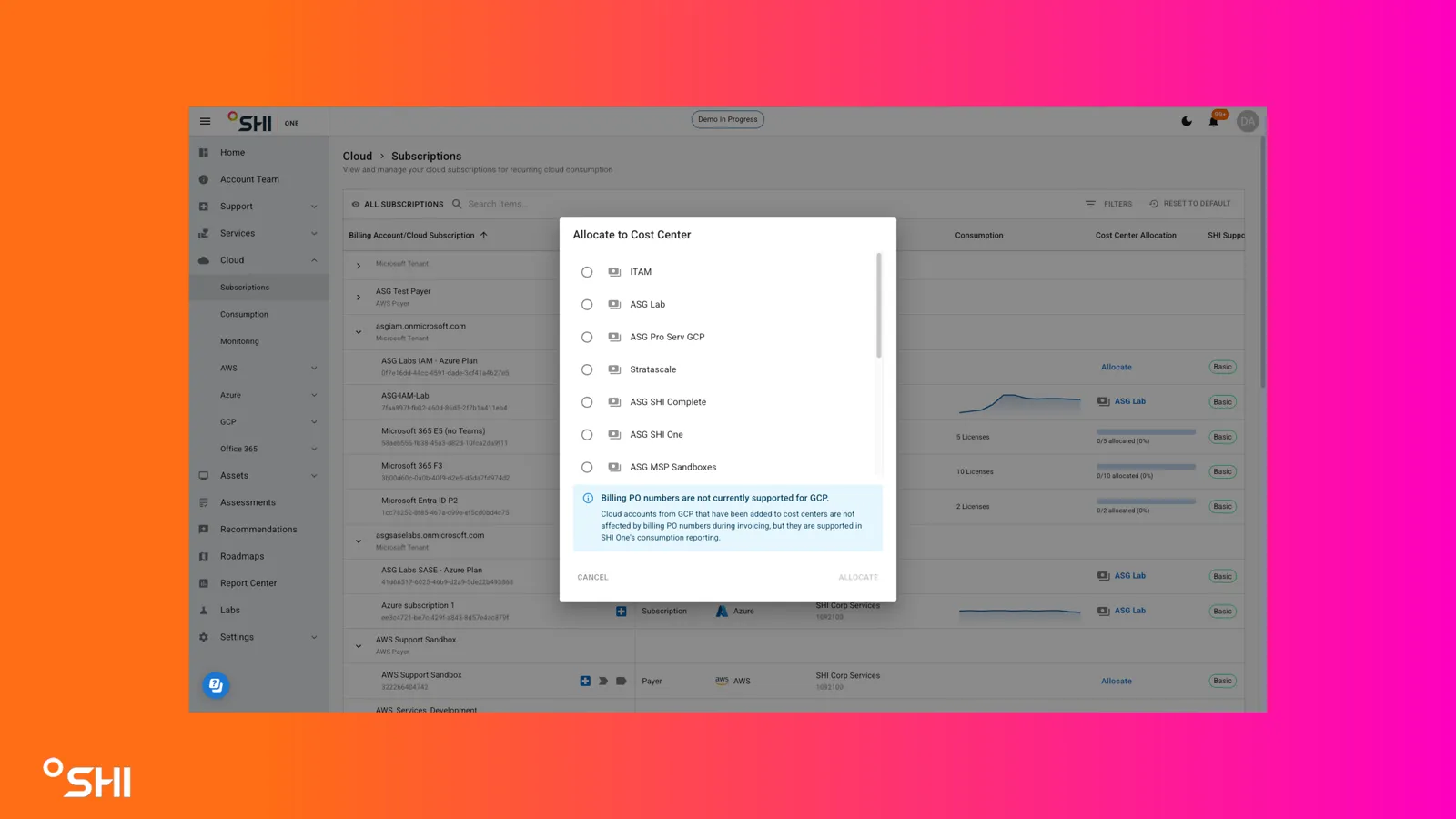
- If nothing has been allocated, click Allocate, select a Cost Center, and click Allocate on the dialog box.
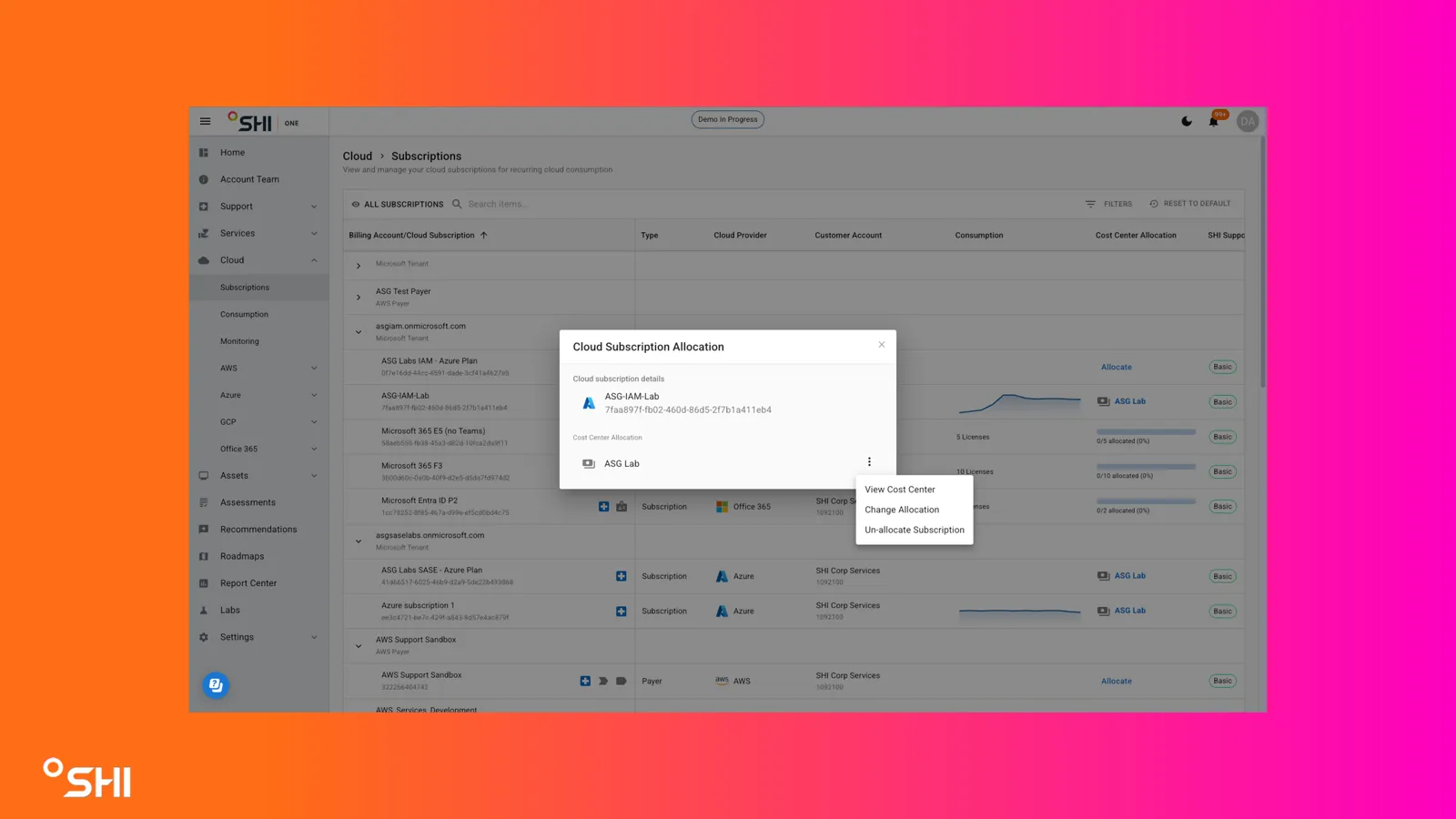
- If cloud subscription has been allocated, click on the Cost Center name, then click on the Context Menu of the dialog (3 dots button) and select Change Allocation or Un-Allocate Subscription.
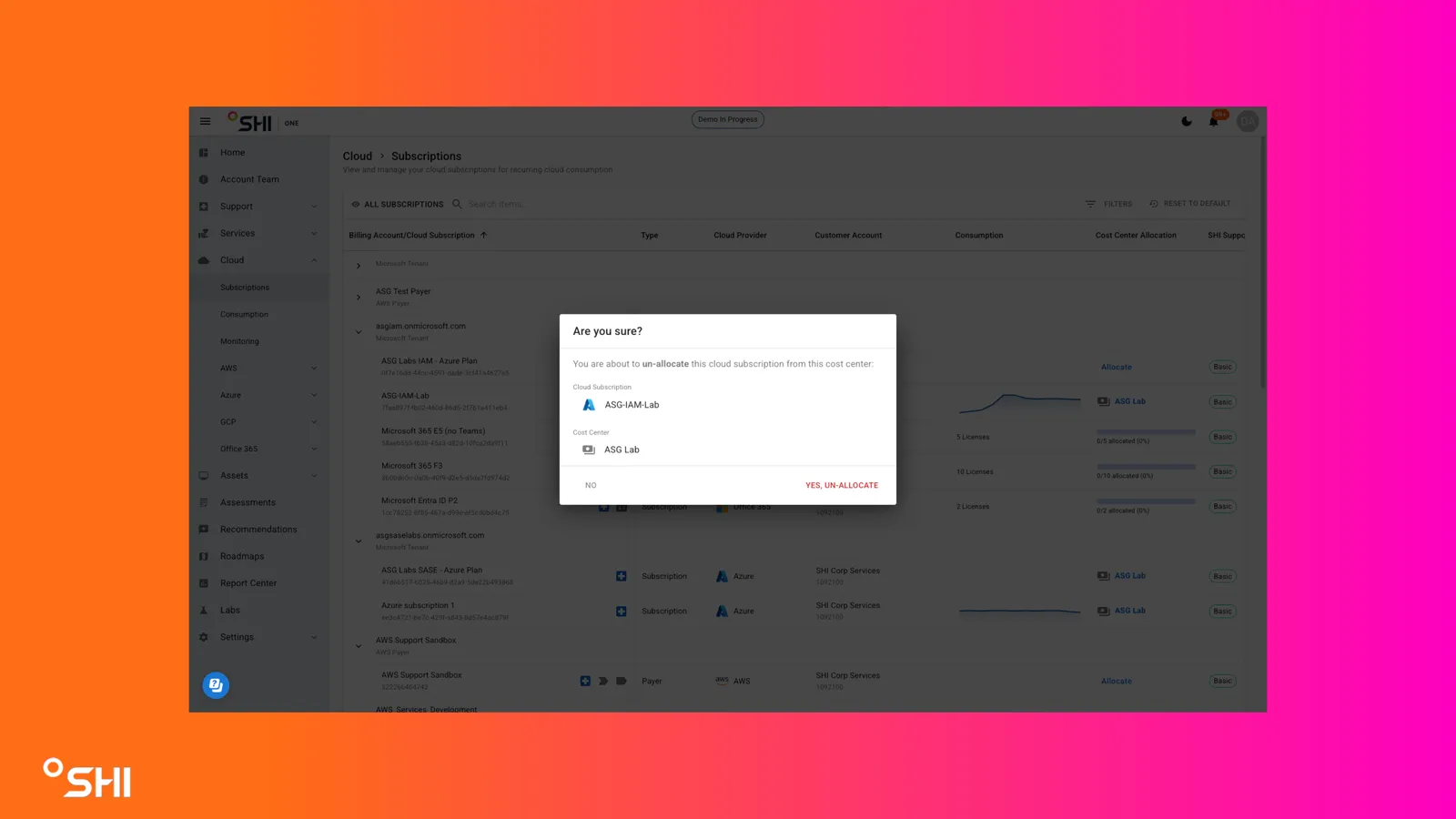
- For Un-Allocations, click Yes, Un-Allocate to complete this workflow.
- For Allocation Changes, select the new Cost Center and click Change Allocation.
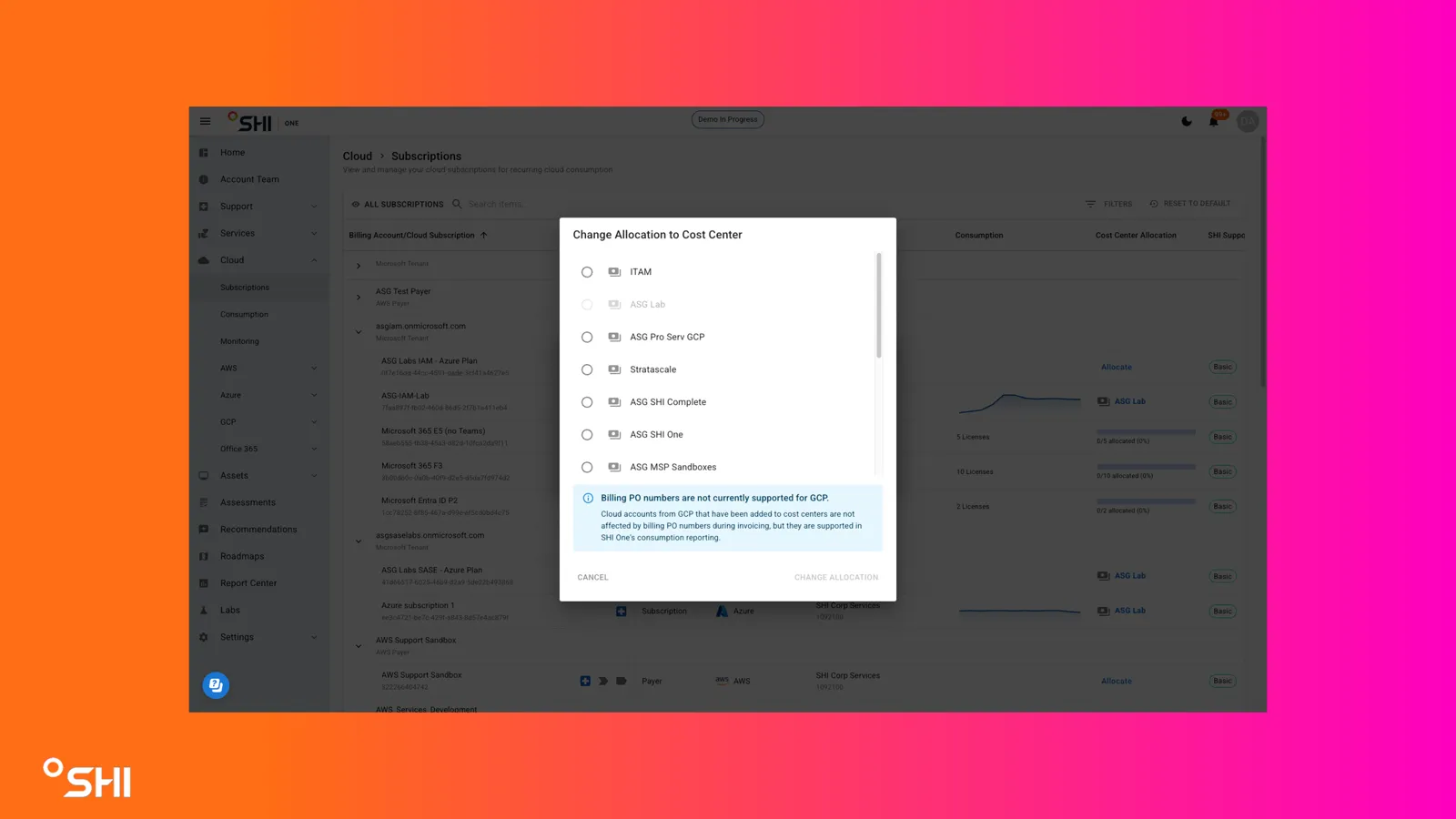
- Licenses:
- Shows how many licenses have been allocated to Cost Centers out of the total amount of licenses purchased.
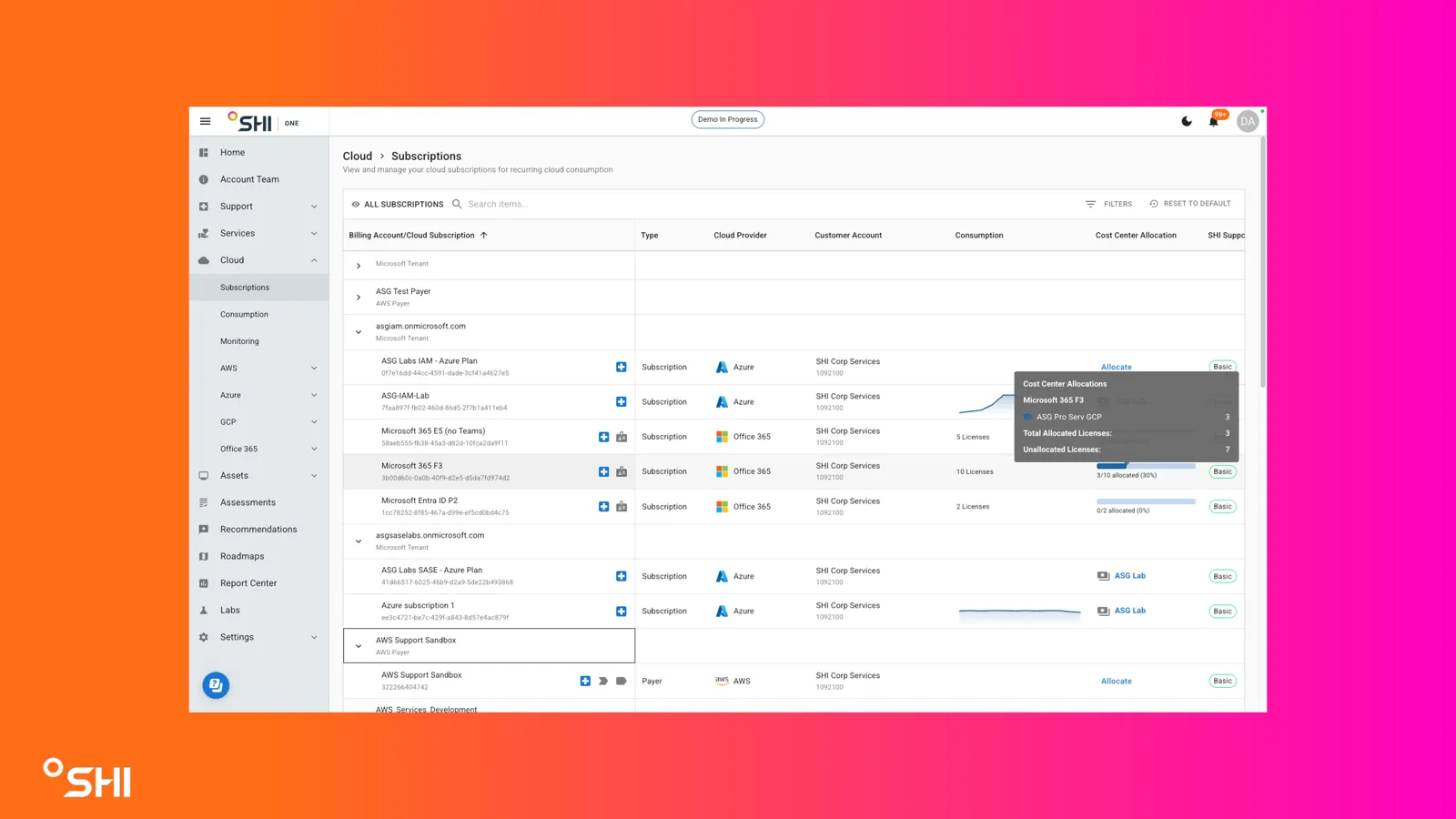
- Values show as a part of a segmented progress bar. Hovering over the bar shows subscription type, Cost Center allocation counts, a total count of allocated licenses, and a total count of unallocated licenses.
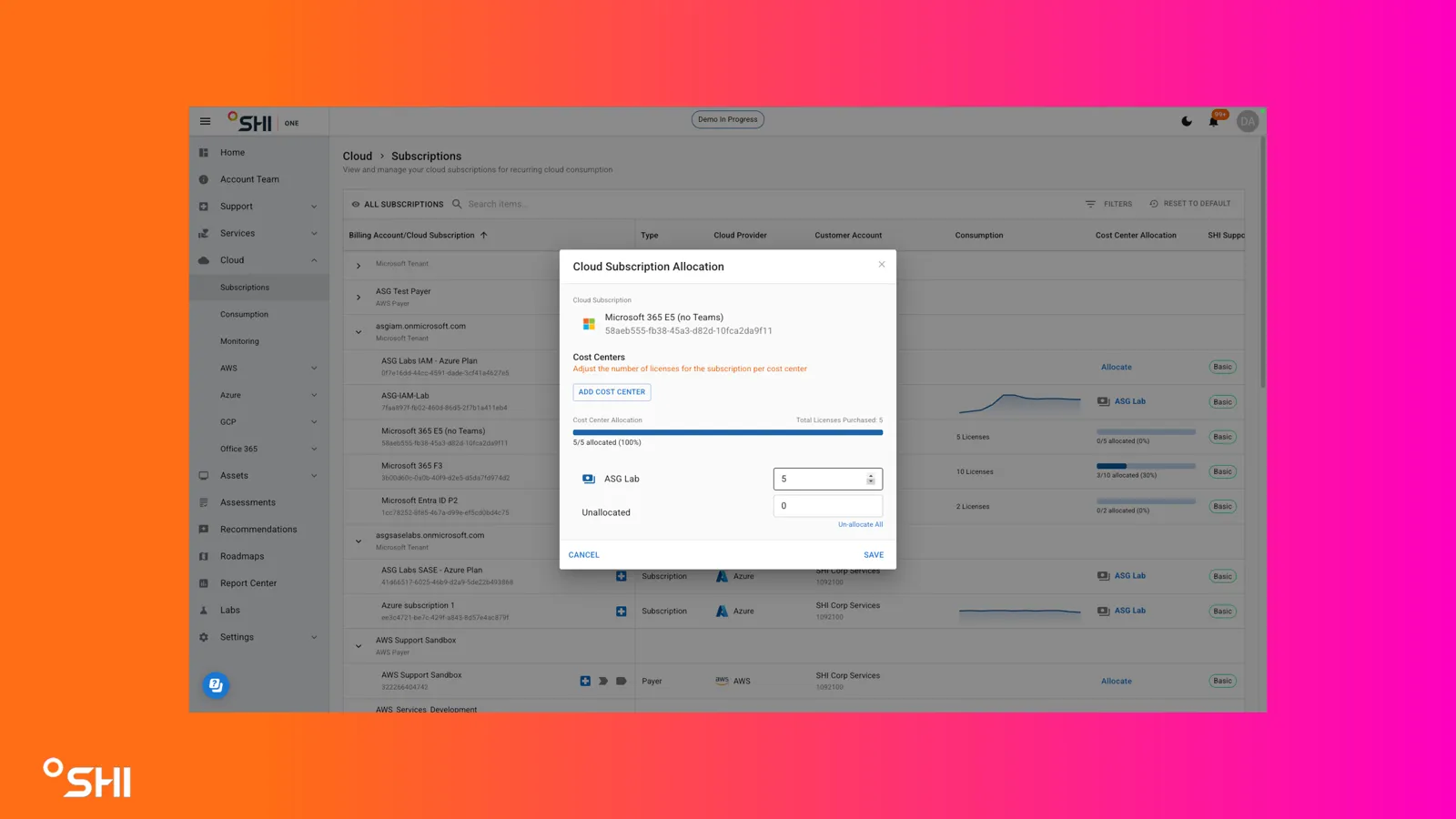
- If nothing has been allocated, click the progress bar. Click Add Cost Center, select a Cost Center, and then click Allocate. If you desire to allocate licenses to multiple Cost Centers as a part of the same workflow, click Add Cost Center again. Select the number of licenses to be allocated to each Cost Center, and then click Save.
- If license counts have been partially allocated, click the progress bar. Add Cost Centers, change license allocations per Cost Center, and click Save to finalize changes.
- If license counts have been fully allocated, click the progress bar. Add Cost Centers, change license allocations per Cost Center, and click Save to finalize changes.
- To Un-Allocate licenses, click the progress bar. Lower license counts or click Un-Allocate All and click Save to finalize your changes.
- SHI Support: Shows the level of SHI support assigned to each cloud subscription.
- Provider Support: Shows the level of provider support assigned to each cloud subscription.
- Owner ID: Shows the email address of the owner of each cloud subscription.
- Created: Shows the day that each cloud subscription was originated.
Controls
- Request Support: Creates a new Service Request for a selected cloud subscription.
- Activate AWS-Generated Cost Allocation Tags: Submits a ticket to our service desk to enable AWS-Generated Cost Allocation Tags for a selected cloud subscription.
- Activate User-Defined Cost Allocation Tags: Submits a ticket to our service desk to enable User-Defined Cost Allocation Tags for a selected cloud subscription.
- Assign Licenses: Navigates users to the Office Admin Portal, where licenses can be assigned.
Expanding and Collapsing Subscription Details
- Open the Subscriptions table.
- Select Expand All to display details for all subscriptions.
- Select Collapse All to hide detailed information.
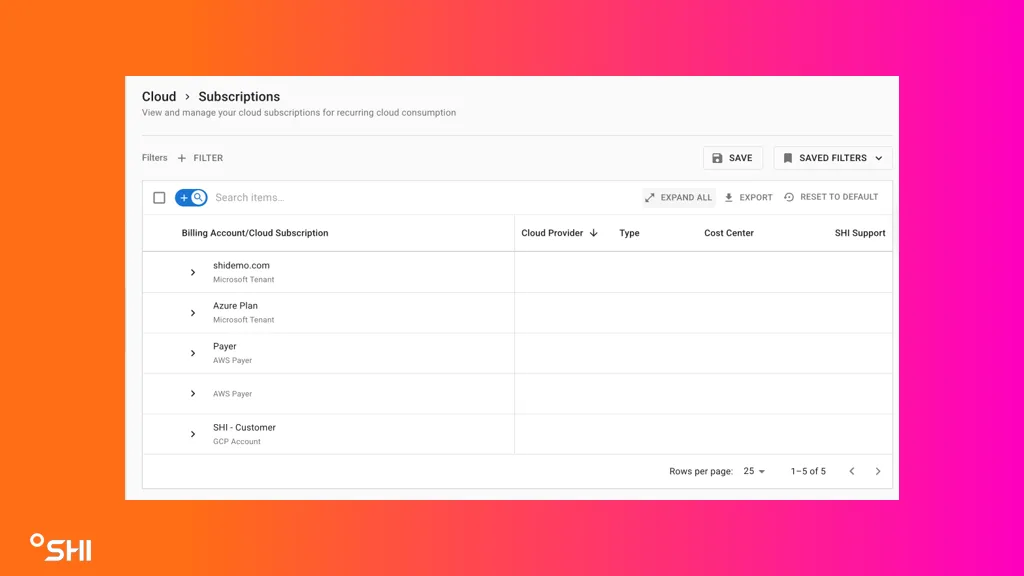
- Result: All subscription details are expanded or collapsed with a single click.
Exporting Subscription Data
- Navigate to the Subscriptions table.
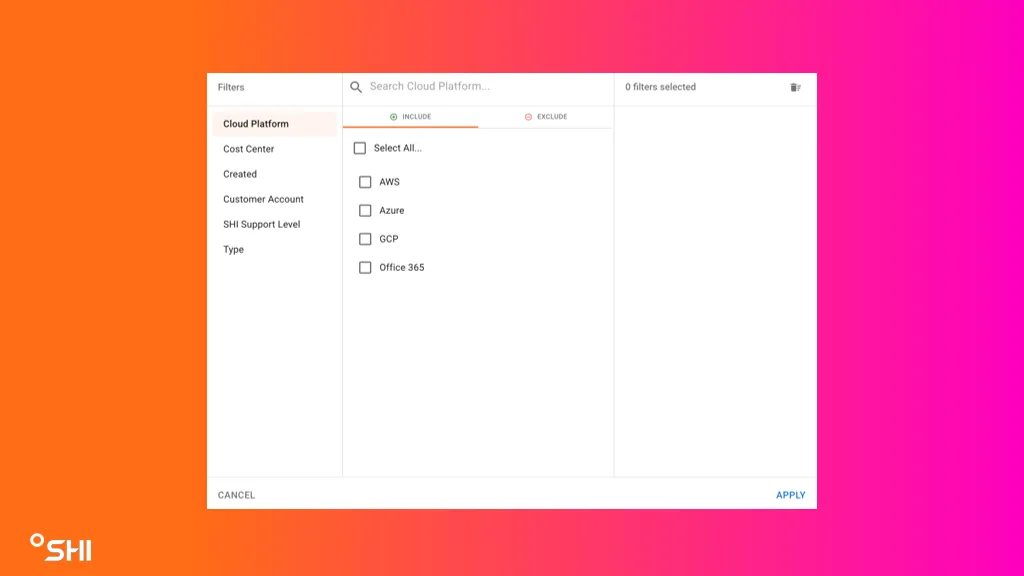
- Apply any desired filters.
- Select Export.
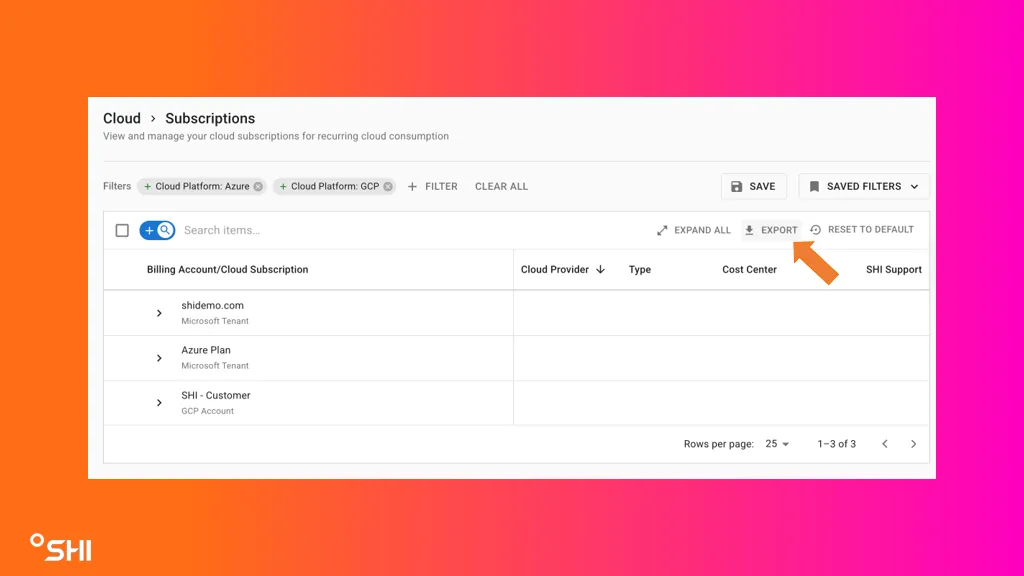
- Result: Subscription data is exported using the standard SHI One export functionality and follows the same export rules as other platform tables.
Allocating Subscriptions in Bulk
- Open the Subscriptions table.
- Select one or more subscriptions using the checkbox column.
- Select Allocate To Cost Center.
- Complete the allocation details within the bulk allocation drawer.
- Submit the allocation request.
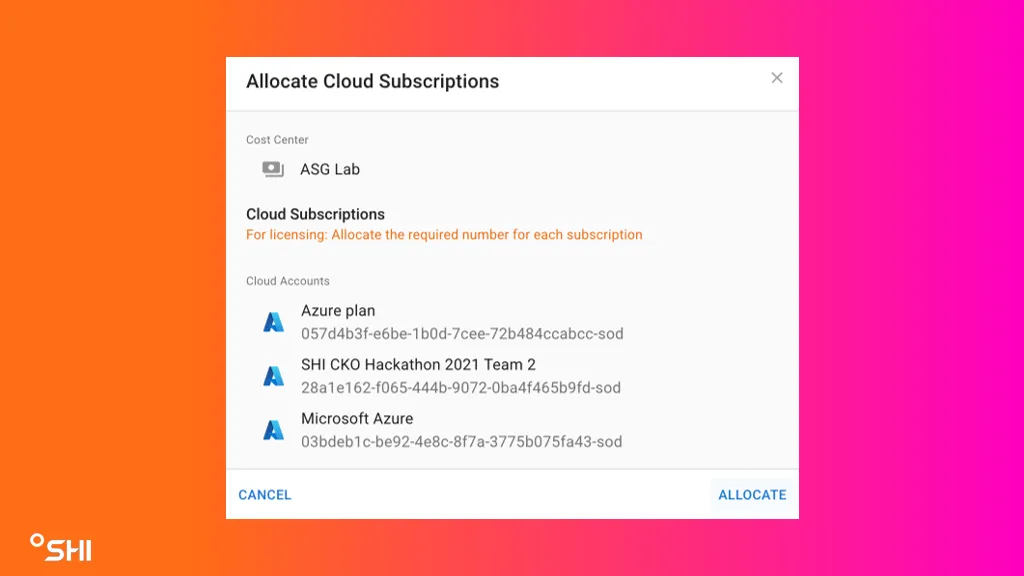
- Result: A confirmation toast message appears indicating success and provides access to the associated Cost Center.
Reviewing License Allocation Details
The Cost Center Allocation column now includes an enhanced visual representation of license consumption.
- Locate the Cost Center Allocation column.
- Review the progress bar to quickly understand allocated versus purchased licenses.
- Hover over the allocation indicator to view detailed allocation information.
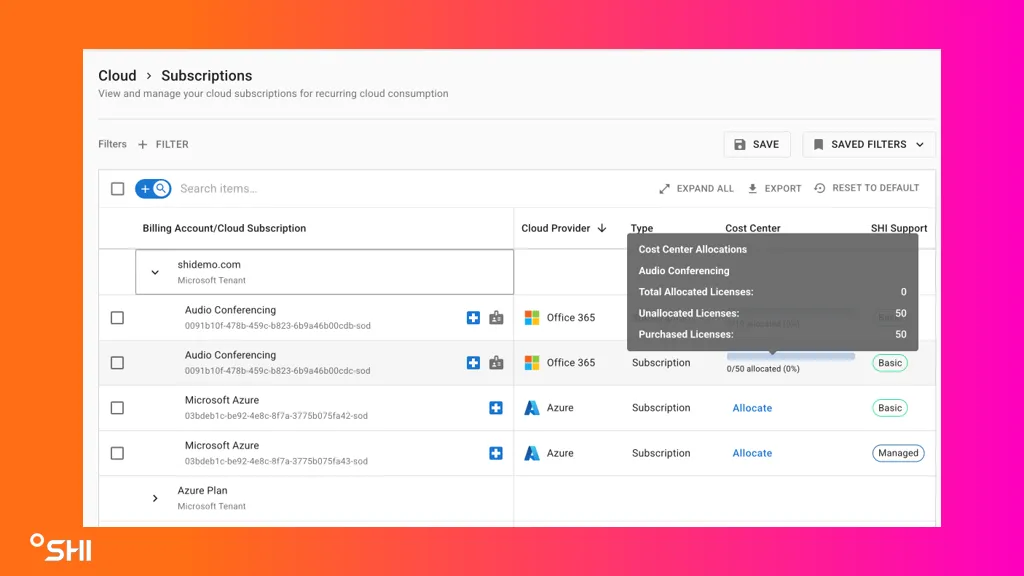
- The tooltip displays:
- Total Allocated Licenses
- Unallocated Licenses
- Purchased Licenses
- All associated Cost Centers
Example:
- 369 Total Allocated Licenses
- 131 Unallocated Licenses
- 500 Purchased Licenses
- Result: Users gain a clearer understanding of license utilization and allocation status directly from the table.
Managing Subscriptions
To manage a subscription in the table, click on the MANAGE SUBSCRIPTIONS button in the top right corner. This will take you to the Subscription Management page where you can manage your subscriptions. For more information, see <link>How to Manage Subscriptions</link>.
Note: This button is only visible If you have access to the existing subscription manager. If you don't see this button and expect to, reach out to your SHI representative.