How to Configure Lifecycle Policies
Overview
Lifecycle Policies allow your organization to define standard timelines for hardware refresh and lifecycle planning in SHI One. You can align lifecycle dates with your organization’s standards, ensuring lifecycle timelines better reflect how you plan, budget, and manage technology over time.
Once configured, lifecycle policies are automatically applied to eligible assets and reflected across your lifecycle views.
Who is this for?
Lifecycle Policies are designed for:
- IT leaders and asset owners who want lifecycle timelines aligned to internal standards
- Procurement and infrastructure teams planning refresh cycles
- Organizations with multiple asset types or manufacturers that follow different refresh cadences
This feature is viewable by any user with the View Order Data permission. Users with the Manage Order Data can self-manage and take action within Lifecycle Management.
Where to find Lifecycle Policies
Lifecycle Policies are managed within Lifecycle Management in SHI One.
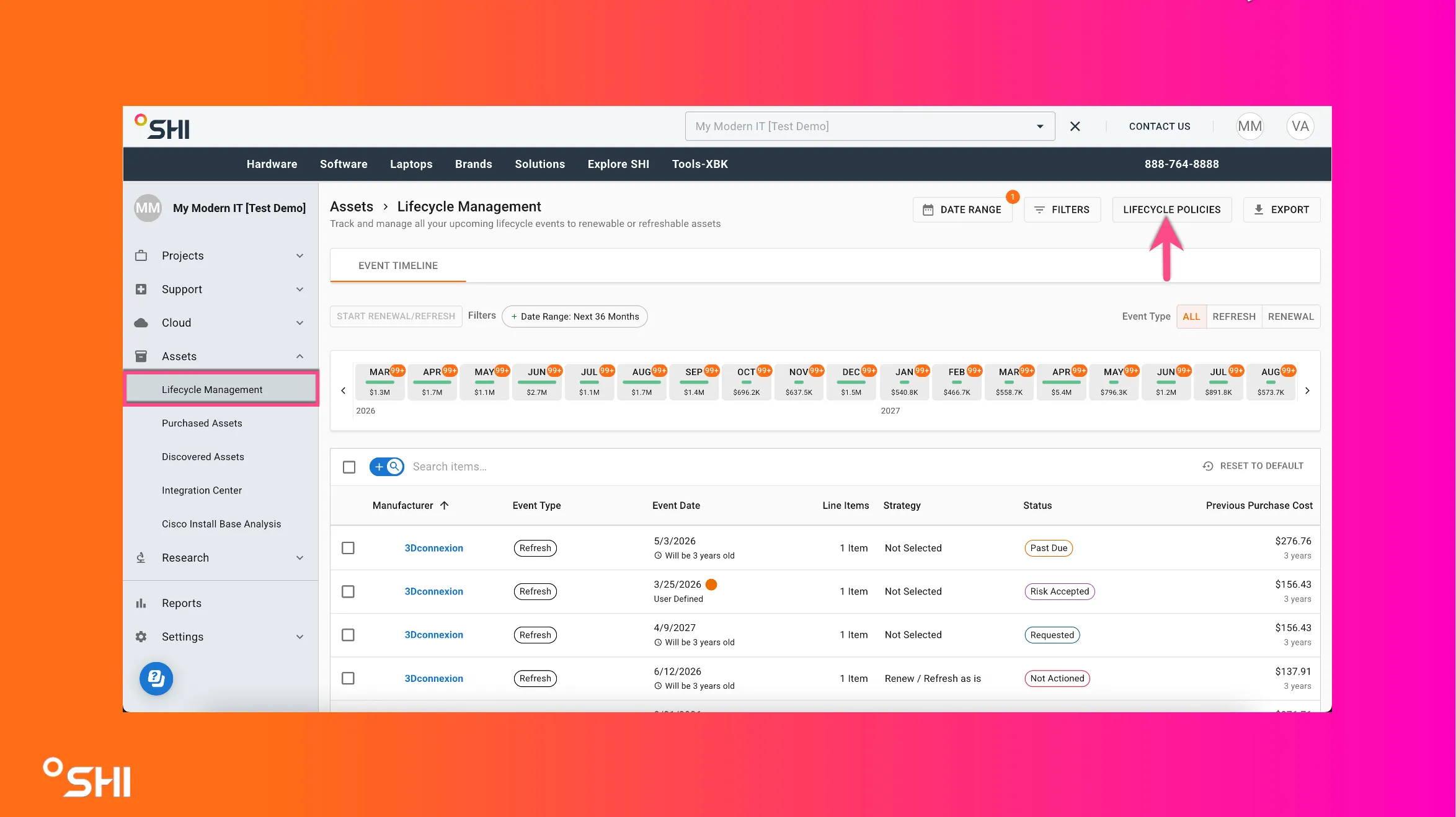
From there, authorized users can:
- View existing lifecycle policies
- Create or update lifecycle rules
- See when changes are pending or applied
Creating or updating a Lifecycle Policy
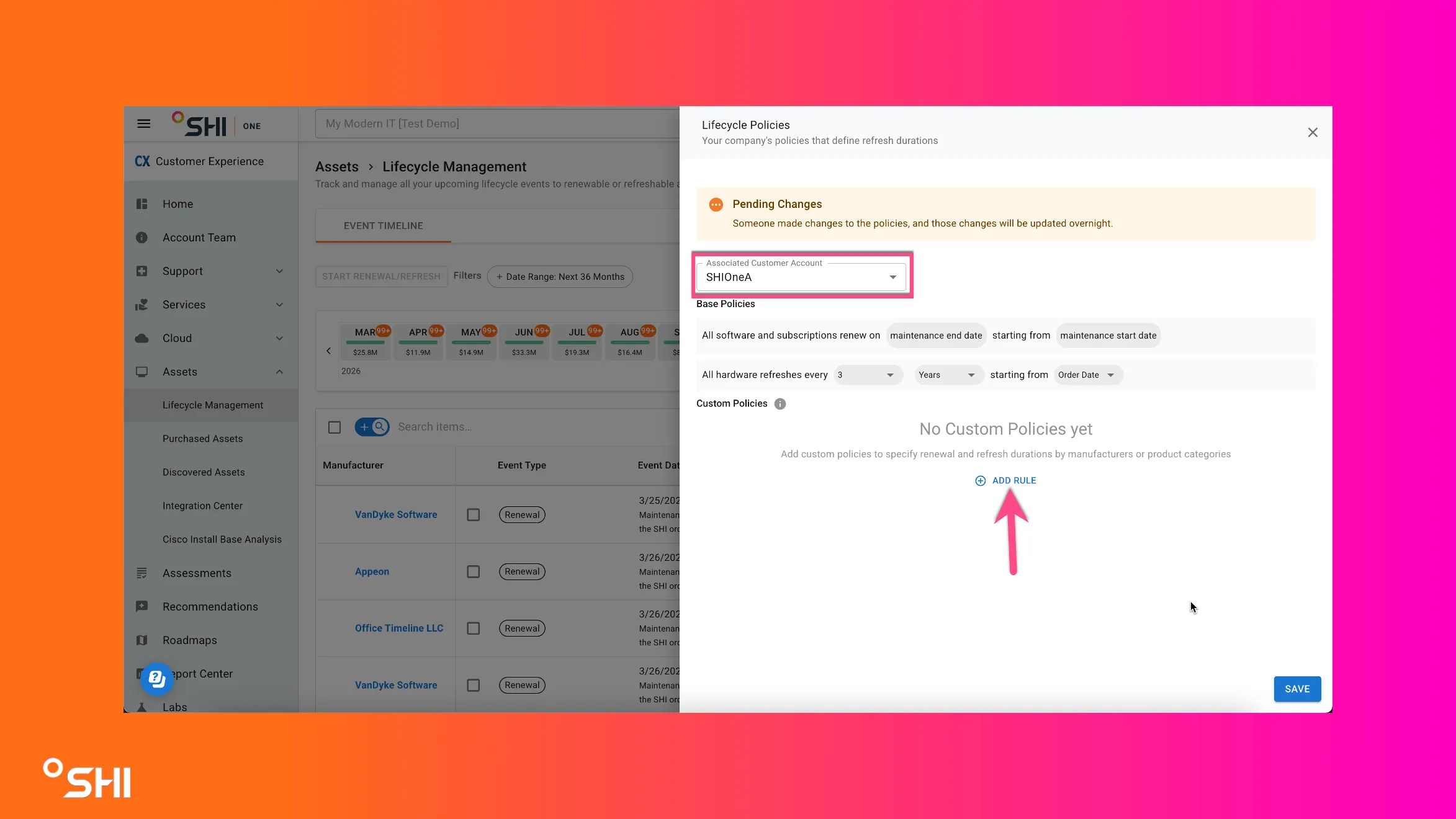
Step 1: Select the account
If your organization has multiple account references, you’ll first select which account the policy applies to.
This ensures lifecycle policies are applied to the correct assets.
Step 2: Define your lifecycle rules
You can configure lifecycle rules that represent how your organization plans refresh cycles.
Rules may include:
- Standard refresh intervals.
- Different timelines based on asset characteristics such as manufacturer or category.
These rules are designed to reflect your real‑world lifecycle standards.
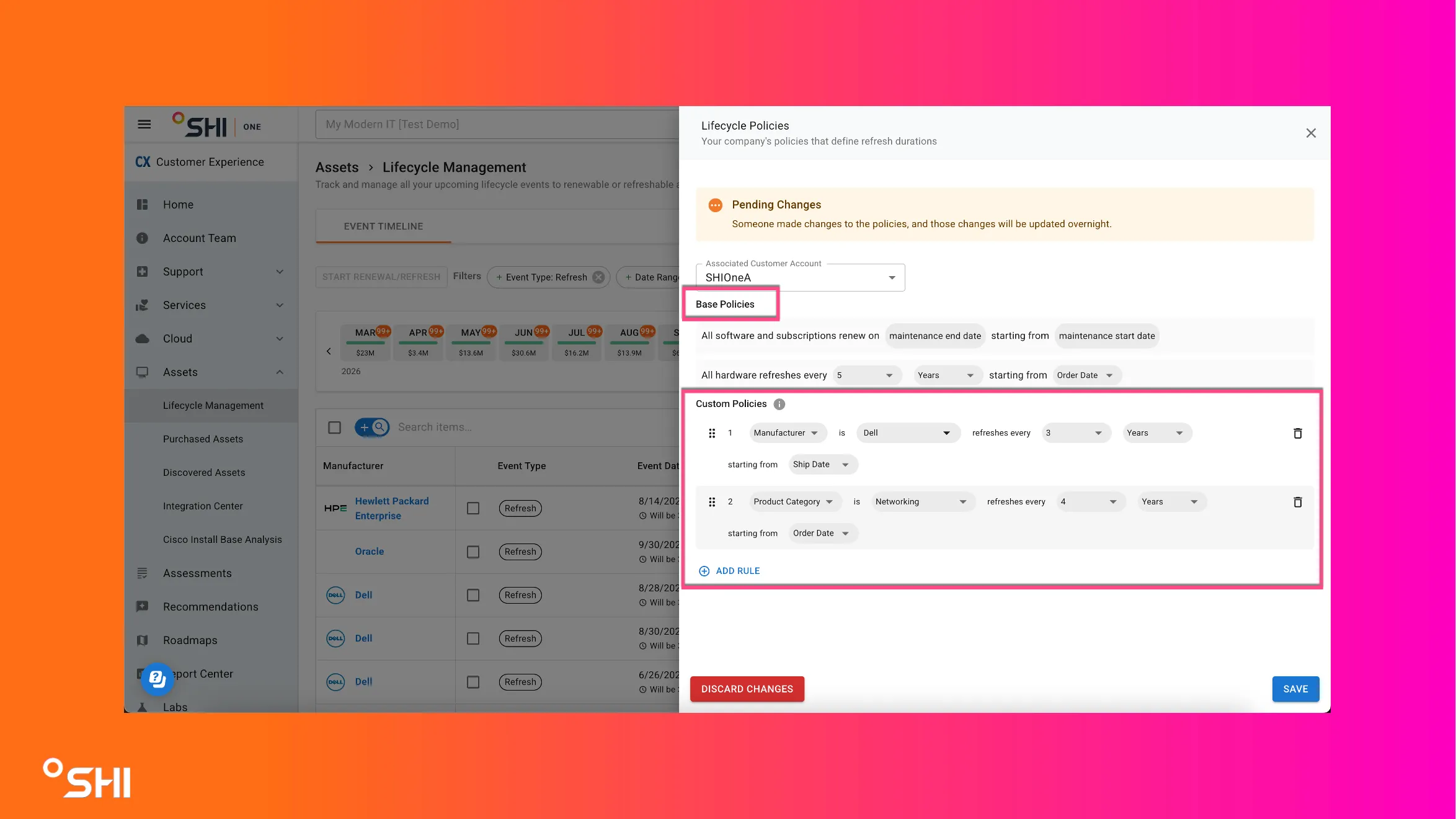
Base Policies : These are the editable defaults applied to every asset that doesn't have a custom policy defined.
Custom Policies: You are able to select any manufacturer or product category you order and set custom rules for each.
The priority of each policy is determined by its position in the list with number 1 being the highest priority. Lower numbered policies will take precedence over higher number policies in cases where they cover the same items.
Step 3: Save your changes
Lifecycle Policies are only updated when you Save your changes.
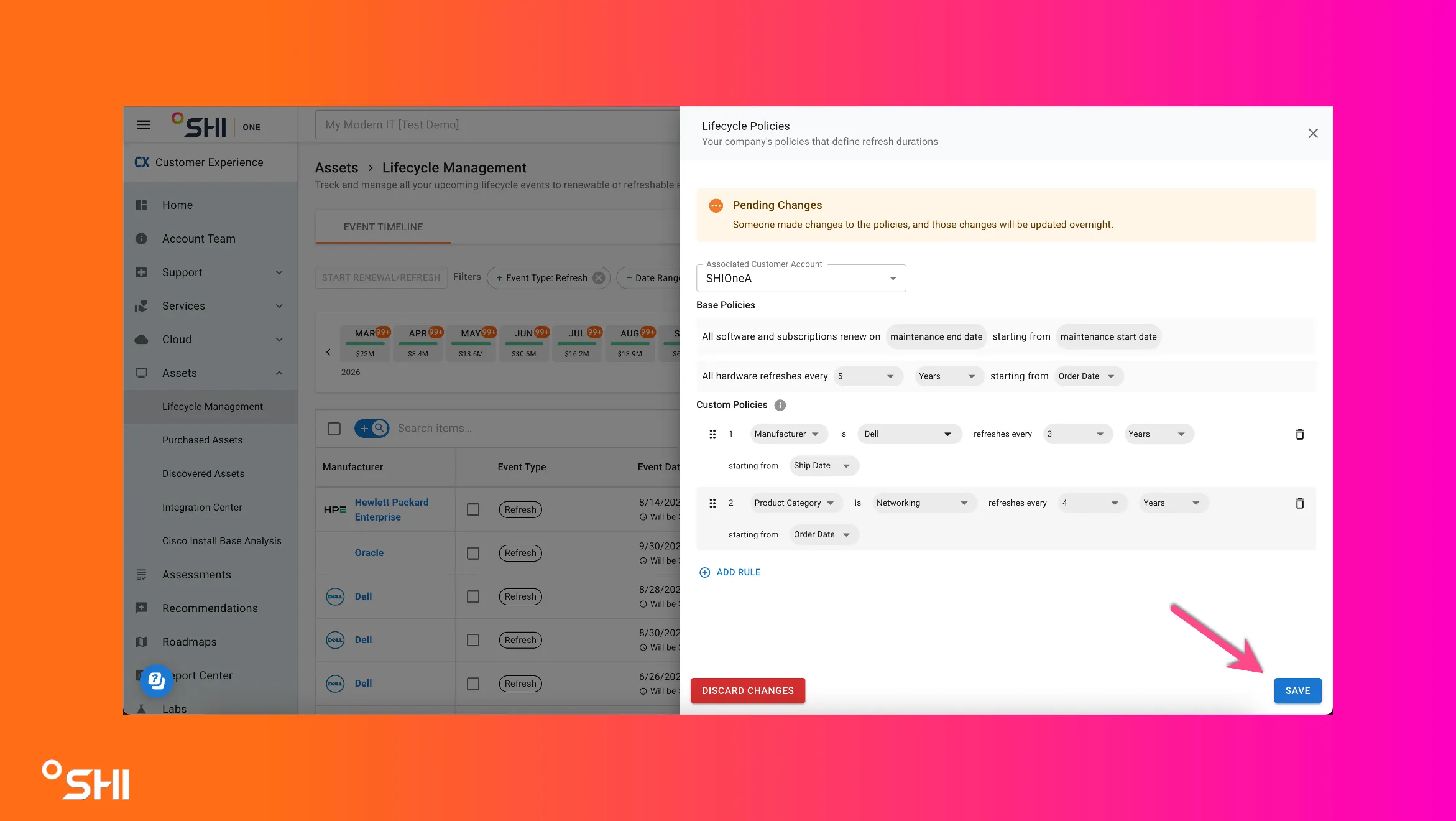
Once saved:
- The policy is recorded.
- You’ll see a status indicating the update is being applied.
- All current and future assets will have the rules applied to.
When do changes take effect?
Changes to Lifecycle Policies are batched and applied automatically during our nightly sync.
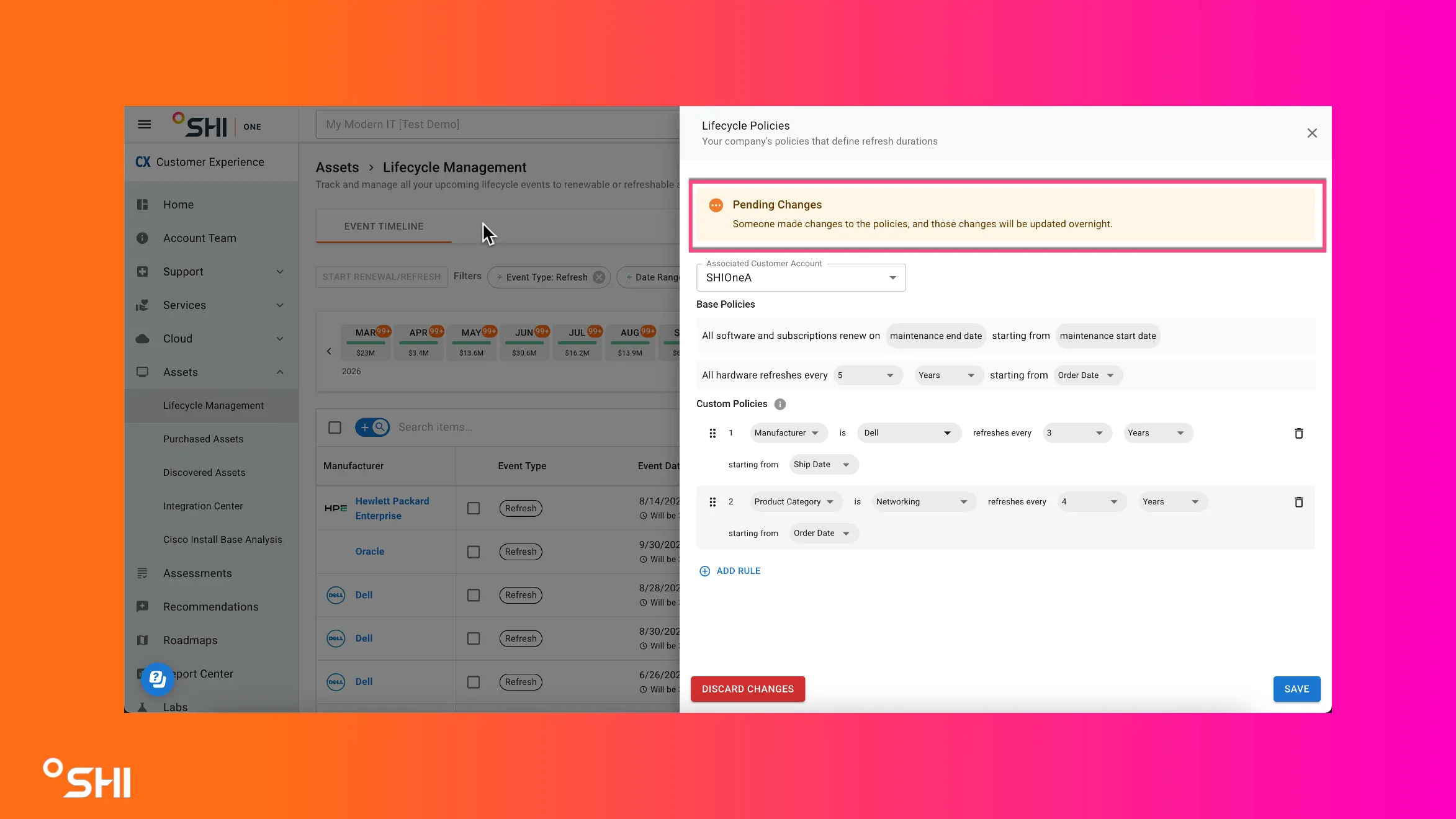
You will see a brief pending update message while the system applies your changes. No additional action is required.
Manual lifecycle updates
If a lifecycle date has been manually adjusted for a specific asset or event, that manual update will continue to take priority.
Lifecycle Policies define your standard approach, while still allowing flexibility when exceptions are needed.
What you’ll see after a policy is applied
Once your lifecycle policy is active:
- Lifecycle timelines reflect your defined standards
- Future lifecycle planning is aligned to your organization’s expectations
- Refresh planning conversations are based on consistent, predictable timing
No additional action is required, updates happen automatically.
Frequently asked questions
Do Lifecycle Policies change existing assets?
Yes. Lifecycle Policies apply to all eligible assets on your lifecycle timeline and influence lifecycle timing going forward. Updates are applied automatically once processing completes.
Can we change our policy later?
Yes. Lifecycle Policies can be updated at any time by authorized users. Changes are saved explicitly and applied after processing.
Will this affect renewals or active contracts?
No. Lifecycle Policies do not affect renewals and have no impact on active contracts.
Need help?
If you have questions about Lifecycle Policies or want guidance aligning them to your standards, your SHI account team is ready to help.