How to Upload Discovered Asset Data
Overview
Instead of manually changing asset data on an asset-by-asset basis, you can make bulk changes to your asset inventory by utilizing the Asset Management Template. To perform this process, you must be an Admin on your SHI One account.
Important Information
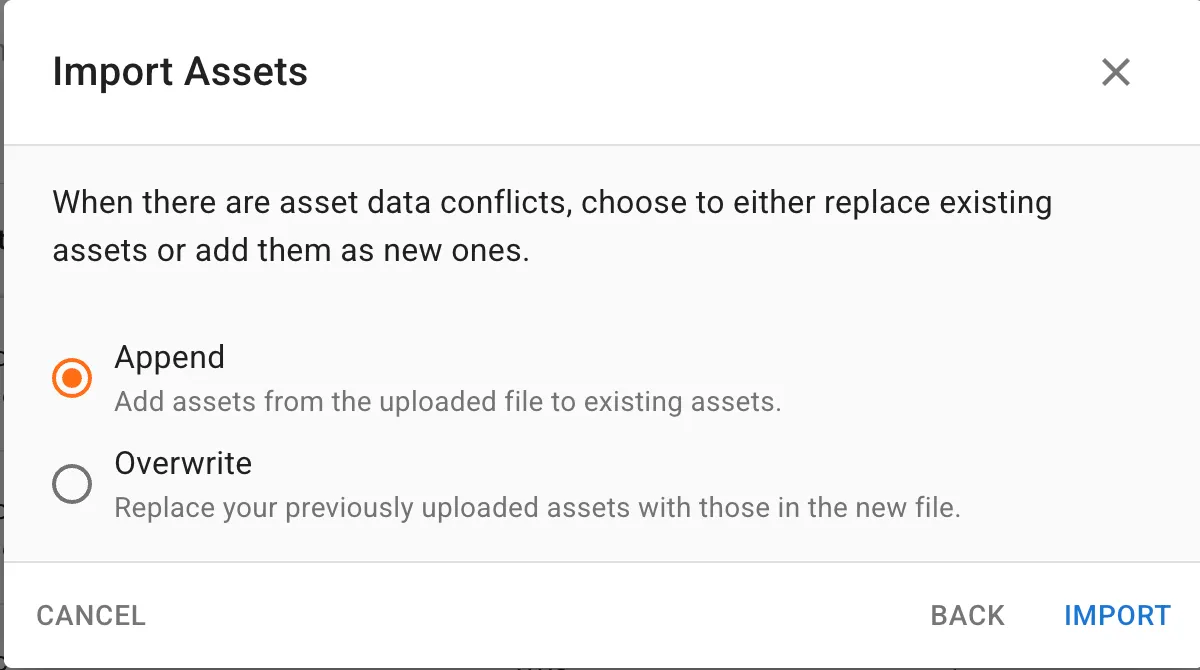
Selecting "Overwrite" while uploading the Asset Management Template will overwrite all previously-uploaded Template data in SHI One. Every time the Template is uploaded using the "Overwrite" option, it fully replaces all previously-uploaded Template data.
Every asset listed on the Template must have an Asset ID. Any other fields can be left blank as needed, but every single listed asset must have an Asset ID.
Rows 1 and 2 of the Template must not be changed. All other rows can be edited, but not rows 1 and 2.
Step-by-Step Process
You must be an Admin in SHI One to perform this process.
To upload a new set of asset data (note that this will overwrite any existing manually created assets):
- In SHI One, navigate to Assets -> Discovered Assets
- On the Asset Management page, click the "Import" button in the upper righthand corner
- Click on the link to download the Asset Management template
- Open the downloaded file, and fill in all of the asset data you wish to track within SHI One
- Save the file
- Drag the file into the import window in SHI One, or browse to the file location and select it
- Click Next
- Select "Overwrite"
- Click the "Import" button in the lower right corner
- Changes will OVERWRITE ALL PREVIOUSLY-UPLOADED TEMPLATE DATA IN SHI ONE
- Example: If you have previously uploaded the Template to add additional asset details, then make changes and upload the Template again, the second upload will overwrite the first upload
- Every asset MUST HAVE a valid Asset ID
- DO NOT make any changes to the headers in rows 1 or 2
To add assets to an existing set of data:
- In SHI One, navigate to Assets -> Discovered Assets
- On the Asset Management page, click the "Import" button in the upper righthand corner
- If needed, you can download the Asset Management template
- Every asset MUST HAVE a valid Asset ID
- DO NOT make any changes to the headers in rows 1 or 2
- Once you have filled out the template file and saved your changes, return to the Import screen in SHI One
- Drag the file into the import window in SHI One, or browse to the file location and select it
- Click Next
- Select "Append"
- Click the "Import" button in the lower-right corner