How to Promote a Guest User
Overview
In SHI One, some users may initially appear as Guest Users. Guest users typically have limited access and may not be able to view or use all SHI One features right away.
If you are a Customer Administrator, you can promote a guest user to a Standard User directly within SHI One. This ensures the user has the appropriate access to dashboards, tools, and capabilities available to your organization—without needing to contact SHI support or your sales team.
This guide walks you step by step through how to promote a guest user and assign the correct role and permissions.
What You’ll Need Before You Start
- You must be logged in as a Customer Admin.
- You should know the guest user’s name and email address.
- Decide whether the user should be a Standard User or an Admin before starting.
Open User Management
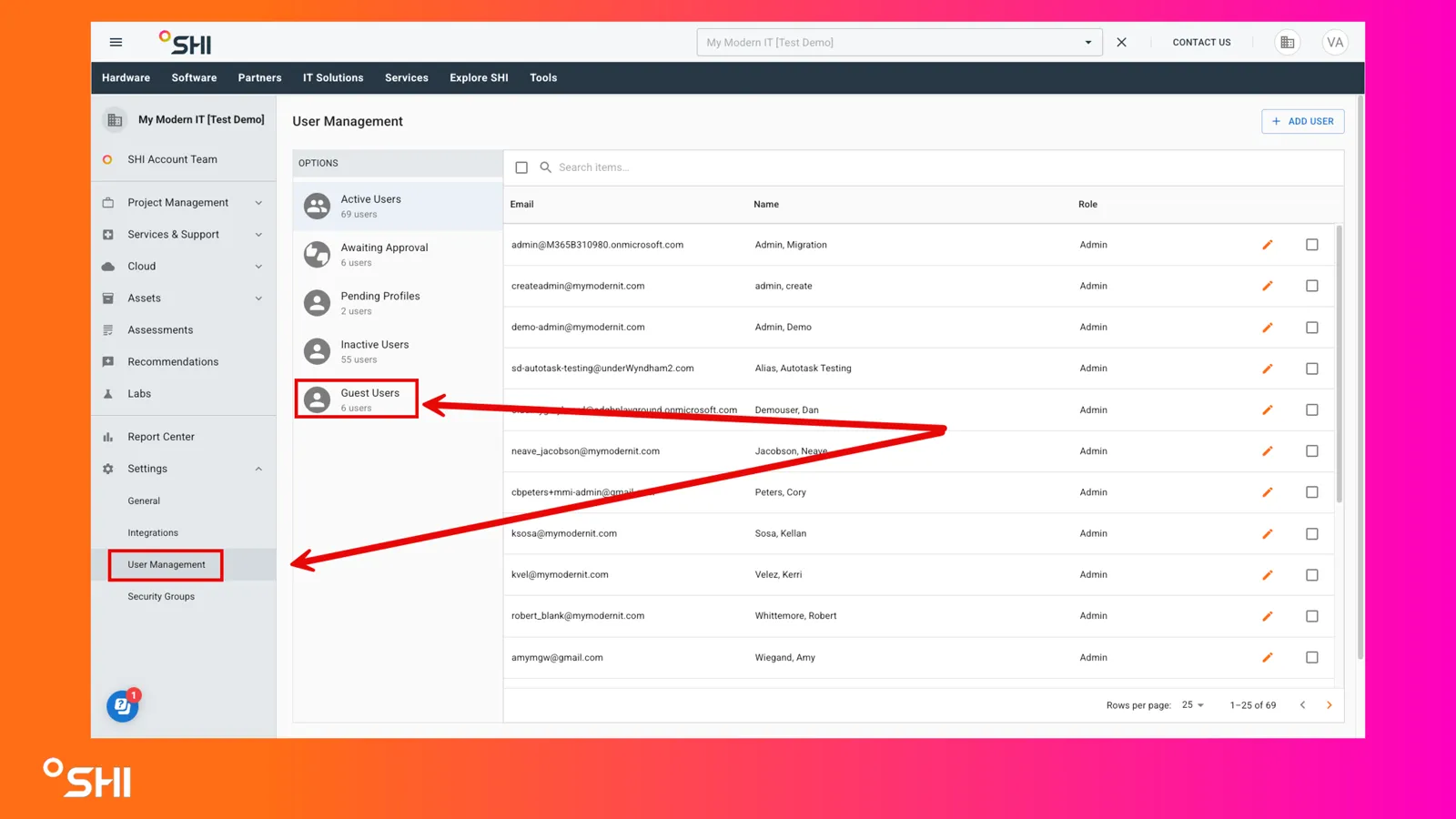
- Log in to SHI One.
- In the left navigation, click Settings.
- Select User Management.
View Guest Users
- From the User Management page, select Guest Users in the left panel.
You’ll see a list of users who currently have guest‑level access.
Promote the User
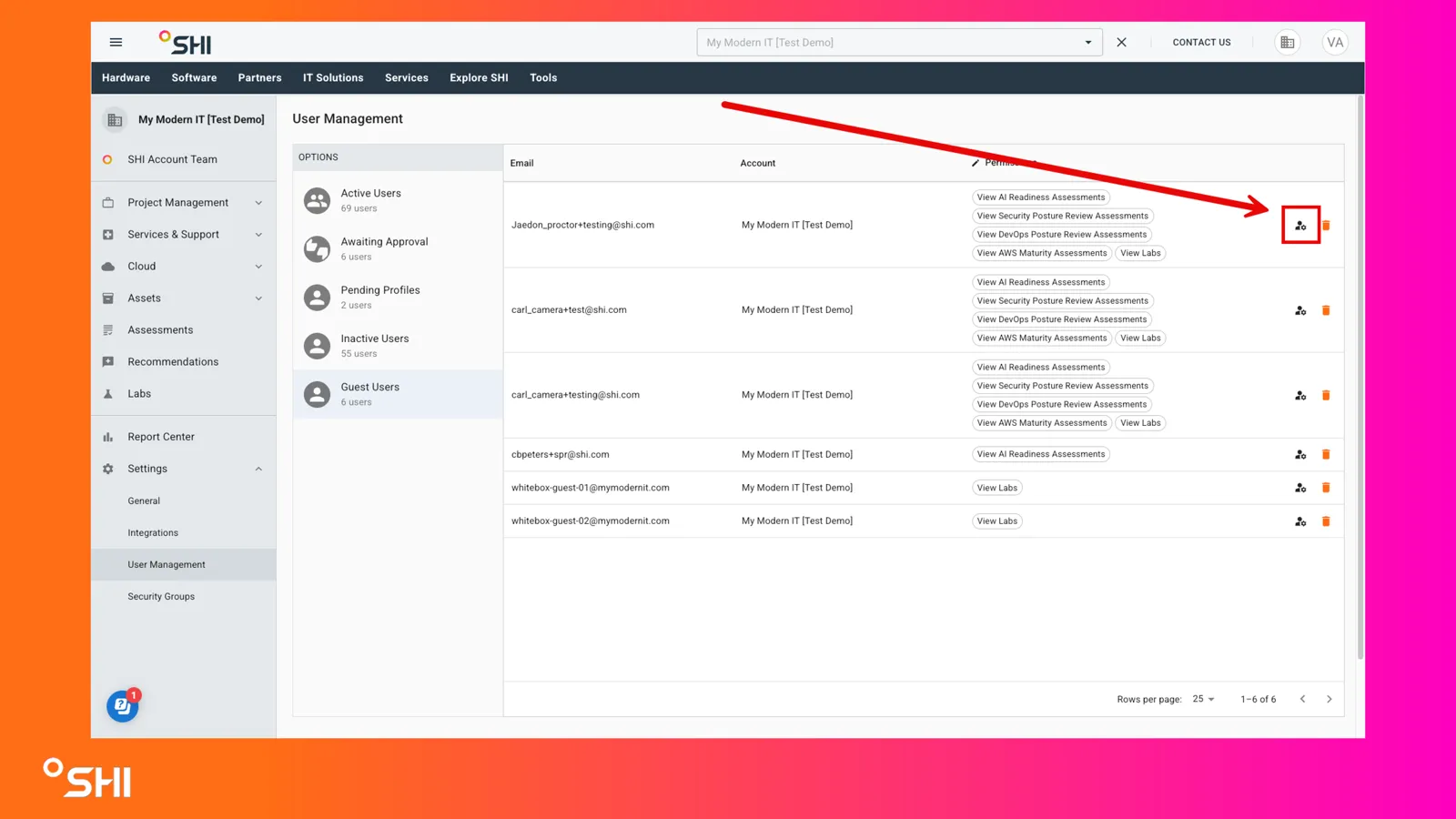
- Locate the user you want to update.
- Click Convert to Account User next to their name.
Complete User Details
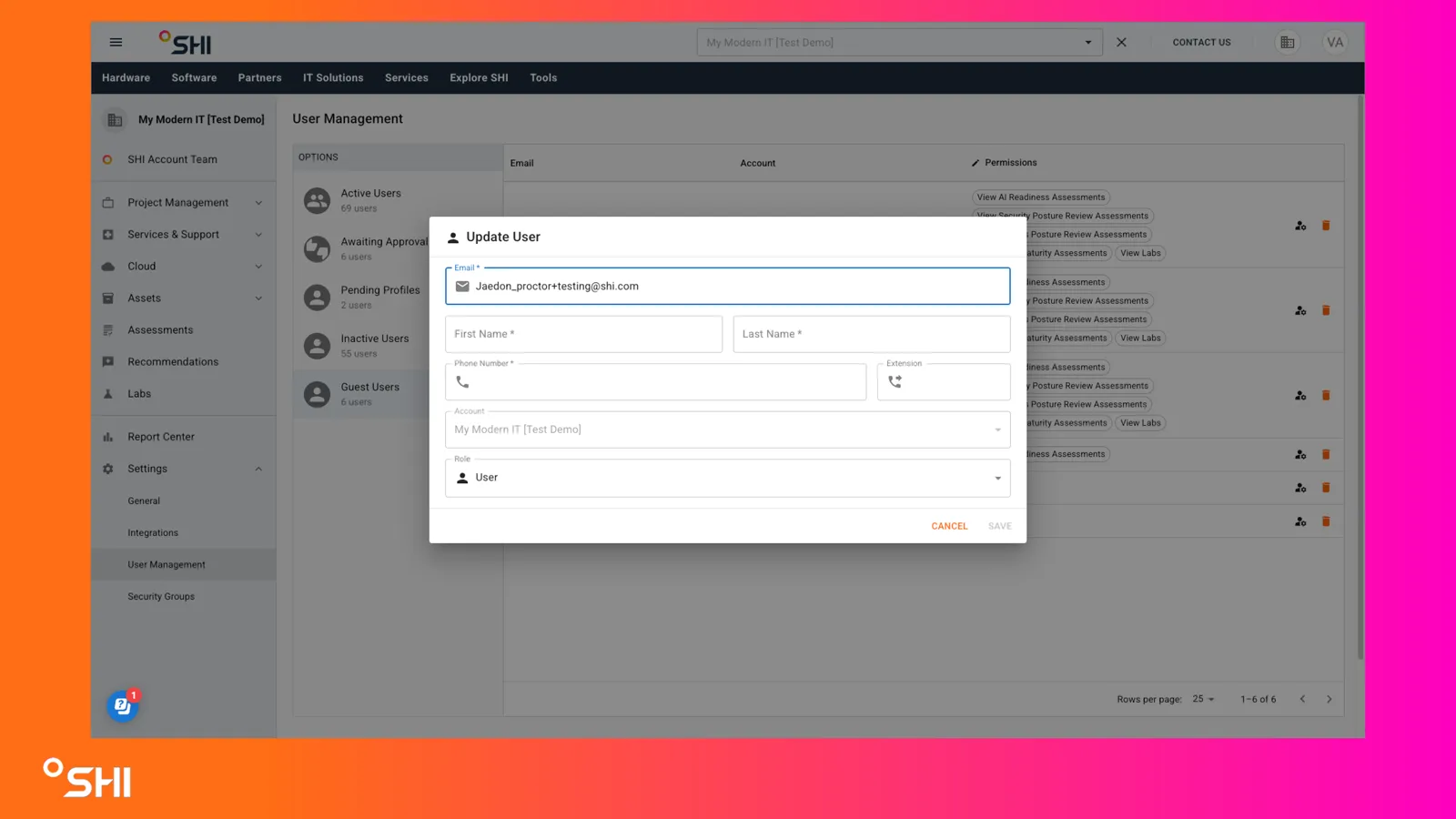
Fill in the required fields, including:
- First Name
- Last Name
- Phone Number
Then select a role:
- Standard User (recommended for most users)
- Access is based on your account’s default permissions.
- Admin
- Full access to all SHI One features and settings.
Save and Finish
- Click Save to complete the promotion.
The user is now a full SHI One user and can access features based on the role you assigned.
Optional: Adjust Access with Security Groups
If a user needs access beyond the default level:
- Go to Security Groups in Settings
- Add the user to the appropriate group
This lets you fine‑tune access without granting admin rights.
Your user is now ready to use SHI One.
If you have questions about roles or access, your SHI account team or SHI Support is here to help.