Lifecycle Management
Overview
Lifecycle Management gives users a single place to track, manage and optimize the lifecycle of all assets purchased through SHI. Lifecycle Management is populated by SHI's invoice history on your account, looking back 3 years. SHI has plotted all of your assets across a Lifecycel Timeline to help you easily navigate, filter and request support on upcoming events.
Benefits
- Full visibility into every lifecycle events for the next 3 years.
- Mobilize your account team and track progress with just a few clicks.
- Configure refresh and renewal policies to match your business needs.
- Plan further ahead, optimize renewal and refresh events and see better procurement outcomes.
Getting Here
This module is viewable by any user with the View Order Data permission. Users with the Manage Order Data can self-manage and take action within the dataset.
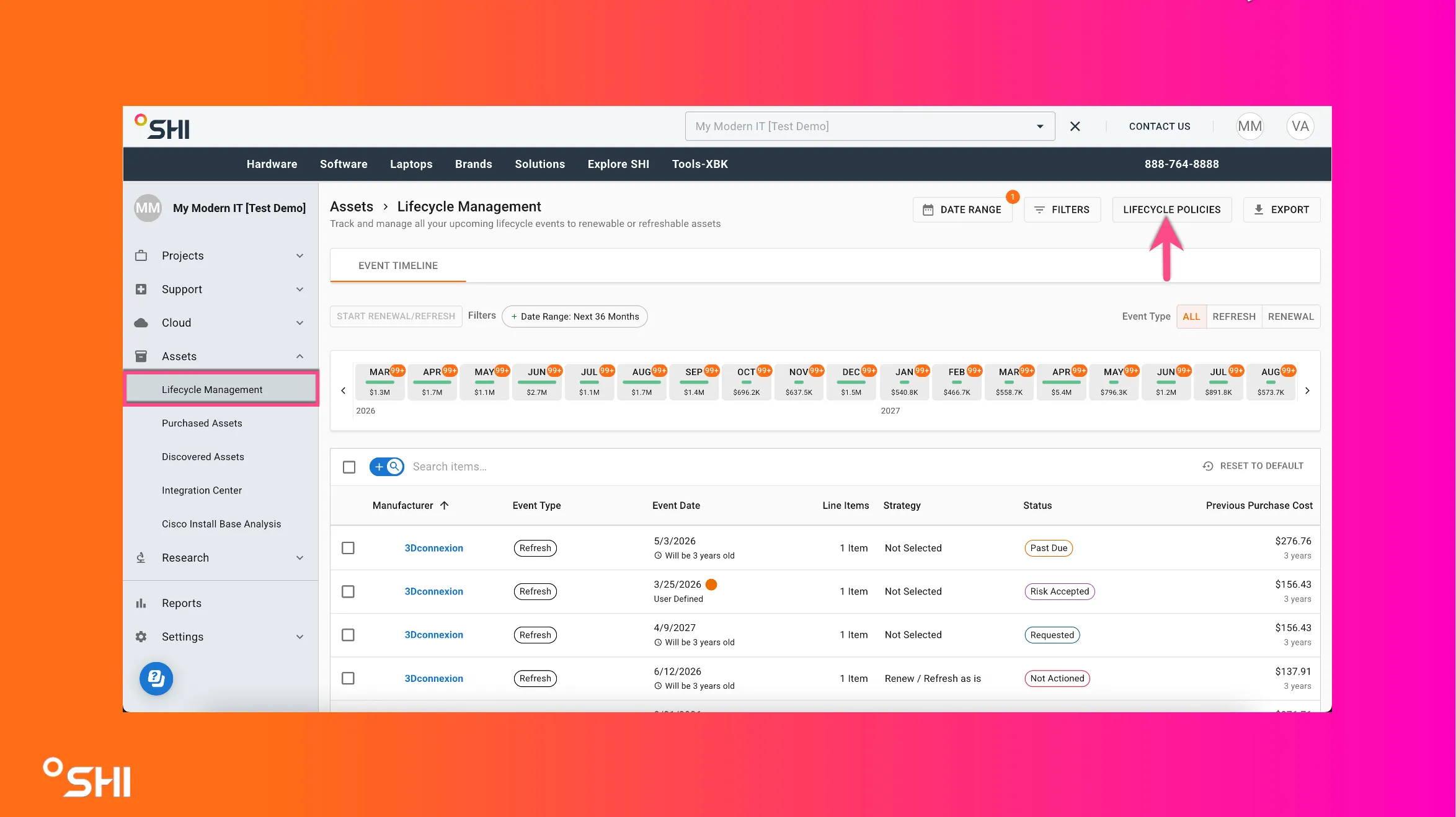
To access Lifecycle Management, use the left navigation panel: click on Assets to expand the menu, then select Lifecycle Management.
On arrival, you’ll see an interactive timeline of upcoming lifecycle events (renewals and refreshes).
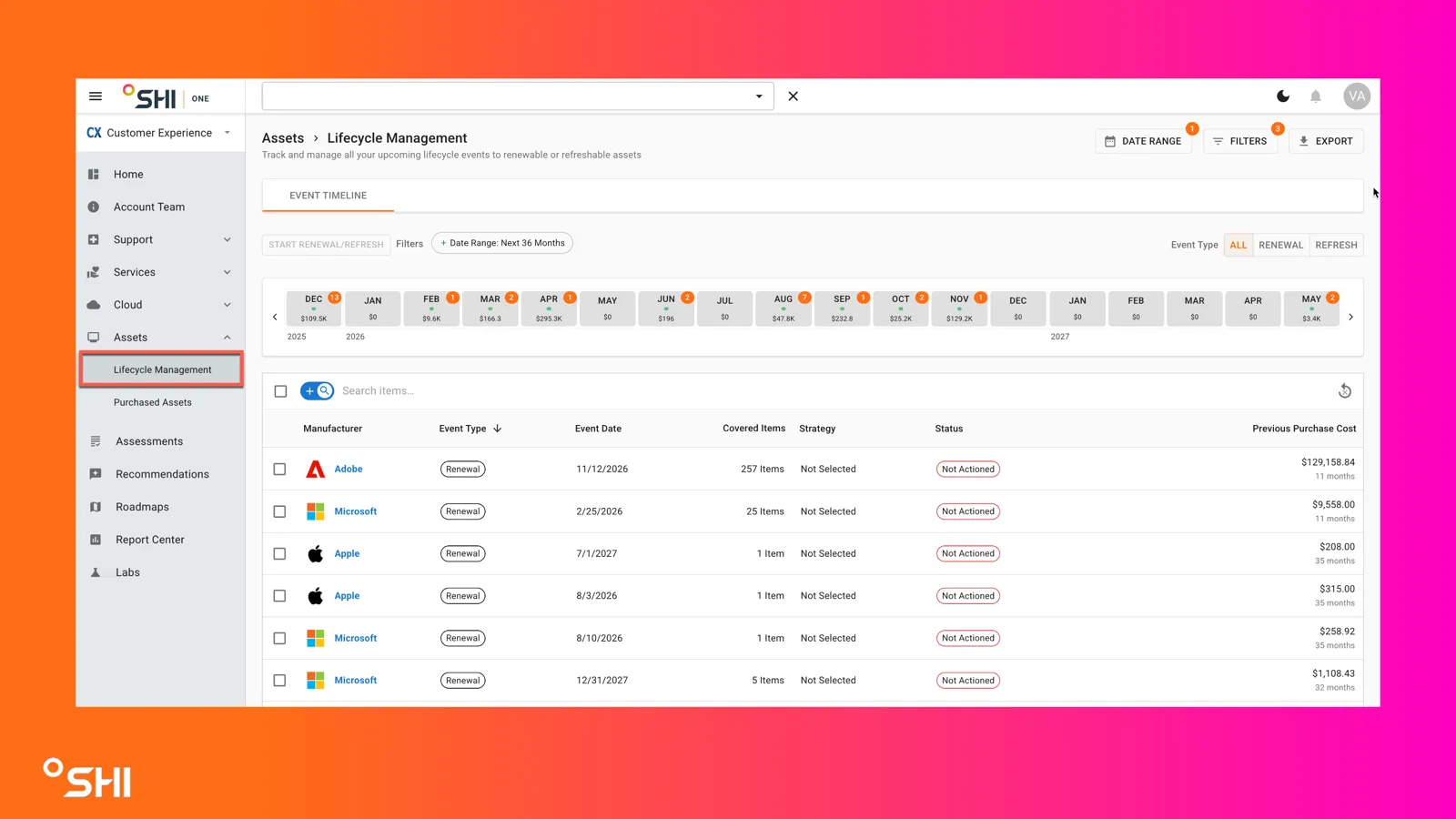
Dashboard Overview
- Event Timeline (Top Horizontal Calendar) Displays upcoming lifecycle events across a configurable timeline. Each box represents a month, the numbers in the orange circle are the of number events, and the green line and dollar amount indicate the total estimated dollar amount within the month. Why this matters: Quickly identify high-cost events for budget planning.
- Asset Event Table (Below Timeline) A detailed list of all upcoming events with sortable columns. Each row is grouped by "Event". An "Event" is comprised of assets that share the same event date and manufacturer. Why this matters: Gives full transparency into what’s expiring and what’s covered, no surprises.
- Start Renewal/Refresh Button (Above Timeline) In order to request SHI support on an upcoming event, click the "Start Renewal/Refresh" button, select all events you'd like support on, fill out request form and submit. Once you submit your account team will be notified and follow up with next steps. Why this matters: Eliminates email back-and-forth and accelerates procurement workflows.
- Filters and Export (Top Right Corner) Filter by date range, event type (Renewal or Refresh), or manufacturer. Export data to CSV for offline analysis or reporting. Why this matters: Saves time and ensures you focus on the most critical renewals or refreshes.
How To Guides
Using the Event Timeline
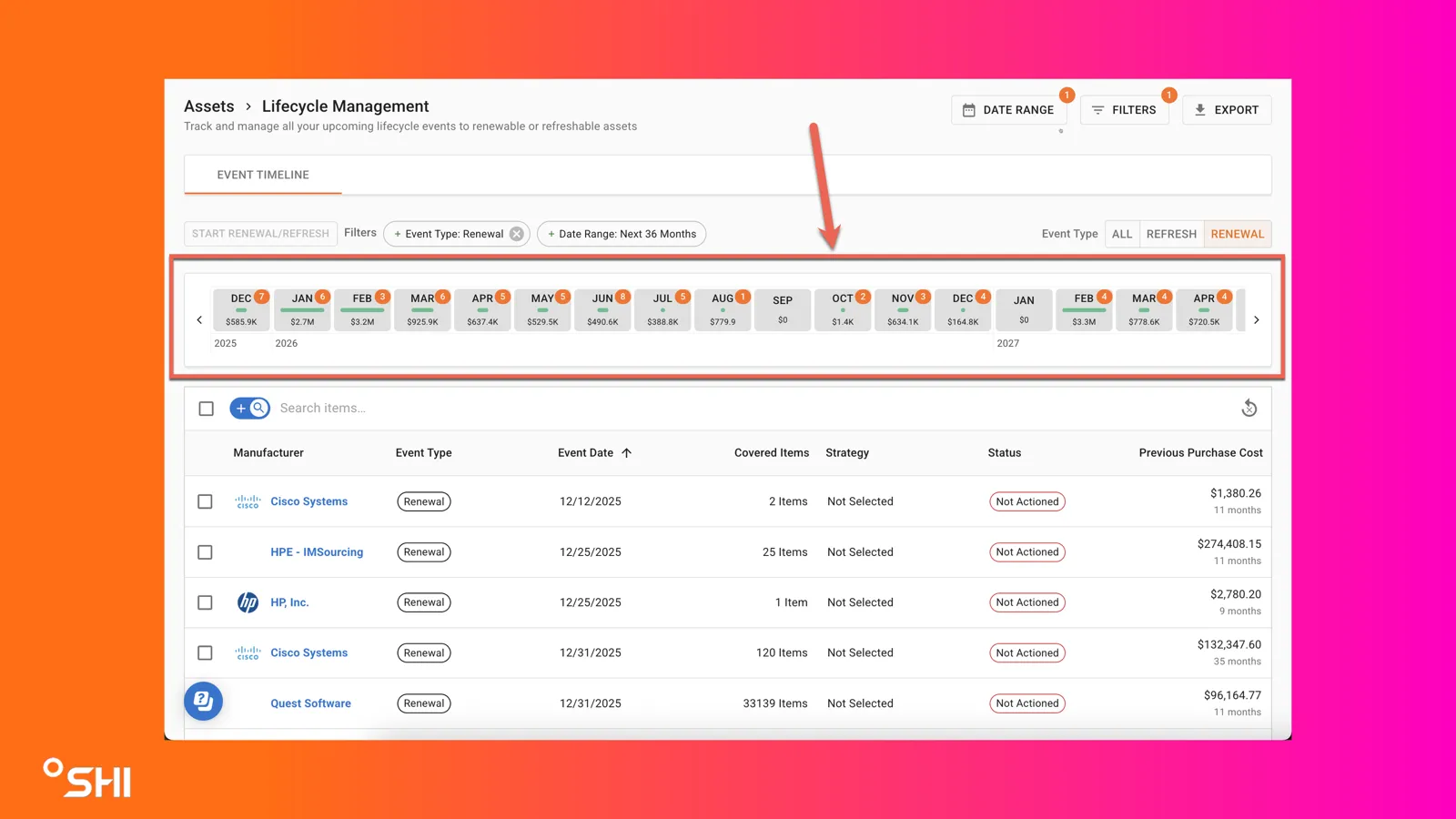
- Read the Timeline: Hover over bubbles to see event details (cost, date, items covered). Total number of events and dollar amounts are indicated in the bubble. Why this matters: Helps prioritize high-value events for budget planning.
- Switch Views: Use navigation arrows to move between months or years. Zoom out for annual planning or zoom in for monthly detail. Why this matters: Supports both short-term and long-term planning.
- Filter by Event Type: Apply filters to focus on Renewals or Refreshes only. Why this matters: Keeps your view relevant to your immediate goals.
Understanding the Asset Events Table
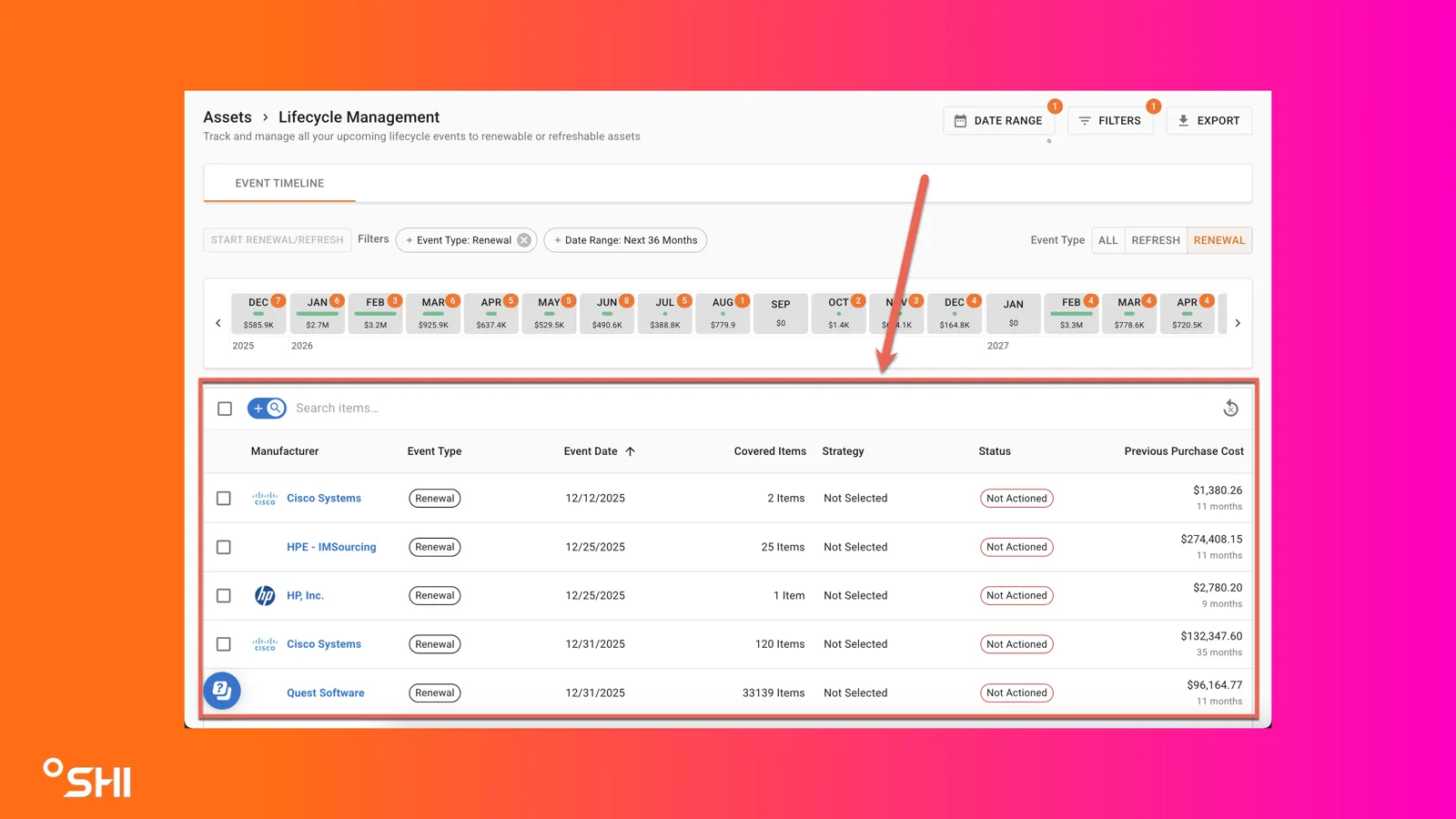
Each row represents an upcoming lifecycle event based on SHIs Invoice data. Events are grouped by assets with a shared event date and manufactuer.
Columns include:
- Manufacturer (of Assets)
- Event Type
- Renewal: Assets with a publisher defined expiration date.
- Refresh: Assets reaching the end of their usable life. Refresh cycles are set to 3 years after purchase date by default but can be adjusted using the Lifecycle Policies feature.
- Billing: A financial, billing-only event that has no renewal or refresh implications. These generally represent an annual invoice on an annualized, multi-year order.
- Event Date
- Covered Items (quantity of items in event)
- Strategy (Renew/Refresh strategy chosen by customer)
- Status (status of event from request to ordered)
- Previous Purchase Cost
- Product Category - Coming Soon!
Tips: Sort by Event Date for prioritization. Use search to quickly find specific assets or manufacturers.
Taking Action on Lifecycle Events
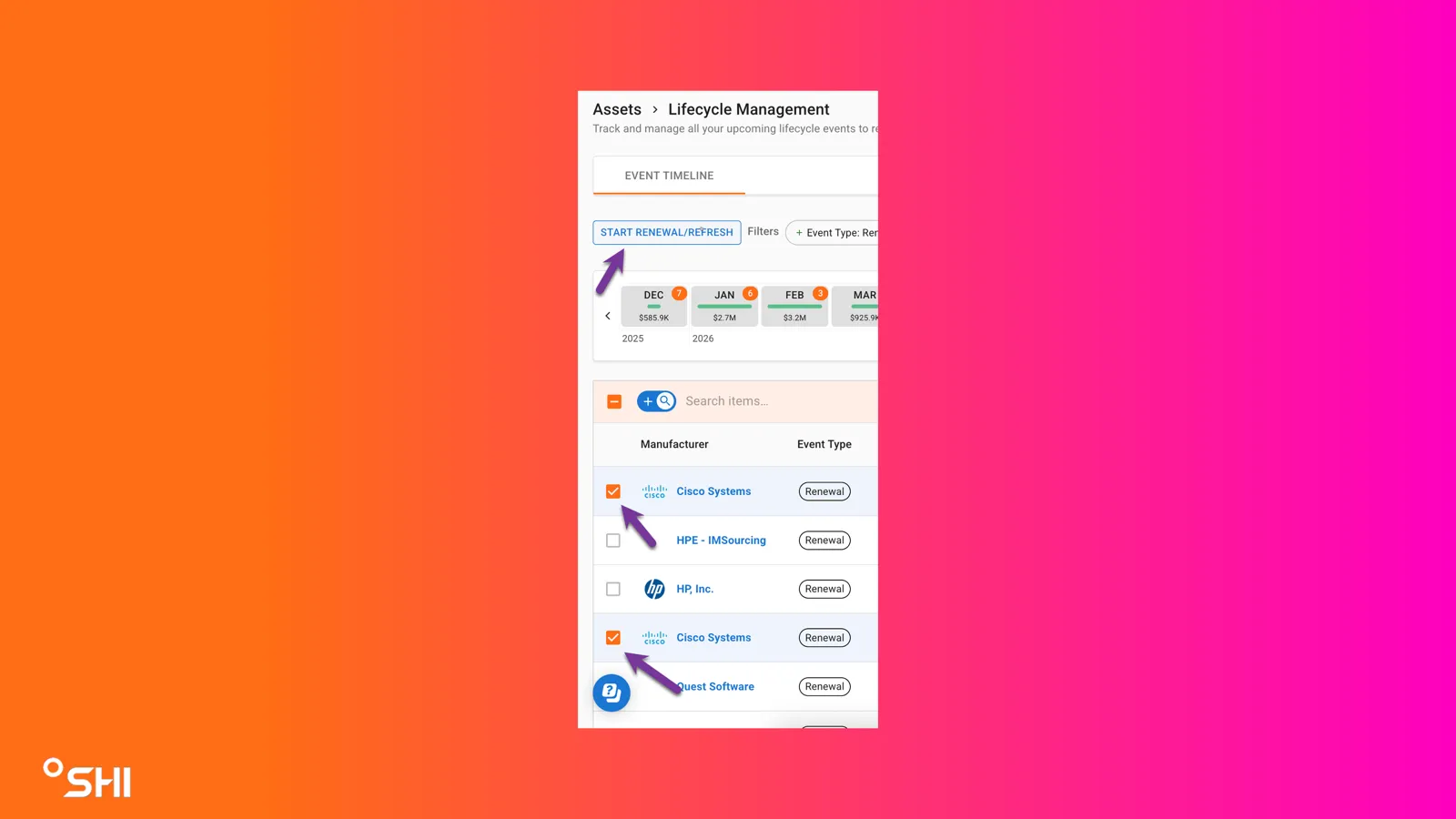
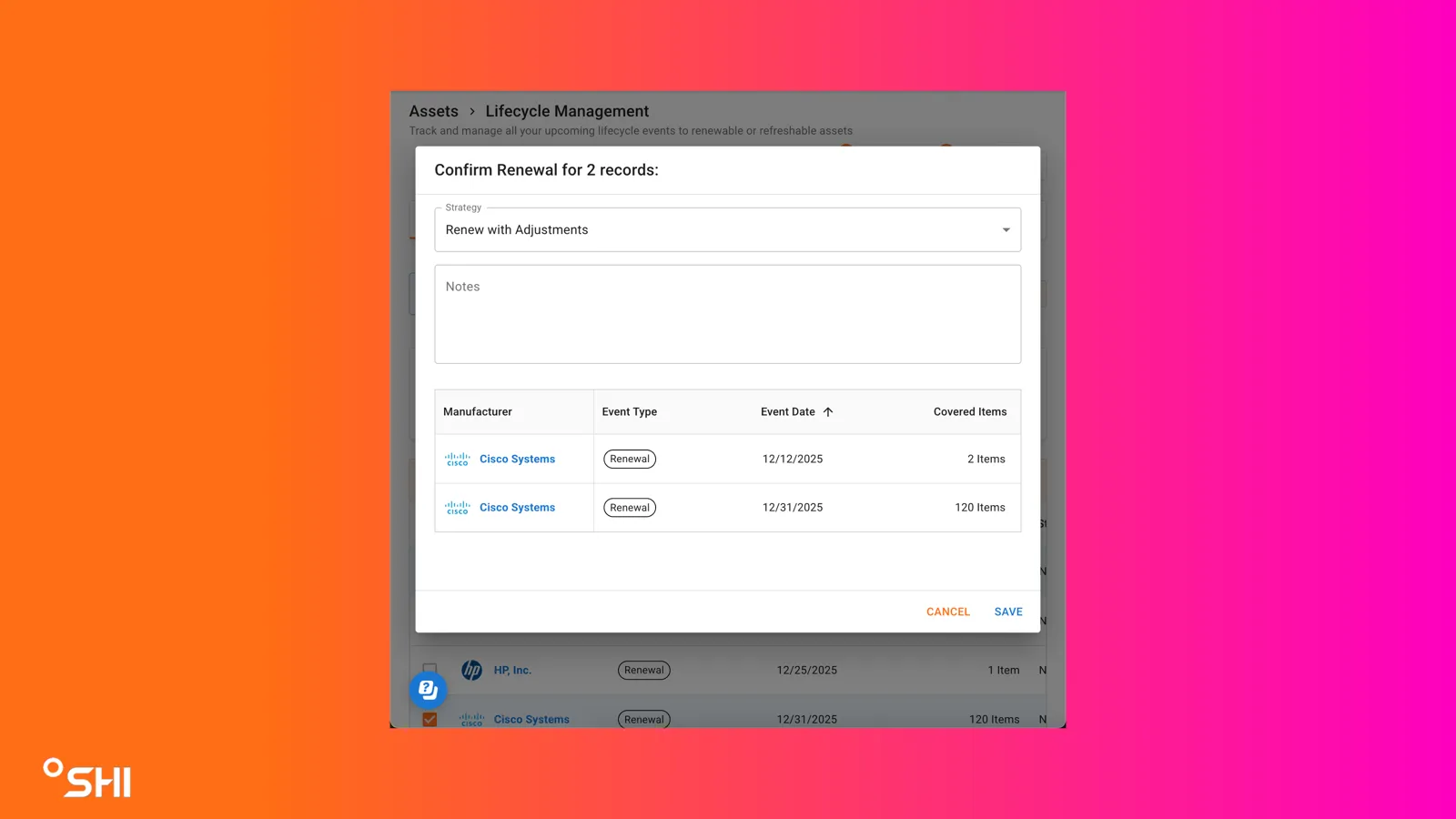
- Initiate Request: Once you are ready to mobilize your account team to execute a renewal or refresh, click the "Start Renewal/Refresh" button.
- Select Assets: Now select the assets you'd like to include in the request. You can only select assets from the same manufacturer for a single request.
- Complete Request Form & : Complete the request form, select a strategy and leave a note with important detail for your account team to better addres your request.
- Submit & Notify Your Account Team: Click on save to send requests directly to your dedicated account team.
- NOTE: You are only executing a request for engagement at this time, your account team will be notified of your request and will follow you with you via email with a quote or next steps.
- NOTE: Any actions taken, or changes made, will be visible in the "Activity" tab under the detail view of each event.
Why this matters: Provides clarity for your SHI account team to deliver the right solution.
Lifecycle Policies
Lifecycle Policies allow your organization to define standard timelines for hardware refresh and lifecycle planning in SHI One. You can align lifecycle dates with your organization’s standards, ensuring lifecycle timelines better reflect how you plan, budget, and manage technology over time.
Notifications and Updates (Coming Soon!)
- Alerts: Notifications appear in your dashboard and via email (if configured).
- Status Changes: Track progress from Requested to Quote Ready in the Asset Event Table. Why this matters: Keeps you informed without chasing updates.
Create Events
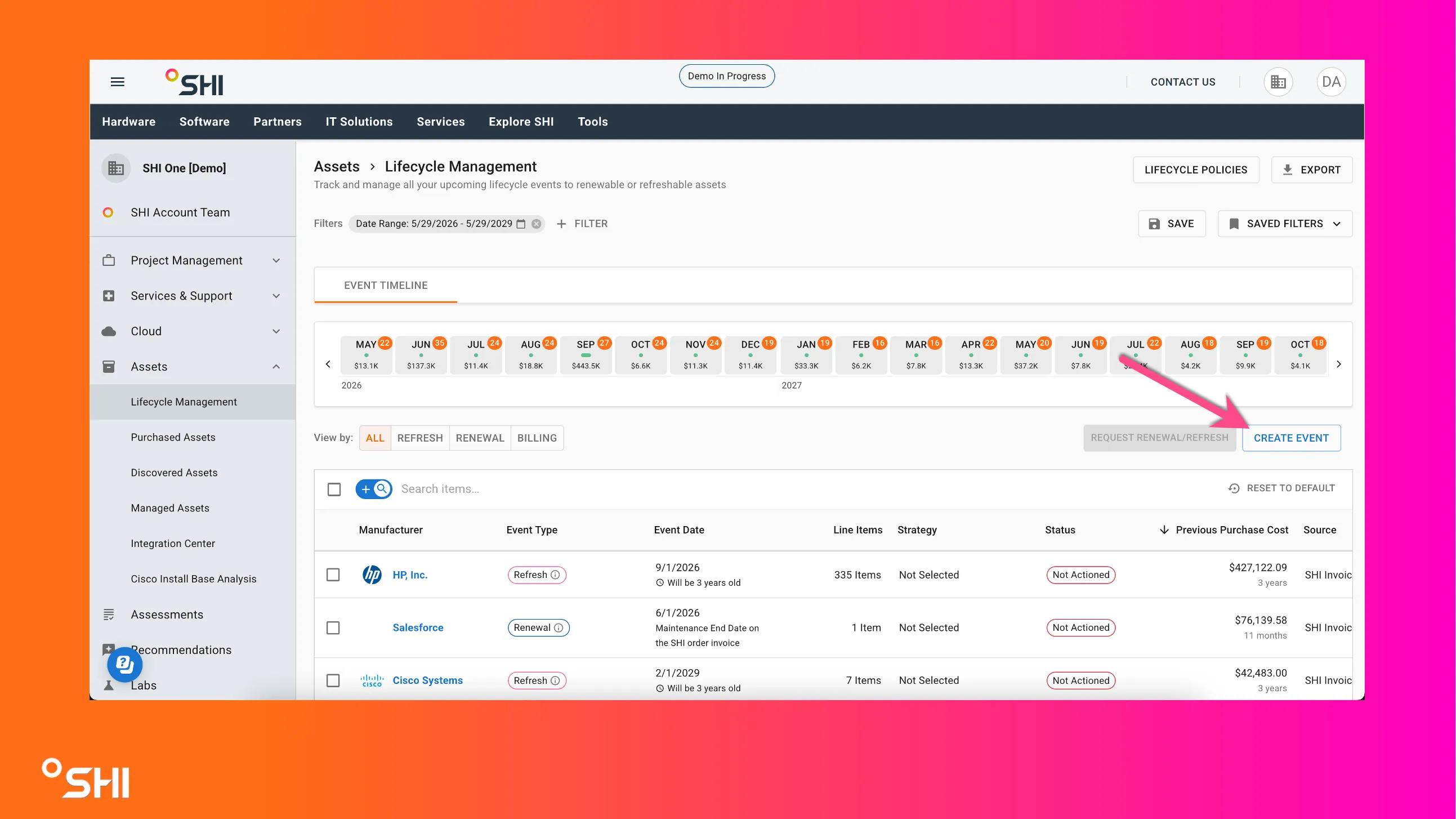
The Create Events feature in Lifecycle Management allows you to add custom events to your timeline. This means you can track renewals, refreshes, and other lifecycle milestones for all of your technology. Including assets and contracts not purchased through SHI. With Create Events, your Lifecycle Management timeline becomes a complete view of what's coming across your entire environment.
How It Works
- Navigate to the Lifecycle Management timeline in SHI One.
- Select the option to create a new event.
- Enter the event details, including manufacturer, event type and event date.
- Save the event. It will appear on your timeline alongside your existing SHI-purchased events.
Created events follow the same grouping, filtering, and display behavior as all other events on the timeline. You can open the details drawer to view or manage the event just like any other lifecycle event.
Bulk Import
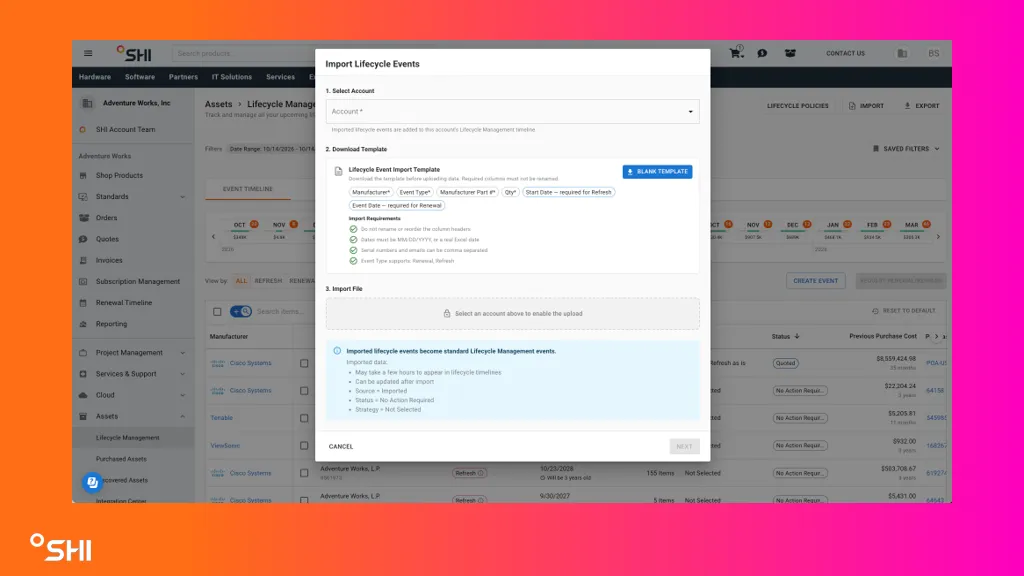
Use Bulk Import to create multiple Lifecycle Management events in a single upload rather than creating events one at a time.
How to Import Events
- Navigate to Lifecycle Management.
- Select Import.
- Download the bulk import template.
- Complete the template with the required event information.
- Upload the completed file.
- Review any validation errors displayed during upload.
- If validation issues are identified, update the spreadsheet and upload it again.
- Select Import Events to create the valid events.
Notes
- Validation checks are performed during upload to identify missing or incorrectly formatted data.
- Events with validation issues must be corrected in the spreadsheet and re-uploaded before they can be imported.
- After import, events follow the same editing permissions and rules as other Lifecycle Management events.
Tip: Download and save a blank copy of the import template for future uploads to expedite event creation.
FAQs and Troubleshooting
- What does “Not Actioned” mean? "Not Actioned" is the default status. This status just emphasis that a formal request for renewal / refresh has not been submitted via SHI One. The SHI Sales Team may have already taken action behind the scenes to support your renewal or refresh event.
- Where to get help? Use the Support link in the left navigation or contact your SHI account team.
- Why can't I see the Lifecycle Tab? Users need to have the correct permissions configured under the security group settings. Reach out to your Admin user.