Purchased Assets
Overview
Purchased Assets gives users a place to track spending across all of the various IT Assets they have purchased from SHI. Order information for Hardware assets, along with Software & Subscriptions, are sourced from SHI's internal invoice data and consolidated into a single management interface.
Benefits
- Full visibility into IT Assets purchased from SHI
- Self-service access to historic spend information by Orders, Manufacturers, and Categories
- Proactively plan for upcoming Refresh and Renewal events, budget needs, and consolidation opportunities
Getting Started
This module is viewable by users with the View Order Data permission. Users with the Manage Order Data can self-manage and take action within the dataset.
To access Purchased Assets:
- Use the left-hand navigation and select "Assets"
- Click on "Purchased Assets"
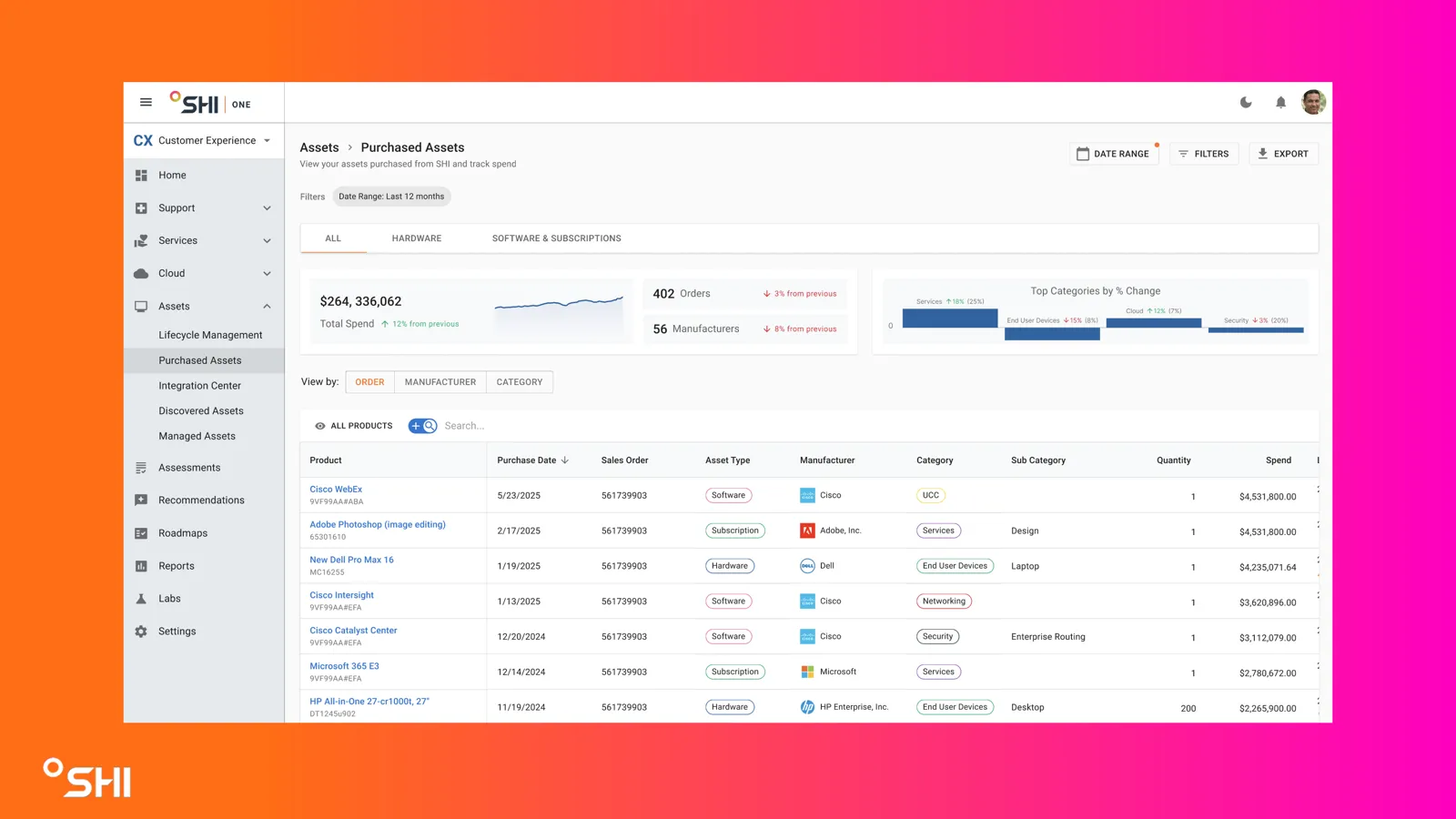
On arrival, you'll see:
- A high-level overview of spend across the selected timeframe (default: 12 months)
- Charts showing changes in orders placed, spend across various manufacturers, and changes in spend across various categories of IT assets
- A table listing all Assets purchased from SHI across the selected timeframe
How to Guides
Understanding the Dashboard
The dashboard shows a list of Assets, organized by type (Hardware or Software & Subscriptions), and sorted by details such as Products, Sales Order, Manufacturer, Category, and more.
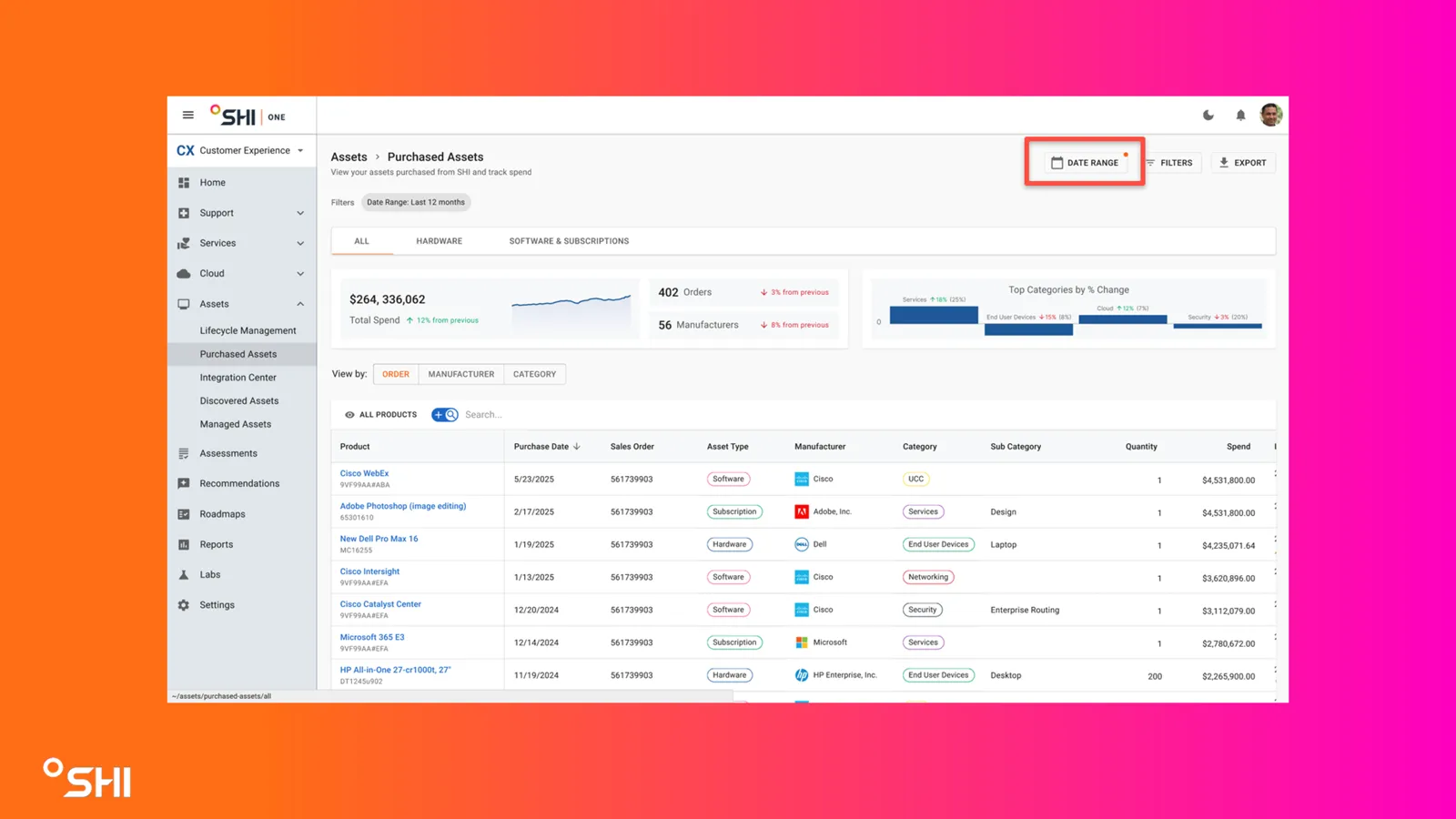
The assets shown will be limited to those procured within a certain date range. By default, SHI One will show the previous 12 months worth of purchase history. This can be changed by clicking on the "DATE RANGE" button in the upper right.
Organizing the Data Table
Users have several options for filtering and sorting the data in the Purchased Assets table. These are designed to help users quickly find the specific types Assets they need to manage.
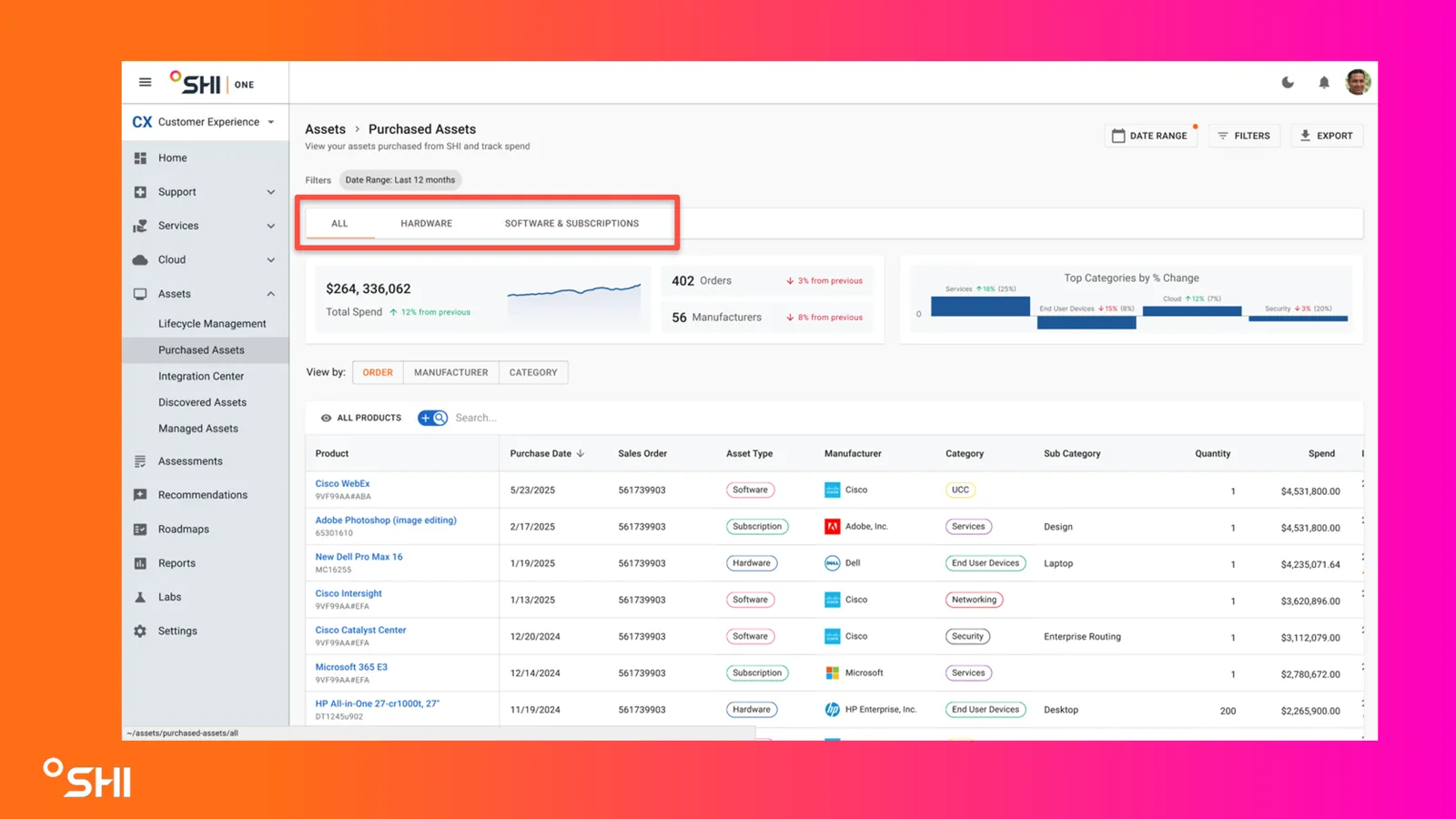
Above the report widgets, users can choose to see All Assets, Hardware Assets, or Software & Subscription Assets only (default display is "All"). Clicking any of these will filter the reports and the data table below to only that particular category of Assets.
Additionally, some of the options for how to view the data in the table, as well as certain columns, will change to reflect the current selection. This ensures that the data displayed is relevant to the particular category of Assets (for example, Software doesn't have a location).
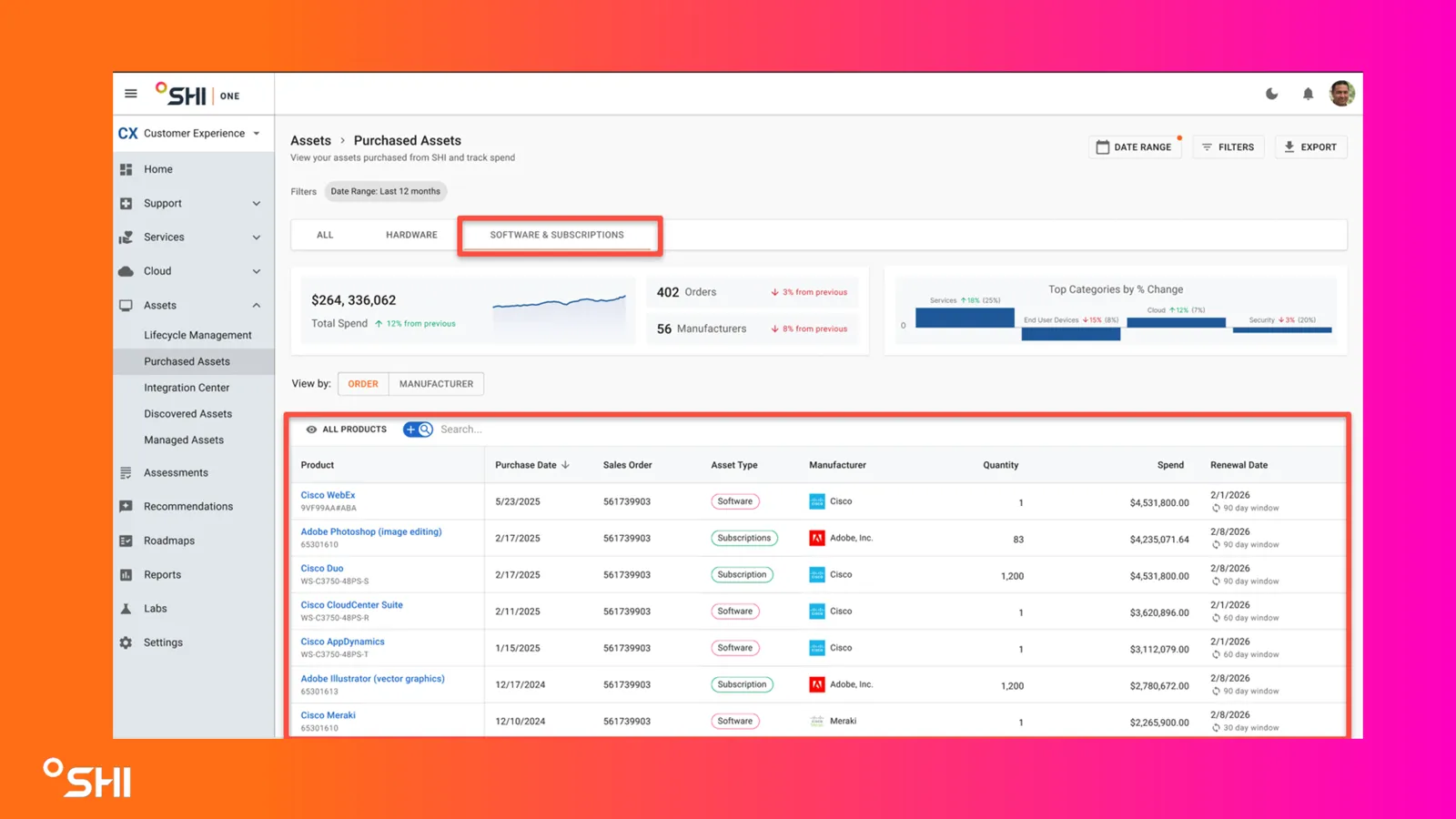
The Asset data can also be viewed in various groupings, such as Order, Manufacturer and Product Category. The default view will show Assets organized by Order.
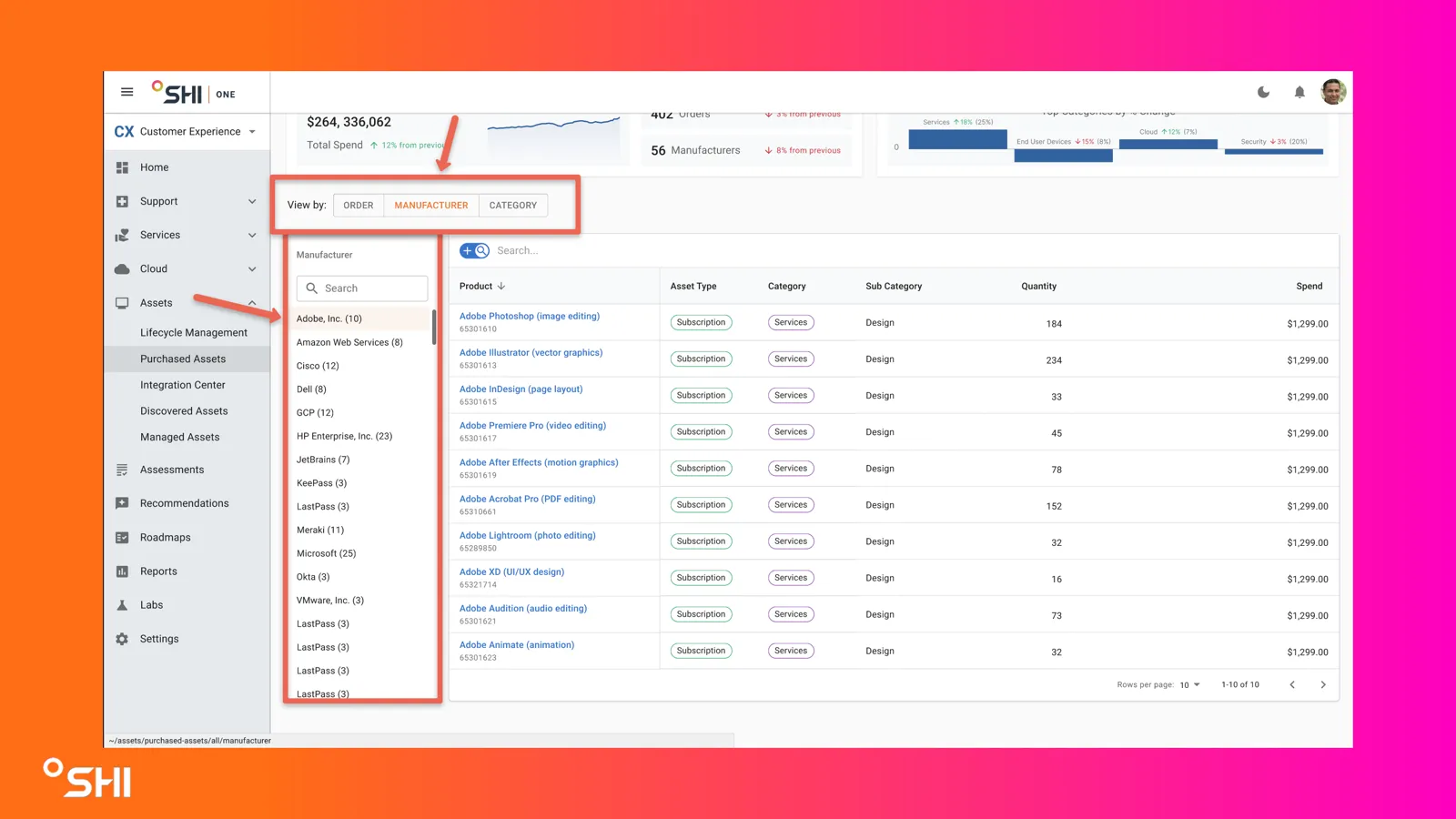
Viewing details of Assets
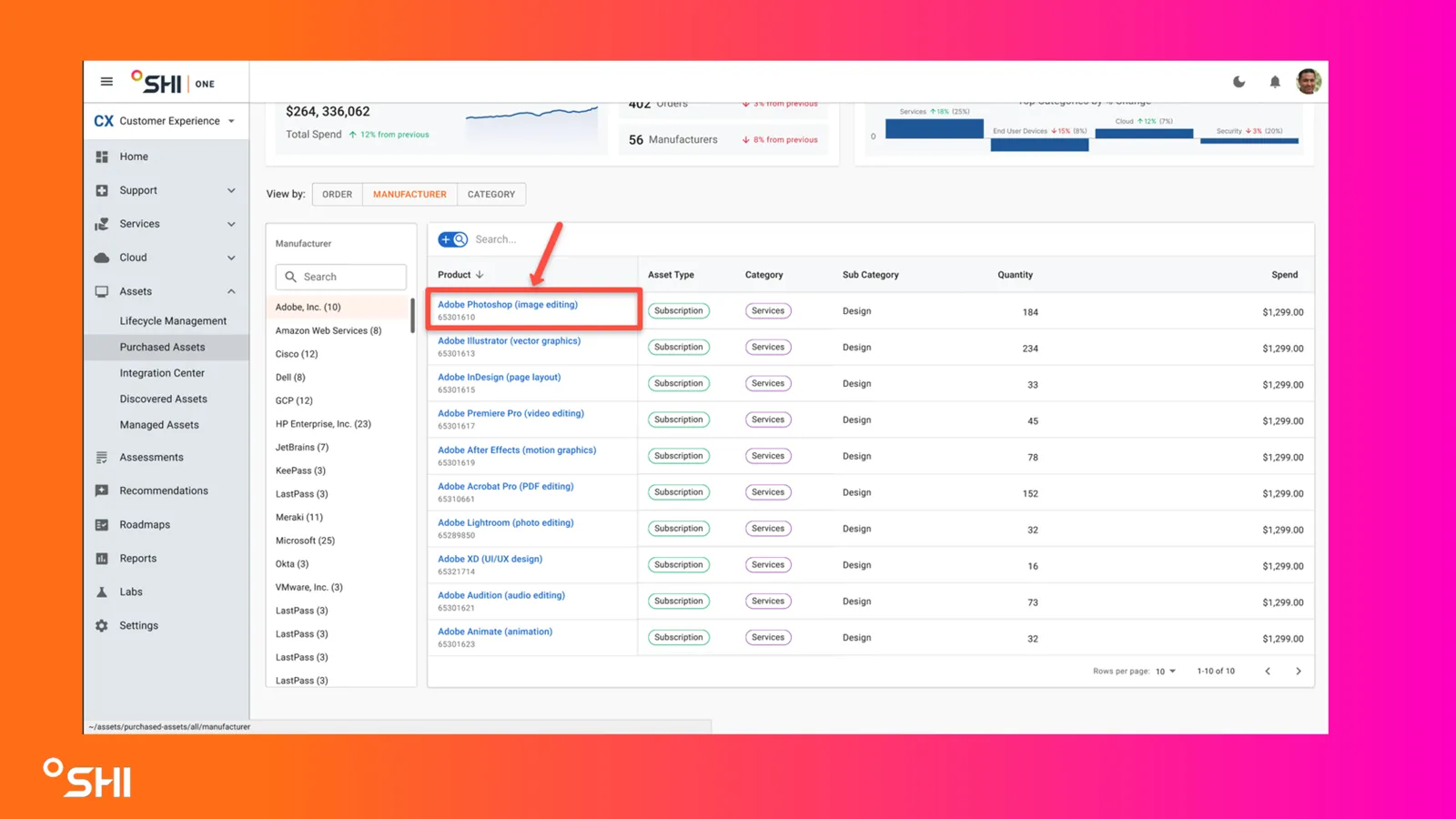
In order to view the details of Assets from the table, you can click on any of the items from the data table. This will display a card showing relevant details to the Asset(s) in that entry.
NOTE: Many of the entries in the table will be a collection of assets based on the selected "View By" option, denoted by the "Quantity" field.
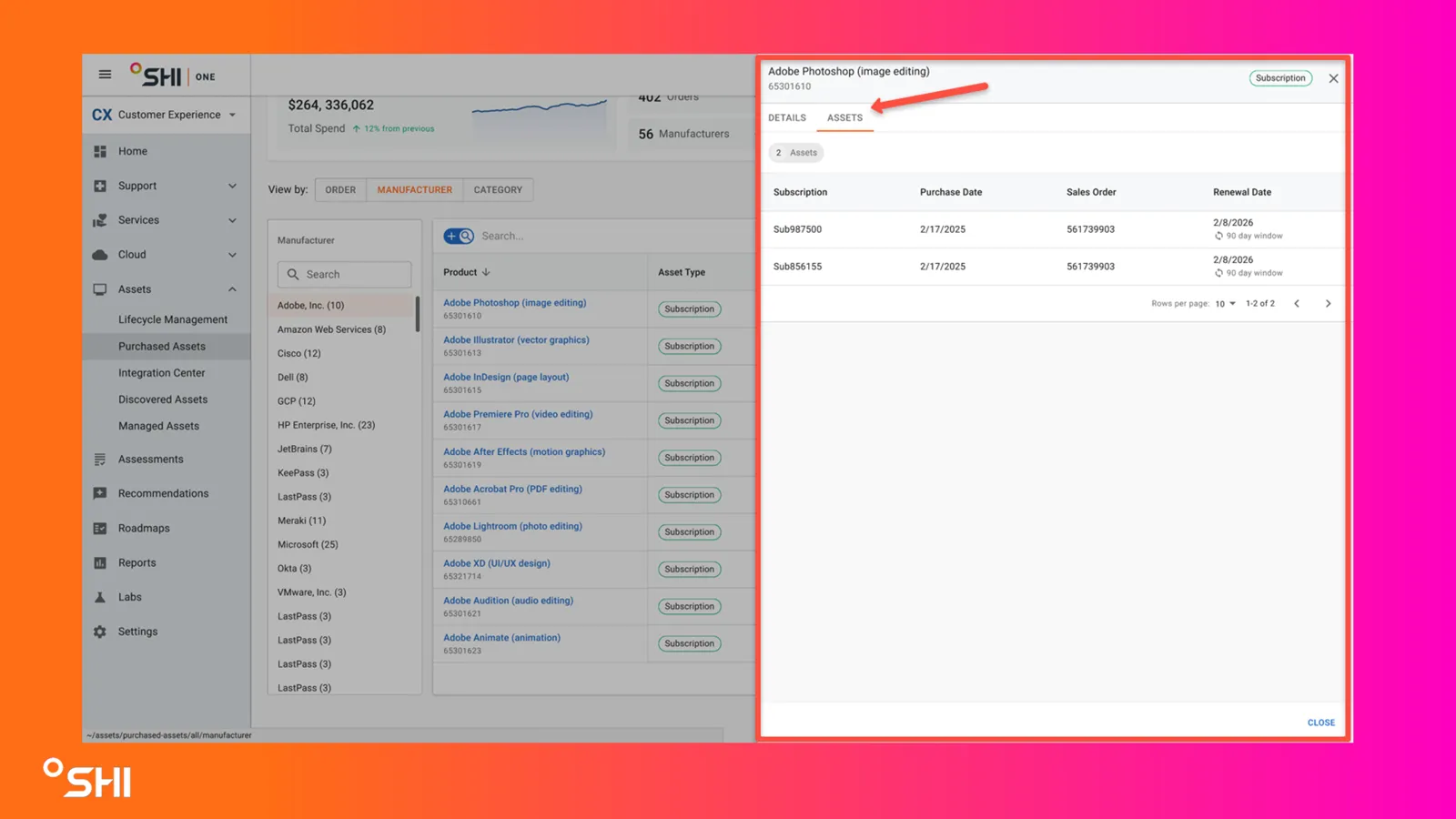
The detail card can be closed by clicking the "X" in the upper-right corner, or by clicking the "CLOSE" button in the lower right.
FAQs and Troubleshooting
- Where to get help? Use the Support link in the left navigation or contact your SHI account team.
- Why can't I see the Purchased Assets Tab? Users need to have the correct permissions configured under the security group settings. Reach out to your Admin user.