Storefront Widgets
6 min
The new SHI One homepage uses widgets to surface the most common Storefront and SHI One actions directly on the landing page. Widget visibility and behavior are permission-aware, so users see storefront (SHI.com) widgets, SHI One widgets, or a mix depending on their access. Below are the widgets that fit this criteria; other widgets are still accessible to users via the "Customize" functionality at the top of the page.
Recent Orders
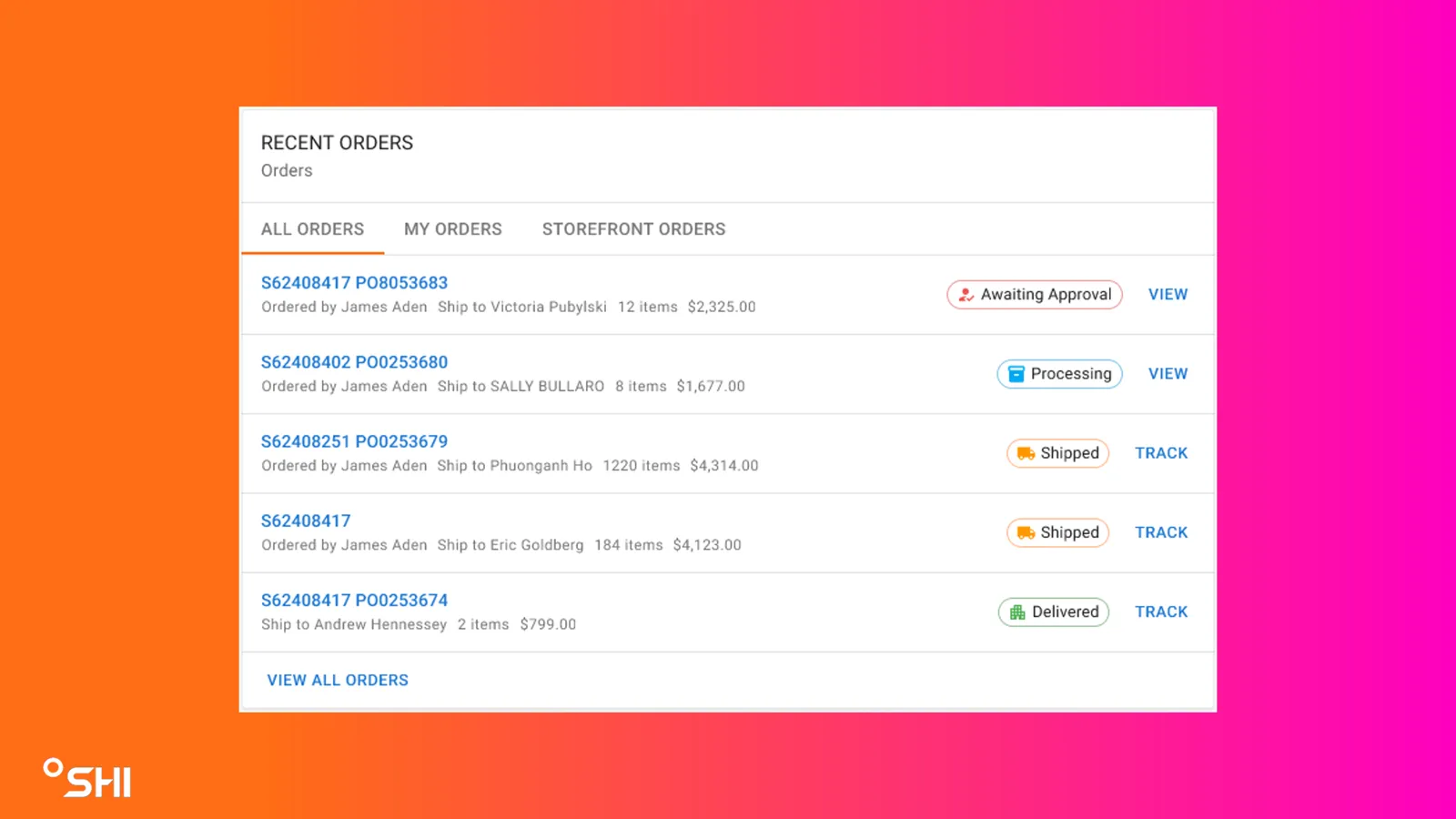
Recent Orders
- Overview
- Displays up to 5 most recent orders and supports role-based views where permissions allow.
- Views/Tabs
- My Orders (default for standard users; only view if no elevated permissions)
- All Orders (requires elevated permissions; across multiple storefronts)
- Storefront Orders (requires elevated permissions; orders from the current storefront/org unit)
- What each order shows
- SO# as a clickable link
- Ordered By
- Ship To Name (ATTN field)
- Cost
- # of Products
- Status chip
- Action link: View/Track
- Interactions
- Track for Shipped/Delivered/Invoiced orders (navigates to the shipment tracking section on the order details page)
- View for Awaiting Approval and Processing orders (navigates to order details)
- View All navigates to the legacy View Orders page
- Approval-related behavior
- If the user does not have approval permissions, orders submitted for approval can still appear as relevant to the user’s context.
Recent Quotes
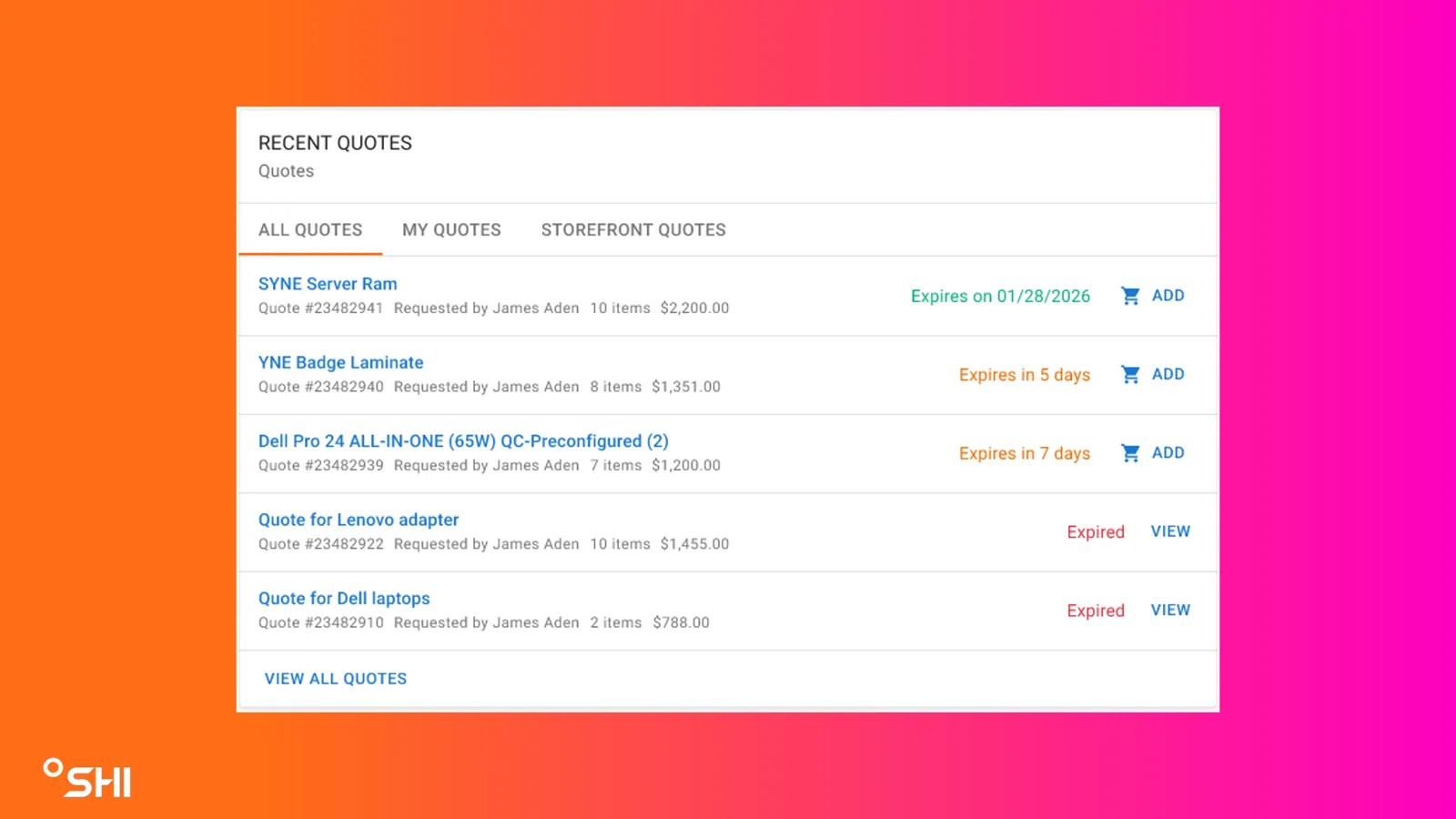
Recent Quotes
- Overview
- Displays up to 5 most recent quotes and supports role-based views where permissions allow.
- Views/Tabs (mirrors Recent Orders)
- My Quotes (default for standard users; only view if no elevated permissions)
- All Quotes (requires elevated permissions; across multiple storefronts)
- Storefront Quotes (requires elevated permissions; quotes from the current storefront/org unit)
- What each quote shows
- Clickable quote name
- Quote number
- Quote requestor
- # of Products
- Cost
- Expiration status
- Date format (e.g., 1/28/2027) if more than 30 days away
- “Expires in X days” if 30 or fewer days away
- “Expired” if past expiration
- Action link: Add/View
- Interactions
- Add (if not expired): adds quote items to cart
- View (if expired): opens quote detail flow
- View All navigates to the legacy View Quotes page
- Empty state
- If no quotes exist, shows:
- “No Quotes Yet, Request your account team to generate quotes for you or save items in your cart as a quote.”
Action Items
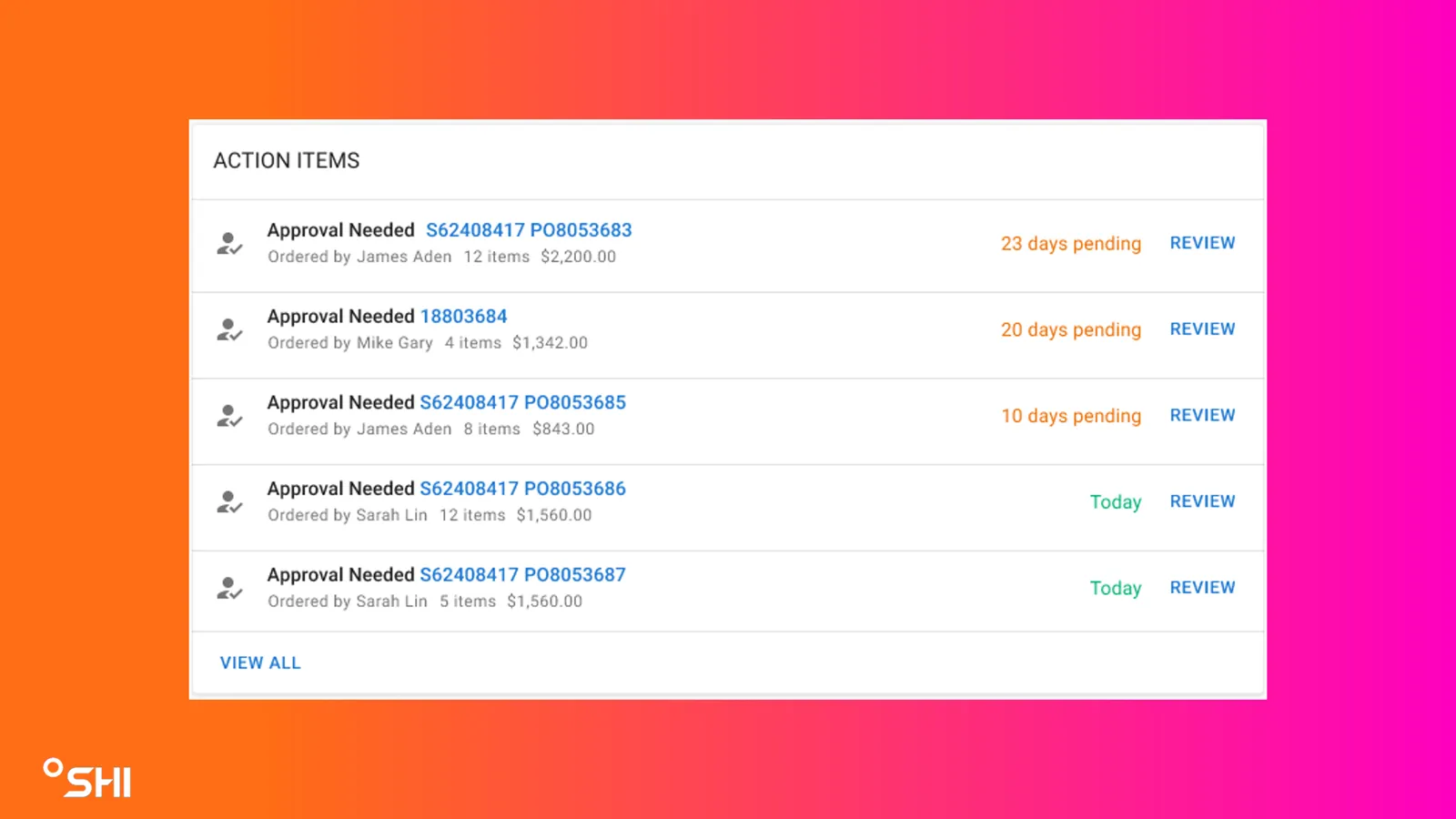
Action Items
- Overview
- Surfaces approval work when the user has approval permissions; otherwise remains hidden or non-actionable depending on user role.
- If the user has approval permissions
- Shows up to 5 pending approvals
- Default sorting: oldest pending at the top
- Each item shows:
- WebOrderID as a clickable link (navigates to the specific SHI.com approval page)
- Ordered by
- # of Products
- Cost
- How long the order has been pending
- Review button (same approval destination)
- View All navigates to SHI.com Order Approvals page
- Empty state
- If nothing requires approval:
- “You’re all caught up! You currently have no action items.”
Upcoming Renewals
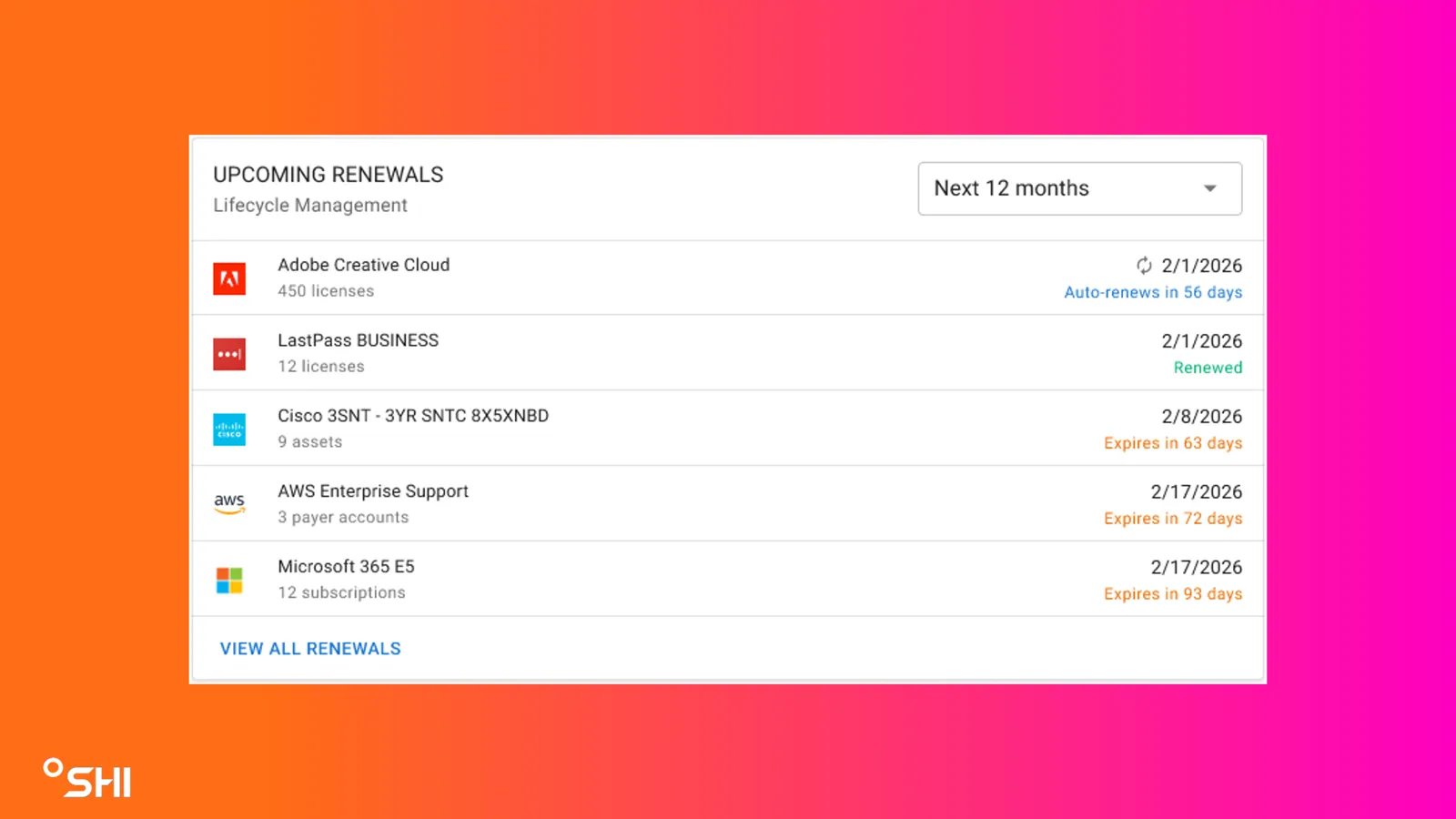
Upcoming Renewals
- Overview
- A redesigned widget (based on Assets dashboard concepts) that highlights upcoming renewal opportunities.
- What it shows
- 5 closest upcoming renewals
- For each renewal:
- Manufacturer / Asset Type
- Renewal/Expiration date
- Expires in X days
- Status (e.g., renewed when available; otherwise countdown to expiration)
- Filters
- Next 12 months
- Next 24 months
- Next 36 months
- Interactions
- Clicking an item navigates to that renewal on the SHI One Lifecycle Timeline
- View All Renewals navigates to the Lifecycle Timeline
Featured Products
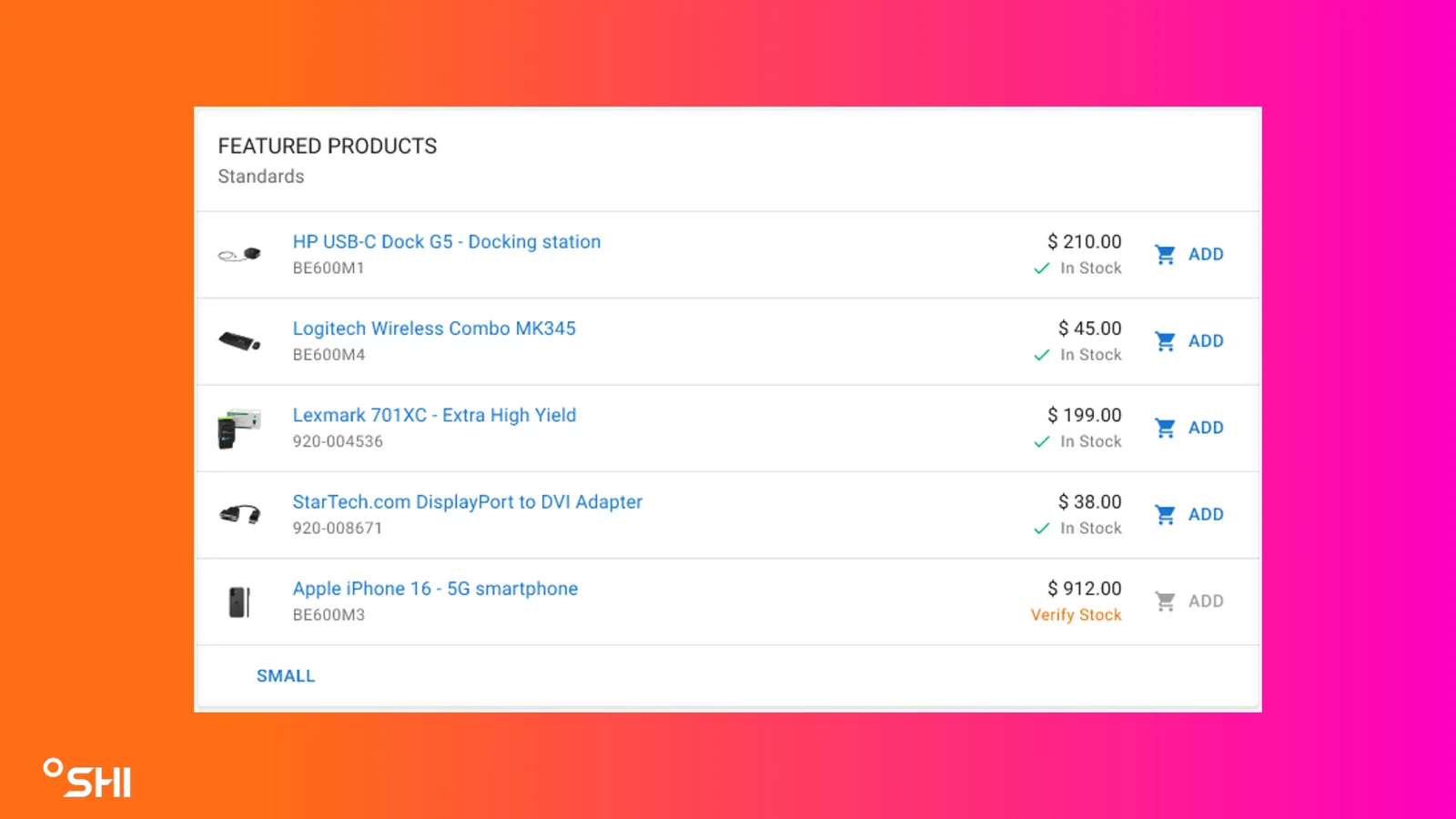
Featured Products
- Overview
- Highlights products curated by the customer using their Featured Standards folder.
- What it shows
- Up to 5 products (top 5 listed items in the Featured Standards folder)
- For each product:
- Item name
- Manufacturer part #
- Price
- Image
- Stock status (e.g., in stock, backordered)
- Add to cart
- Sorting
- Matches the sort order defined in the customer’s Featured Standards folder
- Interactions
- Includes a link/button to navigate to the Standards folder experience
News & Updates
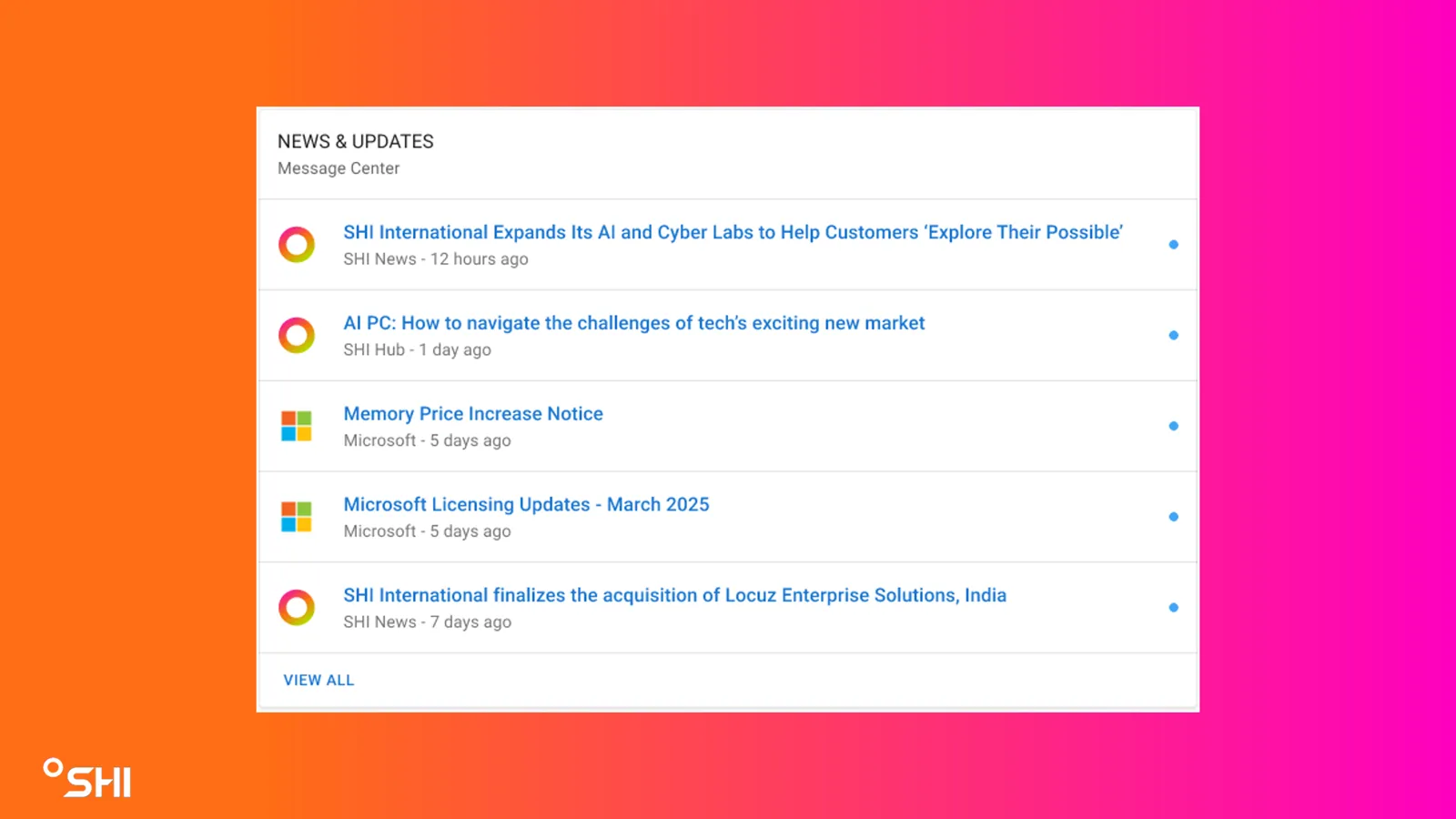
News & Updates
- Overview
- Consolidates SHI communications into a single widget fed by SHI One Message Center.
- What it shows
- Up to 5 most recent stories/updates
- Each item includes:
- Source of the update
- Line image (manufacturer where applicable; SHI logo when not)
- Interactions
- Selecting an item opens the corresponding story/update in the Message Center
- View All navigates to the SHI One Message Center