Subscription Management
ℹ️ Subscription Management available to users that have access to the cloud subscription manager in SHI.com. If you believe you should have access, reach out to your SHI representative.
This guide explains the Subscriptions Management page and the steps to manage subscriptions in SHI One.
Some things you can do on this page:
- View current subscriptions
- Review renewal information
- Add new subscriptions
- Make seat adjustments
- Manage subscriptions settings
Icons
Below are the icons that you will see on the Subscriptions Management screen.
Billing Account Icons
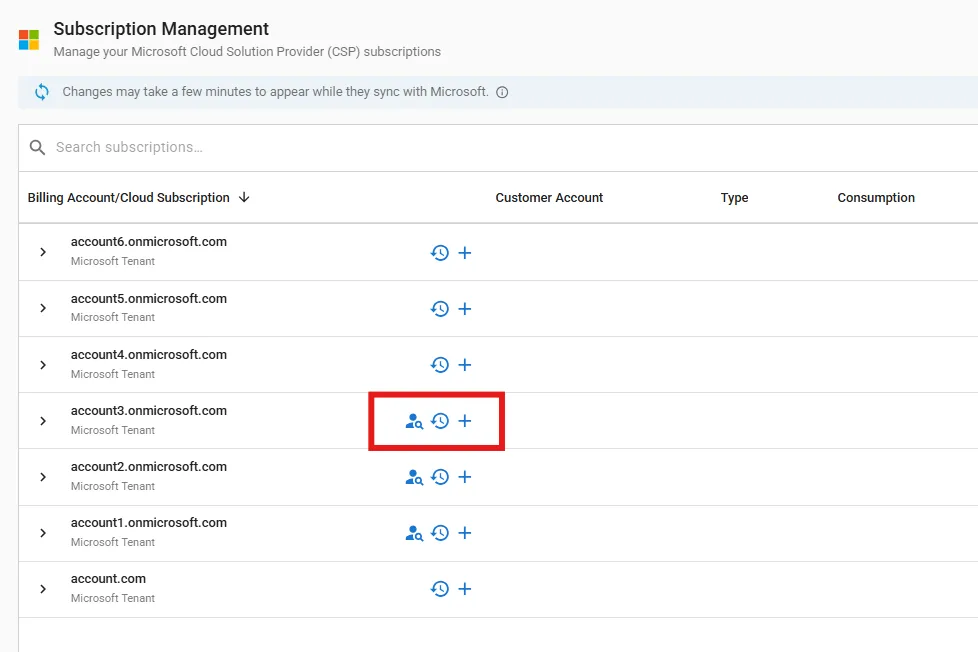
Icon | Name | Description |
|---|---|---|
 | Assign Users | Allows you to select a subscription and grant a license (seat) to a user |
 | Activity Log | Displays all the recent activity and history of the changes requested for the selected subscription. |
 | New Subscription | Add a new subscription to the Microsoft tenant. |
Cloud Subscription Icons
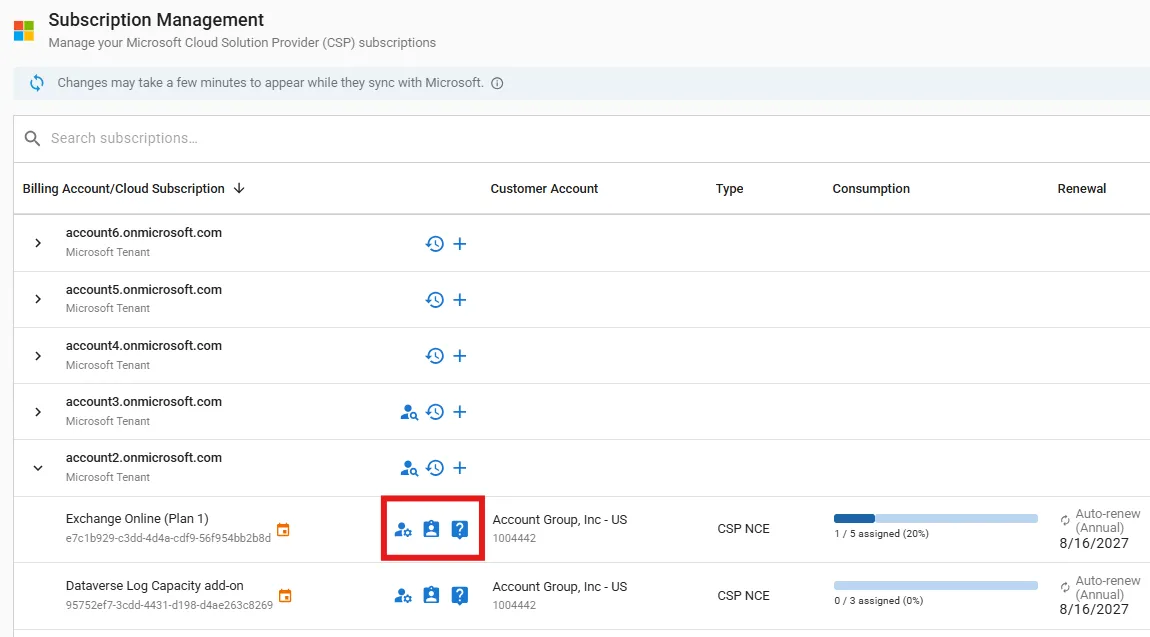
Icon | Name | Description |
|---|---|---|
 | Manage Subscription | Manage your selected subscription, such as adjusting seats, scheduling seat changes, and other properties for subscriptions. |
 | Assign Licenses | Automatically selects the subscription and allows you to grant a license (seat) to a user. |
 | Request Support | Navigates to Services & Support > New Requests where you can submit a support request. For more information, see Submitting a New RequestRequests. |
Cloud Subscription Information Icons
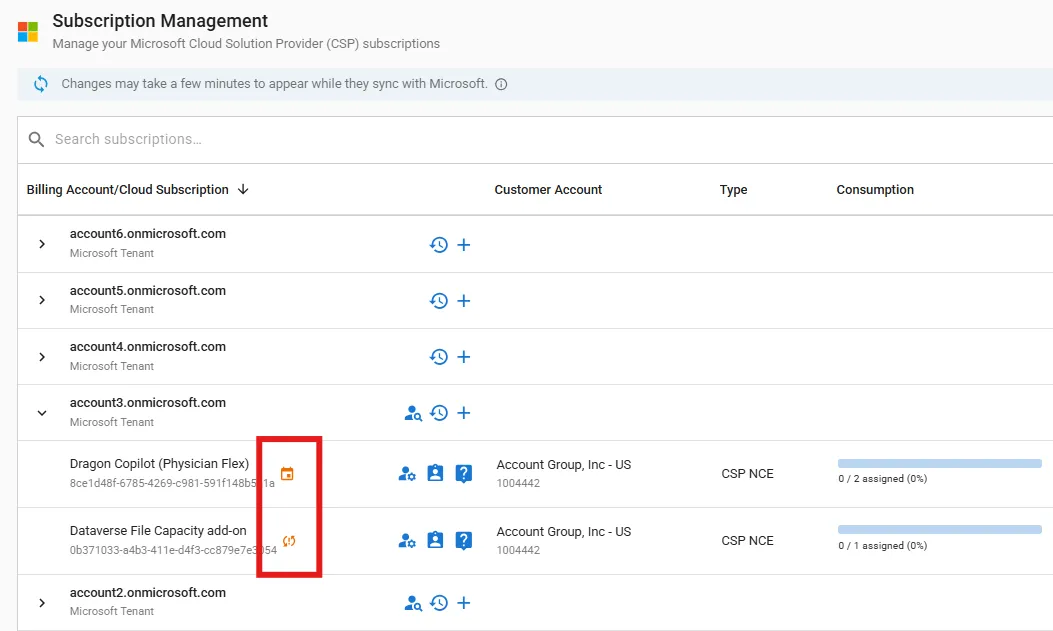
Icon | Description |
|---|---|
 | A change is scheduled for the subscription. Clicking on this icon opens a container which displays more information. |
 | This subscription is cancelable for a limited time, typically 7 days. |
Subscription Management
This section explains how to add new subscriptions, manage users, adjust seats, and cancel a subscription.
- Click Cloud > Subscriptions in the left navigation menu.
- Click on the MANAGE SUBSCRIPTIONS button in the top right corner.
- Note: This button is only visible to users that have access to the cloud subscription manager in SHI.com. If you need access, reach out to your SHI representative.
- The process differs depending on if you would like to add subscriptions, manage users, adjust seats, or cancel subscriptions. Proceed below accordingly:
- Add a New Subscription
- Click on the New Subscription (+) icon next to the desired billing account. A container opens.
- Check the box next to the subscription or subscriptions you wish to add and click NEXT.
- Configure your subscription by selecting your desired options.
- Click NEXT.
- Review the information. You can also use the EDIT or REMOVE options if needed.
- Once you are satisfied with the changes, click SUBMIT. You will land back on the Subscription Management page, where it will take a few minutes to update.
- Note: After clicking submit, you have 7 days to cancel a subscription or reduce the seat count.
- Manage Users
- Click on the Assign Users icon next to the desired billing account. A container opens.
- Select your desired subscription from the drop-down menu.
- Assign Seats
- Click on the Assign Seat (+) icon next to the user you to assign a seat.
- Manage A User Subscriptions
- Click on the Manage User Subscriptions icon. A dialog box appears.
- Use the toggle to select your desired option next to the license. The number of licenses available will display in the Seats Available column.
- No seat - License is not assigned
- Yes - License is assigned
- Click SUBMIT.
- Adjust Seats
- Click on the desired billing account to open a list of subscriptions.
- Click on the Manage Subscriptions icon next to the desired subscription. A container opens.
- Adjust the number of seats by entering the number in the textbox or using the + and - signs to increase or decrease the number.
- Note: Seat adjustments will take effect immediately for the current term. If you would like to schedule changes, click ADD SCHEDULED CHANGE, and select your desired options.
- Click NEXT.
- Review the information. You can also use the EDIT option if needed.
- Once you are satisfied with the changes, click SUBMIT. You will land back on the Subscription Management page, where it will take a few minutes to update.
- Cancel Subscription
- Click on the desired billing account to open a list of subscriptions.
- Click on the Manage Subscription icon next to the desired subscription. A container opens.
- Click on the CANCEL SUB button. A dialog box appears.
- Note: This option is only available if you have recently made changes to the subscription.
- Read though the information and click CONFIRM.
- Once confirmed, you will land back on the Subscription Management page, where you will see Cancelled next to the subscription you have just cancelled. It may take a few minutes to update.
- After making changes on the Subscription Management page, you will receive an email with more information regarding the updates.
- Note: Some actions are processed through Microsoft services and may take some time to appear.