View Quotes Page
Feature Overview
What users can do with this feature:
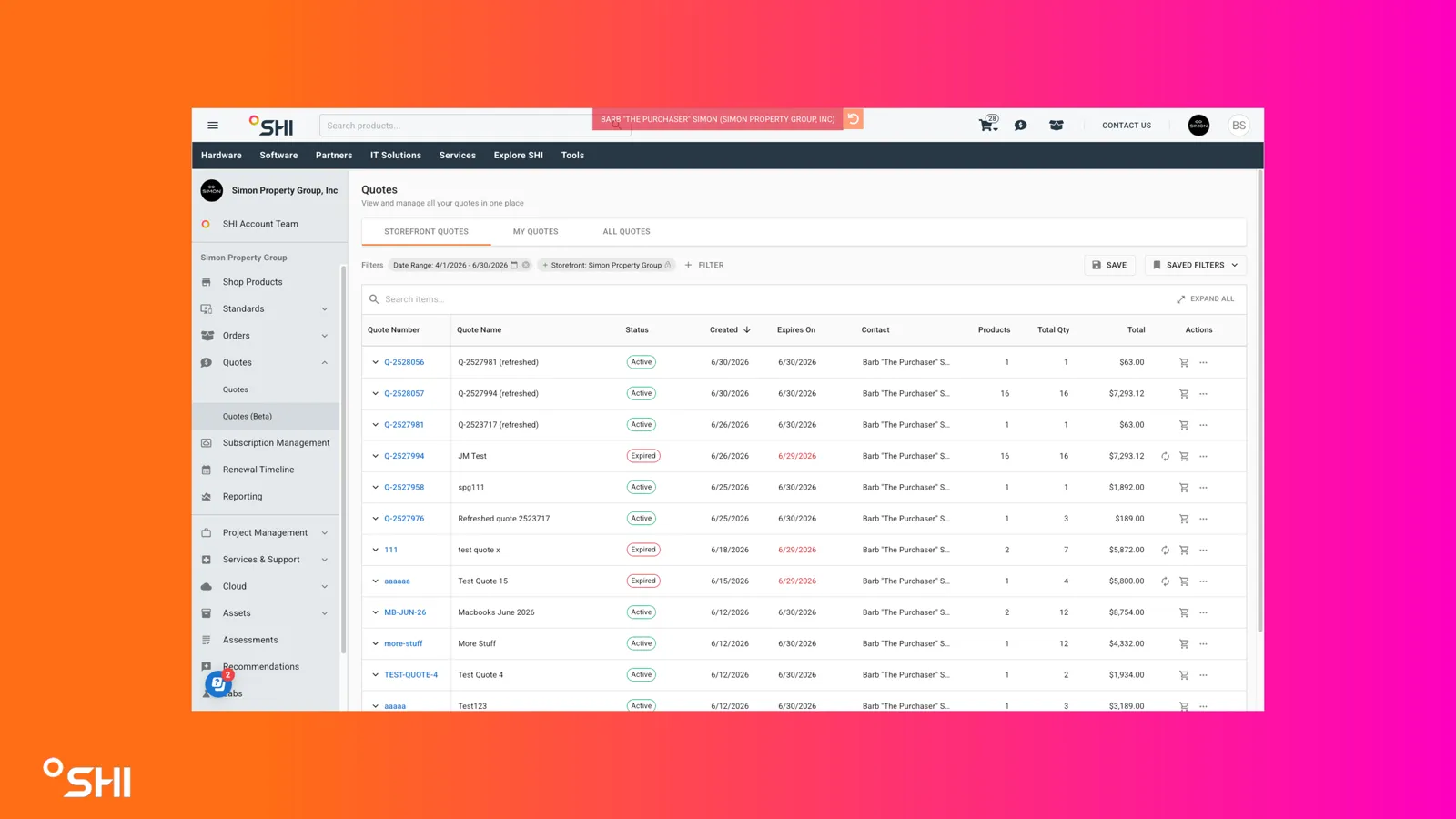
- View quotes in a structured table: See Quote ID, Friendly Name, Status, Created Date, Expiration Date, Total Price, Contact, Total Products, and Total Quantity at a glance.
- Expand line items inline: Review product image, item name, MPN, and quantity without leaving the quotes table.
- Open Product Details: Click an item name to open the Product Details drawer for deeper product context.
- Search by quote or product: Find quotes by Quote Name, Quote Number, or by product attributes via Enhanced Search.
- Filter and save views: Filter by Contact, Status, and Date, then save and reuse filter combinations from a dropdown.
- Add to Cart with confirmation: Use a redesigned Add to Cart action that opens a dialog for reviewing and editing the cart before continuing.
- Share Quote: Email a quote to themselves and others with an optional message, respecting quote and catalog permissions.
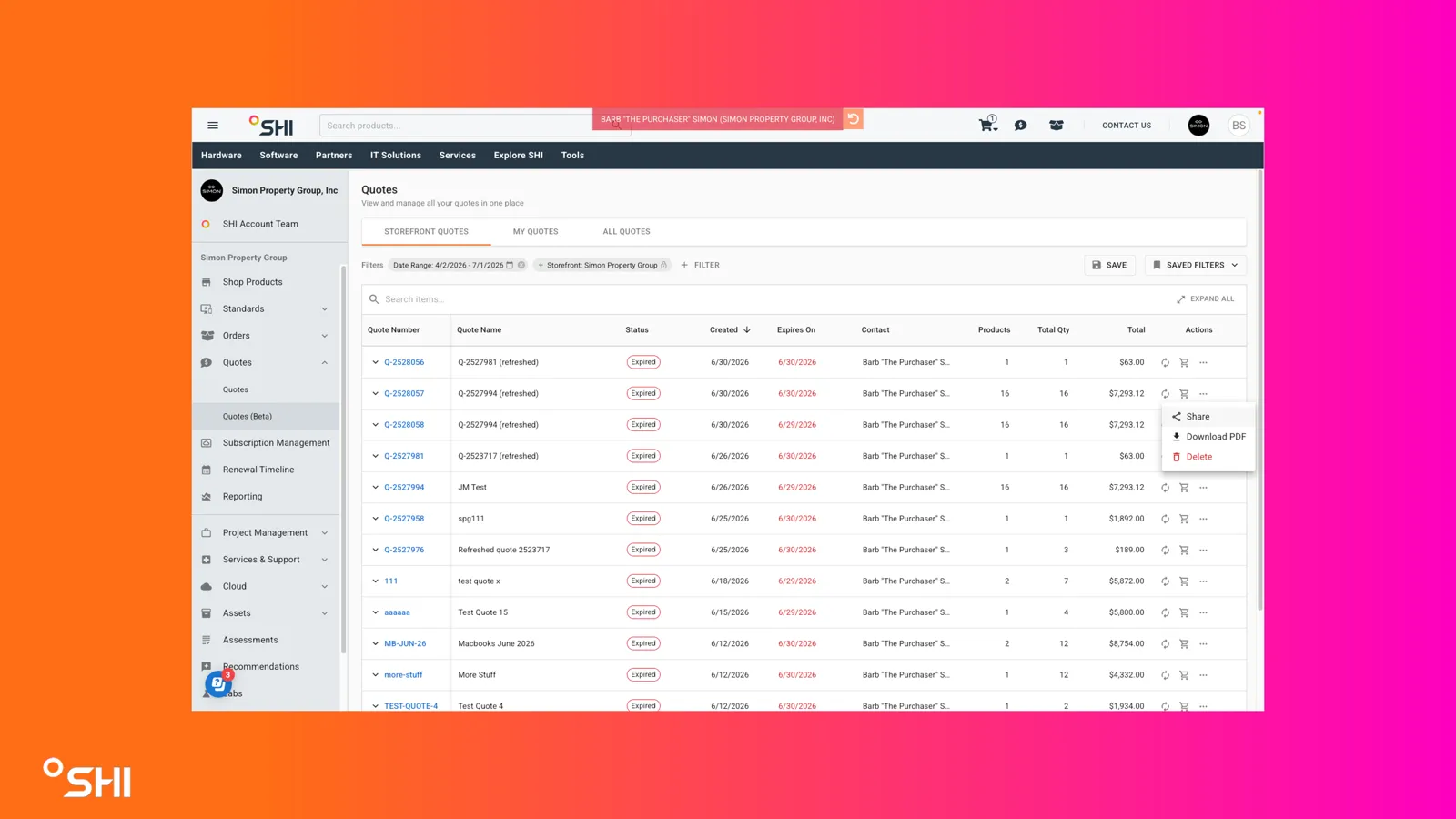
- Download or delete a quote: Access these from a 3-dot menu on each row.
- Switch data views: Toggle between My Quotes, Storefront Quotes (default), and Tenant Quotes based on permissions.
- Work with expired quotes safely: Add eligible items to cart with automatic repricing against the current catalog and clear expiration messaging.
Key Terms Explained
Understanding these terms will help you use the Quotes (Beta) page more effectively.
- Quote: A saved set of priced line items with an expiration date that a user can convert into a cart or order.
- Active Quote: A quote whose expiration date has not passed and whose pricing remains valid for purchase.
- Expired Quote: A quote past its expiration date, retained for reference; pricing is static until items are added to cart or refreshed against the current catalog.
- Friendly Name: A human-readable label associated with the quote in addition to its system Quote ID.
- Total Products: The number of distinct line items on a quote (for example, an order for 10 MacBook Airs shows a value of "1").
- Total Quantity: The total number of units across all lines on a quote (for example, an order for 10 MacBook Airs shows a value of "10").
- Storefront: A single procurement context within a tenant under which quotes and orders are placed.
- Tenant: The top-level organizational container that can include one or more storefronts.
- Org Unit: An organizational grouping used for permissioning quote visibility.
- Permission-Aware Defaults: The page's automatic selection of default scope (Own vs Org Unit) based on the user's permissions.
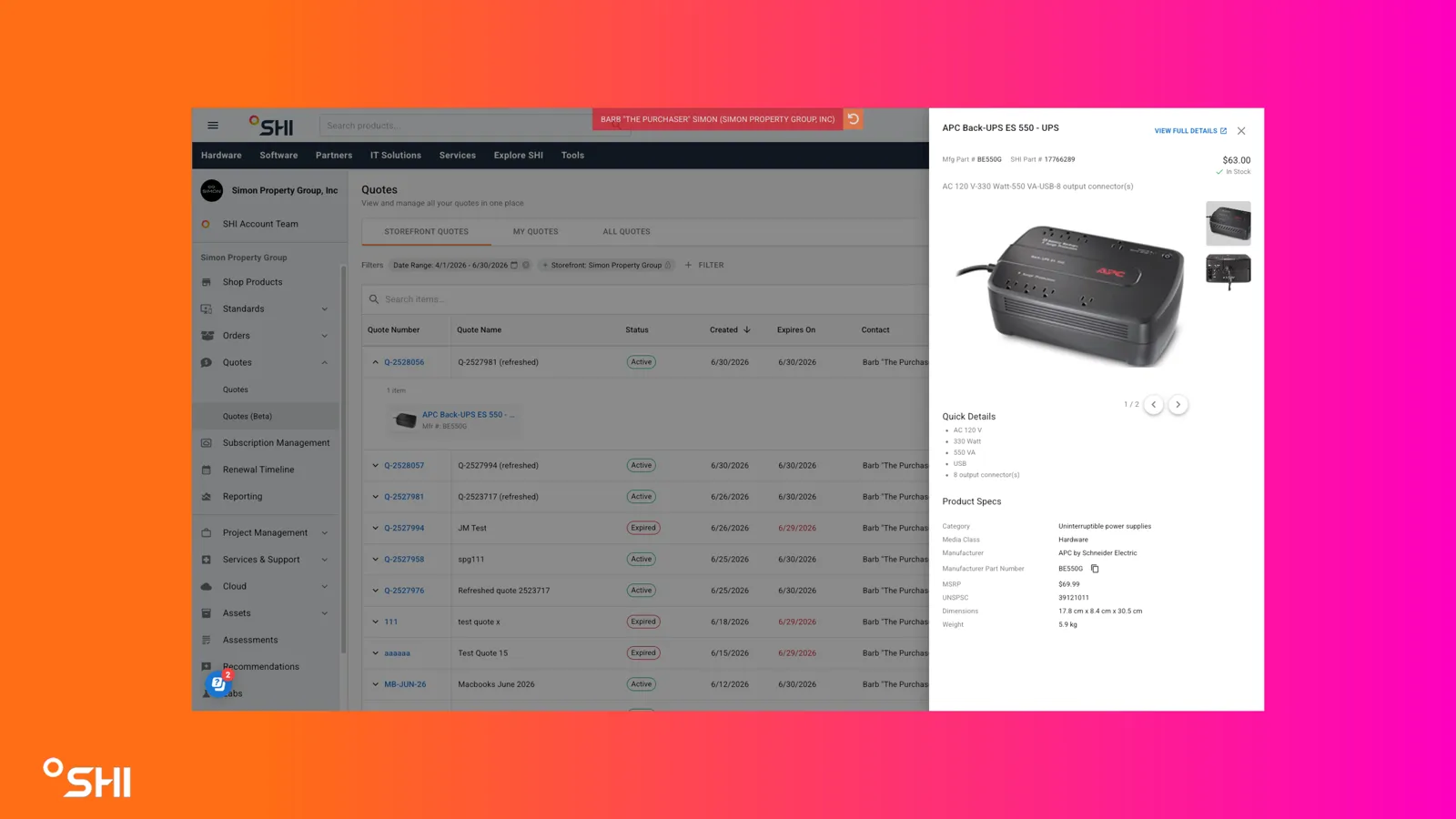
- Product Details Drawer: A side panel that opens to display detailed information about a single product on a quote.
Notes or constraints:
- All actions respect quote and catalog permissions.
- All Quotes view is only available to users with cross-storefront permission.
- Cross-storefront add-to-cart or reorder actions are restricted in MVP; users will be informed and prompted to switch storefronts.
- For SHI.com created quotes the Contact reflects the quote creator; for quotes published from SalesCenter the Contact reflects the delivery contact.
Getting Started
Accessing the Feature
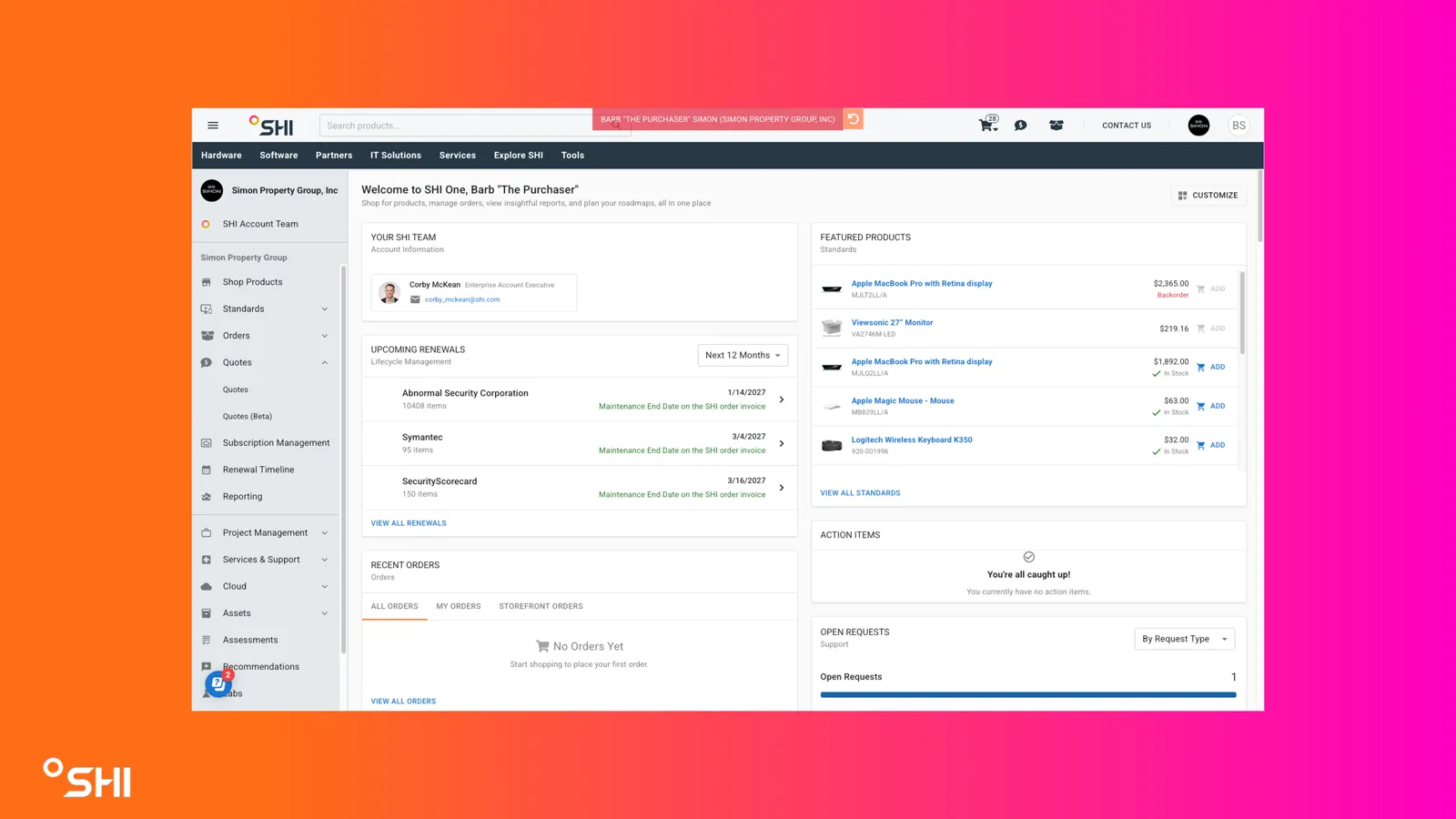
- Navigate to the main navigation: Quotes > Quotes (Beta).
Ensure you have the required role and permissions: standard user (Own quotes by default), elevated user (Org Unit / Storefront default), tenant-level viewer (All Quotes view).
Prerequisites
- Accounts and roles required: Active SHI One user account with access to at least one storefront.
- Configuration required: Storefront assignment and any elevated permissions for Storefront or All views must be granted by an admin.
- Data required: At least one quote created in SHI.com or published from SalesCenter to view content on the page.
Using the New View Quotes Page (Step-by-Step Guides)
- Reviewing Quotes in the Table
Open the Quotes (Beta) page from the navigation.
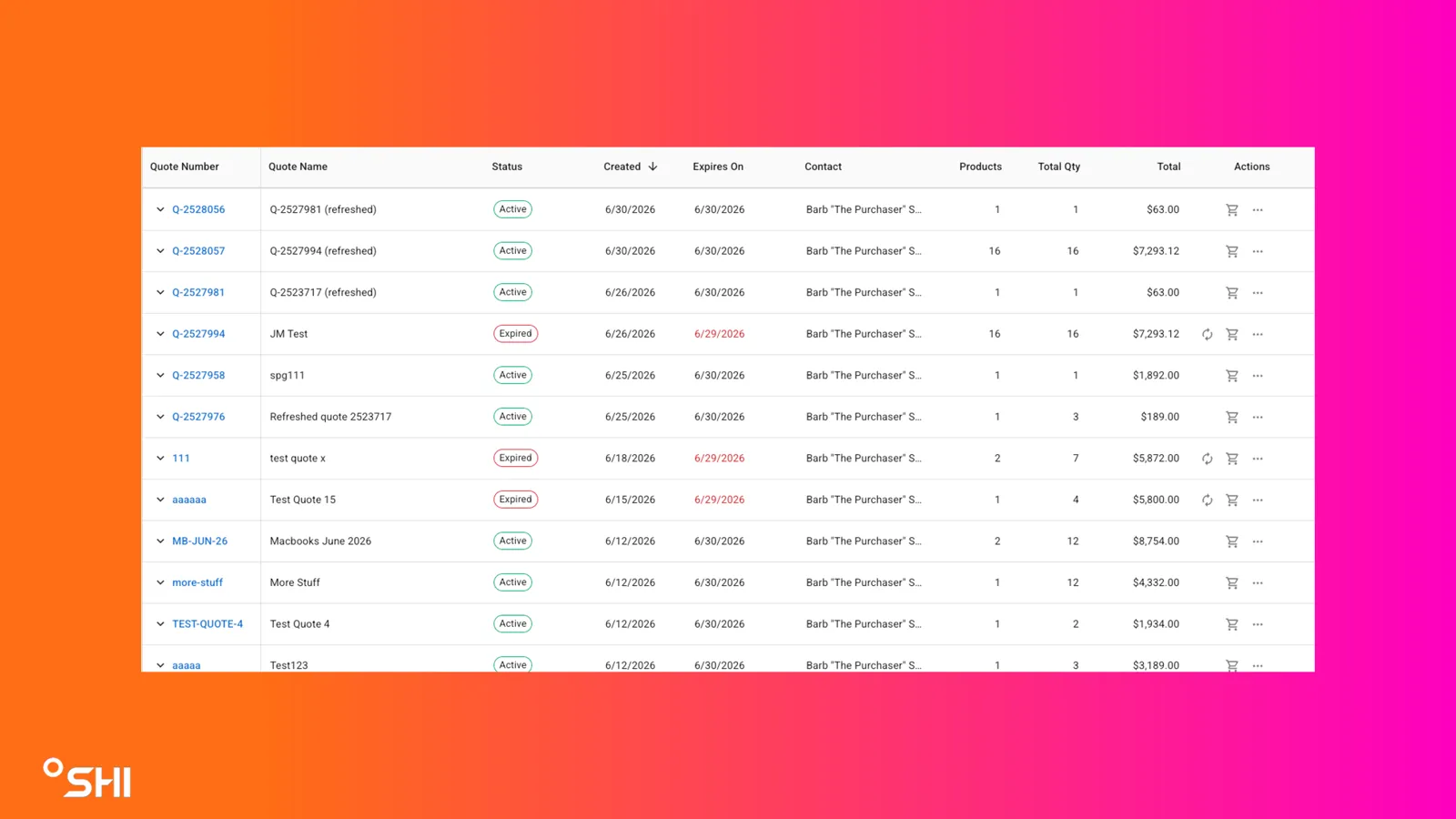
Review the columns available for each quote:
- Quote ID: Clickable link that navigates to the legacy SHI.com Quote Details page.
- Friendly Name: Optional label for the quote.
- Status: Active or Expired.
- Created Date: When the quote was created.
- Expiration Date: When the quote expires.
- Total Price: Inclusive of tax and shipping if those are part of the quote.
- Contact: Quote creator (SHI.com) or delivery contact (SalesCenter).
- Total Products: Number of line items.
- Total Quantity: Total units across all lines.
- Expanding a Quote to View Items Inline
Click the expand control on any quote row.
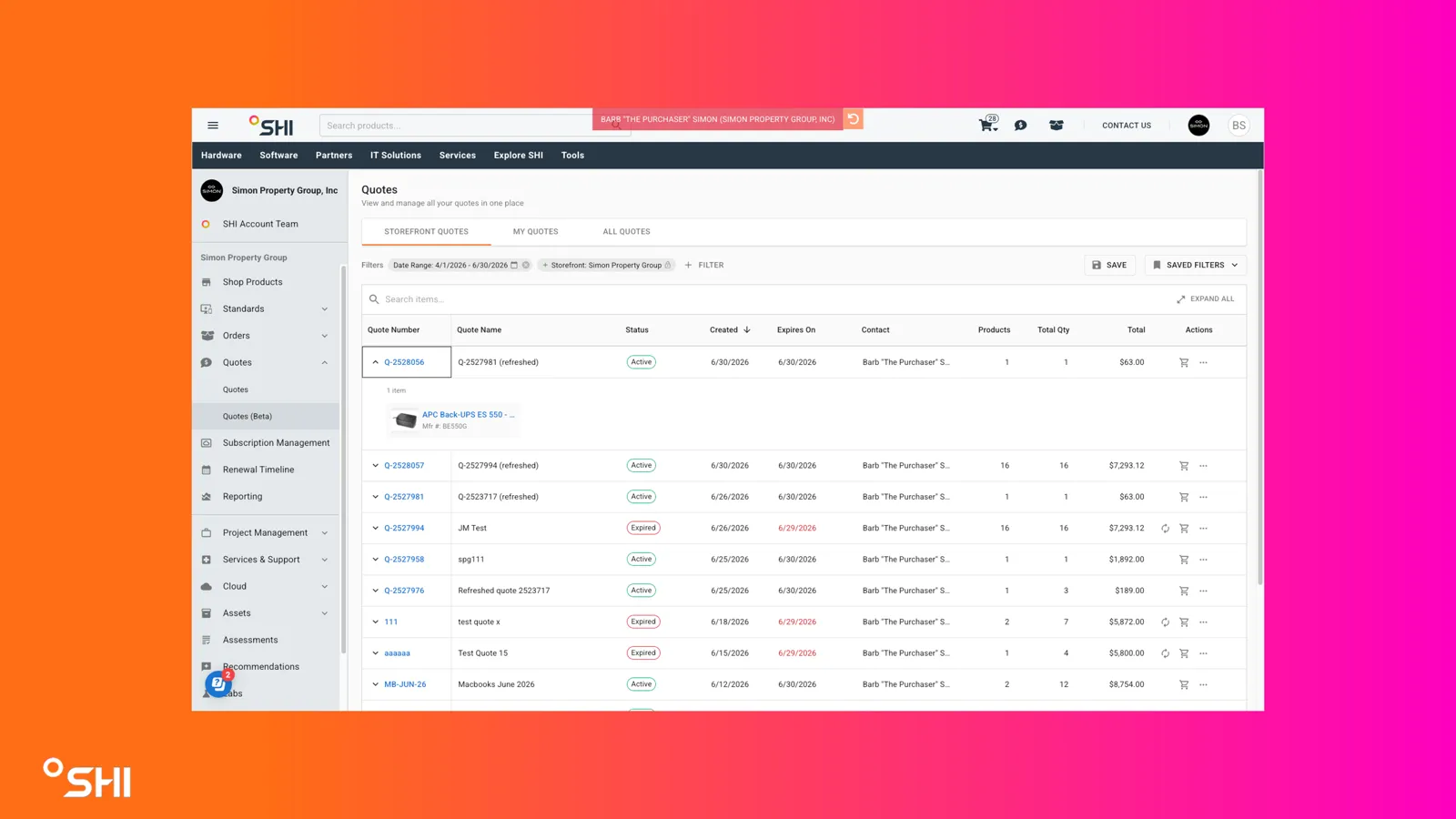
Review the inline product details:
- Product image
- Item name
- Manufacturer Part Number (MPN)
- Quantity
Click an item name to open the Product Details drawer.
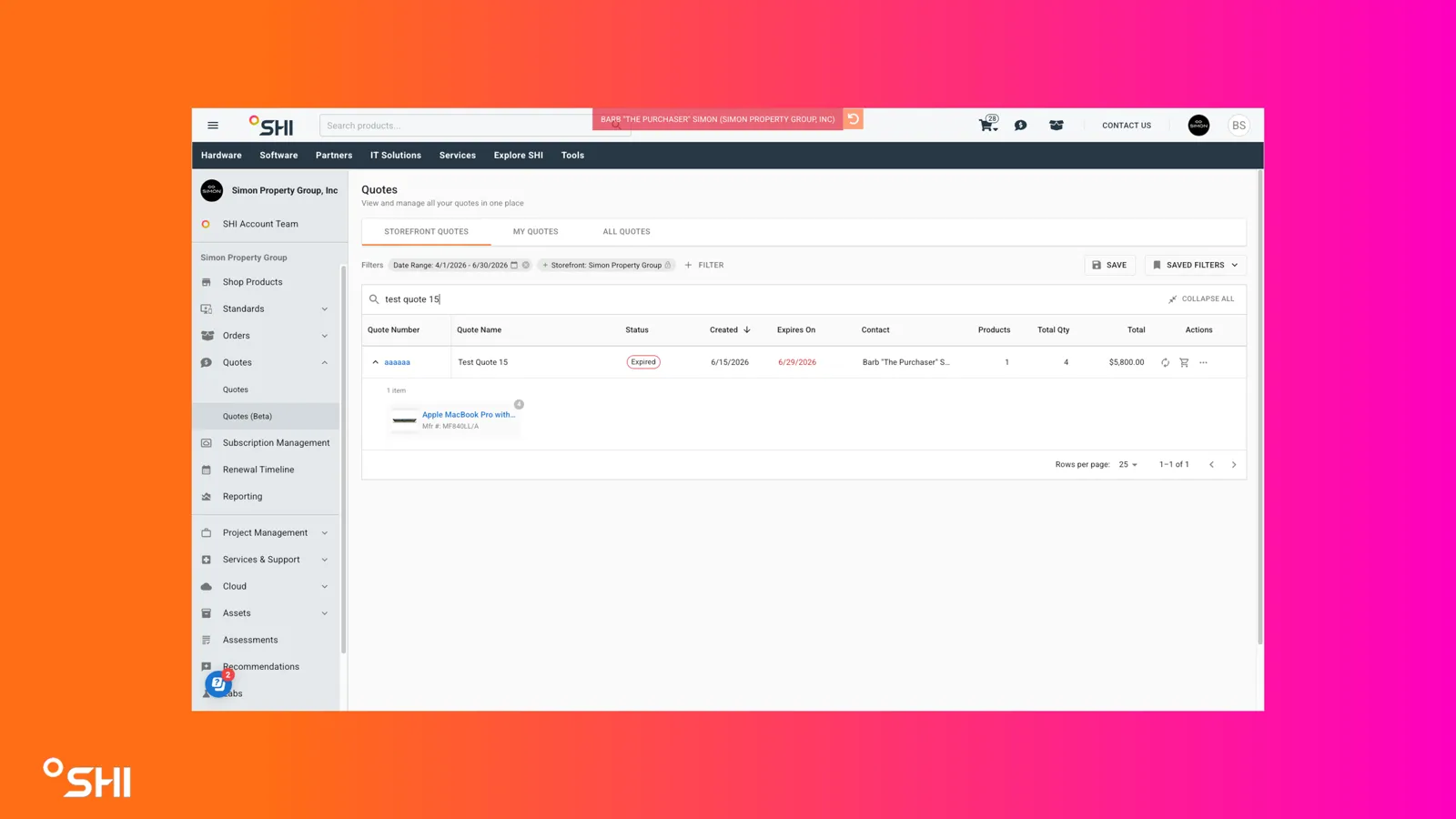
- Searching and Filtering Quotes: Table-Level Search
Use the search bar above the table to search by:
- Quote Name
- Quote Number
- Product (Enhanced Search, product-based)
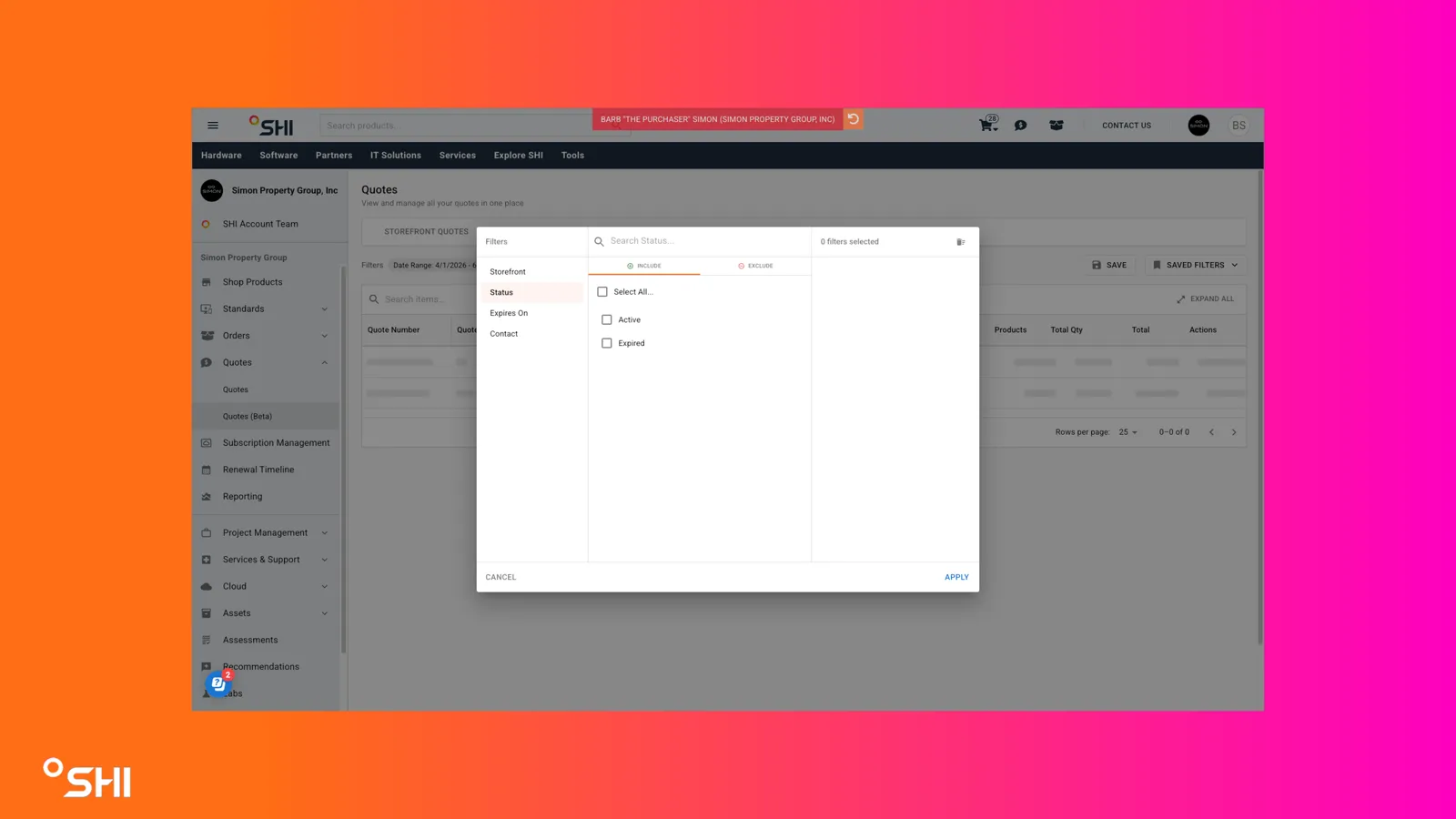
Filters
Apply filters from the filter bar:
- Contact
- Storefront
- Status (Active, Expired)
- Expiry Date
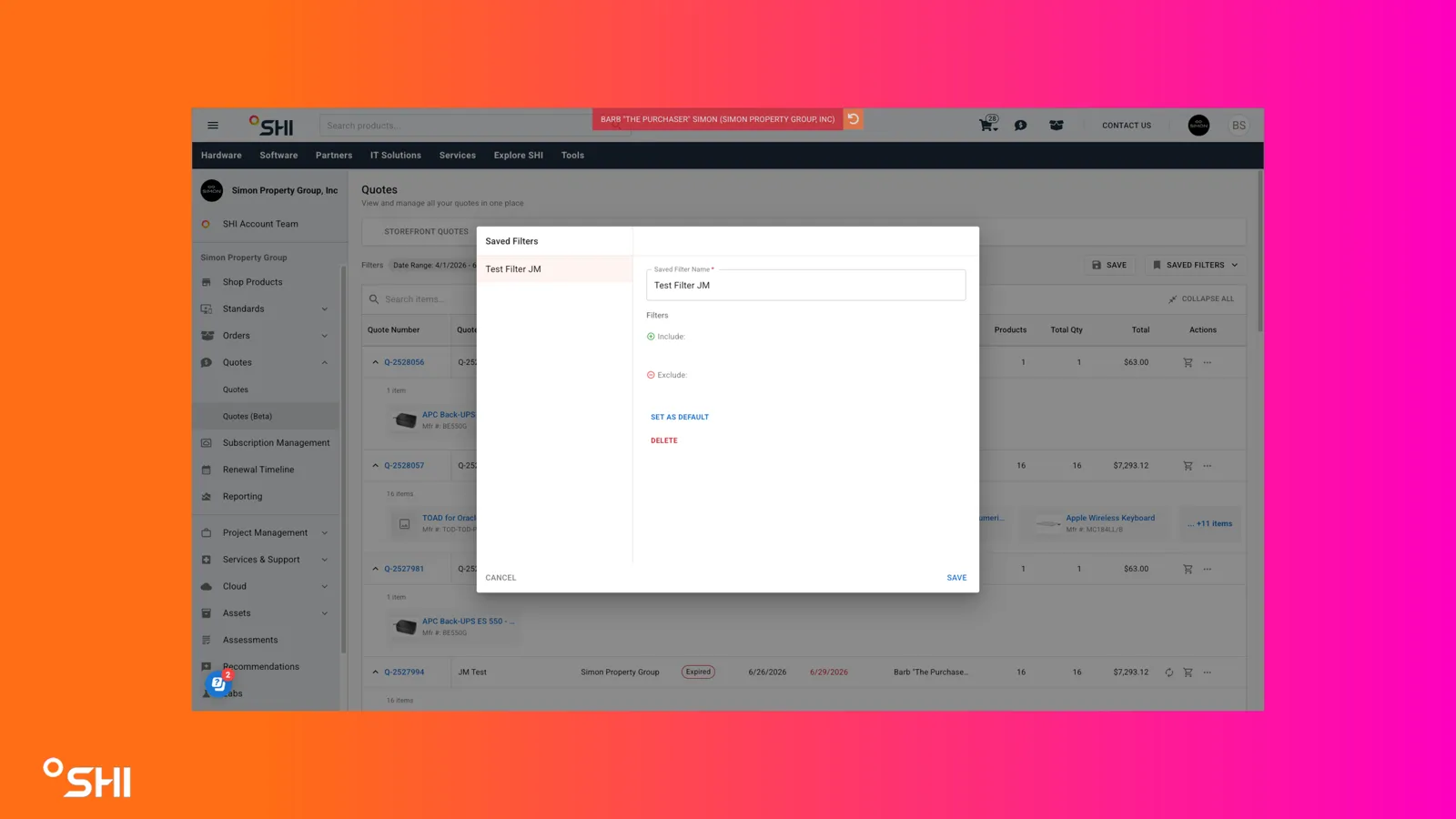
Save the current filter combination by selecting Save Filter.
Reuse a saved filter from the saved filters dropdown.
- Adding an Active Quote to the Cart
On an Active quote row, click the Add to Cart icon.
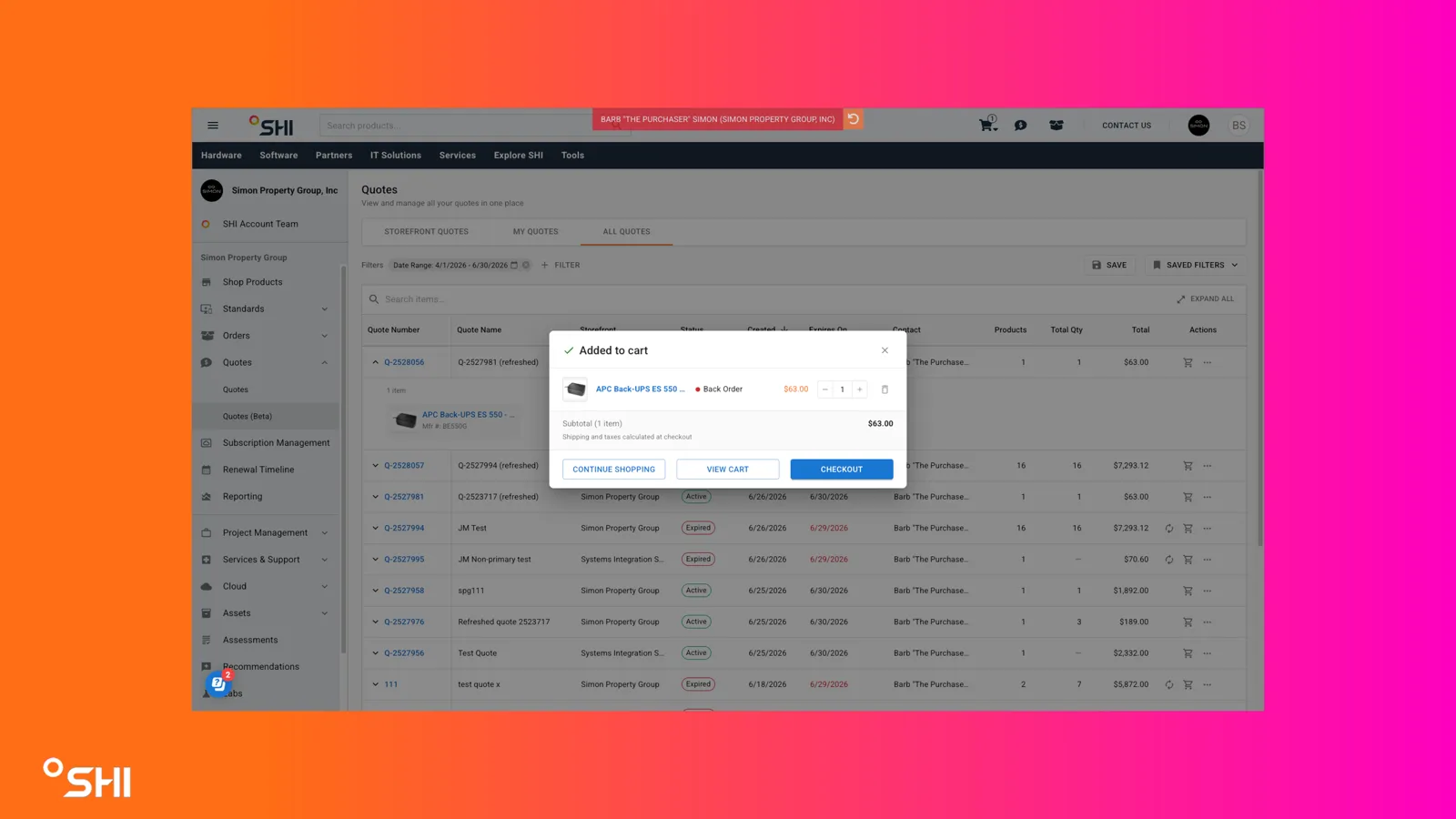
Review the confirmation dialog showing all lines added to the cart, including for each line:
- Product photo
- Item name
- Inventory status chip
- Total cost per line
- Quantity controls (plus, minus, value in cart)
- Delete control
Edit quantities directly in the dialog:
- Increasing or decreasing values updates the cart in real time.
- Setting a line quantity to 0 removes the line from the cart.
Use the bottom action buttons as needed:
- Continue Shopping: Closes the dialog.
- View Cart: Navigates to the cart on SHI.com.
- Checkout: Begins the SHI.com checkout workflow.
- Adding an Expired Quote to the Cart
On an Expired quote row, click the Add to Cart icon.
Review the confirmation dialog. A message will appear stating: "The prices shown below are current and may have updated since your quote expired."
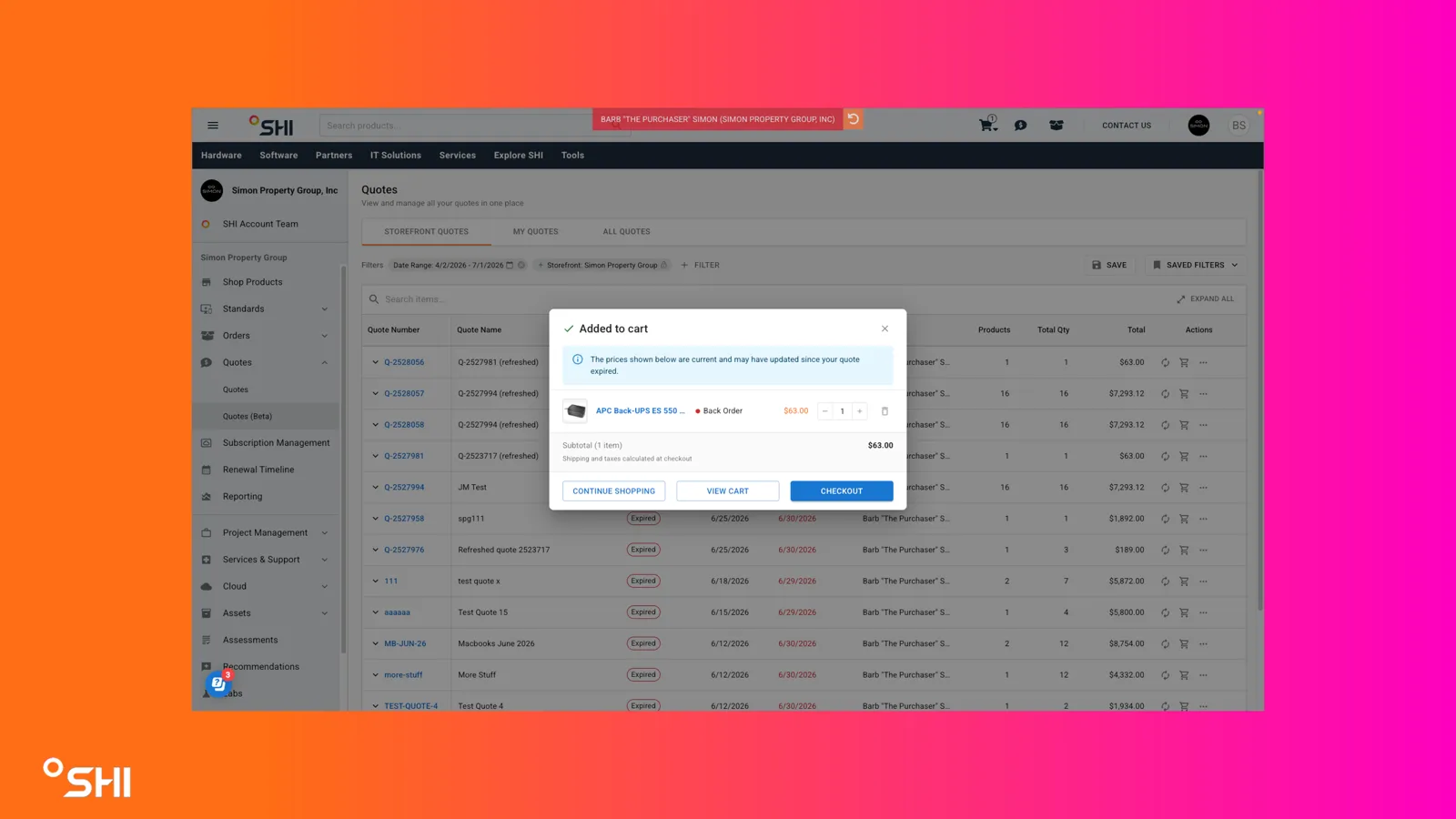
Confirm and proceed with Continue Shopping, View Cart, or Checkout.
- Refreshing an Expired Quote
On an Expired quote row, click the Refresh icon.
Review the confirmation dialog. A message will appear stating: "A new quote will be created with current catalog pricing. Adjust quantities or set to 0 to exclude an item."
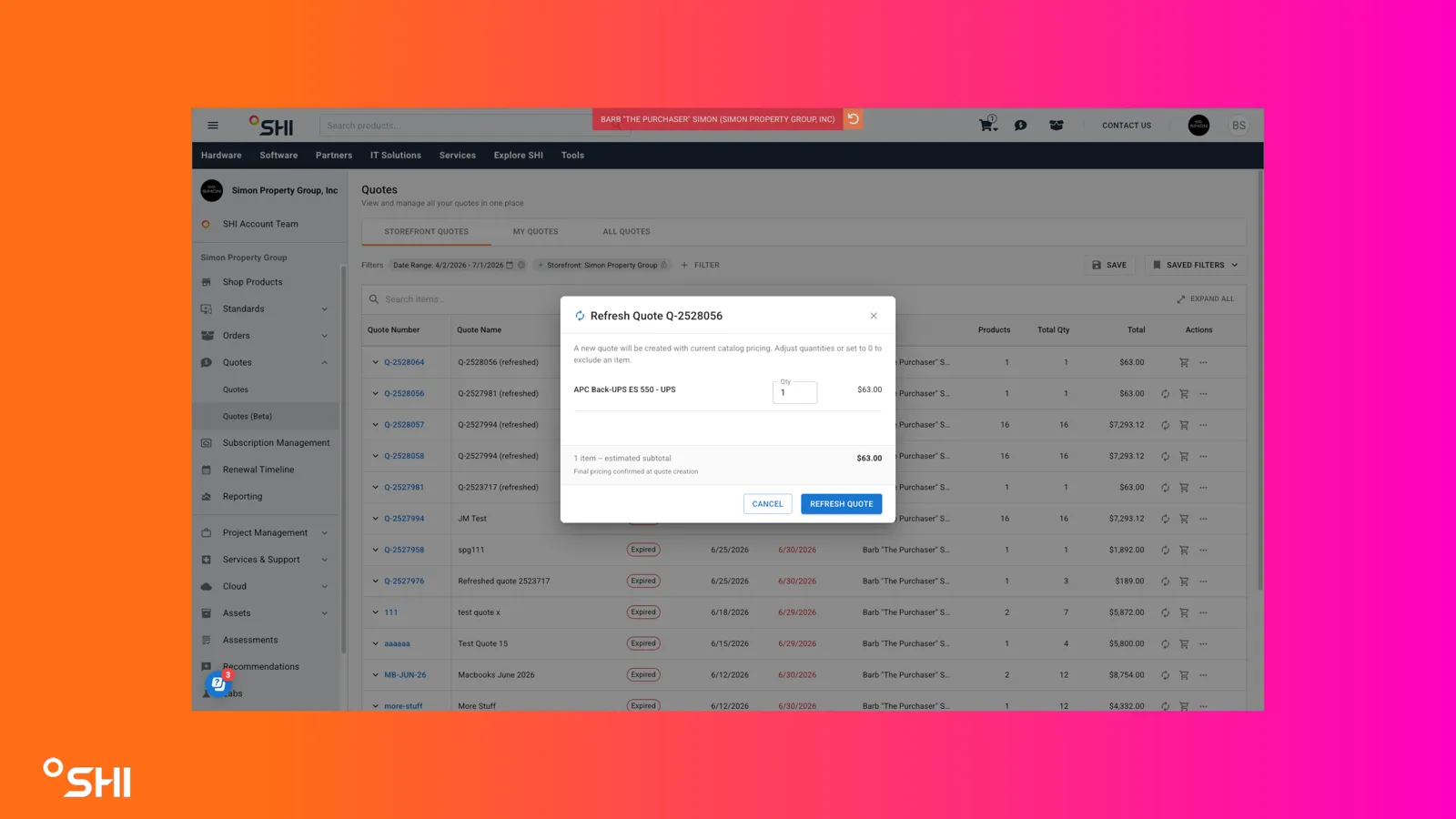
Click Refresh Quote button to create new quote. You will be redirected to your new quote.
- Sharing a Quote
On any quote row, select Share Quote.
Complete the share dialog:
- Select Send a copy to my email address (checkbox) to include yourself.
- Select Send a copy to others (checkbox) and add recipient emails in the field below.
- Optionally add a message; this appears in the Additional Comments section of the quote email.
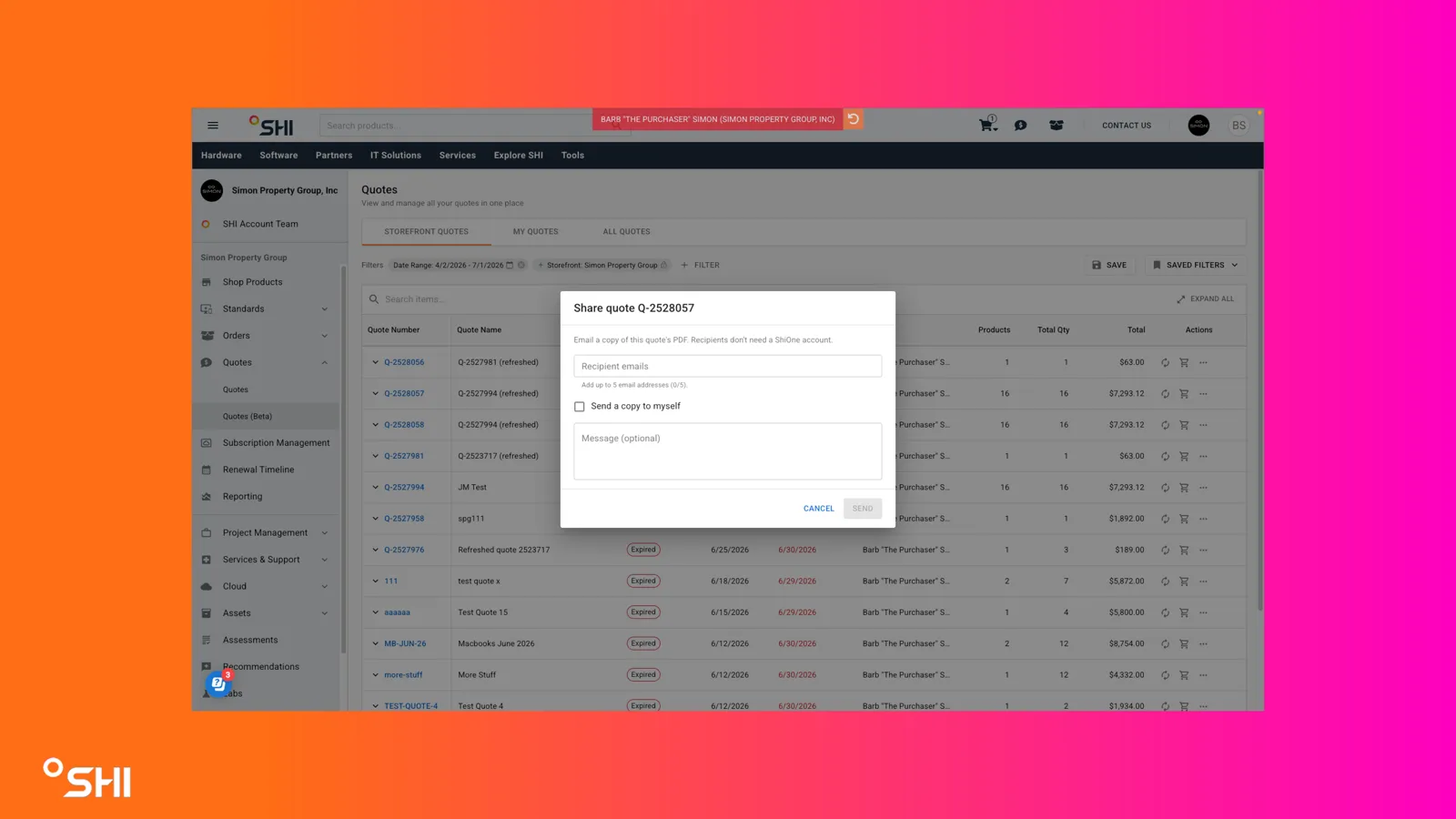
Send the email.
- Downloading or Deleting a Quote
On any quote row, open the context menu.
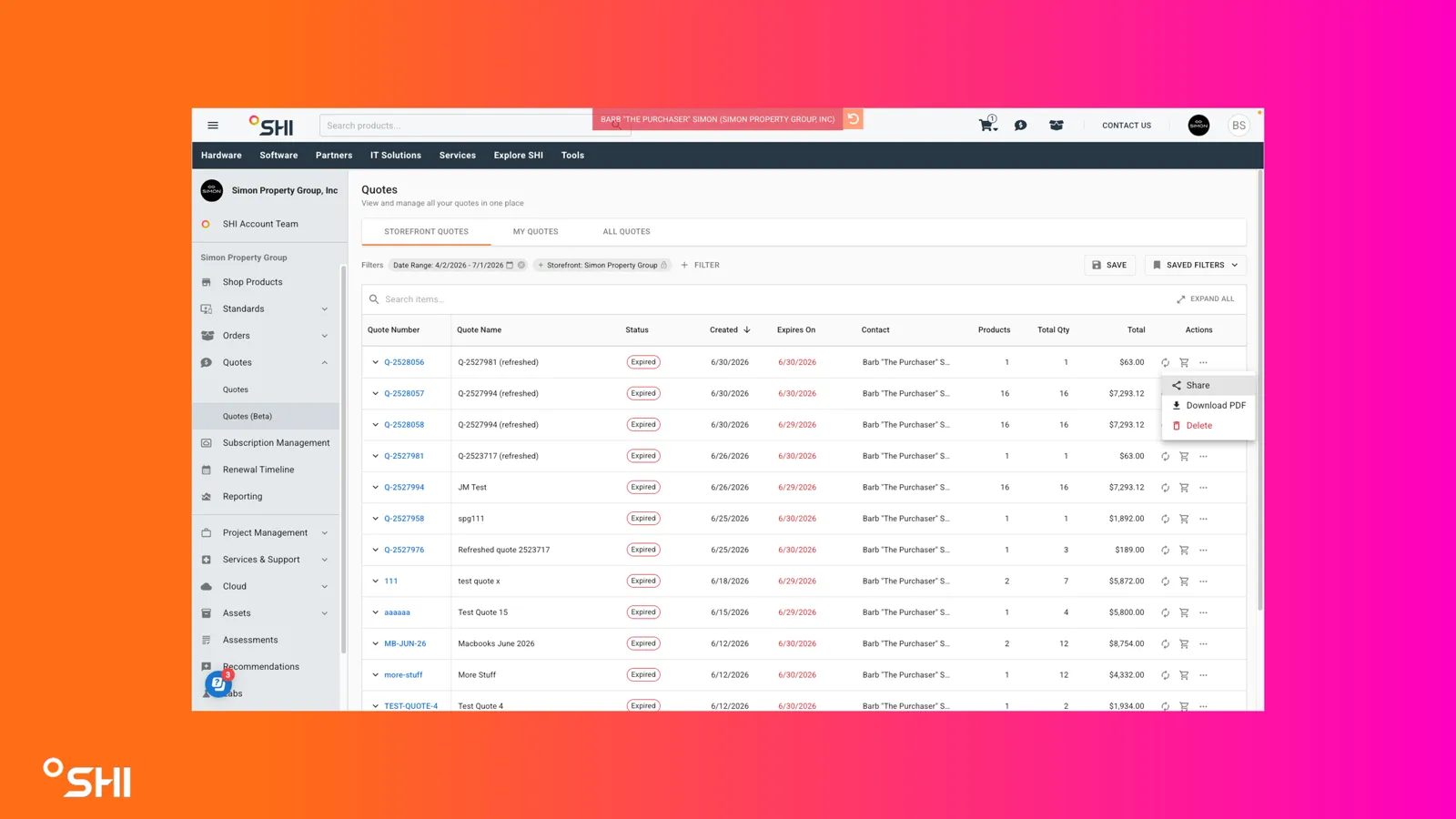
Choose an action:
- Download Quote: Downloads the same file generated and sent to users upon quote creation.
- Delete Quote: Removes the quote.
Confirm the action when prompted.
- Switching Data Views
Select the My Quotes view from the data view selector.
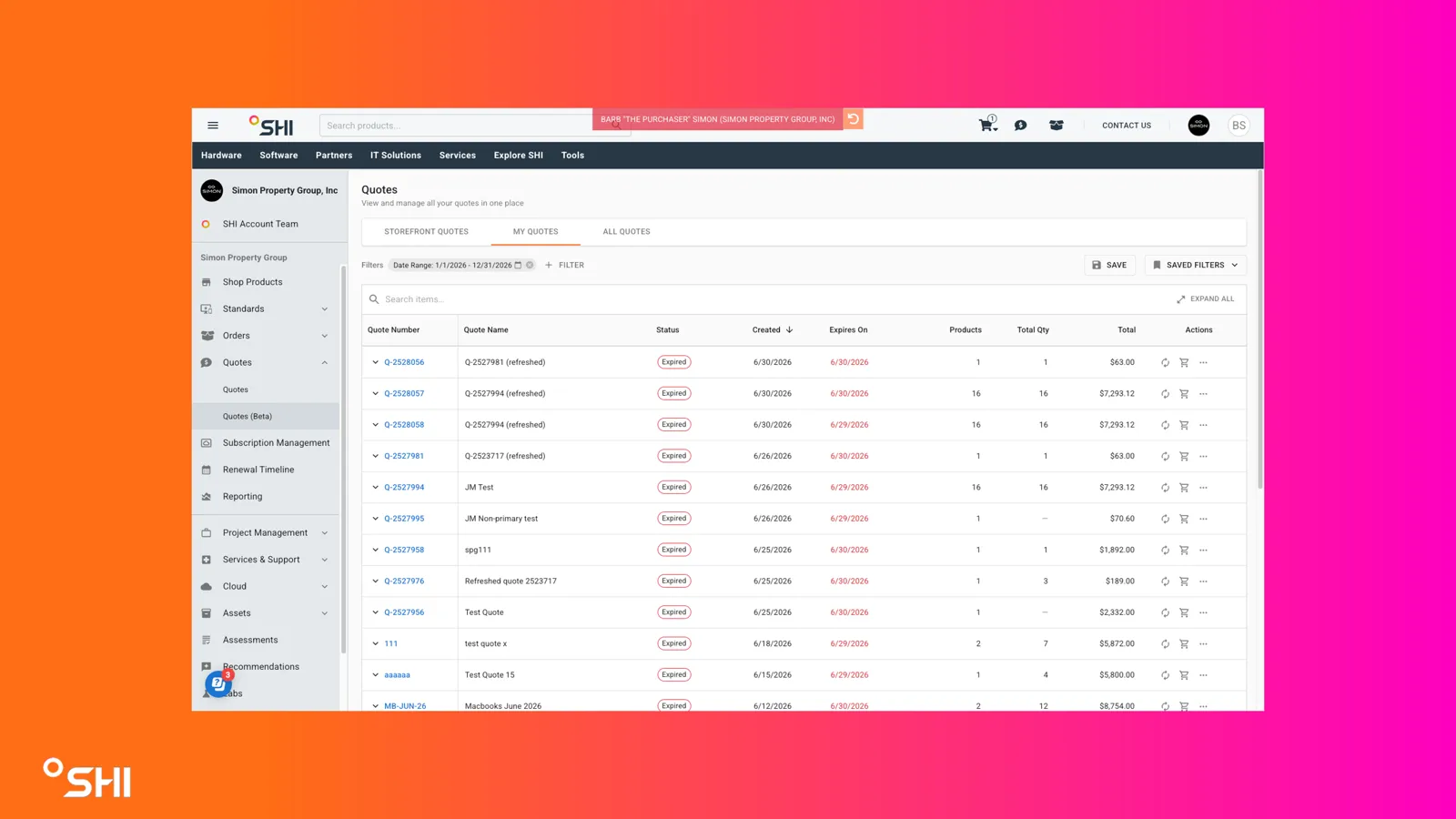
Result: The table shows quotes created by the logged-in user across storefronts the user can access. This functions as a user-level filter rather than a separate data set.
Storefront Quotes (default)
Select the Storefront Quotes view, or rely on the default view when first opening Quotes.
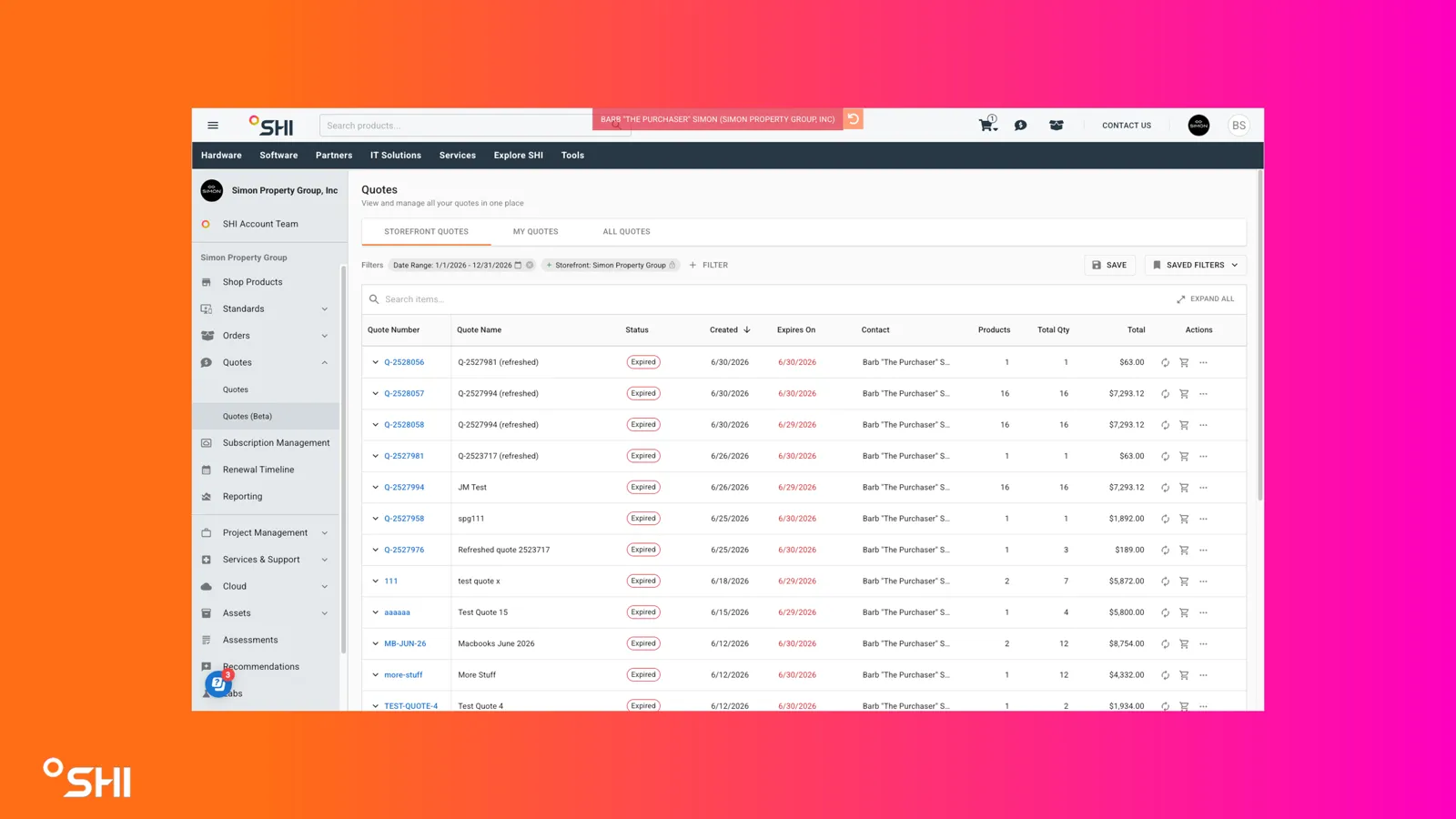
Use the Storefront filter to switch storefronts as needed. There is no "All Storefronts" option in this filter.
Result: The table shows all quotes within the selected storefront, including the user's own. All shopping actions (Add to Cart, Checkout) are fully supported.
All Quotes
If permissioned, select the All Quotes view.
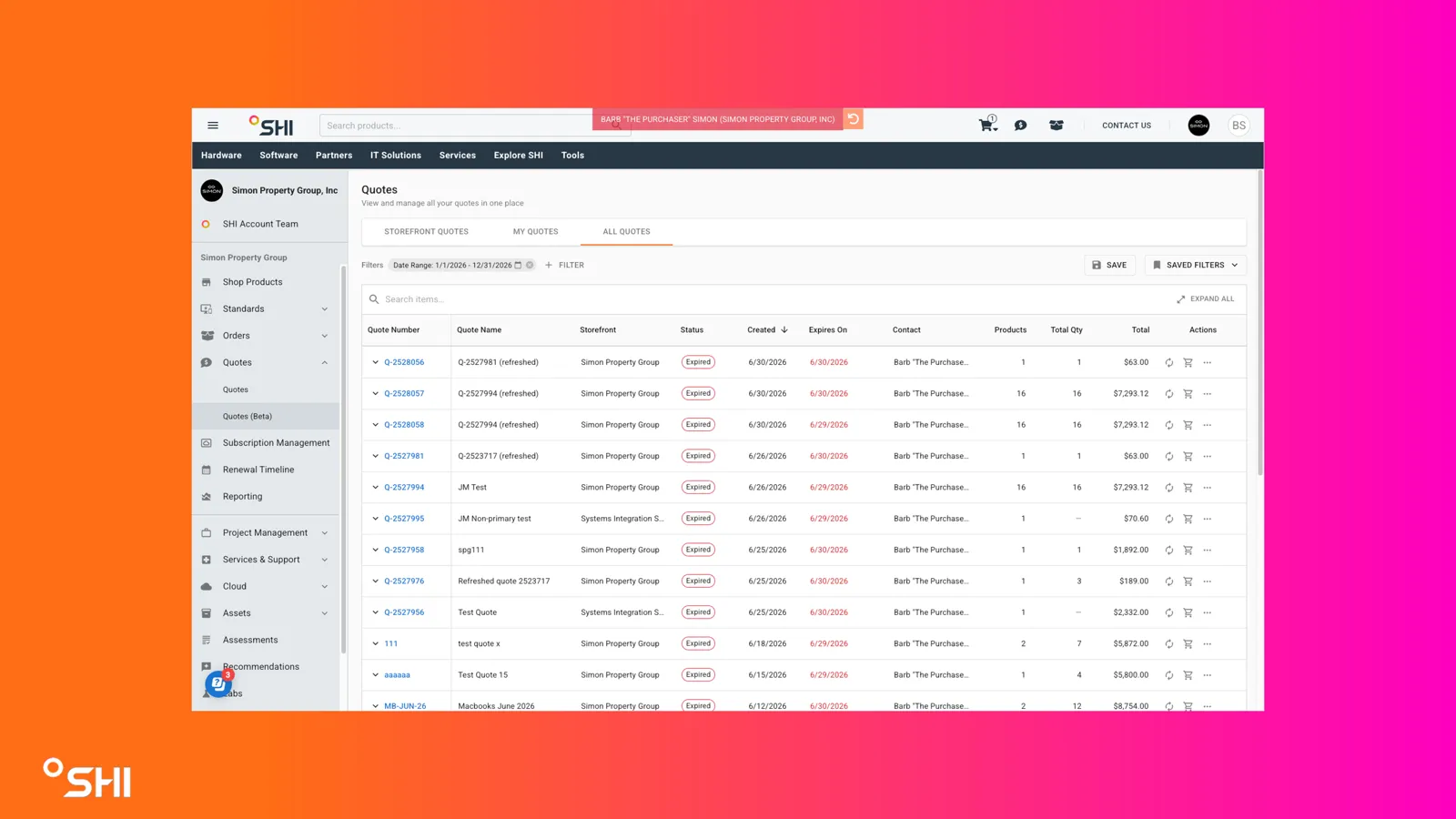
Review the additional Storefront column showing which storefront each quote belongs to.
Result: The table shows quotes across all storefronts in the tenant that the user is permitted to view. This view is intended for cross-storefront visibility and oversight.
- Performing Actions in Tenant Quotes View (MVP)
Open the Tenant Quotes view.
Attempt an Add to Cart or reorder action on a quote from another storefront.
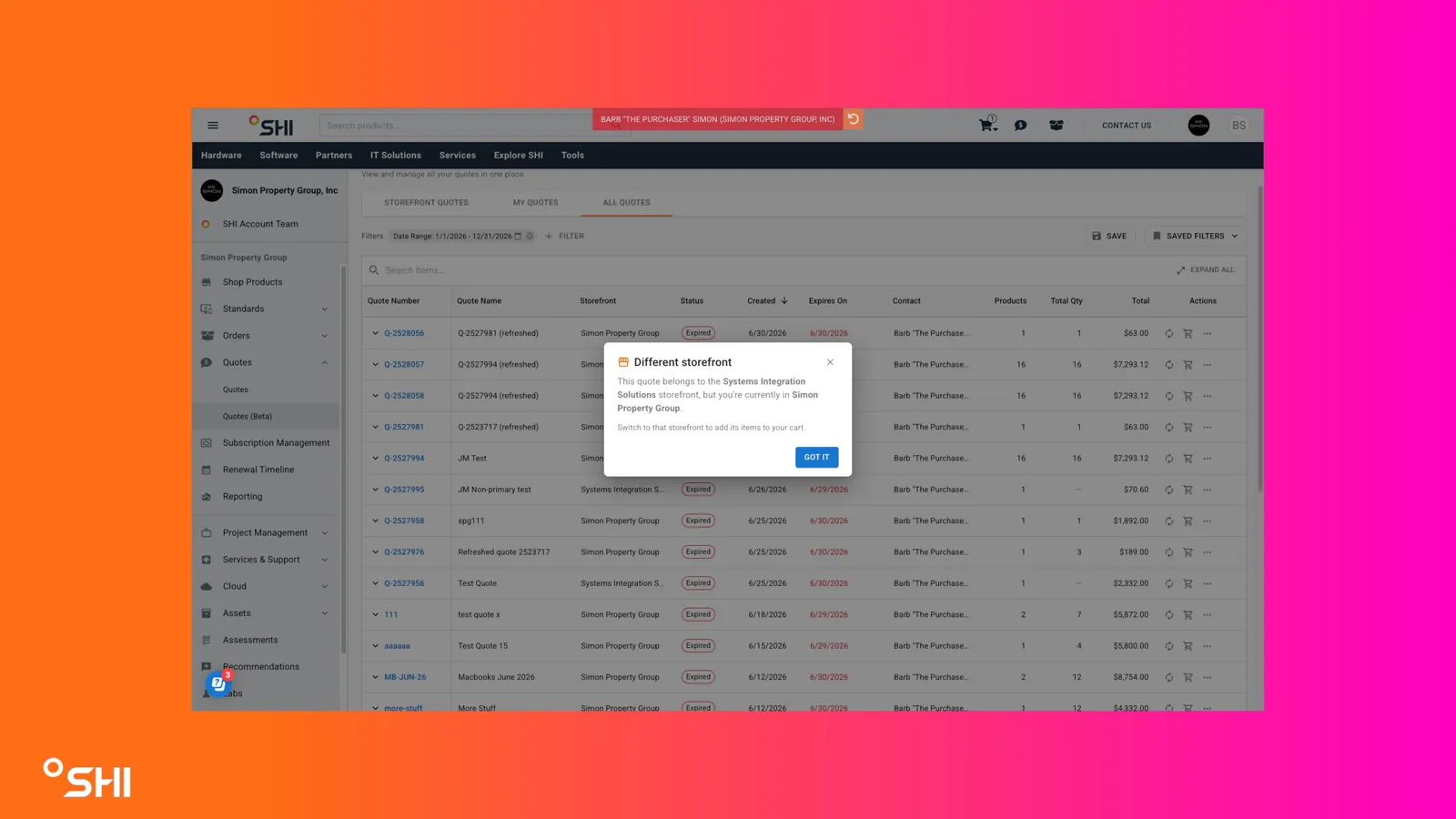
Review the message indicating:
- The quote belongs to a different storefront.
- The user must switch to that storefront to proceed, or the action is blocked.
Use Cases and Scenarios
Primary Use Cases
- A buyer needs to quickly convert an active quote into a cart and check out without navigating multiple pages.
- A procurement admin needs to review all quotes in a storefront and share an active quote with a colleague.
- A tenant-level reviewer needs cross-storefront visibility to audit quote activity across the organization.
- A buyer wants to re-use an expired quote and needs current pricing applied automatically.
- A user wants to filter to quotes expiring soon and save that filter for weekly review.
Best Practices
- Use the Storefront Quotes default view for day-to-day shopping actions; switch to Tenant Quotes only for oversight.
- Save commonly used filters (for example, "Expiring in 14 days") for quick recurring access.
- Use the Friendly Name on quotes to make them easier to identify in search and lists.
- When sharing a quote, include a short message in the Additional Comments section to give recipients context.
- For expired quotes, review the repricing message carefully before checking out to confirm acceptable pricing changes.
Troubleshooting and FAQs
Common Issues
- I do not see the Tenant Quotes view: Tenant Quotes is only visible to users with cross-storefront permissions. Contact your admin to request access.
- Add to Cart from Tenant Quotes is blocked: This is expected in MVP for items from a different storefront. Switch to the originating storefront and try again.
- Prices changed when I added an expired quote to my cart: This is expected. Eligible items in catalog or standards are repriced against current catalog pricing.
- I cannot find a quote by product name: Confirm Enhanced Search is selected and that you have permission to view the quote in question.
- Share Quote does not send to a recipient: Verify that quote and catalog permissions allow the recipient to receive the quote.
FAQs
- What is the difference between My Quotes and Storefront Quotes?
- My Quotes filters to quotes you created across storefronts you can access; Storefront Quotes shows all quotes within a single storefront, including yours.
- Why does the Contact field show different people on different quotes?
- For SHI.com created quotes the Contact is the quote creator; for quotes published from SalesCenter the Contact is the delivery contact.
- Can I edit a quote's line items directly from the Quotes page?
- You can adjust quantities via the Add to Cart confirmation dialog, which updates the cart; quote editing itself follows existing flows.
- Does deleting a quote also remove it for other users?
- Deleting a quote follows existing permissioning and removes the quote per current platform behavior.
- Does saving a filter share it with my team?
- No, these are your own saved filters.